Note
Access to this page requires authorization. You can try signing in or changing directories.
Access to this page requires authorization. You can try changing directories.
Applies to: Hyperconverged deployments of Azure Local
This article describes how to manage GPUs using Discrete Device Assignment (DDA) for Azure Local VMs enabled by Azure Arc. For GPU DDA management on Azure Kubernetes Service (AKS) enabled by Azure Arc, see Use GPUs for compute-intensive workloads.
DDA allows you to dedicate a physical graphical processing unit (GPU) to your workload. In a DDA deployment, virtualized workloads run on the native driver and typically have full access to the GPU's functionality. DDA offers the highest level of app compatibility and potential performance.
Prerequisites
Before you begin, satisfy the following prerequisites:
- Follow the setup instructions found at Prepare GPUs for Azure Local to prepare your Azure Local VMs, and to ensure that your GPUs are prepared for DDA.
Attach a GPU during Azure Local VM creation
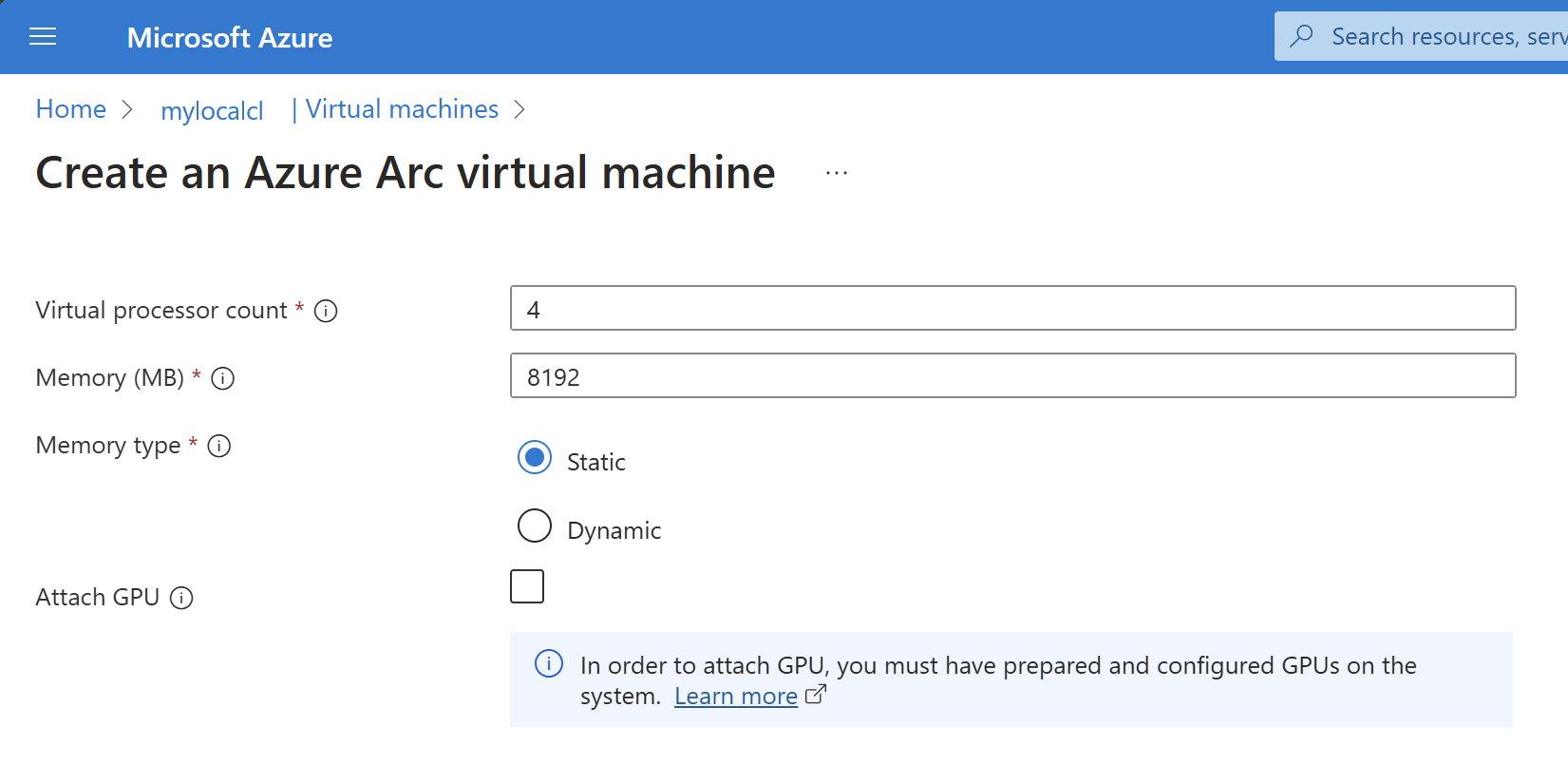
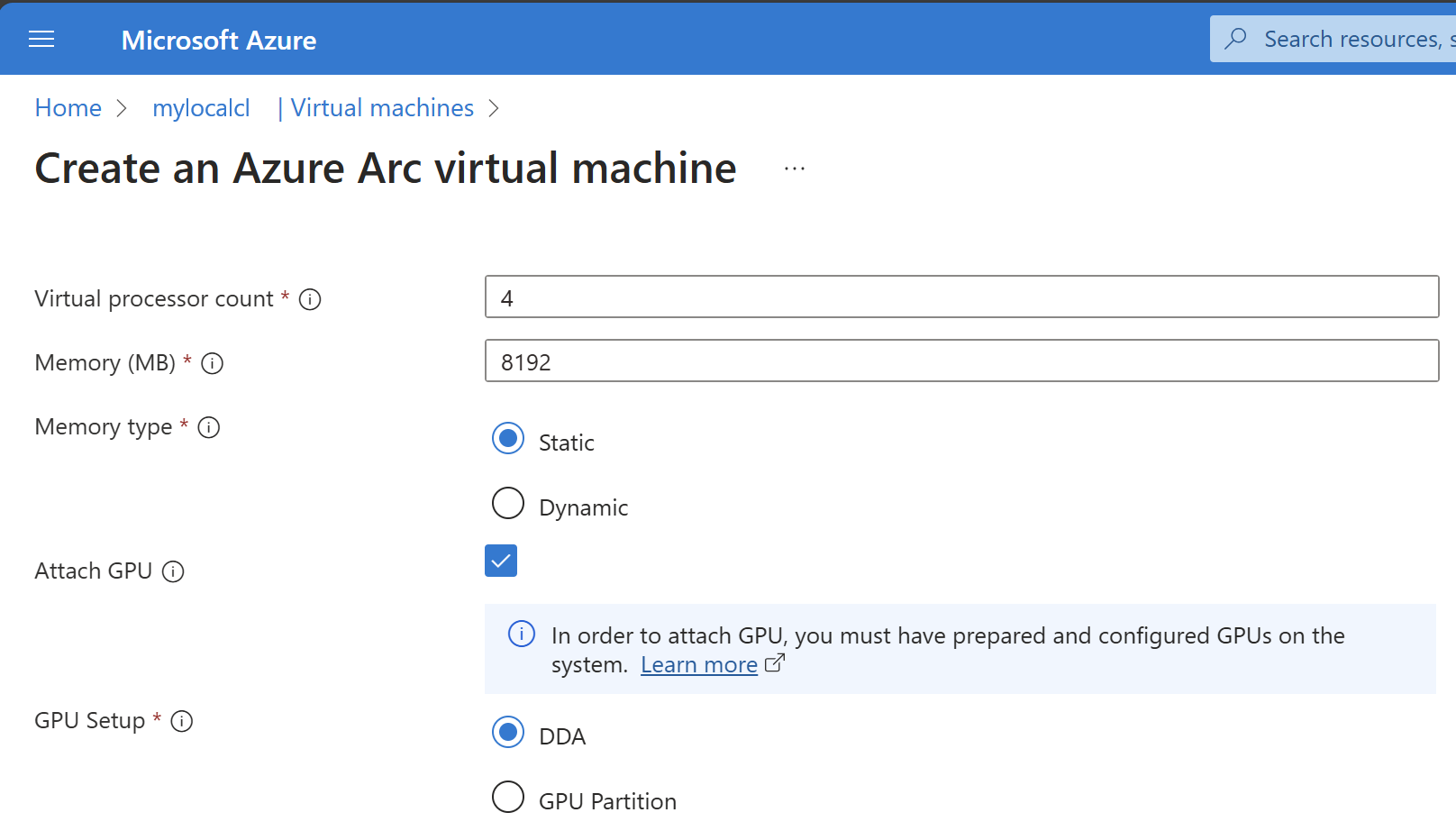
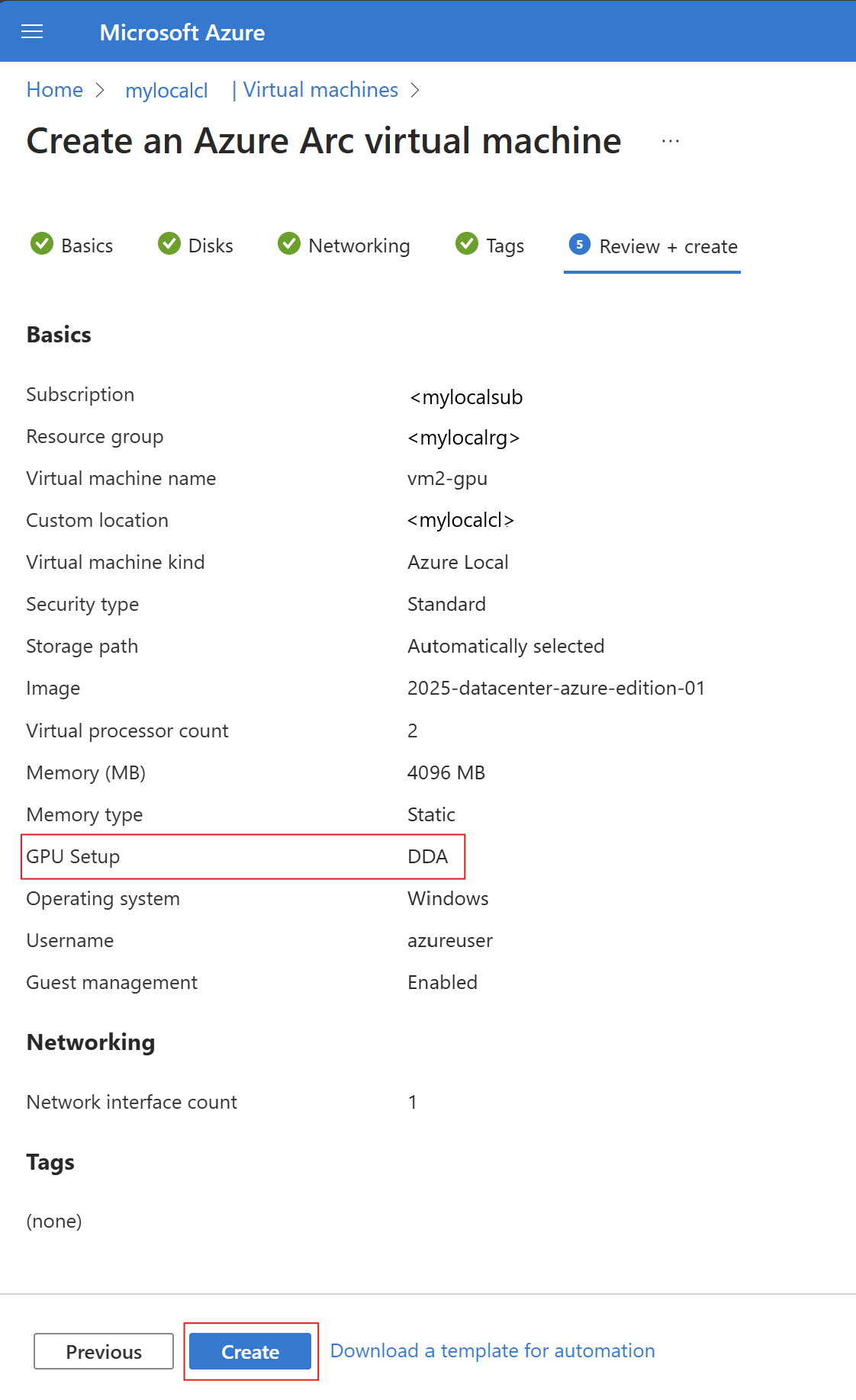
Follow the steps outlined in Create Azure Local VMs enabled by Azure Arc and utilize the additional hardware profile details to add GPU to your create process.
az stack-hci-vm create --name $vmName --resource-group $resource_group --admin-username $userName --admin-password $password --computer-name $computerName --image $imageName --location $location --authentication-type all --nics $nicName --custom-location $customLocationID --hardware-profile memory-mb="8192" processors="4" --storage-path-id $storagePathId --gpus GpuDDA
Attach a GPU after VM creation
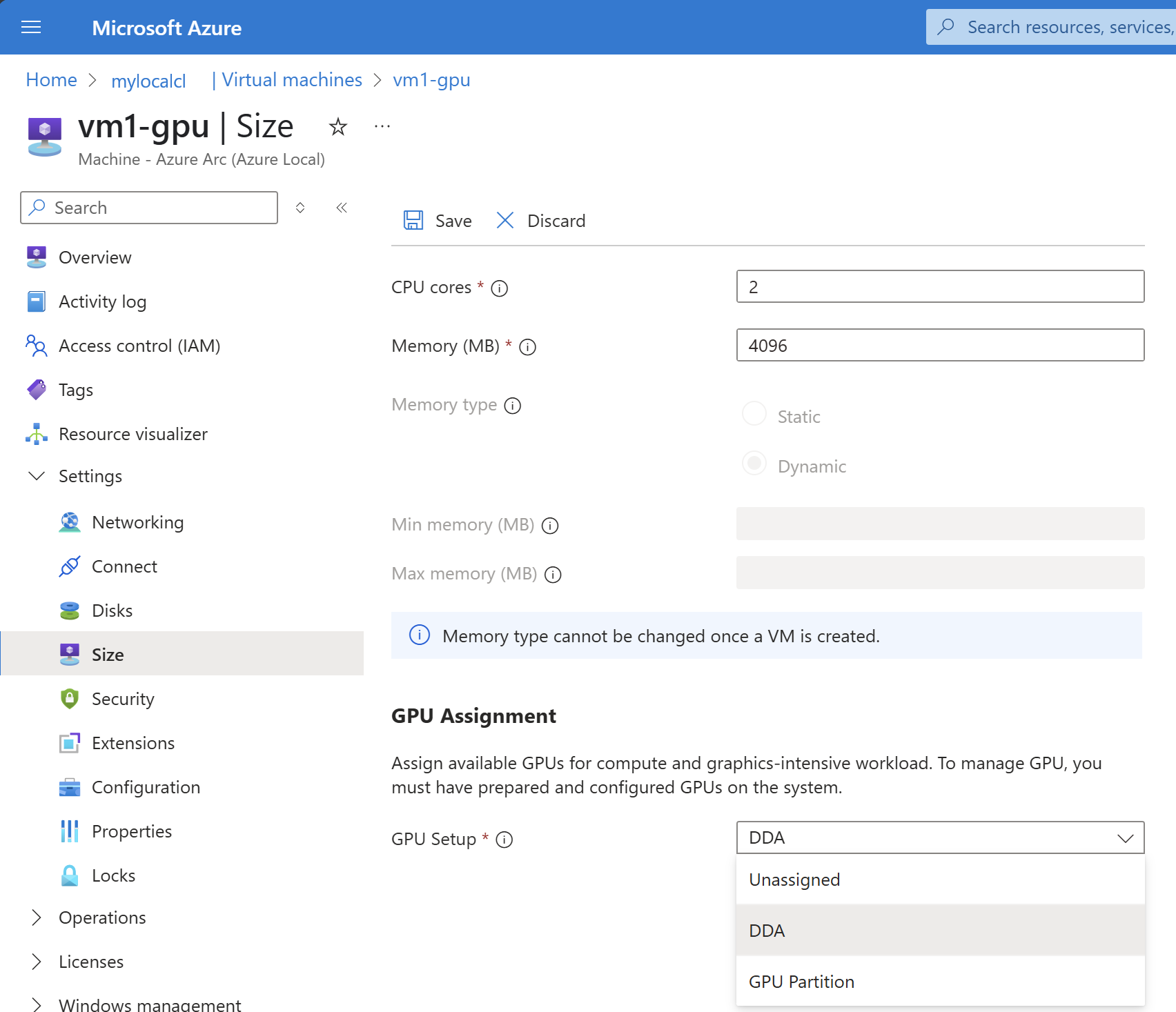
Use the following CLI command to attach the GPU:
az stack-hci-vm gpu attach --resource-group "test-rg" --custom-location "test-location" --vm-name "test-vm" --gpus GpuDDA
After attaching the GPU, the output shows the full VM details. You can confirm the GPUs were attached by reviewing the hardware profile virtualMachineGPUs section - the output looks like this:
"properties":{
    "hardwareProfile":{
        "virtualMachineGPUs":[
            {
                "assignmentType": "GpuDDA",
                "gpuName": "NVIDIA A2",
                "partitionSizeMb": null
            }
         ],
For details on the GPU attach command, see az stack-hci-vm gpu.
Detach a GPU
Use the following CLI command to detach the GPU:
az stack-hci-vm gpu detach --resource-group "test-rg" --custom-location "test-location" --vm-name "test-vm"
After detaching the GPU, the output shows the full VM details. You can confirm the GPUs were detached by reviewing the hardware profile virtualMachineGPUs section - the output looks like this:
"properties":{
    "hardwareProfile":{
        "virtualMachineGPUs":[],
For details on the GPU attach command, see az stack-hci-vm gpu.