Microsoft Teams | Development
Building, integrating, or customizing apps and workflows within Microsoft Teams using developer tools and APIs

This browser is no longer supported.
Upgrade to Microsoft Edge to take advantage of the latest features, security updates, and technical support.
' cx='32' cy='32' r='32' /%3E%3Ctext x='50%25' y='55%25' dominant-baseline='middle' text-anchor='middle' fill='%23FFF' %3EJG%3C/text%3E%3C/svg%3E)
I recently upgraded my MacBook Pro. I have the latest version of Teams installed. I am using external speakers
When I join a meeting my microphone and speaker volume are on mute. There is a little speaker icon with an X next to it. When I press the speaker icon, I get a pop menu that says Turn audio on ?
I then enter the meeting with the mic on and audio on. It's very disrupting.
How do I disable this. I want to join a meeting, with speaker volume on and my mic muted.
thanks
Building, integrating, or customizing apps and workflows within Microsoft Teams using developer tools and APIs
Additional features, settings, or issues not covered by specific Microsoft Teams categories
Locked Question. You can vote on whether it's helpful, but you can't add comments or replies or follow the question.
' cx='32' cy='32' r='32' /%3E%3Ctext x='50%25' y='55%25' dominant-baseline='middle' text-anchor='middle' fill='%23FFF' %3EJM%3C/text%3E%3C/svg%3E)
Do you mean you want to mute your microphone when you join Teams meeting?
Before you join Teams meeting, it will pop up the following windows, you could select this icon to mute your microphone.
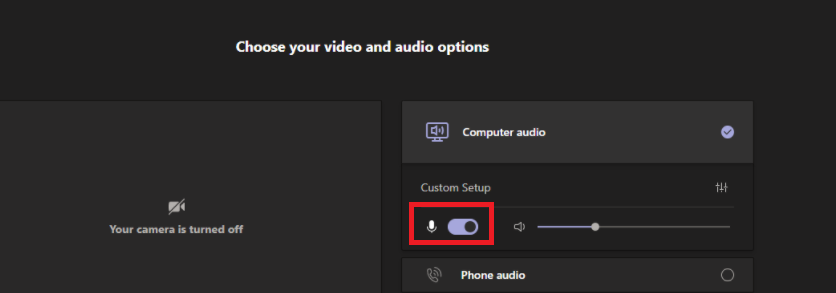
No, Mute of the mic is not the issue. My sound and mic are muted
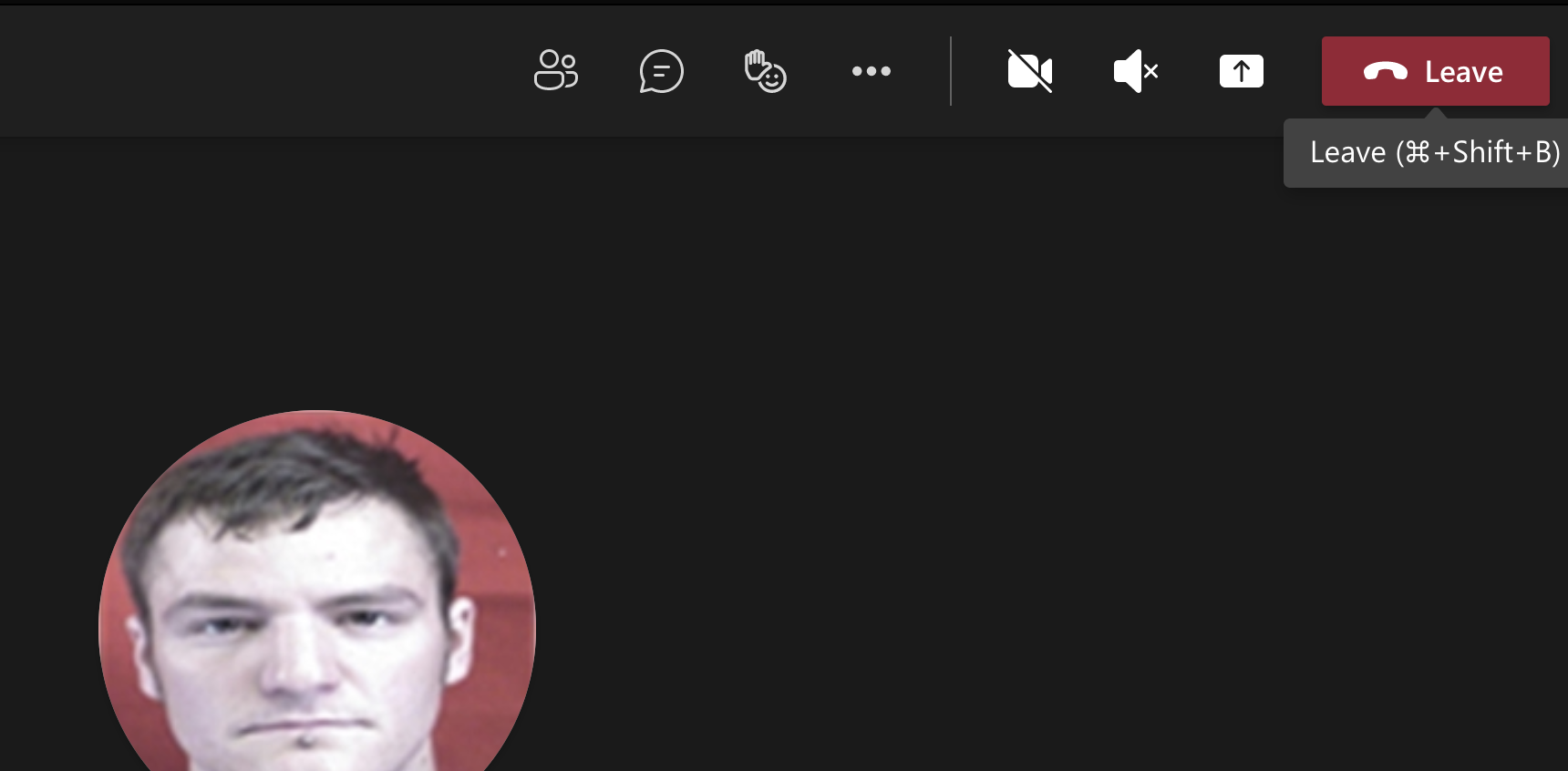
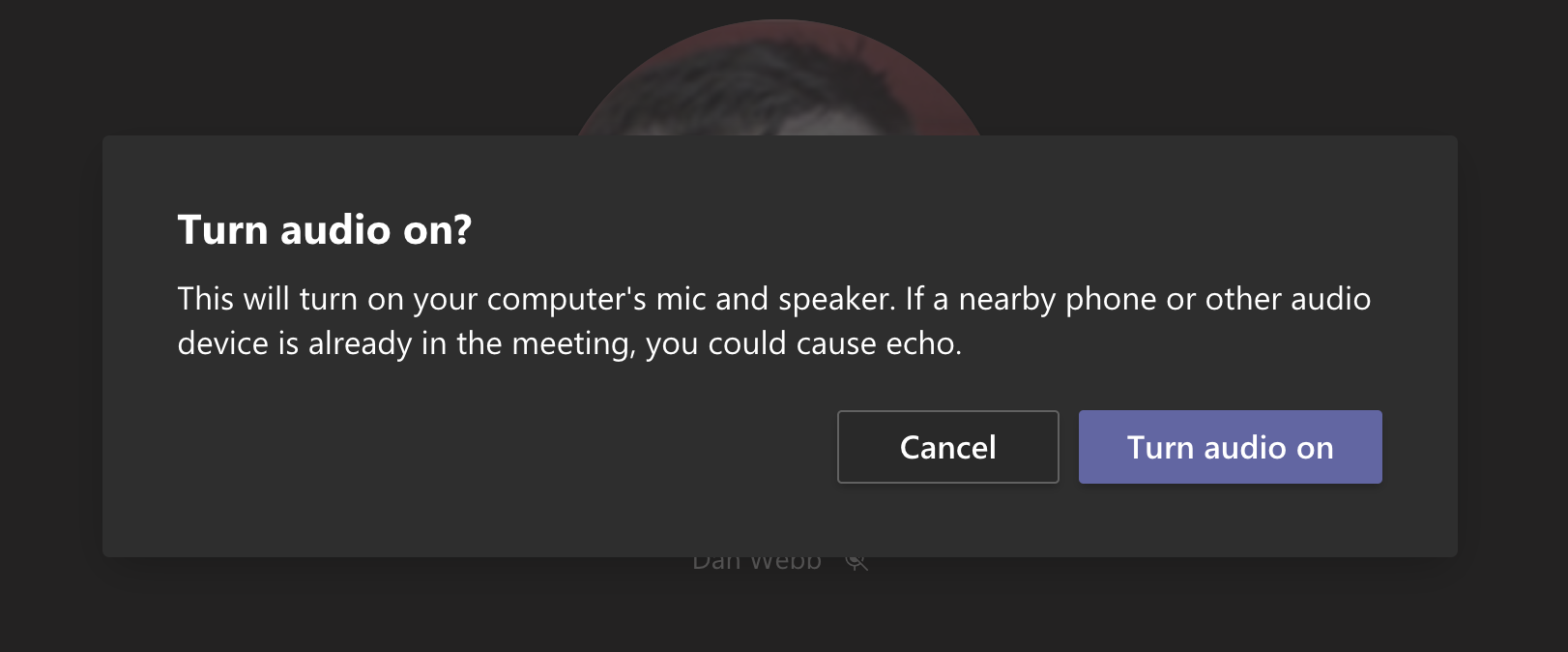
If you notice the second screen shot, I have to turn my Audio on as I enter all meetings. This is what I what to change. If I am joining a large meeting I come in with my mic on and it disrupts the entire meeting
This is the symbol I am referring to. What setting will change my audio to ON

' cx='32' cy='32' r='32' /%3E%3Ctext x='50%25' y='55%25' dominant-baseline='middle' text-anchor='middle' fill='%23FFF' %3EJC%3C/text%3E%3C/svg%3E)
When you join a meeting with 5+ attendees already in the meeting, you will join muted by default - this is done to protect meetings from having background noise when they have already started.
Thanks, but that is not the issue. That is how Teams is supposed to work. My speaker volume is muted along with my microphone. When I press on the speaker icon with the X next to it I get that pop up window that confirms that I want to turn my audio on.
When I do that, I come into the meeting with my speaker on and my Mic on.
How do I join a meeting with my speaker volume ON
I will do a test in our environment and will update it if there is any new result.
Sorry for the delay response!
Are you using the mic in your device itself or the microphone from headphone?
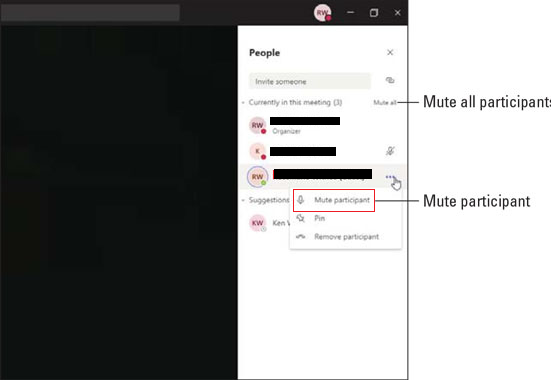
I did a test in my environment but we did not find the speaker icon with the X next to it. As a workaround, you could click your profile and mute yourself from this place. It will not affect the speaker.
It has been a while, how is everything going?
If you have any update about this issue, please feel free to post back.
' cx='32' cy='32' r='32' /%3E%3Ctext x='50%25' y='55%25' dominant-baseline='middle' text-anchor='middle' fill='%23FFF' %3EA%3C/text%3E%3C/svg%3E)
I'm experiencing this very same issue since a couple of weeks. No matter which Teams meeting I'm joining and even if there is only one other participant; no audio from my speakers and my mic is muted. I see the same "cancelled speaker" icon as @Jared Goldman posted above.
Really annoying and can't seem to find a setting which disables this... feature?
' cx='32' cy='32' r='32' /%3E%3Ctext x='50%25' y='55%25' dominant-baseline='middle' text-anchor='middle' fill='%23FFF' %3EMW%3C/text%3E%3C/svg%3E)
This is exacty what mine does, too--exactly as JaredGoldman-5544 showed in the screenshots. This is very annoying and adds too many extra steps when this tool is supposed to add convenience. It does this for calls that I created on my own calendar and when only one other person was invited (and hasn't even joined yet!).
' cx='32' cy='32' r='32' /%3E%3Ctext x='50%25' y='55%25' dominant-baseline='middle' text-anchor='middle' fill='%23FFF' %3EMJ%3C/text%3E%3C/svg%3E)
Hi, I have the same issue and it is very disruptive given I have many calls in a day and it delays me joining having to do 3 clicks.
Does anyone know how to have audio come on as a default
' cx='32' cy='32' r='32' /%3E%3Ctext x='50%25' y='55%25' dominant-baseline='middle' text-anchor='middle' fill='%23FFF' %3EEH%3C/text%3E%3C/svg%3E)
I am having the same problem: the speaker is muted when I joint a Teams meeting, regardless of who created the meeting or how many people have joined. This did not used to me the case, so some setting has changed. Any solutions for how to change it back?
I get the same thing. This is different than coming in muted. it is the entire audio and speakers are not enabled and have to be turned on each time. how do i have the audio enabled automatically? I don't mind being muted when there are multiple people there already. that makes sense. but completely disabled audio is not helpful.
the solution offered by michelefacco-3225 worked for me! Once I selected 'Use Computer Audio' prior to joining a meeting, it remembered that preference and now joins properly every time.
of course, sometimes a meeting owner will set preferences so that attendees are muted automatically upon joining, but that is fine.
' cx='32' cy='32' r='32' /%3E%3Ctext x='50%25' y='55%25' dominant-baseline='middle' text-anchor='middle' fill='%23FFF' %3EMZ%3C/text%3E%3C/svg%3E)
I have this bug too. I'm using a Logitech USB headset and when I join a meeting, the speaker and mic are off. I get joining with the mic off by default, but why is the SPEAKER off by default?
This is a new issue that was not happening before November 2021.
' cx='32' cy='32' r='32' /%3E%3Ctext x='50%25' y='55%25' dominant-baseline='middle' text-anchor='middle' fill='%23FFF' %3EBN%3C/text%3E%3C/svg%3E)
I had the same issue, seeing the same speaker icon with x.
There is a dialog before that (see JimmyWang's answer below). There you need to tick "Computer audio" as it is whown in his screenshot.
' cx='32' cy='32' r='32' /%3E%3Ctext x='50%25' y='55%25' dominant-baseline='middle' text-anchor='middle' fill='%23FFF' %3ETE%3C/text%3E%3C/svg%3E)
I've started seeing this same issue this past week. Expect that I can join meetings just fine, but when I join a breakout room, my speaker audio is muted. Note, I'm a meeting admin, so can move around breakout rooms. If I join the breakout room from the meeting interface (using Join Breakout room), this is when I see my speaker audio disabled, even if my video is on and my mike is not muted. The most frustrating part of this experience is that there is no indication on the Teams interface that the speaker is muted. The video shows on and the microphone is on, but no sign that the speaker is muted except that I can hear anything. I finally discovered that if I click the microphone once and mute it, and then I unmute the microphone, then I finally see the image showing the speaker as muted.
When I join the breakout room from the breakout room chat session, I enter as normal, with no problems.
This started to occur after successfully using MS Teams breakout rooms most of last week.
Microsoft - why are you silent on this issue?
I have the same condition with Tom Evans. We just setup a test meeting with our team using break out rooms. We made everyone admin and gave everyone the ability to jump back and forth between rooms. When we are in the main room every ones speakers work just fine, however when going into a break out room the microphone for everyone works but the speakers are muted/turned off. What we had to do was go into device settings in the room and next to the speaker icon unclick the muted symbol which turned on the speakers. However everyone in the room has to do this including the room admin.
So main room no problems for the entire team.
Breakout room, microphones work but speakers are muted.
I need a fix for this.
Hi Michael - thanks so much for all of the investigative work on this. Did you have to change the device setting each time you entered a breakout room, or were you able to change the device setting one time in the breakout room and it persisted for a breakout room throughout the session?
' cx='32' cy='32' r='32' /%3E%3Ctext x='50%25' y='55%25' dominant-baseline='middle' text-anchor='middle' fill='%23FFF' %3EJW%3C/text%3E%3C/svg%3E)
When I join a meeting my microphone and speaker volume are on mute. This is new. It is not useful to hear NOTHING. I understand being muted but not having the speaker off. How do I change this default setting?
Thanks
' cx='32' cy='32' r='32' /%3E%3Ctext x='50%25' y='55%25' dominant-baseline='middle' text-anchor='middle' fill='%23FFF' %3EJC%3C/text%3E%3C/svg%3E)
I had the exact same issue, with the microphone/speaker with an "X" through it...
The problem was I didn't realize the options on the screen are radio buttons. They are just on the right side instead of the left, so it is a bit confusing.
You need to select the "Computer audio" the radio button option. Then you can set the micro phone and speaker values.
' cx='32' cy='32' r='32' /%3E%3Ctext x='50%25' y='55%25' dominant-baseline='middle' text-anchor='middle' fill='%23FFF' %3ESJ%3C/text%3E%3C/svg%3E)
Catherine's tip helped solve this for me!
' cx='32' cy='32' r='32' /%3E%3Ctext x='50%25' y='55%25' dominant-baseline='middle' text-anchor='middle' fill='%23FFF' %3EBF%3C/text%3E%3C/svg%3E)
Hi - same issue, using a Mac. A few weeks ago a change was made to teams to Disable Audio (both Mike and speakers) until you click enable Audio. I need to do that for every meeting. Its not about muting when joining the meeting, which is Ok. Its having to re-enable audio every time.
Please have it work like it did before.
Friedrich
Hi! When you first start to login make sure it's on "Computer Audio." My default had changed and was causing the no audio issue. But now that I've changed the selection it joins properly (with sound on) each time.
' cx='32' cy='32' r='32' /%3E%3Ctext x='50%25' y='55%25' dominant-baseline='middle' text-anchor='middle' fill='%23FFF' %3EGS%3C/text%3E%3C/svg%3E)
I have exactly the same issue, no audio or mike when joining a meeting, I have to unmute and then click a 2nd dialogue box "Turn Audio On"
' cx='32' cy='32' r='32' /%3E%3Ctext x='50%25' y='55%25' dominant-baseline='middle' text-anchor='middle' fill='%23FFF' %3ERT%3C/text%3E%3C/svg%3E)
Feels like this happens every time Teams requires an Update, which is pretty lame. I've seen this issue for quite a while and looks like Microsoft still hasn't done anything about it. It is pretty bad when you join a meeting with the Speaker audio muted because you can't tell if the meeting hasn't started yet/nobody is talking! Apparently, you're the only one unable to hear everyone. I really hope Microsoft does something about this. Similar issue on Teams when it requires an Update, copy/paste paste feature does not work. You have no choice to type everything from scratch which is pretty lame.
' cx='32' cy='32' r='32' /%3E%3Ctext x='50%25' y='55%25' dominant-baseline='middle' text-anchor='middle' fill='%23FFF' %3EJS%3C/text%3E%3C/svg%3E)
That “Turn audio on?” prompt usually means your meeting join state is set to an audio-off option (so Teams treats it as “join muted”), which matches Microsoft’s description that if you choose “Don’t use audio” you’ll “join the meeting muted.” To join with speakers on (computer audio) but your mic muted, use the pre-join controls instead of turning audio on after you enter.
On the pre-join screen, “select your audio source” and ensure it’s “Computer audio” (not “Don’t use audio”), then mute only your mic before joining by using “select Mic … to mute yourself.” This results in “speakers on, mic off” at join time without needing the “Turn audio on?” confirmation.
If Teams keeps defaulting to the wrong device after your Mac upgrade, set your external speakers explicitly in Teams: go to “Settings … > Settings > Devices” and pick the correct “Speaker” and “Microphone” (and optionally “Make a test call” to confirm). If your org manages Teams, note Microsoft’s caveat that “some audio settings may be unavailable depending on policies set by meeting organizers or your IT admin,” in which case IT should review the tenant’s “meeting policy settings for audio & video.”
' cx='32' cy='32' r='32' /%3E%3Ctext x='50%25' y='55%25' dominant-baseline='middle' text-anchor='middle' fill='%23FFF' %3E5C%3C/text%3E%3C/svg%3E)
After a company-wide migration to Windows 11 this exact problem happened to me as well. Looks like the first call you join after the migration will display the Audio options and you won't see them ever again afterwards. Could be settings or cache migrated incorrectly.
I know it is shown the 1st time because I migrated my laptop while I was participating to a workshop. Figured out I don't need the laptop that much while in person so I triggered the update. When migration was over, decided to join the workshop meeting to track the chat and whiteboard. I remember I selected "No Audio" to avoid echo and audio loopback.
In most cases the first call you do you want audio and that saves your day. All respect to Microsoft but this is clearly missed.