Note
Access to this page requires authorization. You can try signing in or changing directories.
Access to this page requires authorization. You can try changing directories.
Adoption Score provides insights into your organization's digital transformation journey through its use of Microsoft 365 and the technology experiences that support it. Your organization's score reflects technology experience measurements and can be compared to benchmarks from organizations similar to yours. To learn more, check out the Adoption Score overview and read Microsoft's Privacy Statement.
Prerequisites
To get started with teamwork insights, users in your organization need to be licensed for:
- Microsoft Teams.
- SharePoint.
- Exchange Online.
For more information, see assign licenses to users.
When users are active in these products at least once in the last 28 days, you start to see the insights.
Why your org's teamwork score matters
A fundamental pillar for organizational productivity is when a group of users with a common goal work with each other and with common resources for collective success. Research indicates that when users share information and collaborate in shared workspaces, they save up to 4 hours a week. They can find related documents, find context for previous discussions, and deliver towards shared goals. See the evidence
How the teamwork score is calculated
Primary insight in the experience that contains the key metrics for this category in your organization is provided. Then a scoring framework is used for these metrics to calculate your organization's score.
Primary insight
The primary insight looks at:
- All the users who are communicating using email and messages on Microsoft Teams.
- Interacting with content on the cloud in shared workspaces.
Within Microsoft 365, Microsoft 365 Groups are the foundation for users to come together in a shared workspace with the ability to send emails to the group mailbox, share files on the SharePoint team site, and send channel messages through Microsoft Teams.
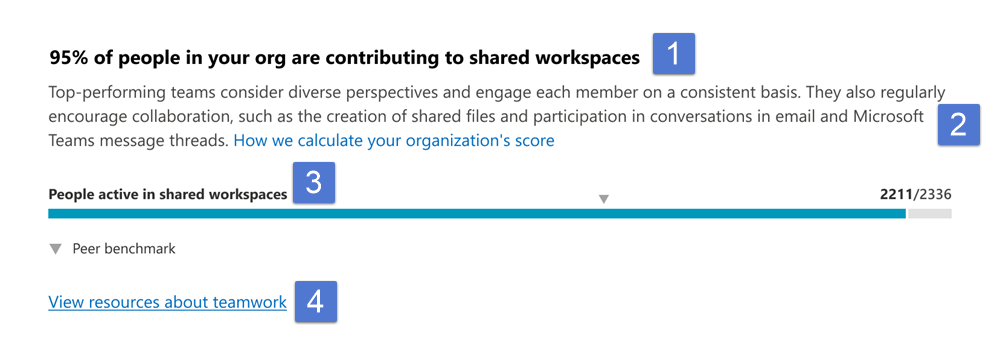
Header: Provides the key metric of users in your org performing any one the following activities:
- Sending email to a group mailbox through Exchange.
- Sending channel messages through Teams.
- Reading and creating content (what we collectively refer to as content interaction) in SharePoint team sites.
As a percentage of all users in your org who are performing any of the following activities (within or outside of shared workspaces):
- Sending email through Exchange.
- Sending messages (chat or channel messages) on Microsoft Teams.
- Reading and creating content on OneDrive or SharePoint.
And have access to at least one of the following services:
- Exchange.
- Microsoft Teams.
- SharePoint.
Body: Provides more information on how communicating and interacting with content, when done within a shared workspace, can have positive outcomes for productivity in your organization.
Visualization (current state):
Horizontal bar where the blue portion represents the percentage expressed in the header.
Highlights the fraction (numerator/denominator) used for computing the percentage shown in the header.
Numerator: The number of users in your organization who send email to a group mailbox through Exchange, OR who are sending channel messages through Teams, OR reading and creating content in SharePoint team sites.
Denominator: The number of users in your org who send emails through Exchange, OR send messages (chat or channel messages) on Microsoft Teams, OR read and create content on OneDrive or SharePoint, AND have access to at least one of the following services: Exchange, Microsoft Teams, or SharePoint.
The peer benchmark value of the key metric is also shown as a percentage.
View resources about teamwork: To view help content, select this link.
Trend visualization of the primary insight
The following chart provides the trend of the numerator and the denominator of the key metric in the primary insight. It shows the number of users engaged in shared workspaces, and the number of users communicating or interacting with content within the last 180 days. Each data point on the line chart is an aggregate of activity for the last 28 days.

Scoring framework
The teamwork score for your organization measures at an aggregate (organizational) level whether users are consistently communicating or engaging in file activity in shared workspaces within the last 28 days.
Scores aren't provided at the individual user level.
Explore more about teamwork in your organization
We also provide additional information about how users in your organization work together. These additional metrics don't directly contribute to your Adoption Score, but are relevant in helping you create an action plan as part of your digital transformation.
Breakdown of how users engage in shared workspaces

Header: Shows a detailed breakdown across the different types of teamwork being measured.
Body: Provides information on the value of working in shared workspaces to help teams be more effective.
Visualization: The visualization shows the extent to which users who are communicating or interacting with content are doing so in shared workspaces, as follows:
Sending email: The colored portion and the fraction represent the percentage of users sending email to group mailboxes. The fraction is composed of:
- Numerator: users sending emails to group mailboxes in the last 28 days.
- Denominator: users sending emails in the last 28 days. These users are the same group of users who are marked as sending email in the primary insight of communication Adoption Score.
Sending messages: The colored portion and the fraction represent the percentage of users sending messages in channels in Microsoft Teams. The fraction is composed of:
- Numerator: users sending channel messages within the last 28 days.
- Denominator: users sending chat or channel messages in the last 28 days. These users are the same group of users who are marked as sending messages in Microsoft Teams in the primary insight of the communication category in Adoption Score.
Creating content: The colored portion and the fraction represent the percentage of users reading or creating content on Microsoft 365 SharePoint team sites.
- Numerator: Number of users reading or creating content on Microsoft 365 group connected team sites.
- Denominator: Number of users with access to SharePoint, who read or created content of any kind in OneDrive or SharePoint sites in the last 28 days.
View related content: To view help content, select this link.
Breakdown of workspace engagement by size and age

Header: Categorizes engagement by workspace size, based on member count, and workspace age in months.
Body: Provides information about the value of encouraging users in your organization to keep only the workspaces that are needed to promote more effective teamwork.
Visualization: The engagement breakdown is shown in the form of a heat-map across two dimensions.
Size of workspace: Workspaces are broken down into three categories based on the number of members: 2-10 users, 11-100 users, and over 100 users. The All category includes all size categories.
Age of workspace: Categorizes workspaces by the number of months since they were first created. The All category includes all age categories.
Each cell in the chart has a number and color based on the percentage of engaged workspaces that belong in that category. The workspace categories are based on the age and size shown in the intersection of that cell. For example, if the cell at the intersection of 11-100 users and 4-12 months has a value of 52%, it means that 52% of the workspaces with 11-100 members that are between 4-12 months old, have some form of engagement. The percentage is calculated as:
- Numerator: Workspaces that have engagement in the form of communication (email and channel messages) or content interaction in the last 28 days.
- Denominator: All workspaces that are available in your org for the last 28 days.
View related content: To view help content, select this link.
Breakdown of workspaces by level of engagement
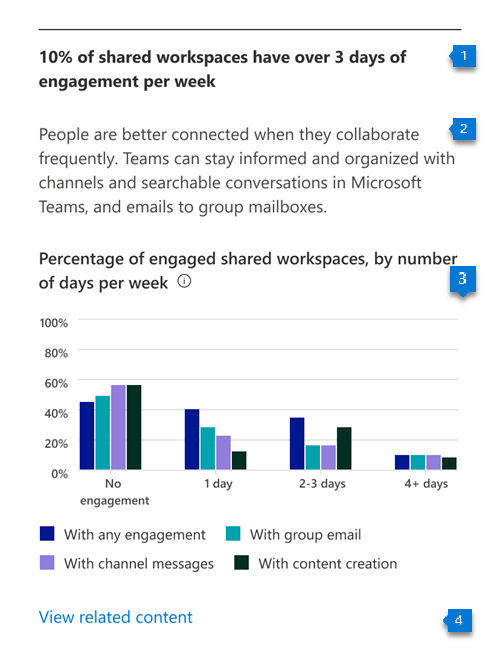
Header: Provides a breakdown of workspaces broken out by level of engagement, using group email, channel messages, and content interaction.
Body: Provides information on the value of consistent engagement in the shared workspaces to help make them more effective at teamwork.
Visualization: Provides a view of the workspaces in your organization based on the intensity of engagement per week. The view includes distributions for different activity types measured within teamwork, in addition to any engagement, which covers the following categories:
Group email: Percent of workspaces that have no days/1 day/2-3 days/4+ days of group email activity per week over the last 28 days.
Channel messages: Percent of workspaces that have no days/1 day/2-3 days/4+ days of channel messages per week over the last 28 days.
Content reading or creation: Percent of workspaces that have no days/1 day/2-3 days/4+ days of reading or creating content per week over the last 28 days.
View related content: To view help content, select this link.
Use of teams within Microsoft Teams

Header: Shows the number of shared workspaces that have a Microsoft Teams team associated with them.
Body: Provides information about the value of having a Microsoft Teams team attached to the shared workspaces, to help make users associate with them more effective at teamwork.
Visualization: The colored part of the donut chart reflects the percentage of workspaces that have a Microsoft Teams team attached to them. The percentage is calculated as follows:
Numerator: The number of shared workspaces in your organization that had a Microsoft Teams team associated with them in the last 28 days.
Denominator: The number of shared workspaces in your org in the last 28 days.
The number in the center of the donut chart represents the total number of shared workspaces that have a Microsoft Teams team associated with them.
View related content: To view help content, select this link.
View teamwork trends over time
For each of the insights in this article, you can see how the metrics trend over time by selecting an option from the Data View dropdown menu.
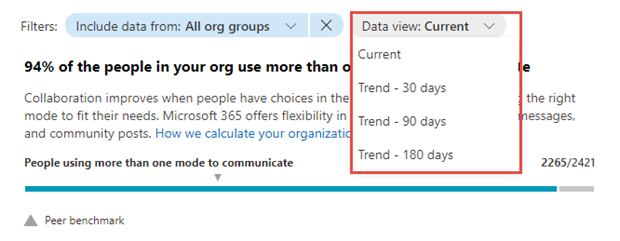
After you select an option, the charts in the report will update to show a trend over time rather than a snapshot of the past month.