Note
Access to this page requires authorization. You can try signing in or changing directories.
Access to this page requires authorization. You can try changing directories.
This article describes the steps you need to perform in both AWS IAM Identity Center (successor to AWS single sign-on) and Microsoft Entra ID to configure automatic user provisioning. When configured, Microsoft Entra ID automatically provisions and de-provisions users and groups to AWS IAM Identity Center using the Microsoft Entra provisioning service. For important details on what this service does, how it works, and frequently asked questions, see Automate user provisioning and deprovisioning to SaaS applications with Microsoft Entra ID.
Capabilities Supported
- Create users in AWS IAM Identity Center
- Remove users in AWS IAM Identity Center when they no longer require access
- Keep user attributes synchronized between Microsoft Entra ID and AWS IAM Identity Center
- Provision groups and group memberships in AWS IAM Identity Center
- aws singlesign-on document to AWS IAM Identity Center
- Long lived bearer token authentication supported.
Prerequisites
The scenario outlined in this article assumes that you already have the following prerequisites:
- A Microsoft Entra user account with an active subscription. If you don't already have one, you can Create an account for free.
- One of the following roles:
- A SAML connection from your Microsoft Entra account to AWS IAM Identity Center, as described in Tutorial
Step 1: Plan your provisioning deployment
- Learn about how the provisioning service works.
- Determine who is in scope for provisioning.
- Determine what data to map between Microsoft Entra ID and AWS IAM Identity Center.
Step 2: Configure AWS IAM Identity Center to support provisioning with Microsoft Entra ID
Open the AWS IAM Identity Center.
Choose Settings in the left navigation pane
In Settings, select Enable in the Automatic provisioning section.

In the Inbound automatic provisioning dialog box, copy and save the SCIM endpoint and Access Token (visible after selecting Show Token). These values are entered in the Tenant URL and Secret Token field in the Provisioning tab of your AWS IAM Identity Center application.

Step 3: Add AWS IAM Identity Center from the Microsoft Entra application gallery
Add AWS IAM Identity Center from the Microsoft Entra application gallery to start managing provisioning to AWS IAM Identity Center. If you have previously setup AWS IAM Identity Center for SSO, you can use the same application. Learn more about adding an application from the gallery here.
Step 4: Define who is in scope for provisioning
The Microsoft Entra provisioning service allows you to scope who is provisioned based on assignment to the application, or based on attributes of the user or group. If you choose to scope who is provisioned to your app based on assignment, you can use the steps to assign users and groups to the application. If you choose to scope who is provisioned based solely on attributes of the user or group, you can use a scoping filter.
Start small. Test with a small set of users and groups before rolling out to everyone. When scope for provisioning is set to assigned users and groups, you can control this by assigning one or two users or groups to the app. When scope is set to all users and groups, you can specify an attribute based scoping filter.
If you need extra roles, you can update the application manifest to add new roles.
Step 5: Configure automatic user provisioning to AWS IAM Identity Center (successor to AWS single sign-on)
This section guides you through the steps to configure the Microsoft Entra provisioning service to create, update, and disable users and/or groups in AWS IAM Identity Center (successor to AWS single sign-on) based on user and/or group assignments in Microsoft Entra ID.
To configure automatic user provisioning for AWS IAM Identity Center (successor to AWS single sign-on) in Microsoft Entra ID:
Sign in to the Microsoft Entra admin center as at least an app owner or Cloud Application Administrator.
Browse to Entra ID > Enterprise apps
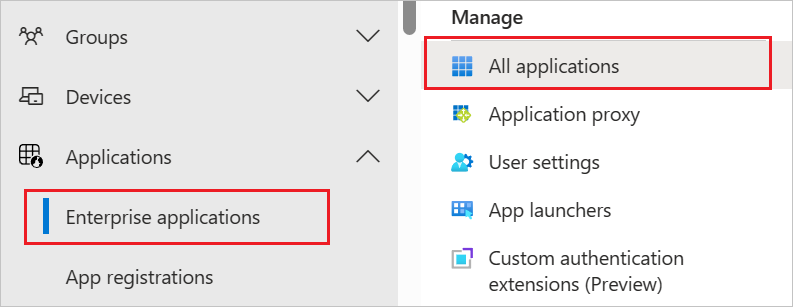
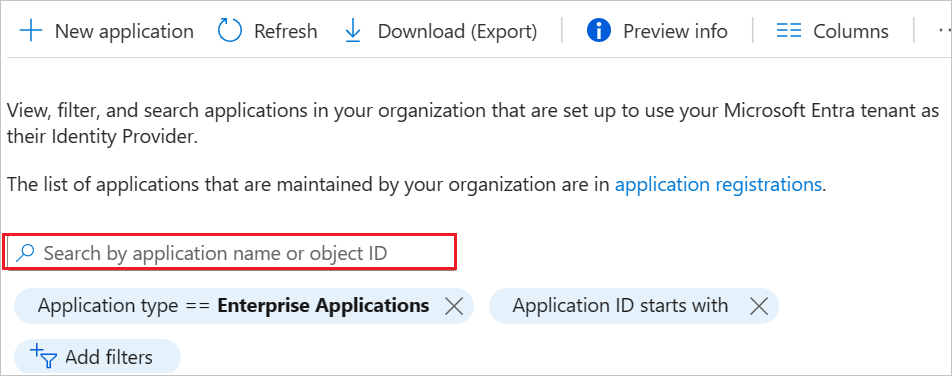
In the applications list, select AWS IAM Identity Center (successor to AWS single sign-on).
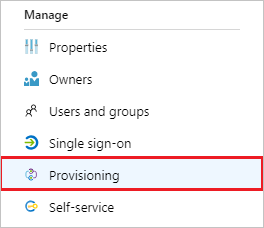
Select the Provisioning tab.
Select + New configuration.

In the Tenant URL field, input your AWS IAM Identity Center (successor to AWS single sign-on) Tenant URL and Secret Token. Select Test Connection to ensure Microsoft Entra ID can connect to AWS IAM Identity Center (successor to AWS single sign-on). If the connection fails, ensure your AWS IAM Identity Center (successor to AWS single sign-on) account has the required admin permissions and try again.

Select Create to create your configuration.
Select Properties in the Overview page.
Select the pencil to edit the properties. Enable notification emails and provide an email to receive quarantine emails. Enable accidental deletions prevention. Select Apply to save the changes.

Select Attribute Mapping in the left panel and select users.
Review the user attributes that are synchronized from Microsoft Entra ID to AWS IAM Identity Center (successor to AWS single sign-on) in the Attribute-Mapping section. The attributes selected as Matching properties are used to match the user accounts in AWS IAM Identity Center (successor to AWS single sign-on) for update operations. If you choose to change the matching target attribute, you need to ensure that the AWS IAM Identity Center (successor to AWS single sign-on) API supports filtering users based on that attribute. Select the Save button to commit any changes.
Attribute Type Supported for Filtering userName String ✓ active Boolean displayName String title String emails[type eq "work"].value String preferredLanguage String name.givenName String name.familyName String name.formatted String addresses[type eq "work"].formatted String addresses[type eq "work"].streetAddress String addresses[type eq "work"].locality String addresses[type eq "work"].region String addresses[type eq "work"].postalCode String addresses[type eq "work"].country String phoneNumbers[type eq "work"].value String externalId String locale String timezone String urn:ietf:params:scim:schemas:extension:enterprise:2.0:User:employeeNumber String urn:ietf:params:scim:schemas:extension:enterprise:2.0:User:department String urn:ietf:params:scim:schemas:extension:enterprise:2.0:User:division String urn:ietf:params:scim:schemas:extension:enterprise:2.0:User:costCenter String urn:ietf:params:scim:schemas:extension:enterprise:2.0:User:organization String urn:ietf:params:scim:schemas:extension:enterprise:2.0:User:manager Reference Select groups.
Review the group attributes that are synchronized from Microsoft Entra ID to AWS IAM Identity Center (successor to AWS single sign-on) in the Attribute-Mapping section. The attributes selected as Matching properties are used to match the groups in AWS IAM Identity Center (successor to AWS single sign-on) for update operations. Select the Save button to commit any changes.
Attribute Type Supported for Filtering displayName String ✓ externalId String members Reference To configure scoping filters, refer to the instructions provided in the Scoping filter article.
Use on-demand provisioning to validate sync with a small number of users before deploying more broadly in your organization.
When you're ready to provision, select Start Provisioning from the Overview page.
Step 6: Monitor your deployment
Once you configure provisioning, use the following resources to monitor your deployment:
- Use the provisioning logs to determine which users are provisioned successfully or unsuccessfully
- Check the progress bar to see the status of the provisioning cycle and how close it's to completion
- If the provisioning configuration seems to be in an unhealthy state, the application goes into quarantine. Learn more about quarantine states the application provisioning quarantine status article.
Just-in-time (JIT) application access with PIM for groups
With PIM for Groups, you can provide just-in-time access to groups in Amazon Web Services and reduce the number of users that have permanent access to privileged groups in AWS.
Configure your enterprise application for SSO and provisioning
- Add AWS IAM Identity Center to your tenant, configure it for provisioning as described in the article above, and start provisioning.
- Configure single sign-on for AWS IAM Identity Center.
- Create a group that provides all users access to the application.
- Assign the group to the AWS IAM Identity Center application.
- Assign your test user as a direct member of the group created in the previous step, or provide them access to the group through an access package. This group can be used for persistent, non-admin access in AWS.
Enable PIM for groups
- Create a second group in Microsoft Entra ID. This group provides access to admin permissions in AWS.
- Bring the group under management in Microsoft Entra PIM.
- Assign your test user as eligible for the group in PIM with the role set to member.
- Assign the second group to the AWS IAM Identity Center application.
- Use on-demand provisioning to create the group in AWS IAM Identity Center.
- Sign-in to AWS IAM Identity Center and assign the second group the necessary permissions to perform admin tasks.
Now any end user that was made eligible for the group in PIM can get JIT access to the group in AWS by activating their group membership.
Key considerations
- How long does it take to have a user provisioned to the application?
- When a user is added to a group in Microsoft Entra ID outside of activating their group membership using Microsoft Entra ID Privileged Identity Management (PIM):
- The group membership is provisioned in the application during the next synchronization cycle. The synchronization cycle runs every 40 minutes.
- When a user activates their group membership in Microsoft Entra ID PIM:
- The group membership is provisioned in 2 – 10 minutes. When there is a high rate of requests at one time, requests are throttled at a rate of five requests per 10 seconds.
- For the first five users within a 10-second period activating their group membership for a specific application, group membership is provisioned in the application within 2-10 minutes.
- For the sixth user and above within a 10-second period activating their group membership for a specific application, group membership is provisioned to the application in the next synchronization cycle. The synchronization cycle runs every 40 minutes. The throttling limits are per enterprise application.
- When a user is added to a group in Microsoft Entra ID outside of activating their group membership using Microsoft Entra ID Privileged Identity Management (PIM):
- If the user is unable to access the necessary group in AWS, please review the troubleshooting tips below, PIM logs, and provisioning logs to ensure that the group membership was updated successfully. Depending on how the target application has been architected, it may take additional time for the group membership to take effect in the application.
- You can create alerts for failures using Azure Monitor.
- Deactivation is done during the regular incremental cycle. It isn't processed immediately through on-demand provisioning.
Troubleshooting Tips
Missing attributes
When provisioning a user to AWS, they're required to have the following attributes
- firstName
- lastName
- displayName
- userName
Users who don't have these attributes fail with the following error

Multi-valued attributes
AWS doesn't support the following multi-valued attributes:
- phone numbers
Trying to flow the above as multi-valued attributes results in the following error message

There are two ways to resolve this
- Ensure the user only has one value for phoneNumber/email
- Remove the duplicate attributes. For example, having two different attributes being mapped from Microsoft Entra ID both mapped to "phoneNumber___" on the AWS side would result in the error if both attributes have values in Microsoft Entra ID. Only having one attribute mapped to a "phoneNumber____ " attribute would resolve the error.
Invalid characters
Currently AWS IAM Identity Center isn't allowing some other characters that Microsoft Entra ID supports like tab (\t), new line (\n), return carriage (\r), and characters such as " <|>|;|:% ".
You can also check the AWS IAM Identity Center troubleshooting tips here.
Additional resources
- Managing user account provisioning for Enterprise Apps
- What is single sign-on in Microsoft Entra ID?