Note
Access to this page requires authorization. You can try signing in or changing directories.
Access to this page requires authorization. You can try changing directories.
Microsoft Purview policies targeting user interactions with unmanaged apps in Microsoft Edge for Business trigger automation in the Microsoft Edge management service. This automatically manages the required configurations and policies outside of Purview to fully activate your Purview policies in Edge for Business.
After you save your first Purview collection or DLP policy targeting unmanaged apps in Edge for Business, the Microsoft Edge management service automatically creates the required Edge configuration policies, Microsoft Intune policies, and security groups needed to activate the policy in the browser and prevent circumvention. Once initially created, these policies and groups stay in sync and update automatically when changes are made to the Purview policies and don’t require extra setup or ongoing management by administrators outside of Purview.
Important
If automatic behaviors fail to create or update the policies or groups, an error message displays in Purview and policies aren't applied in Edge for Business. An Admin with the required permissions must resync to resolve the error. After resyncing, you might still see the message for up to 1 day while the system completes the sync and activates protections.
How it works
Define protection intent and policy scope in Purview. Create or update a Purview DLP or collection policy targeting unmanaged apps in Edge for Business, including the users or groups to scope.
Security groups are created and updated automatically. 2 security groups are created — one for included users and one for excluded users — that match the scope of your Purview policies. These groups are shared across all supporting policies and are automatically updated when Purview policy scope changes.
Edge configuration policies are created automatically. The Microsoft Edge management service creates Edge configuration policies that activate in-browser policies in Edge for Business. These policies are scoped to the security groups from Step 2, or apply tenant-wide depending on the Purview policy settings. When a user signs in to Microsoft Edge for Business on a managed device using their Entra ID credentials, the Edge configuration policy settings are applied.
Microsoft Intune policies are created automatically to help prevent circumvention outside of Edge. Activation of Purview DLP policies in Edge for Business uses Microsoft Intune to block data sharing to browsers where protections don't apply. These Intune policies are automatically created and scoped to the same security groups. When a user signs in on a managed device using their Entra ID credentials, the Intune policies are applied.
Purview policy changes stay in sync. Purview collection and DLP policies targeting unmanaged apps in Edge for Business share a single set of auto-created security groups, Edge configuration policies, and Intune policies. Updates to users or groups in any Purview policy are automatically reflected across the applicable groups or policies outside of Purview. If all Purview policies targeting unmanaged apps in Edge for Business are deleted, the associated security groups, Edge configuration policies, and Intune policies are also deleted.
Note
Policy management happens in Purview, so Admins don't have to independently manage the auto-created security groups, Edge configuration policies, or Intune policies.
What's automatically created and updated
The automation uses multiple solutions and features to fully activate the Purview policies in Edge for Business. You need permissions or action taken by an Admin with permissions to successfully complete the first-time setup of these required groups and policies outside of Purview.
| Where to view | Permissions needed for auto-activation | What's created | Name | Description |
|---|---|---|---|---|
| Microsoft 365 admin center, Edge settings | Microsoft Edge administration | Edge Configuration policy | Purview - Allow Purview collection policies to apply to all users | Enables Purview collection policies to apply to users on managed devices. Automatically created and scoped to all users. Doesn’t block user activities and doesn’t require admin management. |
| Microsoft 365 admin center | Microsoft Edge administration | Edge Configuration policy | Purview - Block use of browsers where DLP protections for unmanaged Generative AI apps don’t apply | Enables Purview DLP policies to apply to users on managed devices. Automatically scoped to the users targeted by relevant Purview DLP policies. Helps prevent data sharing in browsers where protections don’t apply and doesn’t require admin management. |
| Microsoft Intune admin center | Microsoft Intune administration and Microsoft Edge administration |
Microsoft Intune policy | Edge policy to block use of browsers where Purview DLP protections for unmanaged AI apps don’t apply | Helps prevent data sharing in browsers where protections don’t apply by blocking use of unprotected browsers. Automatically scoped to the users targeted by relevant Purview DLP policies and doesn’t require admin management. |
| Microsoft Intune admin center | Microsoft Intune administration and Microsoft Edge administration |
Microsoft Intune policy | Edge policy to block use of unmanaged GenAI apps in browsers where in-browser protections don’t apply | Helps prevent data sharing to unmanaged apps in browsers other than Edge for Business where protections don’t apply by blocking use of select apps in the Google Chrome browser. Automatically scoped to the users targeted by relevant Purview DLP policies and doesn’t require admin management. |
| Microsoft 365 admin center | Directory Reader and Microsoft Edge administration |
Security group | Purview DLP browser protection - included users | Includes users and groups included in relevant Purview DLP policies. Used to scope Edge configuration policies and Microsoft Intune policies that apply in‑browser protections and doesn’t require admin management. |
| Microsoft 365 admin center | Directory Reader and Microsoft Edge administration |
Security group | Purview DLP browser protection - excluded users | Includes users and group explicitly excluded from Purview DLP browser protections. Used to scope Edge configuration policies and Microsoft Intune policies that apply in‑browser protections and doesn’t require admin management. |
Note
Purview collection and DLP policies targeting unmanaged apps in Edge for Business share a single set of auto-created security groups, Edge configuration policies, and Intune policies. Updates to any matching Purview policy are automatically reflected across these policies and groups.
What happens when users are blocked from using unprotected browsers
When these settings are applied, users included in Purview DLP policies that block data sharing to unmanaged cloud apps have their experience limited or blocked in unprotected browsers where the policies don't apply. The user experience in Edge isn't impacted.
When these settings are applied, users are impacted as follows:
- In Chrome with Microsoft Purview extension: Use of the browser might be allowed depending on extension status and policy scope. If allowed, access to a dynamic set of generative AI apps is blocked. For more information and a list of apps, please see: manage enterprise secure AI settings
- In Firefox and other browsers: Use of these browsers is blocked. For more information please see: Block other browsers.
View Edge configuration policies in the Microsoft admin center
Follow these steps to view the auto-created Edge configuration policies:
- Go to the Microsoft 365 admin center.
- Sign in and select Settings > Microsoft Edge.
- Select the policy to view more information.
Note
The setting “Block use of cloud apps in browsers where Purview in-browser protections doesn’t apply.” is used for the Edge configuration policy created to activate the Purview DLP policies.
View Intune policies in the Microsoft Intune admin center
Follow these steps to view the auto-created Microsoft Intune policies:
- Go to the Microsoft Intune admin center.
- Sign in and select Devices > Configuration.
- Select the policy to view more information.
View Security groups in the Microsoft admin center
Follow these steps to view the auto-created Security groups:
- Go to the Microsoft 365 admin center.
- Sign in and select Active Teams & Groups > Security groups.
- Select the group to view more information.
Note
The Purview DLP browser protection – included users security group won't display individual members if at least one Purview DLP policy targeting Edge for Business is scoped to All users and groups, including when Exclude from All is configured.
Manually activate or resync your Microsoft Purview DLP policy in Microsoft Edge
If the automatic process fails to complete, for example if the Purview Admin doesn't have all permissions required or if a system error occurs, Admins can initiate a resync from the Microsoft Admin Center. To resync:
- Sign into the Microsoft Admin center
- Navigate to Settings > Edge
- On the Resources tab in the Microsoft Purview DLP protections card, select Sync now
Important
The resync action won't create or update the policies or groups if the Admin doesn't have the required permissions.
FAQs
Can these policies be edited?
Automatically created policies are read-only and are updated automatically by making updates to the policies in Purview. Admins for Edge configuration policies, Microsoft Intune policies, and Security Groups don't need to take action on the auto-created policies and groups.
Can these policies be deleted?
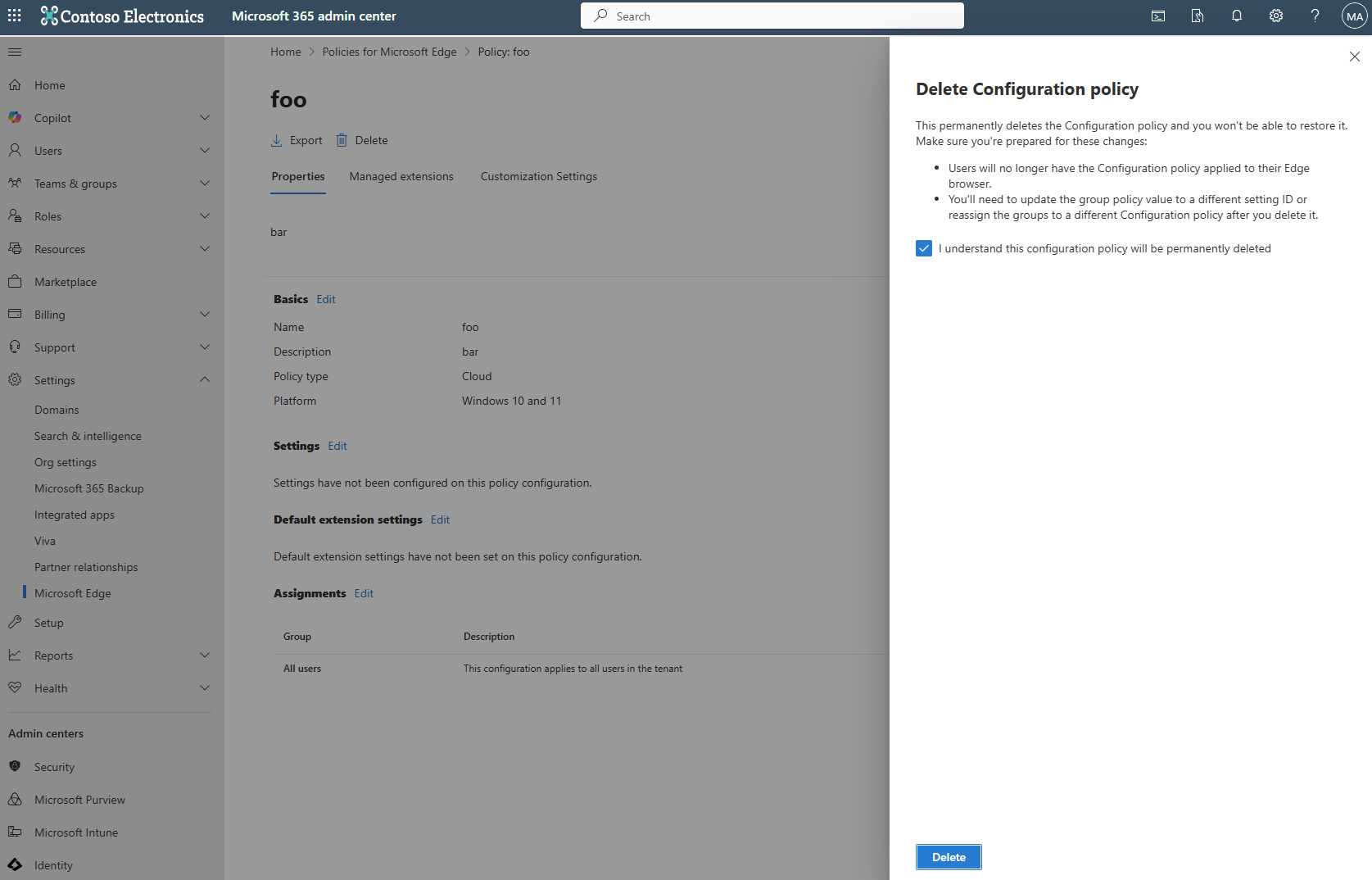
Automatically created policies can only be deleted by deleting all Microsoft Purview collection and DLP policies targeting unmanaged apps in Edge for Business. This will automatically delete the auto-created Edge configuration policies and Intune policies. For manually created policies, if you’re an admin, you can delete the configuration policy that was deployed to users or uncheck the feature configuration.
- Go to the policy.
- Click Delete.
- In the side panel, acknowledge and confirm the changes.
- Click Delete.
On other configuration policies, will my other settings work if I check the “Block other browsers” box?
No, the “Block other browsers” box takes precedence over all other settings. Only one setting can be turned on at a time.
Can I sync changes manually?
Yes, a manual sync option is available in the Microsoft admin center on the Edge settings resources page. Admins can sync by clicking the sync now action on the Microsoft Purview DLP protections card.