Artifact Signing
A fully managed end-to-end service for digitally signing code, documents, and applications. (formerly Trusted Signing)
This browser is no longer supported.
Upgrade to Microsoft Edge to take advantage of the latest features, security updates, and technical support.
' cx='32' cy='32' r='32' /%3E%3Ctext x='50%25' y='55%25' dominant-baseline='middle' text-anchor='middle' fill='%23FFF' %3EJB%3C/text%3E%3C/svg%3E)
Hello,
I am trying to complete organization identity validation for Microsoft Artifact Signing for my Dutch sole proprietorship, Hodos navigatie.
I have successfully created an Azure subscription and an Artifact Signing account in the North Europe region.
The organization identity validation initially showed "In Progress", then "Action Required", and now shows "Failed".
I received an email asking me to complete identity verification. However, when following the verification link, I was redirected to credentials.microsoft.com and received the following error:
"You need permission. You must be logged in as an authorized user of the Entra Azure tenant which was used for the enrollment application."
I am using the same Microsoft account that I used to create the Azure subscription and Artifact Signing resource. I have also assigned the "Artifact Signing Identity Verifier" role to my account.
The Azure portal's troubleshooting assistant suggests that the failure occurred during the external identity verification process (AU10TIX), rather than in the Artifact Signing resource itself.
Could you please advise:
How can I determine why my organization identity validation failed?
Could this be caused by a tenant or account mismatch during verification?
How can I restart or reopen the identity verification process without creating a new Artifact Signing account?
Is there a dedicated Microsoft support channel for resolving failed Artifact Signing identity validation?
Thank you for your assistance.
A fully managed end-to-end service for digitally signing code, documents, and applications. (formerly Trusted Signing)
' cx='32' cy='32' r='32' /%3E%3Ctext x='50%25' y='55%25' dominant-baseline='middle' text-anchor='middle' fill='%23FFF' %3EMM%3C/text%3E%3C/svg%3E)
this was abug that has now been fixed, are you experiencing this on oct 20th? If the link is accessed by the same email address as the primary email address you should be able to go through VID process.
Thank you for your response.
Unfortunately, my identity validation has already failed (status: "Validation Fail").
I created my Azure subscription using ******@outlook.com, but I entered ******@janboersma.nl as the primary email address in the identity validation request.
When I tried to complete the verification, I received the error "You need permission."
Could you please advise me on how to proceed?
Should I create a new identity validation request using my Azure account email address, or is there a way to restart the existing verification?
I would prefer not to create a new Artifact Signing account.
Thank you for your help.
' cx='32' cy='32' r='32' /%3E%3Ctext x='50%25' y='55%25' dominant-baseline='middle' text-anchor='middle' fill='%23FFF' %3ETM%3C/text%3E%3C/svg%3E)
You will need to create a new Identity Validation.
https://learn.microsoft.com/en-us/azure/artifact-signing/faq
For Individual identity validation, I see an error - "You don't have permission to access this page".
If you see the error, it's because the email address entered in the individual identity validation request is different from the one being used to sign in to access the identity validation link. Make sure both the email addresses match. 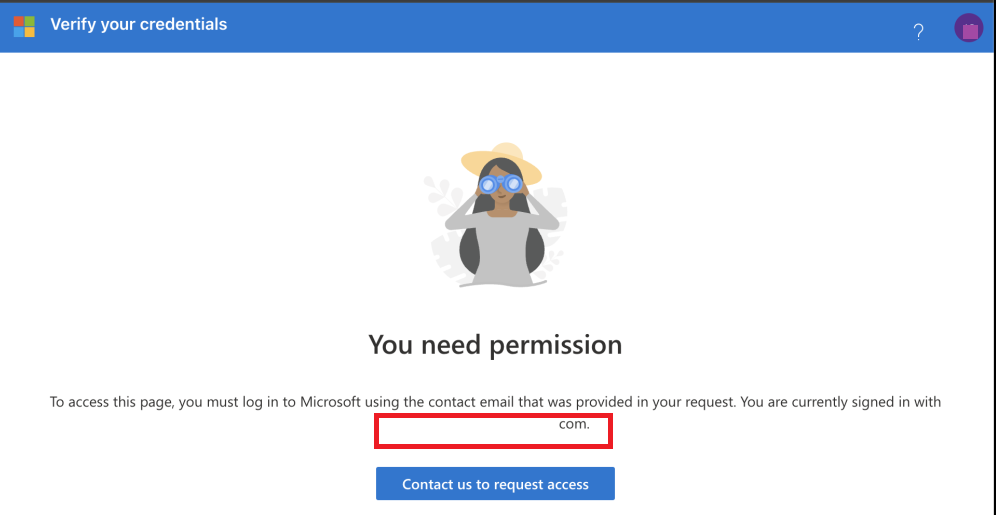
AI answer
Based on the described flow, the failure can be caused by a sign-in mismatch during the identity verification step.
For Artifact Signing individual identity validation, Microsoft documents state that the error "You don't have permission to access this page" occurs when the email address entered in the identity validation request is different from the email address being used to sign in to access the identity validation link. The sign-in identity and the email used in the validation request must match.
What can be done:
About reopening or restarting without a new Artifact Signing account:
How to determine why it failed:
Support channel:
References: