Dear @Allyssa D,
I understand how frustrating it is to deal with potential double-bookings when your Outlook availability doesn’t mirror your Bookings page. Since you’ve already enabled the "Events on Office calendar affect availability" setting, the issue usually stems from the status of the Outlook events or a synchronization delay.
To help narrow down the exact cause of this sync failure, could you please clarify a few details regarding the affected entries?
- Does this affect all events or only specific ones? Specifically, please check if the slots that remain open in Bookings are all-day events or recurring appointments in your Outlook calendar.
- What is the "Show As" status for those events? In Outlook, please confirm if these appointments are set to Busy, Tentative, or Free. MS Bookings will only block time if the status is strictly set to Busy or Out of Office.
- Is the sync issue occurring for multiple staff members or just yourself?
In the meantime, please try the following official troubleshooting steps which usually resolve issues with basic issues:
Step 1: Check the "Show As" Status
Bookings only respects Outlook events that are marked as "Busy." * Open your Outlook calendar and click on the appointments in question.
- Ensure the Show As field is set to Busy (or Out of Office).
- If an event is set to Free, Working Elsewhere, or Tentative, Bookings will continue to show those slots as available.
Step 2: Check Your Outlook Calendar Sharing Permissions for Microsoft Bookings to "read" your busy status, your primary Outlook calendar must be shared with your organization, even minimally. If the permission is set to "None," Bookings cannot see your availability.
- Go to outlook.office.com and sign in.
- Click the Gear icon (Settings) in the top-right corner, then select "View all Outlook settings" at the bottom.
- Navigate to Calendar > Shared calendars.
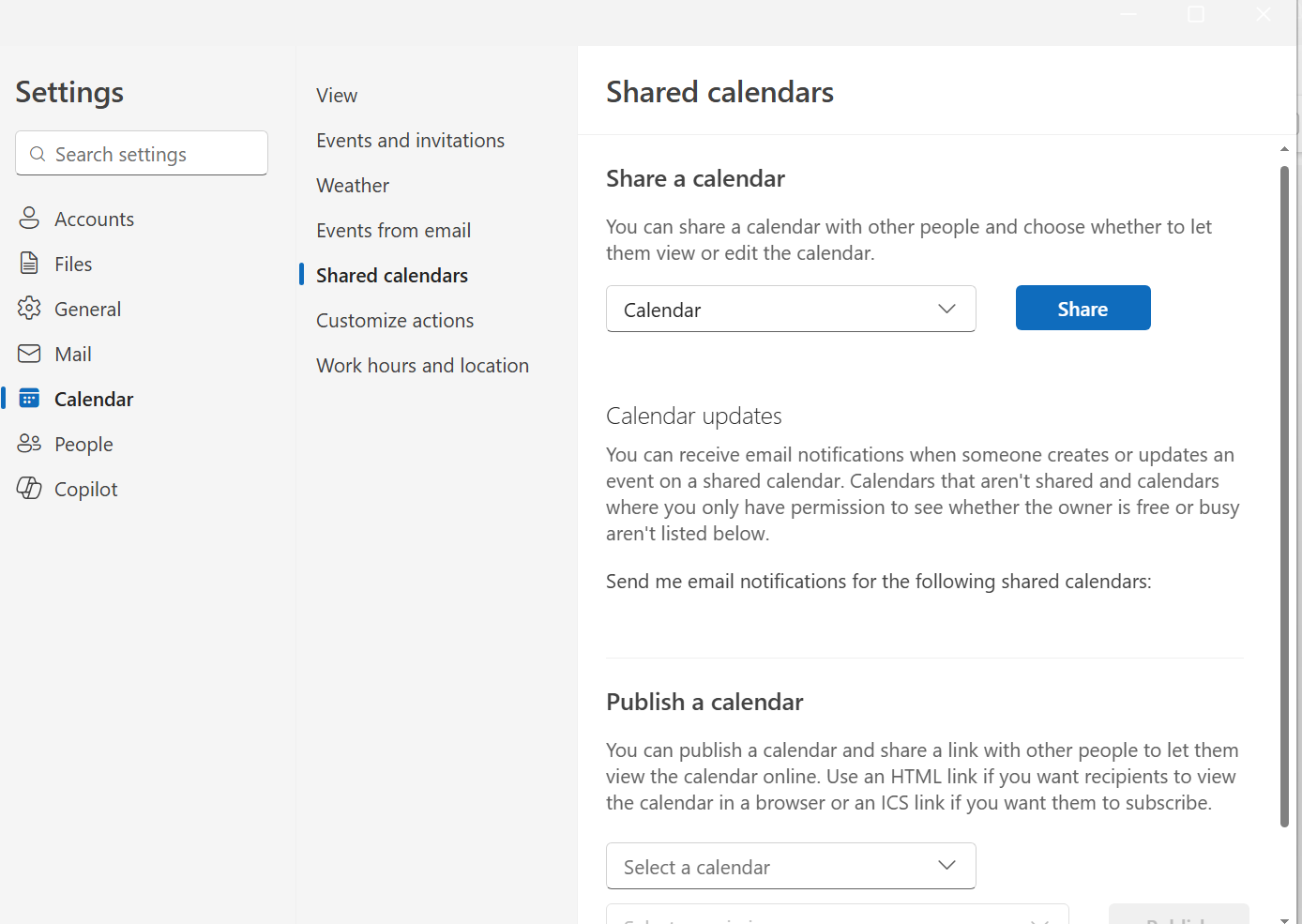
- Under the section "People in my organization," use the dropdown menu to select "Can view when I'm busy." (This is the most restrictive option and keeps your meeting details private while still allowing Bookings to see that you are occupied).
- No save button is needed; the setting applies immediately after you select it.
I found a similar post on the forum regarding your issue, I hope it proves helpful to you: MS Bookings is not syncing a specific Office 365 user's calendar - Microsoft Q&A(I hope you understand that, as this article was written by other members, it adheres to the original information and language of the post)
Step 3: Browser cache can often display "stale" availability on the booking page.
- Open your Bookings page in an Incognito/InPrivate window.
- If the slots are blocked there, the issue was likely local cache.
According to Add team members to Bookings | Microsoft Learn, the sync can occasionally take up to several minutes to reflect changes made in Outlook.
If you’ve confirmed the "Busy" status and the email addresses match, but the issue persists after 24 hours, it may be a service-level sync issue requiring a tenant administrator to re-sync the mailbox via the Microsoft 365 Admin Center.
Note: Please understand that as a forum moderator, my role is to provide general guidance and troubleshooting support. I don’t have access to internal systems or backend tools, and I appreciate your understanding of these limits.
I hope the information shared helps point you in the right direction. Please try the steps above and let me know if they work. If not, we can continue working together to narrow this down.
The first response may not always resolve the issue right away, but with your help and more details, we can work toward a solution.
Thank you for your patience and understanding. I'm looking forward for your reply.
If the answer is helpful, please click "Accept Answer" and kindly upvote it. If you have extra questions about this answer, please click "Comment".
Note: Please follow the steps in our documentation to enable e-mail notifications if you want to receive the related email notification for this thread.
' cx='32' cy='32' r='32' /%3E%3Ctext x='50%25' y='55%25' dominant-baseline='middle' text-anchor='middle' fill='%23FFF' %3EAD%3C/text%3E%3C/svg%3E)


' cx='32' cy='32' r='32' /%3E%3Ctext x='50%25' y='55%25' dominant-baseline='middle' text-anchor='middle' fill='%23FFF' %3ESN%3C/text%3E%3C/svg%3E)