Hi @Scott Bloom,
Good day, and I appreciate the clear explanation of your concern.
Based on the details you shared that New Outlook for Mac has stopped automatically capitalizing the first letter of sentences while you are composing emails.
To provide some background, New Outlook for Mac handles auto-capitalization differently from the classic version. Rather than using the traditional AutoCorrect preferences, this feature is now managed through the built-in Editor settings within the compose window. As a result of this change, a recent application update may have inadvertently reset the toggle, which is why the feature appears to have turned off without any action on your part. Additionally, please be aware that this auto-capitalization feature currently supports English language composition only, as noted in the official Microsoft documentation.
To help get this working again, please follow the steps below in order. Each option builds on the previous one, so I recommend starting from the first before moving forward.
1/ Check Outlook for Mac AutoCorrect preferences
Based on the current version of Outlook for Mac (16.107.1) that I am using, when you type the first letter and press the Space key, the first letter will be automatically capitalized
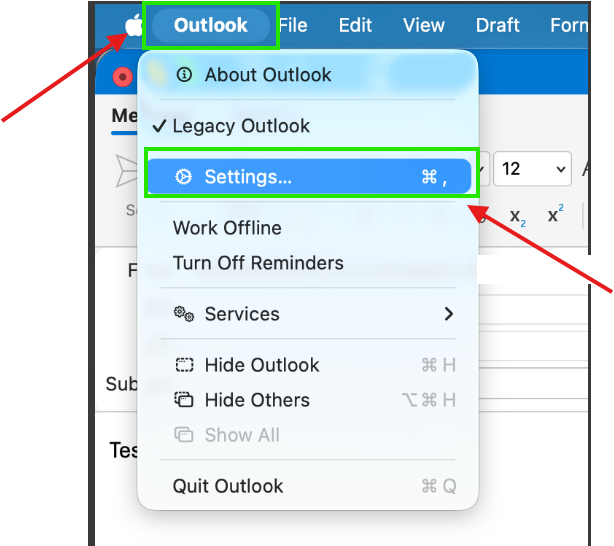
- In Outlook, open Outlook menu, then select Settings.
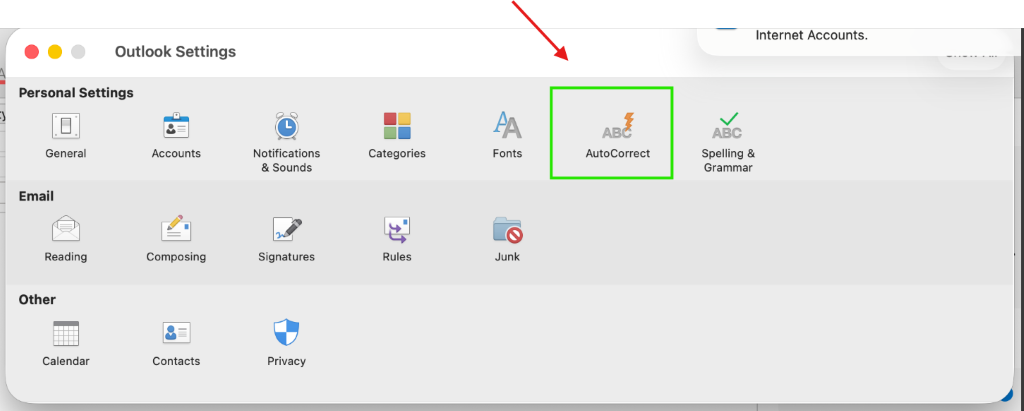
- Select AutoCorrect, then ensure Replace text as you type is enabled so Outlook can apply typing corrections and related behaviors while you compose.
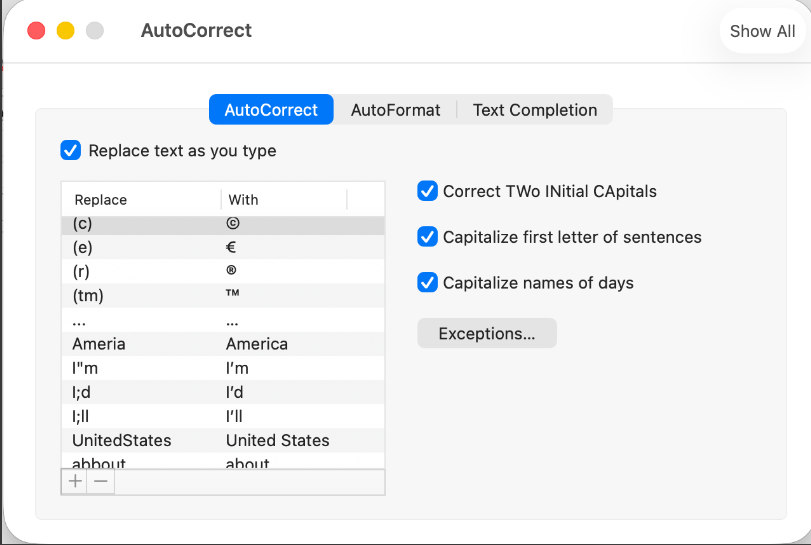
- Make sure the Capitalize first letter option is enabled
2/ Clear Experimental Features (If Options 1 and 2 Do Not Work)
- In New Outlook for Mac, click Help from the top menu bar.
- Select Clear Application Data, then choose Experimental Features.
- Confirm and allow Outlook to complete the process.
- Fully quit and restart Outlook.
- Reopen a new email and check whether the Editor settings and auto-capitalization have been restored.
3/ Enable auto-capitalization through macOS keyboard settings
- To proceed, click on the Apple logo in the top left corner of your screen and open System Settings (or System Preferences on older macOS versions).
- From there, navigate to Keyboard, then select Text Input or Text, and ensure that the option for Capitalize words automatically is turned on.
- Once enabled, return to Outlook and compose a new email to confirm whether sentences are now being capitalized correctly.
- As this is a system-level setting, it applies across all applications including Outlook.
4/ Disable connected experiences and clear experimental features
System-level text replacements on a Mac, also known as text substitution, allow you to automatically replace short abbreviations with longer phrases or even specific text. This feature is available in macOS and can be customized to suit your needs.
- Open System Settings: Click the Apple menu in the top-left corner and select "System Settings".
- Navigate to Keyboard Settings: In the sidebar, click "Keyboard".
- Access Text Replacements: Click "Text Replacements".
- Add a New Replacement: Click the "+" button below the list of existing replacements. Enter the abbreviation you want to replace in the left field and the corresponding text in the right field.
- Enable Text Replacement: Ensure "Text Replacement" is enabled within the "Substitutions" menu in applicable apps (e.g., in Edit > Substitutions in some apps).
I hope this information is helpful. Please follow these steps and let me know if it works for you. If you have any updates regarding the issue, please feel free to share them with me.
Thank you for your patience and your understanding. I look forward to continuing the conversation.
If the answer is helpful, please click "Accept Answer" and kindly upvote it. If you have any extra questions about this answer, please click "Comment".
Note: Please follow the steps in our documentation to enable e-mail notifications if you want to receive the related email notification for this thread.
' cx='32' cy='32' r='32' /%3E%3Ctext x='50%25' y='55%25' dominant-baseline='middle' text-anchor='middle' fill='%23FFF' %3ESB%3C/text%3E%3C/svg%3E)

' cx='32' cy='32' r='32' /%3E%3Ctext x='50%25' y='55%25' dominant-baseline='middle' text-anchor='middle' fill='%23FFF' %3EC%3C/text%3E%3C/svg%3E)
' cx='32' cy='32' r='32' /%3E%3Ctext x='50%25' y='55%25' dominant-baseline='middle' text-anchor='middle' fill='%23FFF' %3EN%3C/text%3E%3C/svg%3E)
' cx='32' cy='32' r='32' /%3E%3Ctext x='50%25' y='55%25' dominant-baseline='middle' text-anchor='middle' fill='%23FFF' %3EHT%3C/text%3E%3C/svg%3E)
' cx='32' cy='32' r='32' /%3E%3Ctext x='50%25' y='55%25' dominant-baseline='middle' text-anchor='middle' fill='%23FFF' %3EMP%3C/text%3E%3C/svg%3E)
' cx='32' cy='32' r='32' /%3E%3Ctext x='50%25' y='55%25' dominant-baseline='middle' text-anchor='middle' fill='%23FFF' %3EBA%3C/text%3E%3C/svg%3E)
' cx='32' cy='32' r='32' /%3E%3Ctext x='50%25' y='55%25' dominant-baseline='middle' text-anchor='middle' fill='%23FFF' %3ESC%3C/text%3E%3C/svg%3E)
' cx='32' cy='32' r='32' /%3E%3Ctext x='50%25' y='55%25' dominant-baseline='middle' text-anchor='middle' fill='%23FFF' %3EAM%3C/text%3E%3C/svg%3E)
' cx='32' cy='32' r='32' /%3E%3Ctext x='50%25' y='55%25' dominant-baseline='middle' text-anchor='middle' fill='%23FFF' %3EVN%3C/text%3E%3C/svg%3E)