Dear @Mark Moore,
Thank you for reaching out to the Microsoft Q&A Community.
I understand that you're looking to add US holidays to your shared calendar, and I'm sorry that the instructions you've found so far have not worked. This is a very useful feature for a shared calendar, and I can see how essential it is to your team's workflow.
The reason you haven't been able to add holidays to your shared calendar using Outlook on the web or on your MacBook is because the built-in "Add Holidays" feature is designed to add holidays to a personal calendar, not a shared one. Because there is no direct way to do what you're asking, you'll need to use a workaround.
The most effective way to achieve this is to add the holidays to your personal calendar and then copy them over to the shared calendar.
For Classic Outlook
- Open Outlook for Windows.
- Go to File > Options > Calendar.
- Under Calendar Options, click Add Holidays.
- Select United States from the list and click OK.
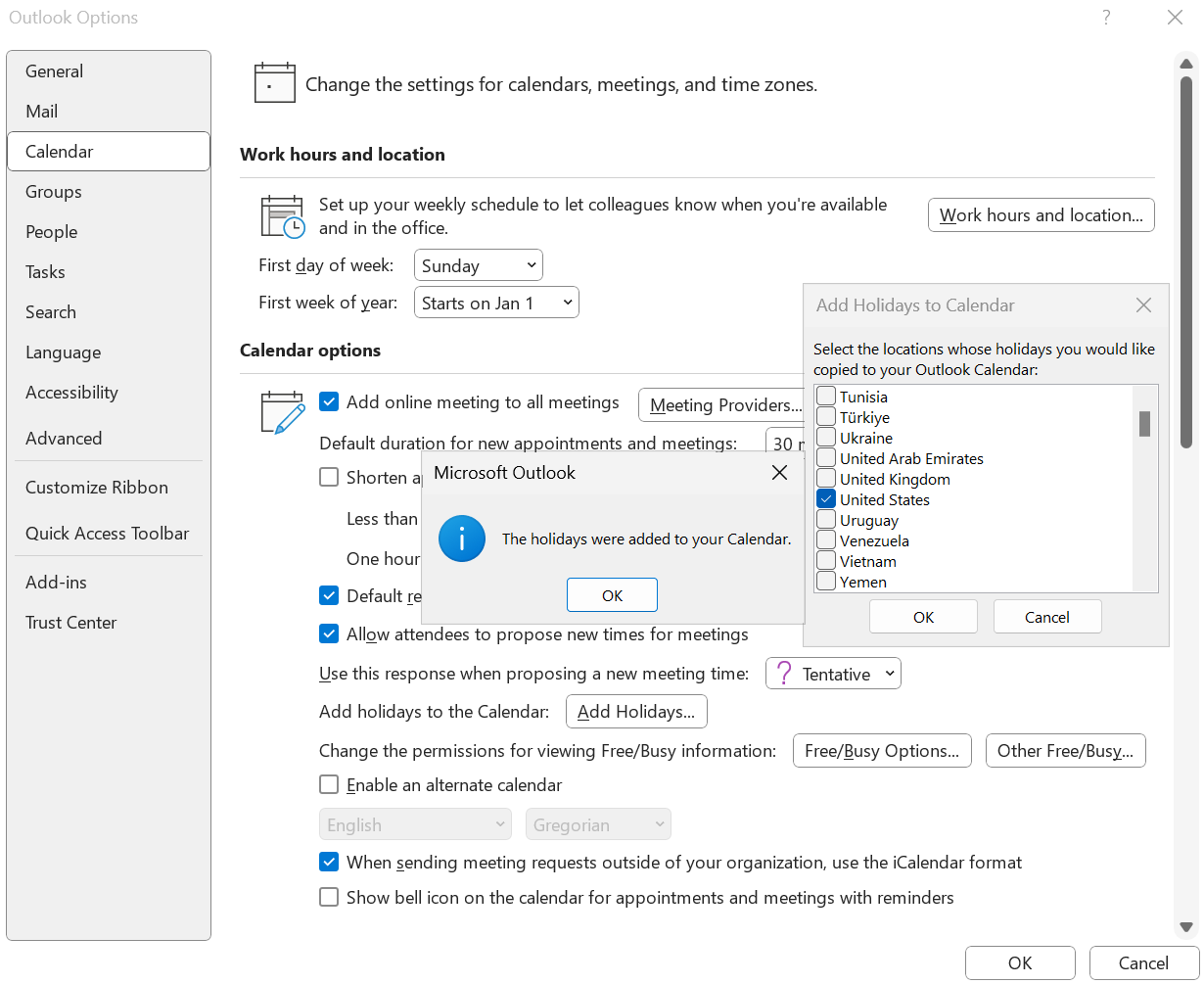
This will automatically add all US holidays to your personal calendar.
- Go to the Calendar view in Outlook.
- Find the newly added holidays on the personal calendar.
- Select the holiday events you want to copy. For a full year, it's often easiest to select all events in the List view. You can do this by clicking View > Change View > List.
- Select all the holiday events (use Ctrl+A or select the first event and hold Shift while selecting the last one).
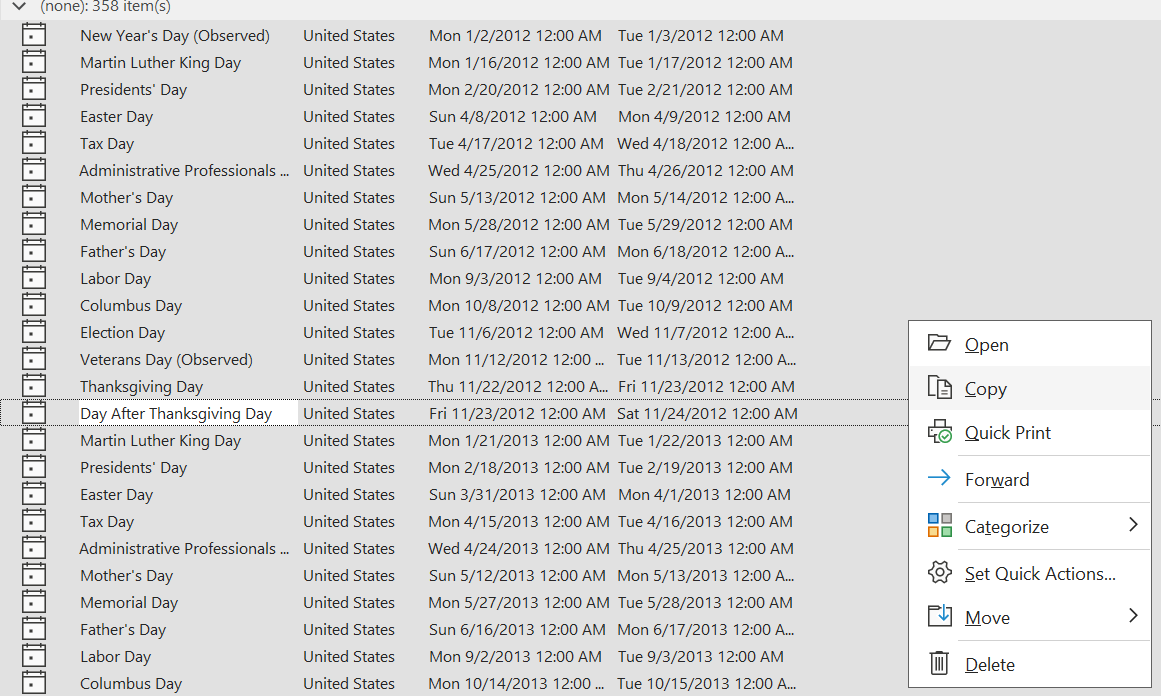
- Right-click the selected events and choose Copy.
- Go to your shared calendar > Ctrl+V.
This action will duplicate the holiday events from the personal calendar into the shared calendar, making them visible to everyone with access. You can now use the Outlook for Mac or web app to view the newly added holidays.
This is the only method that works reliably across the Outlook ecosystem to get holidays into a shared calendar.
For reference: Add holidays to your calendar in Outlook - Microsoft Support
Additionally, your suggestion highlights a meaningful opportunity for improvement, and we believe it would be valuable for Microsoft to hear directly from you. We kindly encourage you to submit this idea through the Microsoft 365 Feedback Hub, where customer input helps shape future product enhancements.
To Submit Your Suggestion to Microsoft.
Go to: Microsoft 365 Feedback Hub →Send Feedback→ Describe your proposal in detail
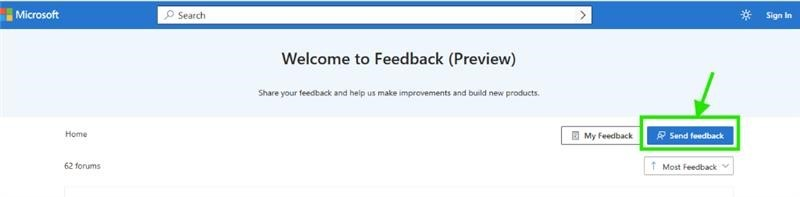
Sharing your experience through this channel is the most impactful way to advocate for a change that would benefit you and other users.
Thank you again for your patience and for bringing this to our attention. While I can't change the product's design, please don't hesitate to reach out if you have any other questions about its current functionality.
If the answer is helpful, please click "Accept Answer" and kindly upvote it. If you have extra questions about this answer, please click "Comment".
Note: Please follow the steps in our documentation to enable e-mail notifications if you want to receive the related email notification for this thread.

' cx='32' cy='32' r='32' /%3E%3Ctext x='50%25' y='55%25' dominant-baseline='middle' text-anchor='middle' fill='%23FFF' %3EMM%3C/text%3E%3C/svg%3E)

' cx='32' cy='32' r='32' /%3E%3Ctext x='50%25' y='55%25' dominant-baseline='middle' text-anchor='middle' fill='%23FFF' %3EKL%3C/text%3E%3C/svg%3E)
' cx='32' cy='32' r='32' /%3E%3Ctext x='50%25' y='55%25' dominant-baseline='middle' text-anchor='middle' fill='%23FFF' %3ECB%3C/text%3E%3C/svg%3E)