Примечание.
Для доступа к этой странице требуется авторизация. Вы можете попробовать войти или изменить каталоги.
Для доступа к этой странице требуется авторизация. Вы можете попробовать изменить каталоги.
Важно
- Azure Cognitive Services Распознаватель документов теперь Azure Document Intelligence в Foundry Tools.
- Некоторые платформы по-прежнему ожидают обновления, связанного с переименованием.
- Все упоминания о Распознаватель документов или аналитике документов в нашей документации относятся к одной и той же службе Azure.
Это содержимое относится к: версии 4.0 (GA)Более ранние версии:
 версии 3.1 (GA)версии 3.0 (GA)
- Начало работы с Azure Document Intelligence последней стабильной версии 4.0
2024-11-30(GA).
Это содержимое относится к:версии 3.1 (GA)Более ранние версии:версии 3.0версии 2.1
- Начало работы с последней версией общедоступной версии Azure Распознаватель документов (
2023-07-31).
Это содержимое относится к версиям:3.0 (GA)Более новая версия:3.12.1
Важно
API Azure Document Intelligence версии 3.0 (2022-08-31) перестанет поддерживаться с 30 марта 2029 года. Чтобы избежать сбоев в рабочей среде, используйте Azure Аналитика документов 2024-11-30 версии 4.0 для всех новых разработок и перенос существующих рабочих нагрузок в Azure Аналитика документов 2024-11-30 версии 4.0 до этой даты. Сведения по миграции см. в руководстве по миграции Document Intelligence.
- Начало работы с устаревшей общедоступной версией Azure Распознаватель документов (версия GA
2022-08-31).
Azure Аналитика документов / Распознаватель документов — это облачная служба средств Foundry, использующая машинное обучение для извлечения пар "ключ-значение", текста, таблиц и ключевых данных из документов.
Модели обработки документов можно легко интегрировать в рабочие процессы и приложения с помощью пакета SDK языка программирования или вызова REST API.
Мы рекомендуем воспользоваться бесплатной службой, изучая технологию для этого краткого руководства. Помните, что количество бесплатных страниц ограничено 500 в месяц.
Дополнительные сведения о функциях API и параметрах разработки см. на странице обзора .
Клиентская библиотека
Клиентская библиотека
В этом быстром старте используйте следующие функции для анализа данных и извлечения значений на основе форм и документов.
Модель макета— анализ и извлечение таблиц, строк, слов и меток выделения, таких как переключатели и флажки в документах, без необходимости обучения модели.
Предварительно созданная модель— анализ и извлечение общих полей из определенных типов документов с помощью предварительно созданной модели.
Необходимые условия
подписка Azure — Создайте ее бесплатно.
Текущая версия Visual Studio IDE.
Ресурс "Инструменты для производства" или "Интеллектуальный анализ документов". После получения подписки Azure создайте ресурс единой службы или многослужбовый ресурс Azure на портале Azure, чтобы получить ключ и конечную точку.
Вы можете использовать бесплатный тариф (
F0), чтобы попробовать службу, а затем перейти на платный тариф для производственной среды.
Совет
Создайте ресурс Microsoft Foundry, если планируется получить доступ к нескольким средствам Foundry в рамках одной конечной точки или ключа. Только для доступа к аналитике документов создайте ресурс аналитики документов. Если вы планируете использовать проверку подлинности Microsoft Entra, вам потребуется ресурс с единой службой.
После развертывания ресурса выберите "Перейти к ресурсу". Вам потребуется ключ и конечная точка из ресурса, создаваемого для подключения приложения к API аналитики документов. Вставьте ключ и конечную точку в код далее в кратком руководстве:
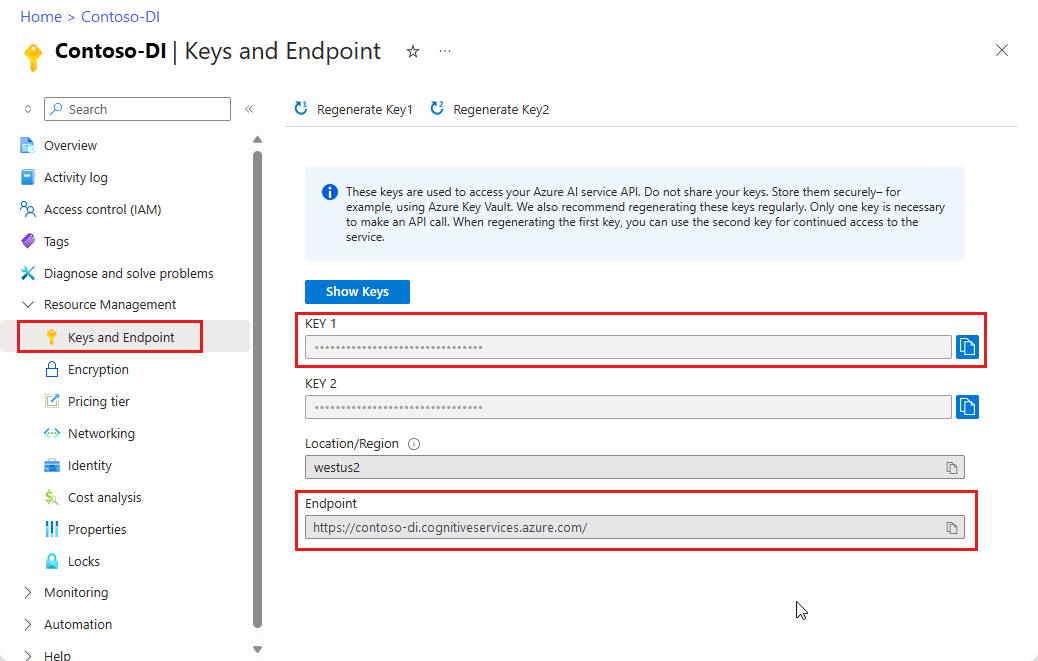
Ресурс "Инструменты для производства" или "Интеллектуальный анализ документов". После получения подписки Azure создайте ресурс единой службы или многослужбовый ресурс Azure на портале Azure, чтобы получить ключ и конечную точку.
Вы можете использовать бесплатный тариф (
F0), чтобы попробовать службу, а затем перейти на платный тариф для производственной среды.
Совет
Создайте ресурс Microsoft Foundry, если планируется получить доступ к нескольким средствам Foundry в рамках одной конечной точки или ключа. Только для доступа к Распознаватель документов создайте ресурс для Распознаватель документов. Если вы планируете использовать проверку подлинности Microsoft Entra, вам потребуется ресурс с единой службой.
После развертывания ресурса выберите "Перейти к ресурсу". Вам потребуется ключ и конечная точка из ресурса, создаваемого для подключения приложения к API Распознаватель документов. Вставьте ключ и конечную точку в код далее в кратком руководстве:
Настройка
Запустите Visual Studio.
На начальной странице нажмите кнопку "Создать проект".

На странице "Создание проекта" введите консоль в поле поиска. Выберите шаблон консольного приложения , а затем нажмите кнопку "Далее".

- В диалоговом окне Настройка вашего нового проекта введите
doc_intel_quickstartв поле имени Проект. Затем нажмите кнопку "Далее".
- В диалоговом окне Настройка вашего нового проекта введите
form_recognizer_quickstartв поле имени Проект. Затем нажмите кнопку "Далее".
В диалоговом окне Additional information выберите .NET 8.0 (долгосрочная поддержка) и выберите Create.

Установка клиентской библиотеки с помощью NuGet
Щелкните правой кнопкой мыши проект doc_intel_quickstart и выберите "Управление пакетами NuGet... ".

Откройте вкладку Browse и введите Azure. AI. DocumentIntelligence.
Установите флажок
Include prerelease.
Выберите версию из раскрывающегося меню и установите пакет в проекте.
Щелкните правой кнопкой мыши проект form_recognizer_quickstart и выберите "Управление пакетами NuGet... ".

Выберите вкладку "Обзор" и введите Azure. AI. FormRecognizer. Выберите версию 4.1.0 в раскрывающемся меню
Щелкните правой кнопкой мыши проект form_recognizer_quickstart и выберите "Управление пакетами NuGet... ".
Выберите вкладку "Обзор" и введите Azure. AI. FormRecognizer. Выберите версию 4.0.0 в раскрывающемся меню

Создание приложения
Чтобы взаимодействовать со службой Document Intelligence, необходимо создать экземпляр класса DocumentIntelligenceClient. Для этого создайте AzureKeyCredential с помощью key в портале Azure и создайте экземпляр DocumentIntelligenceClient с AzureKeyCredential и вашим endpoint для Document Intelligence.
Чтобы взаимодействовать со службой Распознаватель документов, необходимо создать экземпляр класса DocumentAnalysisClient. Для этого создайте AzureKeyCredential с помощью key на портале Azure, а также экземпляр DocumentAnalysisClient с AzureKeyCredential и вашим Распознаватель документов endpoint.
Примечание
- Начиная с .NET 6, новые проекты с помощью шаблона
consoleсоздают новый стиль программы, отличающийся от предыдущих версий. - В новых выходных данных используются последние функции C#, упрощающие написание кода.
- При использовании более новой версии вам нужно только написать тело метода
Main. Вам не нужно включать инструкции верхнего уровня, глобальные директивы using или неявные директивы using. - Дополнительные сведения см. в статье"Создание шаблонов C#" для создания инструкций верхнего уровня.
Откройте файл Program.cs .
Удалите существующий код, включая строку
Console.Writeline("Hello World!"), и выберите один из следующих примеров кода для копирования и вставки в файл Program.cs приложения:
Важно
Мы рекомендуем Microsoft Entra ID проверку подлинности с помощью управляемых удостоверений для ресурсов Azure, чтобы избежать хранения учетных данных в приложениях, работающих в облаке.
Используйте ключи API с осторожностью. Не включайте ключ API непосредственно в код и никогда не публикуйте его. При использовании ключей API безопасно храните их в Azure Key Vault, регулярно поворачивайте ключи и ограничивайте доступ к Azure Key Vault с помощью управления доступом на основе ролей и ограничений доступа к сети. Дополнительные сведения о безопасном использовании ключей API в приложениях см. в разделе Ключи API с Azure Key Vault.
Дополнительные сведения о безопасности служб ИИ см. в разделе Аутентификация запросов к службам Azure AI.
Модель макета
Извлеките текст, знаки выделения, стили текста, структуры таблиц и ограничивающие области координаты из документов.
- В этом примере потребуется файл документа из URI. Вы можете использовать образец документа для этого краткого руководства.
- Мы добавили значение URI файла в
Uri fileUriпеременную в верхней части скрипта. - Чтобы извлечь макет из файла по заданному URI, используйте метод
AnalyzeDocumentAsyncи передайтеprebuilt-layoutв качестве идентификатора модели. Возвращаемое значение — этоAnalyzeResultобъект, содержащий данные из отправленного документа.
Добавьте следующий пример кода в файл Program.cs. Убедитесь, что вы обновляете переменные ключа и конечной точки значениями из вашего экземпляра Document Intelligence на портале Azure.
using Azure;
using Azure.AI.DocumentIntelligence;

//set `<your-endpoint>` and `<your-key>` variables with the values from the Azure portal to create your `AzureKeyCredential` and `DocumentIntelligenceClient` instance
string endpoint = "<your-endpoint>";
string key = "<your-key>";
AzureKeyCredential credential = new AzureKeyCredential(key);
DocumentIntelligenceClient client = new DocumentIntelligenceClient(new Uri(endpoint), credential);

//sample document
Uri fileUri = new Uri ("https://raw.githubusercontent.com/Azure-Samples/cognitive-services-REST-api-samples/master/curl/form-recognizer/sample-layout.pdf");

AnalyzeDocumentContent content = new AnalyzeDocumentContent()
{
    UrlSource= fileUri
};

Operation<AnalyzeResult> operation = await client.AnalyzeDocumentAsync(WaitUntil.Completed, "prebuilt-layout", content);

AnalyzeResult result = operation.Value;

foreach (DocumentPage page in result.Pages)
{
    Console.WriteLine($"Document Page {page.PageNumber} has {page.Lines.Count} line(s), {page.Words.Count} word(s)," +
        $" and {page.SelectionMarks.Count} selection mark(s).");

    for (int i = 0; i < page.Lines.Count; i++)
    {
        DocumentLine line = page.Lines[i];

        Console.WriteLine($"  Line {i}:");
        Console.WriteLine($"    Content: '{line.Content}'");

        Console.Write("    Bounding polygon, with points ordered clockwise:");
        for (int j = 0; j < line.Polygon.Count; j += 2)
        {
            Console.Write($" ({line.Polygon[j]}, {line.Polygon[j + 1]})");
        }

        Console.WriteLine();
    }

    for (int i = 0; i < page.SelectionMarks.Count; i++)
    {
        DocumentSelectionMark selectionMark = page.SelectionMarks[i];

        Console.WriteLine($"  Selection Mark {i} is {selectionMark.State}.");
        Console.WriteLine($"    State: {selectionMark.State}");

        Console.Write("    Bounding polygon, with points ordered clockwise:");
        for (int j = 0; j < selectionMark.Polygon.Count; j++)
        {
            Console.Write($" ({selectionMark.Polygon[j]}, {selectionMark.Polygon[j + 1]})");
        }

        Console.WriteLine();
    }
}

for (int i = 0; i < result.Paragraphs.Count; i++)
{
    DocumentParagraph paragraph = result.Paragraphs[i];

    Console.WriteLine($"Paragraph {i}:");
    Console.WriteLine($"  Content: {paragraph.Content}");

    if (paragraph.Role != null)
    {
        Console.WriteLine($"  Role: {paragraph.Role}");
    }
}

foreach (DocumentStyle style in result.Styles)
{
    // Check the style and style confidence to see if text is handwritten.
    // Note that value '0.8' is used as an example.

    bool isHandwritten = style.IsHandwritten.HasValue && style.IsHandwritten == true;

    if (isHandwritten && style.Confidence > 0.8)
    {
        Console.WriteLine($"Handwritten content found:");

        foreach (DocumentSpan span in style.Spans)
        {
            var handwrittenContent = result.Content.Substring(span.Offset, span.Length);
            Console.WriteLine($"  {handwrittenContent}");
        }
    }
}

for (int i = 0; i < result.Tables.Count; i++)
{
    DocumentTable table = result.Tables[i];

    Console.WriteLine($"Table {i} has {table.RowCount} rows and {table.ColumnCount} columns.");

    foreach (DocumentTableCell cell in table.Cells)
    {
        Console.WriteLine($"  Cell ({cell.RowIndex}, {cell.ColumnIndex}) is a '{cell.Kind}' with content: {cell.Content}");
    }
}
Запуск приложения
После добавления примера кода в приложение нажмите зеленую кнопку "Пуск " рядом с formRecognizer_quickstart, чтобы создать и запустить программу, или нажмите клавишу F5.

Добавьте следующий пример кода в файл Program.cs. Обязательно обновите значения переменных ключа и конечной точки из вашей инстанции Распознаватель документов на портале Azure.
using Azure;
using Azure.AI.FormRecognizer.DocumentAnalysis;

//set `<your-endpoint>` and `<your-key>` variables with the values from the Azure portal to create your `AzureKeyCredential` and `DocumentAnalysisClient` instance
string endpoint = "<your-endpoint>";
string key = "<your-key>";
AzureKeyCredential credential = new AzureKeyCredential(key);
DocumentAnalysisClient client = new DocumentAnalysisClient(new Uri(endpoint), credential);

//sample document
Uri fileUri = new Uri ("https://raw.githubusercontent.com/Azure-Samples/cognitive-services-REST-api-samples/master/curl/form-recognizer/sample-layout.pdf");

AnalyzeDocumentOperation operation = await client.AnalyzeDocumentFromUriAsync(WaitUntil.Completed, "prebuilt-layout", fileUri);

AnalyzeResult result = operation.Value;

foreach (DocumentPage page in result.Pages)
{
    Console.WriteLine($"Document Page {page.PageNumber} has {page.Lines.Count} line(s), {page.Words.Count} word(s),");
    Console.WriteLine($"and {page.SelectionMarks.Count} selection mark(s).");

    for (int i = 0; i < page.Lines.Count; i++)
    {
        DocumentLine line = page.Lines[i];
        Console.WriteLine($"  Line {i} has content: '{line.Content}'.");

        Console.WriteLine($"    Its bounding box is:");
        Console.WriteLine($"      Upper left => X: {line.Polygon[0].X}, Y= {line.Polygon[0].Y}");
        Console.WriteLine($"      Upper right => X: {line.Polygon[1].X}, Y= {line.Polygon[1].Y}");
        Console.WriteLine($"      Lower right => X: {line.Polygon[2].X}, Y= {line.Polygon[2].Y}");
        Console.WriteLine($"      Lower left => X: {line.Polygon[3].X}, Y= {line.Polygon[3].Y}");
    }

    for (int i = 0; i < page.SelectionMarks.Count; i++)
    {
        DocumentSelectionMark selectionMark = page.SelectionMarks[i];

        Console.WriteLine($"  Selection Mark {i} is {selectionMark.State}.");
        Console.WriteLine($"    Its bounding box is:");
        Console.WriteLine($"      Upper left => X: {selectionMark.Polygon[0].X}, Y= {selectionMark.Polygon[0].Y}");
        Console.WriteLine($"      Upper right => X: {selectionMark.Polygon[1].X}, Y= {selectionMark.Polygon[1].Y}");
        Console.WriteLine($"      Lower right => X: {selectionMark.Polygon[2].X}, Y= {selectionMark.Polygon[2].Y}");
        Console.WriteLine($"      Lower left => X: {selectionMark.Polygon[3].X}, Y= {selectionMark.Polygon[3].Y}");
    }
}

foreach (DocumentStyle style in result.Styles)
{
    // Check the style and style confidence to see if text is handwritten.
    // Note that value '0.8' is used as an example.

    bool isHandwritten = style.IsHandwritten.HasValue && style.IsHandwritten == true;

    if (isHandwritten && style.Confidence > 0.8)
    {
        Console.WriteLine($"Handwritten content found:");

        foreach (DocumentSpan span in style.Spans)
        {
            Console.WriteLine($"  Content: {result.Content.Substring(span.Index, span.Length)}");
        }
    }
}

Console.WriteLine("The following tables were extracted:");

for (int i = 0; i < result.Tables.Count; i++)
{
    DocumentTable table = result.Tables[i];
    Console.WriteLine($"  Table {i} has {table.RowCount} rows and {table.ColumnCount} columns.");

    foreach (DocumentTableCell cell in table.Cells)
    {
        Console.WriteLine($"    Cell ({cell.RowIndex}, {cell.ColumnIndex}) has kind '{cell.Kind}' and content: '{cell.Content}'.");
    }
}
Запуск приложения
После добавления примера кода в приложение нажмите зеленую кнопку "Пуск " рядом с formRecognizer_quickstart, чтобы создать и запустить программу, или нажмите клавишу F5.

Выходные данные модели макета
Ниже приведен фрагмент ожидаемых выходных данных:
  Document Page 1 has 69 line(s), 425 word(s), and 15 selection mark(s).
  Line 0 has content: 'UNITED STATES'.
    Its bounding box is:
      Upper left => X: 3.4915, Y= 0.6828
      Upper right => X: 5.0116, Y= 0.6828
      Lower right => X: 5.0116, Y= 0.8265
      Lower left => X: 3.4915, Y= 0.8265
  Line 1 has content: 'SECURITIES AND EXCHANGE COMMISSION'.
    Its bounding box is:
      Upper left => X: 2.1937, Y= 0.9061
      Upper right => X: 6.297, Y= 0.9061
      Lower right => X: 6.297, Y= 1.0498
      Lower left => X: 2.1937, Y= 1.0498
Чтобы просмотреть все выходные данные, посетите репозиторий примеров Azure на GitHub, чтобы просмотреть выходные данные модели layout.
Добавьте следующий пример кода в файл Program.cs. Обязательно обновите значения переменных ключа и конечной точки из вашей инстанции Распознаватель документов на портале Azure.
using Azure;
using Azure.AI.FormRecognizer.DocumentAnalysis;

//set `<your-endpoint>` and `<your-key>` variables with the values from the Azure portal to create your `AzureKeyCredential` and `DocumentAnalysisClient` instance
string endpoint = "<your-endpoint>";
string key = "<your-key>";
AzureKeyCredential credential = new AzureKeyCredential(key);
DocumentAnalysisClient client = new DocumentAnalysisClient(new Uri(endpoint), credential);

//sample document
Uri fileUri = new Uri ("https://raw.githubusercontent.com/Azure-Samples/cognitive-services-REST-api-samples/master/curl/form-recognizer/sample-layout.pdf");

AnalyzeDocumentOperation operation = await client.AnalyzeDocumentFromUriAsync(WaitUntil.Completed, "prebuilt-layout", fileUri);

AnalyzeResult result = operation.Value;

foreach (DocumentPage page in result.Pages)
{
    Console.WriteLine($"Document Page {page.PageNumber} has {page.Lines.Count} line(s), {page.Words.Count} word(s),");
    Console.WriteLine($"and {page.SelectionMarks.Count} selection mark(s).");

    for (int i = 0; i < page.Lines.Count; i++)
    {
        DocumentLine line = page.Lines[i];
        Console.WriteLine($"  Line {i} has content: '{line.Content}'.");

        Console.WriteLine($"    Its bounding polygon (points ordered clockwise):");

        for (int j = 0; j < line.Polygon.Count; j++)
        {
            Console.WriteLine($"      Point {j} => X: {line.Polygon[j].X}, Y: {line.Polygon[j].Y}");
        }
    }

    for (int i = 0; i < page.SelectionMarks.Count; i++)
    {
        DocumentSelectionMark selectionMark = page.SelectionMarks[i];

        Console.WriteLine($"  Selection Mark {i} is {selectionMark.State}.");
        Console.WriteLine($"    Its bounding polygon (points ordered clockwise):");

        for (int j = 0; j < selectionMark.Polygon.Count; j++)
        {
            Console.WriteLine($"      Point {j} => X: {selectionMark.Polygon[j].X}, Y: {selectionMark.Polygon[j].Y}");
        }
    }
}

Console.WriteLine("Paragraphs:");

foreach (DocumentParagraph paragraph in result.Paragraphs)
{
    Console.WriteLine($"  Paragraph content: {paragraph.Content}");

    if (paragraph.Role != null)
    {
        Console.WriteLine($"    Role: {paragraph.Role}");
    }
}

foreach (DocumentStyle style in result.Styles)
{
    // Check the style and style confidence to see if text is handwritten.
    // Note that value '0.8' is used as an example.

    bool isHandwritten = style.IsHandwritten.HasValue && style.IsHandwritten == true;

    if (isHandwritten && style.Confidence > 0.8)
    {
        Console.WriteLine($"Handwritten content found:");

        foreach (DocumentSpan span in style.Spans)
        {
            Console.WriteLine($"  Content: {result.Content.Substring(span.Index, span.Length)}");
        }
    }
}

Console.WriteLine("The following tables were extracted:");

for (int i = 0; i < result.Tables.Count; i++)
{
    DocumentTable table = result.Tables[i];
    Console.WriteLine($"  Table {i} has {table.RowCount} rows and {table.ColumnCount} columns.");

    foreach (DocumentTableCell cell in table.Cells)
    {
        Console.WriteLine($"    Cell ({cell.RowIndex}, {cell.ColumnIndex}) has kind '{cell.Kind}' and content: '{cell.Content}'.");
    }
}
Extract the layout of a document from a file stream
To extract the layout from a given file at a file stream, use the AnalyzeDocument method and pass prebuilt-layout as the model ID. The returned value is an AnalyzeResult object containing data about the submitted document.

string filePath = "<filePath>";
using var stream = new FileStream(filePath, FileMode.Open);

AnalyzeDocumentOperation operation = await client.AnalyzeDocumentAsync(WaitUntil.Completed, "prebuilt-layout", stream);
AnalyzeResult result = operation.Value;

foreach (DocumentPage page in result.Pages)
{
    Console.WriteLine($"Document Page {page.PageNumber} has {page.Lines.Count} line(s), {page.Words.Count} word(s),");
    Console.WriteLine($"and {page.SelectionMarks.Count} selection mark(s).");

    for (int i = 0; i < page.Lines.Count; i++)
    {
        DocumentLine line = page.Lines[i];
        Console.WriteLine($"  Line {i} has content: '{line.Content}'.");

        Console.WriteLine($"    Its bounding polygon (points ordered clockwise):");

        for (int j = 0; j < line.Polygon.Count; j++)
        {
            Console.WriteLine($"      Point {j} => X: {line.Polygon[j].X}, Y: {line.Polygon[j].Y}");
        }
    }

    for (int i = 0; i < page.SelectionMarks.Count; i++)
    {
        DocumentSelectionMark selectionMark = page.SelectionMarks[i];

        Console.WriteLine($"  Selection Mark {i} is {selectionMark.State}.");
        Console.WriteLine($"    Its bounding polygon (points ordered clockwise):");

        for (int j = 0; j < selectionMark.Polygon.Count; j++)
        {
            Console.WriteLine($"      Point {j} => X: {selectionMark.Polygon[j].X}, Y: {selectionMark.Polygon[j].Y}");
        }
    }
}

Console.WriteLine("Paragraphs:");

foreach (DocumentParagraph paragraph in result.Paragraphs)
{
    Console.WriteLine($"  Paragraph content: {paragraph.Content}");

    if (paragraph.Role != null)
    {
        Console.WriteLine($"    Role: {paragraph.Role}");
    }
}

foreach (DocumentStyle style in result.Styles)
{
    // Check the style and style confidence to see if text is handwritten.
    // Note that value '0.8' is used as an example.

    bool isHandwritten = style.IsHandwritten.HasValue && style.IsHandwritten == true;

    if (isHandwritten && style.Confidence > 0.8)
    {
        Console.WriteLine($"Handwritten content found:");

        foreach (DocumentSpan span in style.Spans)
        {
            Console.WriteLine($"  Content: {result.Content.Substring(span.Index, span.Length)}");
        }
    }
}

Console.WriteLine("The following tables were extracted:");

for (int i = 0; i < result.Tables.Count; i++)
{
    DocumentTable table = result.Tables[i];
    Console.WriteLine($"  Table {i} has {table.RowCount} rows and {table.ColumnCount} columns.");

    foreach (DocumentTableCell cell in table.Cells)
    {
        Console.WriteLine($"    Cell ({cell.RowIndex}, {cell.ColumnIndex}) has kind '{cell.Kind}' and content: '{cell.Content}'.");
    }
}
Запуск приложения
После добавления примера кода в приложение нажмите зеленую кнопку "Пуск " рядом с formRecognizer_quickstart, чтобы создать и запустить программу, или нажмите клавишу F5.
Предварительно созданная модель
Анализ и извлечение общих полей из определенных типов документов с помощью предварительно созданной модели. В этом примере мы анализируем счет с помощью предварительно созданной модели счета .
Совет
Вы не ограничиваетесь счетами— существует несколько предварительно созданных моделей для выбора, каждая из которых имеет собственный набор поддерживаемых полей. Модель, используемая для analyze операции, зависит от типа документа, который необходимо проанализировать. См. извлечение данных модели.
- Анализ счета с помощью предварительно созданной модели счета. Вы можете использовать документ образец счета для этого краткого руководства.
- Мы добавили значение URI файла в
Uri invoiceUriпеременную в верхней части файла Program.cs. - Чтобы проанализировать заданный файл по URI, используйте метод
AnalyzeDocumentAsyncи передайте его в качестве идентификатора моделиprebuilt-invoice. Возвращаемое значение — этоAnalyzeResultобъект, содержащий данные из отправленного документа. - Для простоты все пары "ключ-значение", возвращаемые службой, не отображаются здесь. Чтобы просмотреть список всех поддерживаемых полей и соответствующих типов, ознакомьтесь со страницей концепции счета .
Добавьте следующий пример кода в файл Program.cs. Убедитесь, что вы обновляете переменные ключа и конечной точки значениями из вашего экземпляра Document Intelligence на портале Azure.
using Azure;
using Azure.AI.DocumentIntelligence;

//set `<your-endpoint>` and `<your-key>` variables with the values from the Azure portal to create your `AzureKeyCredential` and `DocumentIntelligenceClient` instance
string endpoint = "<your-endpoint>";
string key = "<your-key>";
AzureKeyCredential credential = new AzureKeyCredential(key);
DocumentIntelligenceClient client = new DocumentIntelligenceClient(new Uri(endpoint), credential);

//sample invoice document
Uri invoiceUri = new Uri("https://raw.githubusercontent.com/Azure-Samples/cognitive-services-REST-api-samples/master/curl/form-recognizer/sample-invoice.pdf");

AnalyzeDocumentContent content = new AnalyzeDocumentContent()
{
    UrlSource = invoiceUri
};

Operation<AnalyzeResult> operation = await client.AnalyzeDocumentAsync(WaitUntil.Completed, "prebuilt-invoice", content);

AnalyzeResult result = operation.Value;

for (int i = 0; i < result.Documents.Count; i++)
{
    Console.WriteLine($"Document {i}:");

    AnalyzedDocument document = result.Documents[i];

    if (document.Fields.TryGetValue("VendorName", out DocumentField vendorNameField)
        && vendorNameField.FieldType == DocumentFieldType.String)
    {
        string vendorName = vendorNameField.ValueString;
        Console.WriteLine($"Vendor Name: '{vendorName}', with confidence {vendorNameField.Confidence}");
    }

    if (document.Fields.TryGetValue("CustomerName", out DocumentField customerNameField)
        && customerNameField.FieldType == DocumentFieldType.String)
    {
        string customerName = customerNameField.ValueString;
        Console.WriteLine($"Customer Name: '{customerName}', with confidence {customerNameField.Confidence}");
    }

    if (document.Fields.TryGetValue("Items", out DocumentField itemsField)
        && itemsField.FieldType == DocumentFieldType.List)
    {
        foreach (DocumentField itemField in itemsField.ValueList)
        {
            Console.WriteLine("Item:");

            if (itemField.FieldType == DocumentFieldType.Dictionary)
            {
                IReadOnlyDictionary<string, DocumentField> itemFields = itemField.ValueDictionary;

                if (itemFields.TryGetValue("Description", out DocumentField itemDescriptionField)
                    && itemDescriptionField.FieldType == DocumentFieldType.String)
                {
                    string itemDescription = itemDescriptionField.ValueString;
                    Console.WriteLine($"  Description: '{itemDescription}', with confidence {itemDescriptionField.Confidence}");
                }

                if (itemFields.TryGetValue("Amount", out DocumentField itemAmountField)
                    && itemAmountField.FieldType == DocumentFieldType.Currency)
                {
                    CurrencyValue itemAmount = itemAmountField.ValueCurrency;
                    Console.WriteLine($"  Amount: '{itemAmount.CurrencySymbol}{itemAmount.Amount}', with confidence {itemAmountField.Confidence}");
                }
            }
        }
    }

    if (document.Fields.TryGetValue("SubTotal", out DocumentField subTotalField)
        && subTotalField.FieldType == DocumentFieldType.Currency)
    {
        CurrencyValue subTotal = subTotalField.ValueCurrency;
        Console.WriteLine($"Sub Total: '{subTotal.CurrencySymbol}{subTotal.Amount}', with confidence {subTotalField.Confidence}");
    }

    if (document.Fields.TryGetValue("TotalTax", out DocumentField totalTaxField)
        && totalTaxField.FieldType == DocumentFieldType.Currency)
    {
        CurrencyValue totalTax = totalTaxField.ValueCurrency;
        Console.WriteLine($"Total Tax: '{totalTax.CurrencySymbol}{totalTax.Amount}', with confidence {totalTaxField.Confidence}");
    }

    if (document.Fields.TryGetValue("InvoiceTotal", out DocumentField invoiceTotalField)
        && invoiceTotalField.FieldType == DocumentFieldType.Currency)
    {
        CurrencyValue invoiceTotal = invoiceTotalField.ValueCurrency;
        Console.WriteLine($"Invoice Total: '{invoiceTotal.CurrencySymbol}{invoiceTotal.Amount}', with confidence {invoiceTotalField.Confidence}");
    }
}
Запуск приложения
После добавления примера кода в приложение нажмите зеленую кнопку "Пуск " рядом с formRecognizer_quickstart, чтобы создать и запустить программу, или нажмите клавишу F5.
Добавьте следующий пример кода в файл Program.cs. Обязательно обновите значения переменных ключа и конечной точки из вашей инстанции Распознаватель документов на портале Azure.
using Azure;
using Azure.AI.FormRecognizer.DocumentAnalysis;

//set `<your-endpoint>` and `<your-key>` variables with the values from the Azure portal to create your `AzureKeyCredential` and `FormRecognizerClient` instance
string endpoint = "<your-endpoint>";
string key = "<your-key>";
AzureKeyCredential credential = new AzureKeyCredential(key);
DocumentAnalysisClient client = new DocumentAnalysisClient(new Uri(endpoint), credential);

//sample invoice document

Uri invoiceUri = new Uri ("https://raw.githubusercontent.com/Azure-Samples/cognitive-services-REST-api-samples/master/curl/form-recognizer/sample-invoice.pdf");

Operation operation = await client.AnalyzeDocumentAsync(WaitUntil.Completed, "prebuilt-invoice", invoiceUri);

AnalyzeResult result = operation.Value;

for (int i = 0; i < result.Documents.Count; i++)
{
    Console.WriteLine($"Document {i}:");

    AnalyzedDocument document = result.Documents[i];

    if (document.Fields.TryGetValue("VendorName", out DocumentField vendorNameField))
    {
        if (vendorNameField.FieldType == DocumentFieldType.String)
        {
            string vendorName = vendorNameField.Value.AsString();
            Console.WriteLine($"Vendor Name: '{vendorName}', with confidence {vendorNameField.Confidence}");
        }
    }

    if (document.Fields.TryGetValue("CustomerName", out DocumentField customerNameField))
    {
        if (customerNameField.FieldType == DocumentFieldType.String)
        {
            string customerName = customerNameField.Value.AsString();
            Console.WriteLine($"Customer Name: '{customerName}', with confidence {customerNameField.Confidence}");
        }
    }

    if (document.Fields.TryGetValue("Items", out DocumentField itemsField))
    {
        if (itemsField.FieldType == DocumentFieldType.List)
        {
            foreach (DocumentField itemField in itemsField.Value.AsList())
            {
                Console.WriteLine("Item:");

                if (itemField.FieldType == DocumentFieldType.Dictionary)
                {
                    IReadOnlyDictionary<string, DocumentField> itemFields = itemField.Value.AsDictionary();

                    if (itemFields.TryGetValue("Description", out DocumentField itemDescriptionField))
                    {
                        if (itemDescriptionField.FieldType == DocumentFieldType.String)
                        {
                            string itemDescription = itemDescriptionField.Value.AsString();

                            Console.WriteLine($"  Description: '{itemDescription}', with confidence {itemDescriptionField.Confidence}");
                        }
                    }

                    if (itemFields.TryGetValue("Amount", out DocumentField itemAmountField))
                    {
                        if (itemAmountField.FieldType == DocumentFieldType.Currency)
                        {
                            CurrencyValue itemAmount = itemAmountField.Value.AsCurrency();

                            Console.WriteLine($"  Amount: '{itemAmount.Symbol}{itemAmount.Amount}', with confidence {itemAmountField.Confidence}");
                        }
                    }
                }
            }
        }
    }

    if (document.Fields.TryGetValue("SubTotal", out DocumentField subTotalField))
    {
        if (subTotalField.FieldType == DocumentFieldType.Currency)
        {
            CurrencyValue subTotal = subTotalField.Value.AsCurrency();
            Console.WriteLine($"Sub Total: '{subTotal.Symbol}{subTotal.Amount}', with confidence {subTotalField.Confidence}");
        }
    }

    if (document.Fields.TryGetValue("TotalTax", out DocumentField totalTaxField))
    {
        if (totalTaxField.FieldType == DocumentFieldType.Currency)
        {
            CurrencyValue totalTax = totalTaxField.Value.AsCurrency();
            Console.WriteLine($"Total Tax: '{totalTax.Symbol}{totalTax.Amount}', with confidence {totalTaxField.Confidence}");
        }
    }

    if (document.Fields.TryGetValue("InvoiceTotal", out DocumentField invoiceTotalField))
    {
        if (invoiceTotalField.FieldType == DocumentFieldType.Currency)
        {
            CurrencyValue invoiceTotal = invoiceTotalField.Value.AsCurrency();
            Console.WriteLine($"Invoice Total: '{invoiceTotal.Symbol}{invoiceTotal.Amount}', with confidence {invoiceTotalField.Confidence}");
        }
    }
}
Запуск приложения
После добавления примера кода в приложение нажмите зеленую кнопку "Пуск " рядом с formRecognizer_quickstart, чтобы создать и запустить программу, или нажмите клавишу F5.
Предварительно созданные выходные данные модели
Ниже приведен фрагмент ожидаемых выходных данных:
  Document 0:
  Vendor Name: 'CONTOSO LTD.', with confidence 0.962
  Customer Name: 'MICROSOFT CORPORATION', with confidence 0.951
  Item:
    Description: 'Test for 23 fields', with confidence 0.899
    Amount: '100', with confidence 0.902
  Sub Total: '100', with confidence 0.979
Чтобы просмотреть все выходные данные, перейдите в репозиторий примеров Azure на GitHub, чтобы просмотреть выходные данные модели престроенной модели счета.
Добавьте следующий пример кода в файл Program.cs. Обязательно обновите значения переменных ключа и конечной точки из вашей инстанции Распознаватель документов на портале Azure.
using Azure;
using Azure.AI.FormRecognizer.DocumentAnalysis;

//set `<your-endpoint>` and `<your-key>` variables with the values from the Azure portal to create your `AzureKeyCredential` and `FormRecognizerClient` instance
string endpoint = "<your-endpoint>";
string key = "<your-key>";
AzureKeyCredential credential = new AzureKeyCredential(key);
DocumentAnalysisClient client = new DocumentAnalysisClient(new Uri(endpoint), credential);

//sample invoice document

Uri invoiceUri = new Uri ("https://raw.githubusercontent.com/Azure-Samples/cognitive-services-REST-api-samples/master/curl/form-recognizer/sample-invoice.pdf");

AnalyzeDocumentOperation operation = await client.AnalyzeDocumentFromUriAsync(WaitUntil.Completed, "prebuilt-invoice", invoiceUri);

AnalyzeResult result = operation.Value;

for (int i = 0; i < result.Documents.Count; i++)
{
    Console.WriteLine($"Document {i}:");

    AnalyzedDocument document = result.Documents[i];

    if (document.Fields.TryGetValue("VendorName", out DocumentField vendorNameField))
    {
        if (vendorNameField.FieldType == DocumentFieldType.String)
        {
            string vendorName = vendorNameField.Value.AsString();
            Console.WriteLine($"Vendor Name: '{vendorName}', with confidence {vendorNameField.Confidence}");
        }
    }

    if (document.Fields.TryGetValue("CustomerName", out DocumentField customerNameField))
    {
        if (customerNameField.FieldType == DocumentFieldType.String)
        {
            string customerName = customerNameField.Value.AsString();
            Console.WriteLine($"Customer Name: '{customerName}', with confidence {customerNameField.Confidence}");
        }
    }

    if (document.Fields.TryGetValue("Items", out DocumentField itemsField))
    {
        if (itemsField.FieldType == DocumentFieldType.List)
        {
            foreach (DocumentField itemField in itemsField.Value.AsList())
            {
                Console.WriteLine("Item:");

                if (itemField.FieldType == DocumentFieldType.Dictionary)
                {
                    IReadOnlyDictionary<string, DocumentField> itemFields = itemField.Value.AsDictionary();

                    if (itemFields.TryGetValue("Description", out DocumentField itemDescriptionField))
                    {
                        if (itemDescriptionField.FieldType == DocumentFieldType.String)
                        {
                            string itemDescription = itemDescriptionField.Value.AsString();

                            Console.WriteLine($"  Description: '{itemDescription}', with confidence {itemDescriptionField.Confidence}");
                        }
                    }

                    if (itemFields.TryGetValue("Amount", out DocumentField itemAmountField))
                    {
                        if (itemAmountField.FieldType == DocumentFieldType.Currency)
                        {
                            CurrencyValue itemAmount = itemAmountField.Value.AsCurrency();

                            Console.WriteLine($"  Amount: '{itemAmount.Symbol}{itemAmount.Amount}', with confidence {itemAmountField.Confidence}");
                        }
                    }
                }
            }
        }
    }

    if (document.Fields.TryGetValue("SubTotal", out DocumentField subTotalField))
    {
        if (subTotalField.FieldType == DocumentFieldType.Currency)
        {
            CurrencyValue subTotal = subTotalField.Value.AsCurrency();
            Console.WriteLine($"Sub Total: '{subTotal.Symbol}{subTotal.Amount}', with confidence {subTotalField.Confidence}");
        }
    }

    if (document.Fields.TryGetValue("TotalTax", out DocumentField totalTaxField))
    {
        if (totalTaxField.FieldType == DocumentFieldType.Currency)
        {
            CurrencyValue totalTax = totalTaxField.Value.AsCurrency();
            Console.WriteLine($"Total Tax: '{totalTax.Symbol}{totalTax.Amount}', with confidence {totalTaxField.Confidence}");
        }
    }

    if (document.Fields.TryGetValue("InvoiceTotal", out DocumentField invoiceTotalField))
    {
        if (invoiceTotalField.FieldType == DocumentFieldType.Currency)
        {
            CurrencyValue invoiceTotal = invoiceTotalField.Value.AsCurrency();
            Console.WriteLine($"Invoice Total: '{invoiceTotal.Symbol}{invoiceTotal.Amount}', with confidence {invoiceTotalField.Confidence}");
        }
    }
}
Запуск приложения
После добавления примера кода в приложение нажмите зеленую кнопку "Пуск " рядом с formRecognizer_quickstart, чтобы создать и запустить программу, или нажмите клавишу F5.
В этом быстром старте используйте следующие функции для анализа данных и извлечения значений на основе форм и документов.
Макет— Анализ и извлечение таблиц, строк, слов и меток выделения, таких как радиокнопки и флажки в документах, без необходимости обучения модели.
Предварительно созданный счет— анализ и извлечение общих полей из определенных типов документов с помощью предварительно обученной модели.
Необходимые условия
подписка Azure — Создайте ее бесплатно.
Последняя версия Visual Studio Code или предпочитаемой интегрированной среды разработки. См. Java в Visual Studio Code.
Совет
- Visual Studio Code предлагает пакет Coding Pack для Java для Windows и macOS.Пакет кода — это пакет VS Code, пакет средств разработки Java (JDK) и коллекция предлагаемых расширений Microsoft. Пакет программирования также можно использовать для исправления существующей среды разработки.
- Если вы используете VS Code и пакет инструментов для Java, установите расширение Gradle для Java.
Если вы не используете Visual Studio Code, убедитесь, что в среде разработки установлено следующее:
Пакет средств разработки Java (JDK) версии 8 или более поздней. Дополнительные сведения см. в разделе Microsoft Build of OpenJDK.
Gradle, версия 6.8 или более поздняя.
Ресурс "Инструменты для производства" или "Интеллектуальный анализ документов". Получив подписку Azure, создайте ресурс IQ документов типа одиночный сервис или мультисервис на портале Azure, чтобы получить свой ключ и конечную точку. Вы можете использовать бесплатный тариф (
F0), чтобы попробовать службу, а затем перейти на платный тариф для производственной среды.Совет
Создайте ресурс Microsoft Foundry, если планируется получить доступ к нескольким средствам Foundry в рамках одной конечной точки или ключа. Только для доступа к аналитике документов создайте ресурс аналитики документов. Если вы планируете использовать проверку подлинности Microsoft Entra, вам потребуется ресурс с единой службой.
После развертывания ресурса выберите "Перейти к ресурсу". Вам потребуется ключ и конечная точка из ресурса, создаваемого для подключения приложения к API аналитики документов. Позже вы вставьте ключ и конечную точку в код:
Настройка
Создание проекта Gradle
В окне консоли (например, cmd, PowerShell или Bash) создайте новый каталог для приложения под названием doc-intel-app и перейдите к нему.
mkdir doc-intel-app && doc-intel-appmkdir doc-intel-app; cd doc-intel-appgradle initВыполните команду из рабочего каталога. Эта команда создает основные файлы сборки для Gradle, включая build.gradle.kts, который используется во время выполнения для создания и настройки приложения.gradle init --type basicПри появлении запроса на выбор DSL выберите Kotlin.
Примите имя проекта по умолчанию (doc-intel-app), выбрав Return или Enter.
В окне консоли (например, cmd, PowerShell или Bash) создайте новый каталог для приложения под названием form-recognize-app и перейдите к нему.
mkdir form-recognize-app && cd form-recognize-appmkdir form-recognize-app; cd form-recognize-appgradle initВыполните команду из рабочего каталога. Эта команда создает основные файлы сборки для Gradle, включая build.gradle.kts, который используется во время выполнения для создания и настройки приложения.gradle init --type basicПри появлении запроса на выбор DSL выберите Kotlin.
Примите имя проекта по умолчанию (form-recognize-app), выбрав "Возврат " или "Ввод".
Установка клиентской библиотеки
В этом кратком руководстве используется менеджер зависимостей Gradle. Клиентская библиотека и сведения для других диспетчеров зависимостей можно найти в центральном репозитории Maven.
Откройте файл build.gradle.kts проекта в интегрированной среде разработки. Скопируйте и вставьте следующий код, чтобы включить библиотеку клиента в качестве implementation инструкции, а также необходимые подключаемые модули и параметры.
   plugins {
       java
       application
   }
   application {
       mainClass.set("DocIntelligence")
   }
   repositories {
       mavenCentral()
   }
   dependencies {
       implementation group: 'com.azure', name: 'azure-ai-documentintelligence', version: '1.0.0'

   }
В этом кратком руководстве используется менеджер зависимостей Gradle. Клиентская библиотека и сведения для других диспетчеров зависимостей можно найти в центральном репозитории Maven.
Откройте файл build.gradle.kts проекта в интегрированной среде разработки. Скопируйте и вставьте следующий код, чтобы включить библиотеку клиента в качестве implementation инструкции, а также необходимые подключаемые модули и параметры.
   plugins {
       java
       application
   }
   application {
       mainClass.set("FormRecognizer")
   }
   repositories {
       mavenCentral()
   }
   dependencies {
       implementation group: 'com.azure', name: 'azure-ai-formrecognizer', version: '4.1.0'

   }
В этом кратком руководстве используется менеджер зависимостей Gradle. Клиентская библиотека и сведения для других диспетчеров зависимостей можно найти в центральном репозитории Maven.
Откройте файл build.gradle.kts проекта в интегрированной среде разработки. Скопируйте и вставьте следующий код, чтобы включить библиотеку клиента в качестве implementation инструкции, а также необходимые подключаемые модули и параметры.
   plugins {
       java
       application
   }
   application {
       mainClass.set("FormRecognizer")
   }
   repositories {
       mavenCentral()
   }
   dependencies {
       implementation group: 'com.azure', name: 'azure-ai-formrecognizer', version: '4.0.0'


   }
Создание приложения Java
Чтобы взаимодействовать со службой Document Intelligence, необходимо создать экземпляр класса DocumentIntelligenceClient. Для этого создайте AzureKeyCredential с помощью key в портале Azure и создайте экземпляр DocumentIntelligenceClient с AzureKeyCredential и вашим endpoint для Document Intelligence.
Чтобы взаимодействовать со службой Document Intelligence, необходимо создать экземпляр класса DocumentAnalysisClient. Для этого создайте AzureKeyCredential с помощью key в портале Azure и создайте экземпляр DocumentAnalysisClient с AzureKeyCredential и вашим endpoint для Document Intelligence.
В каталоге doc-intel-app выполните следующую команду:
mkdir -p src/main/javaВы создадите следующую структуру каталогов:

Перейдите в каталог
javaи создайте файл с именемDocIntelligence.java.Совет
- Вы можете создать новый файл с помощью PowerShell.
- Откройте окно PowerShell в каталоге проекта, удерживая клавишу SHIFT и щелкнув папку правой кнопкой мыши.
- Введите следующую команду New-Item DocIntelligence.java.
DocIntelligence.javaОткройте файл. Скопируйте и вставьте один из следующих примеров кода в приложение:
Перейдите в каталог
javaи создайте файл с именемFormRecognizer.java.Совет
- Вы можете создать новый файл с помощью PowerShell.
- Откройте окно PowerShell в каталоге проекта, удерживая клавишу SHIFT и щелкнув папку правой кнопкой мыши.
- Введите следующую команду New-Item FormRecognizer.java.
FormRecognizer.javaОткройте файл. Скопируйте и вставьте один из следующих примеров кода в приложение:
Важно
Мы рекомендуем Microsoft Entra ID проверку подлинности с помощью управляемых удостоверений для ресурсов Azure, чтобы избежать хранения учетных данных в приложениях, работающих в облаке.
Используйте ключи API с осторожностью. Не включайте ключ API непосредственно в код и никогда не публикуйте его. При использовании ключей API безопасно храните их в Azure Key Vault, регулярно поворачивайте ключи и ограничивайте доступ к Azure Key Vault с помощью управления доступом на основе ролей и ограничений доступа к сети. Дополнительные сведения о безопасном использовании ключей API в приложениях см. в разделе Ключи API с Azure Key Vault.
Дополнительные сведения о безопасности служб ИИ см. в разделе Аутентификация запросов к службам Azure AI.
Модель макета
Извлеките текст, знаки выделения, стили текста, структуры таблиц и ограничивающие области координаты из документов.
- В этом примере потребуется файл документа в URI. Вы можете использовать образец документа для этого краткого руководства.
- Для анализа заданного файла в URI используется
beginAnalyzeDocumentметод и передаетсяprebuilt-layoutв качестве идентификатора модели. Возвращаемое значение — этоAnalyzeResultобъект, содержащий данные о отправленном документе. - Мы добавили значение URI файла в
documentUrlпеременную в основном методе.
Добавьте следующий пример кода в DocIntelligence.java файл. Убедитесь, что вы обновляете переменные ключа и конечной точки значениями из вашего экземпляра Document Intelligence на портале Azure.
import com.azure.ai.documentintelligence.DocumentIntelligenceClient;
import com.azure.ai.documentintelligence.DocumentIntelligenceClientBuilder;
import com.azure.ai.documentintelligence.models.AnalyzeDocumentOptions;
import com.azure.ai.documentintelligence.models.AnalyzeOperationDetails;
import com.azure.ai.documentintelligence.models.AnalyzeResult;
import com.azure.ai.documentintelligence.models.DocumentTable;
import com.azure.core.credential.AzureKeyCredential;
import com.azure.core.util.polling.SyncPoller;

import java.util.List;

public class DocIntelligence {

  // set `<your-endpoint>` and `<your-key>` variables with the values from the Azure portal
  private static final String endpoint = "<your-endpoint>";
  private static final String key = "<your-key>";

  public static void main(String[] args) {

    // create your `DocumentIntelligenceClient` instance and `AzureKeyCredential` variable
    DocumentIntelligenceClient client = new DocumentIntelligenceClientBuilder()
      .credential(new AzureKeyCredential(key))
      .endpoint(endpoint)
      .buildClient();

    // sample document
    String modelId = "prebuilt-layout";
    String documentUrl = "https://raw.githubusercontent.com/Azure-Samples/cognitive-services-REST-api-samples/master/curl/form-recognizer/sample-layout.pdf";

    AnalyzeDocumentOptions options = new AnalyzeDocumentOptions(documentUrl);

    SyncPoller<AnalyzeOperationDetails, AnalyzeResult> analyzeLayoutPoller = client.beginAnalyzeDocument(modelId, options);

    AnalyzeResult analyzeLayoutResult = analyzeLayoutPoller.getFinalResult();

    // pages
    analyzeLayoutResult.getPages().forEach(documentPage -> {
      System.out.printf("Page has width: %.2f and height: %.2f, measured with unit: %s%n",
        documentPage.getWidth(),
        documentPage.getHeight(),
        documentPage.getUnit());

      // lines
      documentPage.getLines().forEach(documentLine ->
        System.out.printf("Line '%s' is within a bounding polygon %s.%n",
          documentLine.getContent(),
          documentLine.getPolygon()));

      // words
      documentPage.getWords().forEach(documentWord ->
        System.out.printf("Word '%s' has a confidence score of %.2f.%n",
          documentWord.getContent(),
          documentWord.getConfidence()));

      // selection marks
      documentPage.getSelectionMarks().forEach(documentSelectionMark ->
        System.out.printf("Selection mark is '%s' and is within a bounding polygon %s with confidence %.2f.%n",
          documentSelectionMark.getState().toString(),
          documentSelectionMark.getPolygon(),
          documentSelectionMark.getConfidence()));
    });

    // tables
    List < DocumentTable > tables = analyzeLayoutResult.getTables();
    for (int i = 0; i < tables.size(); i++) {
      DocumentTable documentTable = tables.get(i);
      System.out.printf("Table %d has %d rows and %d columns.%n", i, documentTable.getRowCount(),
        documentTable.getColumnCount());
      documentTable.getCells().forEach(documentTableCell ->
        System.out.printf("Cell '%s', has row index %d and column index %d.%n", documentTableCell.getContent(),
          documentTableCell.getRowIndex(), documentTableCell.getColumnIndex()));
      System.out.println();
    }

    // styles
    analyzeLayoutResult.getStyles().forEach(documentStyle -> System.out.printf("Document is handwritten %s.%n", documentStyle.isHandwritten()));
  }
}
Создание и запуск приложения
После добавления примера кода в приложение вернитесь к основному каталогу проекта — doc-intel-app.
Создайте приложение с помощью
buildкоманды:gradle buildЗапустите приложение командой
run.gradle run
Добавьте следующий пример кода в FormRecognizer.java файл. Убедитесь, что вы обновляете переменные ключа и конечной точки значениями из вашего экземпляра Document Intelligence на портале Azure.
import com.azure.ai.formrecognizer.documentanalysis.models.*;
import com.azure.ai.formrecognizer.documentanalysis.DocumentAnalysisClient;
import com.azure.ai.formrecognizer.documentanalysis.DocumentAnalysisClientBuilder;

import com.azure.core.credential.AzureKeyCredential;
import com.azure.core.util.polling.SyncPoller;

import java.io.IOException;
import java.util.List;
import java.util.Arrays;
import java.time.LocalDate;
import java.util.Map;
import java.util.stream.Collectors;

public class FormRecognizer {

  // set `<your-endpoint>` and `<your-key>` variables with the values from the Azure portal
  private static final String endpoint = "<your-endpoint>";
  private static final String key = "<your-key>";

  public static void main(String[] args) {

    // create your `DocumentAnalysisClient` instance and `AzureKeyCredential` variable
    DocumentAnalysisClient client = new DocumentAnalysisClientBuilder()
      .credential(new AzureKeyCredential(key))
      .endpoint(endpoint)
      .buildClient();

    // sample document
    String documentUrl = "https://raw.githubusercontent.com/Azure-Samples/cognitive-services-REST-api-samples/master/curl/form-recognizer/sample-layout.pdf";
    String modelId = "prebuilt-layout";

    SyncPoller < OperationResult, AnalyzeResult > analyzeLayoutResultPoller =
      client.beginAnalyzeDocumentFromUrl(modelId, documentUrl);

    AnalyzeResult analyzeLayoutResult = analyzeLayoutResultPoller.getFinalResult();

    // pages
    analyzeLayoutResult.getPages().forEach(documentPage -> {
      System.out.printf("Page has width: %.2f and height: %.2f, measured with unit: %s%n",
        documentPage.getWidth(),
        documentPage.getHeight(),
        documentPage.getUnit());

      // lines
      documentPage.getLines().forEach(documentLine ->
        System.out.printf("Line %s is within a bounding polygon %s.%n",
          documentLine.getContent(),
          documentLine.getPolygon().toString()));

      // words
      documentPage.getWords().forEach(documentWord ->
        System.out.printf("Word '%s' has a confidence score of %.2f%n",
          documentWord.getContent(),
          documentWord.getConfidence()));

      // selection marks
      documentPage.getSelectionMarks().forEach(documentSelectionMark ->
        System.out.printf("Selection mark is %s and is within a bounding polygon %s with confidence %.2f.%n",
          documentSelectionMark.getState().toString(),
          documentSelectionMark.getPolygon().toString(),
          documentSelectionMark.getConfidence()));
    });

    // tables
    List < DocumentTable > tables = analyzeLayoutResult.getTables();
    for (int i = 0; i < tables.size(); i++) {
      DocumentTable documentTable = tables.get(i);
      System.out.printf("Table %d has %d rows and %d columns.%n", i, documentTable.getRowCount(),
        documentTable.getColumnCount());
      documentTable.getCells().forEach(documentTableCell -> {
        System.out.printf("Cell '%s', has row index %d and column index %d.%n", documentTableCell.getContent(),
          documentTableCell.getRowIndex(), documentTableCell.getColumnIndex());
      });
      System.out.println();
    }
  }
  // Utility function to get the bounding polygon coordinates
  private static String getBoundingCoordinates(List < Point > Polygon) {
    return Polygon.stream().map(point -> String.format("[%.2f, %.2f]", point.getX(),
      point.getY())).collect(Collectors.joining(", "));
  }
}
Создание и запуск приложения
После добавления примера кода в приложение вернитесь к главному каталогу проекта — form-recognize-app.
Создайте приложение с помощью
buildкоманды:gradle buildЗапустите приложение командой
run.gradle run
Выходные данные модели макета
Ниже приведен фрагмент ожидаемых выходных данных:
  Table 0 has 5 rows and 3 columns.
  Cell 'Title of each class', has row index 0 and column index 0.
  Cell 'Trading Symbol', has row index 0 and column index 1.
  Cell 'Name of exchange on which registered', has row index 0 and column index 2.
  Cell 'Common stock, $0.00000625 par value per share', has row index 1 and column index 0.
  Cell 'MSFT', has row index 1 and column index 1.
  Cell 'NASDAQ', has row index 1 and column index 2.
  Cell '2.125% Notes due 2021', has row index 2 and column index 0.
  Cell 'MSFT', has row index 2 and column index 1.
  Cell 'NASDAQ', has row index 2 and column index 2.
  Cell '3.125% Notes due 2028', has row index 3 and column index 0.
  Cell 'MSFT', has row index 3 and column index 1.
  Cell 'NASDAQ', has row index 3 and column index 2.
  Cell '2.625% Notes due 2033', has row index 4 and column index 0.
  Cell 'MSFT', has row index 4 and column index 1.
  Cell 'NASDAQ', has row index 4 and column index 2.
Чтобы просмотреть все выходные данные, посетите репозиторий примеров Azure на GitHub, чтобы просмотреть выходные данные модели layout.
Добавьте следующий пример кода в FormRecognizer.java файл. Убедитесь, что вы обновляете переменные ключа и конечной точки значениями из вашего экземпляра Document Intelligence на портале Azure.
import com.azure.ai.formrecognizer.documentanalysis.DocumentAnalysisClient;
import com.azure.ai.formrecognizer.documentanalysis.DocumentAnalysisClientBuilder;
import com.azure.ai.formrecognizer.documentanalysis.models.AnalyzeResult;
import com.azure.ai.formrecognizer.documentanalysis.models.OperationResult;
import com.azure.ai.formrecognizer.documentanalysis.models.DocumentTable;
import com.azure.ai.formrecognizer.documentanalysis.models.Point;
import com.azure.core.credential.AzureKeyCredential;
import com.azure.core.util.polling.SyncPoller;

import java.util.List;
import java.util.stream.Collectors;

public class FormRecognizer {

  // set `<your-endpoint>` and `<your-key>` variables with the values from the Azure portal
  private static final String endpoint = "<your-endpoint>";
  private static final String key = "<your-key>";

  public static void main(String[] args) {

    // create your `DocumentAnalysisClient` instance and `AzureKeyCredential` variable
    DocumentAnalysisClient client = new DocumentAnalysisClientBuilder()
      .credential(new AzureKeyCredential(key))
      .endpoint(endpoint)
      .buildClient();

    // sample document
    String documentUrl = "https://raw.githubusercontent.com/Azure-Samples/cognitive-services-REST-api-samples/master/curl/form-recognizer/sample-layout.pdf";
    String modelId = "prebuilt-layout";

    SyncPoller < OperationResult, AnalyzeResult > analyzeLayoutPoller =
      client.beginAnalyzeDocumentFromUrl(modelId, documentUrl);

    AnalyzeResult analyzeLayoutResult = analyzeLayoutPoller.getFinalResult();

    // pages
    analyzeLayoutResult.getPages().forEach(documentPage -> {
      System.out.printf("Page has width: %.2f and height: %.2f, measured with unit: %s%n",
        documentPage.getWidth(),
        documentPage.getHeight(),
        documentPage.getUnit());

      // lines
      documentPage.getLines().forEach(documentLine ->
        System.out.printf("Line '%s' is within a bounding polygon %s.%n",
          documentLine.getContent(),
          getBoundingCoordinates(documentLine.getPolygon())));

      // words
      documentPage.getWords().forEach(documentWord ->
        System.out.printf("Word '%s' has a confidence score of %.2f.%n",
          documentWord.getContent(),
          documentWord.getConfidence()));

      // selection marks
      documentPage.getSelectionMarks().forEach(documentSelectionMark ->
        System.out.printf("Selection mark is '%s' and is within a bounding polygon %s with confidence %.2f.%n",
          documentSelectionMark.getSelectionMarkState().toString(),
          getBoundingCoordinates(documentSelectionMark.getPolygon()),
          documentSelectionMark.getConfidence()));
    });

    // tables
    List < DocumentTable > tables = analyzeLayoutResult.getTables();
    for (int i = 0; i < tables.size(); i++) {
      DocumentTable documentTable = tables.get(i);
      System.out.printf("Table %d has %d rows and %d columns.%n", i, documentTable.getRowCount(),
        documentTable.getColumnCount());
      documentTable.getCells().forEach(documentTableCell -> {
        System.out.printf("Cell '%s', has row index %d and column index %d.%n", documentTableCell.getContent(),
          documentTableCell.getRowIndex(), documentTableCell.getColumnIndex());
      });
      System.out.println();
    }

    // styles
    analyzeLayoutResult.getStyles().forEach(documentStyle -
      > System.out.printf("Document is handwritten %s.%n", documentStyle.isHandwritten()));
  }

  /**
   * Utility function to get the bounding polygon coordinates.
   */
  private static String getBoundingCoordinates(List < Point > Polygon) {
    return Polygon.stream().map(point -> String.format("[%.2f, %.2f]", point.getX(),
      point.getY())).collect(Collectors.joining(", "));
  }
}
Создание и запуск приложения
После добавления примера кода в приложение вернитесь к главному каталогу проекта — form-recognize-app.
Создайте приложение с помощью
buildкоманды:gradle buildЗапустите приложение командой
run.gradle run
Предварительно созданная модель
Анализ и извлечение общих полей из определенных типов документов с помощью предварительно созданной модели. В этом примере мы анализируем счет с помощью предварительно созданной модели счета .
Совет
Вы не ограничиваетесь счетами— существует несколько предварительно созданных моделей для выбора, каждая из которых имеет собственный набор поддерживаемых полей. Модель, используемая для analyze операции, зависит от типа документа, который необходимо проанализировать. См. извлечение данных модели.
- Анализ счета с помощью предварительно созданной модели счета. Вы можете использовать документ образец счета для этого краткого руководства.
- Мы добавили значение URL-адреса файла в
invoiceUrlпеременную в верхней части файла. - Для анализа заданного файла в URI используется
beginAnalyzeDocumentsметод и передаетсяPrebuiltModels.Invoiceв качестве идентификатора модели. Возвращаемое значение — этоresultобъект, содержащий данные о отправленном документе. - Для простоты все пары "ключ-значение", возвращаемые службой, не отображаются здесь. Чтобы просмотреть список всех поддерживаемых полей и соответствующих типов, ознакомьтесь со страницей концепции счета .
Добавьте следующий пример кода в DocIntelligence.java файл. Убедитесь, что вы обновляете переменные ключа и конечной точки значениями из вашего экземпляра Document Intelligence на портале Azure.
import com.azure.ai.documentintelligence.DocumentIntelligenceClient;
import com.azure.ai.documentintelligence.DocumentIntelligenceClientBuilder;
import com.azure.ai.documentintelligence.models.AnalyzeDocumentOptions;
import com.azure.ai.documentintelligence.models.AnalyzeOperationDetails;
import com.azure.ai.documentintelligence.models.AnalyzeResult;
import com.azure.ai.documentintelligence.models.AnalyzedDocument;
import com.azure.ai.documentintelligence.models.DocumentField;
import com.azure.ai.documentintelligence.models.DocumentFieldType;
import com.azure.core.credential.AzureKeyCredential;
import com.azure.core.util.polling.SyncPoller;

import java.time.LocalDate;
import java.util.List;
import java.util.Map;

public class DocIntelligence {

  // set `<your-endpoint>` and `<your-key>` variables with the values from the Azure portal
  private static final String endpoint = "<your-endpoint>";
  private static final String key = "<your-key>";

  public static void main(String[] args) {

    // create your `DocumentIntelligenceClient` instance and `AzureKeyCredential` variable
    DocumentIntelligenceClient client = new DocumentIntelligenceClientBuilder()
      .credential(new AzureKeyCredential(key))
      .endpoint(endpoint)
      .buildClient();

    // sample document
    String modelId = "prebuilt-invoice";
    String invoiceUrl = "https://raw.githubusercontent.com/Azure-Samples/cognitive-services-REST-api-samples/master/curl/form-recognizer/sample-invoice.pdf";

    SyncPoller<AnalyzeOperationDetails, AnalyzeResult> analyzeInvoicesPoller =
      client.beginAnalyzeDocument(modelId, new AnalyzeDocumentOptions(invoiceUrl));

    AnalyzeResult analyzeInvoiceResult = analyzeInvoicesPoller.getFinalResult();

    for (int i = 0; i < analyzeInvoiceResult.getDocuments().size(); i++) {
      AnalyzedDocument analyzedInvoice = analyzeInvoiceResult.getDocuments().get(i);
      Map<String, DocumentField> invoiceFields = analyzedInvoice.getFields();
      System.out.printf("----------- Analyzing invoice  %d -----------%n", i);
      DocumentField vendorNameField = invoiceFields.get("VendorName");
      if (vendorNameField != null) {
        if (DocumentFieldType.STRING == vendorNameField.getType()) {
          String merchantName = vendorNameField.getValueAsString();
          System.out.printf("Vendor Name: %s, confidence: %.2f%n",
            merchantName, vendorNameField.getConfidence());
        }
      }

      DocumentField vendorAddressField = invoiceFields.get("VendorAddress");
      if (vendorAddressField != null) {
        if (DocumentFieldType.STRING == vendorAddressField.getType()) {
          String merchantAddress = vendorAddressField.getValueAsString();
          System.out.printf("Vendor address: %s, confidence: %.2f%n",
            merchantAddress, vendorAddressField.getConfidence());
        }
      }

      DocumentField customerNameField = invoiceFields.get("CustomerName");
      if (customerNameField != null) {
        if (DocumentFieldType.STRING == customerNameField.getType()) {
          String merchantAddress = customerNameField.getValueAsString();
          System.out.printf("Customer Name: %s, confidence: %.2f%n",
            merchantAddress, customerNameField.getConfidence());
        }
      }

      DocumentField customerAddressRecipientField = invoiceFields.get("CustomerAddressRecipient");
      if (customerAddressRecipientField != null) {
        if (DocumentFieldType.STRING == customerAddressRecipientField.getType()) {
          String customerAddr = customerAddressRecipientField.getValueAsString();
          System.out.printf("Customer Address Recipient: %s, confidence: %.2f%n",
            customerAddr, customerAddressRecipientField.getConfidence());
        }
      }

      DocumentField invoiceIdField = invoiceFields.get("InvoiceId");
      if (invoiceIdField != null) {
        if (DocumentFieldType.STRING == invoiceIdField.getType()) {
          String invoiceId = invoiceIdField.getValueAsString();
          System.out.printf("Invoice ID: %s, confidence: %.2f%n",
            invoiceId, invoiceIdField.getConfidence());
        }
      }

      DocumentField invoiceDateField = invoiceFields.get("InvoiceDate");
      if (invoiceDateField != null) {
        if (DocumentFieldType.DATE == invoiceDateField.getType()) {
          LocalDate invoiceDate = invoiceDateField.getValueAsDate();
          System.out.printf("Invoice Date: %s, confidence: %.2f%n",
            invoiceDate, invoiceDateField.getConfidence());
        }
      }

      DocumentField invoiceTotalField = invoiceFields.get("InvoiceTotal");
      if (invoiceTotalField != null) {
        if (DocumentFieldType.DOUBLE == invoiceTotalField.getType()) {
          Double invoiceTotal = invoiceTotalField.getValueAsDouble();
          System.out.printf("Invoice Total: %.2f, confidence: %.2f%n",
            invoiceTotal, invoiceTotalField.getConfidence());
        }
      }

      DocumentField invoiceItemsField = invoiceFields.get("Items");
      if (invoiceItemsField != null) {
        System.out.printf("Invoice Items: %n");
        if (DocumentFieldType.LIST == invoiceItemsField.getType()) {
          List<DocumentField> invoiceItems = invoiceItemsField.getValueAsList();
          invoiceItems.stream()
            .filter(invoiceItem -> DocumentFieldType.MAP == invoiceItem.getType())
            .map(documentField -> documentField.getValueAsMap())
            .forEach(documentFieldMap -> documentFieldMap.forEach((key, documentField) -> {

              // See a full list of fields found on an invoice here:
              // https://aka.ms/documentintelligence/invoicefields

              if ("Description".equals(key)) {
                if (DocumentFieldType.STRING == documentField.getType()) {
                  String name = documentField.getValueAsString();
                  System.out.printf("Description: %s, confidence: %.2fs%n",
                    name, documentField.getConfidence());
                }
              }
              if ("Quantity".equals(key)) {
                if (DocumentFieldType.DOUBLE == documentField.getType()) {
                  Double quantity = documentField.getValueAsDouble();
                  System.out.printf("Quantity: %f, confidence: %.2f%n",
                    quantity, documentField.getConfidence());
                }
              }
              if ("UnitPrice".equals(key)) {
                if (DocumentFieldType.DOUBLE == documentField.getType()) {
                  Double unitPrice = documentField.getValueAsDouble();
                  System.out.printf("Unit Price: %f, confidence: %.2f%n",
                    unitPrice, documentField.getConfidence());
                }
              }
              if ("ProductCode".equals(key)) {
                if (DocumentFieldType.DOUBLE == documentField.getType()) {
                  Double productCode = documentField.getValueAsDouble();
                  System.out.printf("Product Code: %f, confidence: %.2f%n",
                    productCode, documentField.getConfidence());
                }
              }
            }));
        }
      }
    }
  }
}
Создание и запуск приложения
После добавления примера кода в приложение вернитесь к основному каталогу проекта — doc-intel-app.
Создайте приложение с помощью
buildкоманды:gradle buildЗапустите приложение командой
run.gradle run
Добавьте следующий пример кода в FormRecognizer.java файл. Убедитесь, что вы обновляете переменные ключа и конечной точки значениями из вашего экземпляра Document Intelligence на портале Azure.
import com.azure.ai.formrecognizer.documentanalysis.models.*;
import com.azure.ai.formrecognizer.documentanalysis.DocumentAnalysisClient;
import com.azure.ai.formrecognizer.documentanalysis.DocumentAnalysisClientBuilder;

import com.azure.core.credential.AzureKeyCredential;
import com.azure.core.util.polling.SyncPoller;

import java.io.IOException;
import java.util.List;
import java.util.Arrays;
import java.time.LocalDate;
import java.util.Map;
import java.util.stream.Collectors;

public class FormRecognizer {

  // set `<your-endpoint>` and `<your-key>` variables with the values from the Azure portal
  private static final String endpoint = "<your-endpoint>";
  private static final String key = "<your-key>";

  public static void main(final String[] args) throws IOException {

    // create your `DocumentAnalysisClient` instance and `AzureKeyCredential` variable
    DocumentAnalysisClient client = new DocumentAnalysisClientBuilder()
      .credential(new AzureKeyCredential(key))
      .endpoint(endpoint)
      .buildClient();

    // sample document
    String modelId = "prebuilt-invoice";
    String invoiceUrl = "https://raw.githubusercontent.com/Azure-Samples/cognitive-services-REST-api-samples/master/curl/form-recognizer/sample-invoice.pdf";

    SyncPoller < OperationResult, AnalyzeResult > analyzeInvoicePoller = client.beginAnalyzeDocumentFromUrl(modelId, invoiceUrl);

    AnalyzeResult analyzeInvoiceResult = analyzeInvoicePoller.getFinalResult();

    for (int i = 0; i < analyzeInvoiceResult.getDocuments().size(); i++) {
      AnalyzedDocument analyzedInvoice = analyzeInvoiceResult.getDocuments().get(i);
      Map < String, DocumentField > invoiceFields = analyzedInvoice.getFields();
      System.out.printf("----------- Analyzing invoice  %d -----------%n", i);
      DocumentField vendorNameField = invoiceFields.get("VendorName");
      if (vendorNameField != null) {
        if (DocumentFieldType.STRING == vendorNameField.getType()) {
          String merchantName = vendorNameField.getValueAsString();
          System.out.printf("Vendor Name: %s, confidence: %.2f%n",
            merchantName, vendorNameField.getConfidence());
        }
      }

      DocumentField vendorAddressField = invoiceFields.get("VendorAddress");
      if (vendorAddressField != null) {
        if (DocumentFieldType.STRING == vendorAddressField.getType()) {
          String merchantAddress = vendorAddressField.getValueAsString();
          System.out.printf("Vendor address: %s, confidence: %.2f%n",
            merchantAddress, vendorAddressField.getConfidence());
        }
      }

      DocumentField customerNameField = invoiceFields.get("CustomerName");
      if (customerNameField != null) {
        if (DocumentFieldType.STRING == customerNameField.getType()) {
          String merchantAddress = customerNameField.getValueAsString();
          System.out.printf("Customer Name: %s, confidence: %.2f%n",
            merchantAddress, customerNameField.getConfidence());
        }
      }

      DocumentField customerAddressRecipientField = invoiceFields.get("CustomerAddressRecipient");
      if (customerAddressRecipientField != null) {
        if (DocumentFieldType.STRING == customerAddressRecipientField.getType()) {
          String customerAddr = customerAddressRecipientField.getValueAsString();
          System.out.printf("Customer Address Recipient: %s, confidence: %.2f%n",
            customerAddr, customerAddressRecipientField.getConfidence());
        }
      }

      DocumentField invoiceIdField = invoiceFields.get("InvoiceId");
      if (invoiceIdField != null) {
        if (DocumentFieldType.STRING == invoiceIdField.getType()) {
          String invoiceId = invoiceIdField.getValueAsString();
          System.out.printf("Invoice ID: %s, confidence: %.2f%n",
            invoiceId, invoiceIdField.getConfidence());
        }
      }

      DocumentField invoiceDateField = invoiceFields.get("InvoiceDate");
      if (customerNameField != null) {
        if (DocumentFieldType.DATE == invoiceDateField.getType()) {
          LocalDate invoiceDate = invoiceDateField.getValueAsDate();
          System.out.printf("Invoice Date: %s, confidence: %.2f%n",
            invoiceDate, invoiceDateField.getConfidence());
        }
      }

      DocumentField invoiceTotalField = invoiceFields.get("InvoiceTotal");
      if (customerAddressRecipientField != null) {
        if (DocumentFieldType.DOUBLE == invoiceTotalField.getType()) {
          Double invoiceTotal = invoiceTotalField.getValueAsDouble();
          System.out.printf("Invoice Total: %.2f, confidence: %.2f%n",
            invoiceTotal, invoiceTotalField.getConfidence());
        }
      }

      DocumentField invoiceItemsField = invoiceFields.get("Items");
      if (invoiceItemsField != null) {
        System.out.printf("Invoice Items: %n");
        if (DocumentFieldType.LIST == invoiceItemsField.getType()) {
          List < DocumentField > invoiceItems = invoiceItemsField.getValueAsList();
          invoiceItems.stream()
            .filter(invoiceItem -> DocumentFieldType.MAP == invoiceItem.getType())
            .map(documentField -> documentField.getValueAsMap())
            .forEach(documentFieldMap -> documentFieldMap.forEach((key, documentField) -> {

              // See a full list of fields found on an invoice here:
              // https://aka.ms/formrecognizer/invoicefields

              if ("Description".equals(key)) {
                if (DocumentFieldType.STRING == documentField.getType()) {
                  String name = documentField.getValueAsString();
                  System.out.printf("Description: %s, confidence: %.2fs%n",
                    name, documentField.getConfidence());
                }
              }
              if ("Quantity".equals(key)) {
                if (DocumentFieldType.DOUBLE == documentField.getType()) {
                  Double quantity = documentField.getValueAsDouble();
                  System.out.printf("Quantity: %f, confidence: %.2f%n",
                    quantity, documentField.getConfidence());
                }
              }
              if ("UnitPrice".equals(key)) {
                if (DocumentFieldType.DOUBLE == documentField.getType()) {
                  Double unitPrice = documentField.getValueAsDouble();
                  System.out.printf("Unit Price: %f, confidence: %.2f%n",
                    unitPrice, documentField.getConfidence());
                }
              }
              if ("ProductCode".equals(key)) {
                if (DocumentFieldType.DOUBLE == documentField.getType()) {
                  Double productCode = documentField.getValueAsDouble();
                  System.out.printf("Product Code: %f, confidence: %.2f%n",
                    productCode, documentField.getConfidence());
                }
              }
            }));
        }
      }
    }
  }
}
Создание и запуск приложения
После добавления примера кода в приложение вернитесь к основному каталогу проекта — doc-intel-app.
Создайте приложение с помощью
buildкоманды:gradle buildЗапустите приложение командой
run.gradle run
Предварительно созданные выходные данные модели
Ниже приведен фрагмент ожидаемых выходных данных:
  ----------- Analyzing invoice  0 -----------
  Analyzed document has doc type invoice with confidence : 1.00
  Vendor Name: CONTOSO LTD., confidence: 0.92
  Vendor address: 123 456th St New York, NY, 10001, confidence: 0.91
  Customer Name: MICROSOFT CORPORATION, confidence: 0.84
  Customer Address Recipient: Microsoft Corp, confidence: 0.92
  Invoice ID: INV-100, confidence: 0.97
  Invoice Date: 2019-11-15, confidence: 0.97
Чтобы просмотреть все выходные данные, перейдите в репозиторий примеров Azure на GitHub, чтобы просмотреть выходные данные модели престроенной модели счета.
Добавьте следующий пример кода в FormRecognizer.java файл. Убедитесь, что вы обновляете переменные ключа и конечной точки значениями из вашего экземпляра Document Intelligence на портале Azure.
import com.azure.ai.formrecognizer.documentanalysis.DocumentAnalysisClient;
import com.azure.ai.formrecognizer.documentanalysis.DocumentAnalysisClientBuilder;
import com.azure.ai.formrecognizer.documentanalysis.models.AnalyzeResult;
import com.azure.ai.formrecognizer.documentanalysis.models.AnalyzedDocument;
import com.azure.ai.formrecognizer.documentanalysis.models.DocumentField;
import com.azure.ai.formrecognizer.documentanalysis.models.DocumentFieldType;
import com.azure.ai.formrecognizer.documentanalysis.models.OperationResult;
import com.azure.core.credential.AzureKeyCredential;
import com.azure.core.util.polling.SyncPoller;

import java.io.IOException;
import java.time.LocalDate;
import java.util.List;
import java.util.Map;

public class FormRecognizer {

  // set `<your-endpoint>` and `<your-key>` variables with the values from the Azure portal
  private static final String endpoint = "<your-endpoint>";
  private static final String key = "<your-key>";

  public static void main(String[] args) {

    // create your `DocumentAnalysisClient` instance and `AzureKeyCredential` variable
    DocumentAnalysisClient client = new DocumentAnalysisClientBuilder()
      .credential(new AzureKeyCredential(key))
      .endpoint(endpoint)
      .buildClient();

    // sample document
    String modelId = "prebuilt-invoice";
    String invoiceUrl = "https://raw.githubusercontent.com/Azure-Samples/cognitive-services-REST-api-samples/master/curl/form-recognizer/sample-invoice.pdf";

    SyncPoller < OperationResult, AnalyzeResult > analyzeInvoicePoller = client.beginAnalyzeDocumentFromUrl(modelId, invoiceUrl);

    AnalyzeResult analyzeInvoiceResult = analyzeInvoicePoller.getFinalResult();

    for (int i = 0; i < analyzeInvoiceResult.getDocuments().size(); i++) {
      AnalyzedDocument analyzedInvoice = analyzeInvoiceResult.getDocuments().get(i);
      Map < String, DocumentField > invoiceFields = analyzedInvoice.getFields();
      System.out.printf("----------- Analyzing invoice  %d -----------%n", i);
      DocumentField vendorNameField = invoiceFields.get("VendorName");
      if (vendorNameField != null) {
        if (DocumentFieldType.STRING == vendorNameField.getType()) {
          String merchantName = vendorNameField.getValueAsString();
          System.out.printf("Vendor Name: %s, confidence: %.2f%n",
            merchantName, vendorNameField.getConfidence());
        }
      }

      DocumentField vendorAddressField = invoiceFields.get("VendorAddress");
      if (vendorAddressField != null) {
        if (DocumentFieldType.STRING == vendorAddressField.getType()) {
          String merchantAddress = vendorAddressField.getValueAsString();
          System.out.printf("Vendor address: %s, confidence: %.2f%n",
            merchantAddress, vendorAddressField.getConfidence());
        }
      }

      DocumentField customerNameField = invoiceFields.get("CustomerName");
      if (customerNameField != null) {
        if (DocumentFieldType.STRING == customerNameField.getType()) {
          String merchantAddress = customerNameField.getValueAsString();
          System.out.printf("Customer Name: %s, confidence: %.2f%n",
            merchantAddress, customerNameField.getConfidence());
        }
      }

      DocumentField customerAddressRecipientField = invoiceFields.get("CustomerAddressRecipient");
      if (customerAddressRecipientField != null) {
        if (DocumentFieldType.STRING == customerAddressRecipientField.getType()) {
          String customerAddr = customerAddressRecipientField.getValueAsString();
          System.out.printf("Customer Address Recipient: %s, confidence: %.2f%n",
            customerAddr, customerAddressRecipientField.getConfidence());
        }
      }

      DocumentField invoiceIdField = invoiceFields.get("InvoiceId");
      if (invoiceIdField != null) {
        if (DocumentFieldType.STRING == invoiceIdField.getType()) {
          String invoiceId = invoiceIdField.getValueAsString();
          System.out.printf("Invoice ID: %s, confidence: %.2f%n",
            invoiceId, invoiceIdField.getConfidence());
        }
      }

      DocumentField invoiceDateField = invoiceFields.get("InvoiceDate");
      if (customerNameField != null) {
        if (DocumentFieldType.DATE == invoiceDateField.getType()) {
          LocalDate invoiceDate = invoiceDateField.getValueAsDate();
          System.out.printf("Invoice Date: %s, confidence: %.2f%n",
            invoiceDate, invoiceDateField.getConfidence());
        }
      }

      DocumentField invoiceTotalField = invoiceFields.get("InvoiceTotal");
      if (customerAddressRecipientField != null) {
        if (DocumentFieldType.DOUBLE == invoiceTotalField.getType()) {
          Double invoiceTotal = invoiceTotalField.getValueAsDouble();
          System.out.printf("Invoice Total: %.2f, confidence: %.2f%n",
            invoiceTotal, invoiceTotalField.getConfidence());
        }
      }

      DocumentField invoiceItemsField = invoiceFields.get("Items");
      if (invoiceItemsField != null) {
        System.out.printf("Invoice Items: %n");
        if (DocumentFieldType.LIST == invoiceItemsField.getType()) {
          List < DocumentField > invoiceItems = invoiceItemsField.getValueAsList();
          invoiceItems.stream()
            .filter(invoiceItem -> DocumentFieldType.MAP == invoiceItem.getType())
            .map(documentField -> documentField.getValueAsMap())
            .forEach(documentFieldMap -> documentFieldMap.forEach((key, documentField) -> {

              // See a full list of fields found on an invoice here:
              // https://aka.ms/formrecognizer/invoicefields

              if ("Description".equals(key)) {
                if (DocumentFieldType.STRING == documentField.getType()) {
                  String name = documentField.getValueAsString();
                  System.out.printf("Description: %s, confidence: %.2fs%n",
                    name, documentField.getConfidence());
                }
              }
              if ("Quantity".equals(key)) {
                if (DocumentFieldType.DOUBLE == documentField.getType()) {
                  Double quantity = documentField.getValueAsDouble();
                  System.out.printf("Quantity: %f, confidence: %.2f%n",
                    quantity, documentField.getConfidence());
                }
              }
              if ("UnitPrice".equals(key)) {
                if (DocumentFieldType.DOUBLE == documentField.getType()) {
                  Double unitPrice = documentField.getValueAsDouble();
                  System.out.printf("Unit Price: %f, confidence: %.2f%n",
                    unitPrice, documentField.getConfidence());
                }
              }
              if ("ProductCode".equals(key)) {
                if (DocumentFieldType.DOUBLE == documentField.getType()) {
                  Double productCode = documentField.getValueAsDouble();
                  System.out.printf("Product Code: %f, confidence: %.2f%n",
                    productCode, documentField.getConfidence());
                }
              }
            }));
        }
      }
    }
  }
}
Создание и запуск приложения
После добавления примера кода в приложение вернитесь к основному каталогу проекта — doc-intel-app.
Создайте приложение с помощью
buildкоманды:gradle buildЗапустите приложение командой
run.gradle run
Клиентская библиотека | Справочник по REST API | Пакет (npm) | Примеры |Поддерживаемые версии REST API
Клиентская библиотека |Справочник по REST API | Пакет (npm) | Примеры |Поддерживаемые версии REST API
Клиентская библиотека |Справочник по REST API | Пакет (npm) | Примеры |Поддерживаемые версии REST API
В этом быстром старте используйте следующие функции для анализа данных и извлечения значений на основе форм и документов.
Макет— Анализ и извлечение таблиц, строк, слов и меток выделения, таких как радиокнопки и флажки в документах, без необходимости обучения модели.
Предварительно созданный счет— анализ и извлечение общих полей из определенных типов документов с помощью предварительно обученной модели счета.
Необходимые условия
подписка Azure — Создайте ее бесплатно.
Последняя версия Visual Studio Code или предпочитаемой интегрированной среды разработки. Дополнительные сведения, см.Node.js в Visual Studio Code.
Последняя
LTSверсия Node.js.Ресурс "Инструменты для производства" или "Интеллектуальный анализ документов". Получив подписку Azure, создайте ресурс IQ документов типа одиночный сервис или мультисервис на портале Azure, чтобы получить свой ключ и конечную точку. Вы можете использовать бесплатный тариф (
F0), чтобы попробовать службу, а затем перейти на платный тариф для производственной среды.Совет
Создайте ресурс Microsoft Foundry, если планируется получить доступ к нескольким средствам Foundry в рамках одной конечной точки или ключа. Только для доступа к аналитике документов создайте ресурс аналитики документов. Если вы планируете использовать проверку подлинности Microsoft Entra, вам потребуется ресурс с единой службой.
После развертывания ресурса выберите "Перейти к ресурсу". Вам потребуется ключ и конечная точка из ресурса, создаваемого для подключения приложения к API аналитики документов. Вставьте ключ и конечную точку в код далее в кратком руководстве:
Настройка
Создайте новое приложение Node.js Express: в окне консоли (например, cmd, PowerShell или Bash), создайте и перейдите в новый каталог для приложения с именем
doc-intel-app.mkdir doc-intel-app && cd doc-intel-appnpm initВыполните команду, чтобы инициализировать приложение и создать шаблон проекта.npm initУкажите атрибуты проекта с помощью запросов, представленных в терминале.
- Наиболее важными атрибутами являются имя, номер версии и точка входа.
- Мы рекомендуем сохранить имя точки входа, используя
index.js. Описание, команда тестирования, GitHub репозиторий, ключевые слова, автор и сведения о лицензии являются необязательными атрибутами. Их можно пропустить для этого проекта. - Примите предложения в скобках, выбрав "Возврат " или "ВВОД".
- После выполнения подсказок файл
package.jsonбудет создан в каталоге doc-intel-app.
Установите клиентскую библиотеку
ai-document-intelligenceи пакеты npmazure/identity.npm i @azure-rest/ai-document-intelligence@1.1.0Файл приложения
package.jsonобновляется с помощью зависимостей.
Установите клиентскую библиотеку
ai-form-recognizerи пакеты npmazure/identity.npm i @azure/ai-form-recognizer@5.0.0 @azure/identity- Файл приложения
package.jsonобновляется с помощью зависимостей.
- Файл приложения
Установите клиентскую библиотеку
ai-form-recognizerи пакеты npmazure/identity.npm i @azure/ai-form-recognizer@4.0.0 @azure/identity
Создайте файл с именем
index.jsв каталоге приложения.Совет
- Вы можете создать новый файл с помощью PowerShell.
- Откройте окно PowerShell в каталоге проекта, удерживая клавишу SHIFT и щелкнув папку правой кнопкой мыши.
- Введите следующую команду New-Item index.js.
Создание приложения
Чтобы взаимодействовать со службой Document Intelligence, необходимо создать экземпляр класса DocumentIntelligenceClient. Для этого создайте AzureKeyCredential с помощью key в портале Azure и создайте экземпляр DocumentIntelligenceClient с AzureKeyCredential и вашим endpoint для Document Intelligence.
Чтобы взаимодействовать со службой Document Intelligence, необходимо создать экземпляр класса DocumentAnalysisClient. Для этого создайте AzureKeyCredential с помощью key на портале Azure, а также экземпляр DocumentAnalysisClient с AzureKeyCredential и вашим Распознаватель документов endpoint.
Откройте файл
index.jsв Visual Studio Code или любимой интегрированной среде разработки. Скопируйте и вставьте один из следующих примеров кода в приложение:
Важно
Мы рекомендуем Microsoft Entra ID проверку подлинности с помощью управляемых удостоверений для ресурсов Azure, чтобы избежать хранения учетных данных в приложениях, работающих в облаке.
Используйте ключи API с осторожностью. Не включайте ключ API непосредственно в код и никогда не публикуйте его. При использовании ключей API безопасно храните их в Azure Key Vault, регулярно поворачивайте ключи и ограничивайте доступ к Azure Key Vault с помощью управления доступом на основе ролей и ограничений доступа к сети. Дополнительные сведения о безопасном использовании ключей API в приложениях см. в разделе Ключи API с Azure Key Vault.
Дополнительные сведения о безопасности служб ИИ см. в разделе Аутентификация запросов к службам Azure AI.
Модель макета
Извлеките текст, знаки выделения, стили текста, структуры таблиц и ограничивающие области координаты из документов.
- В этом примере потребуется файл документа из URL-адреса. Вы можете использовать образец документа для этого краткого руководства.
- Мы добавили значение URL-адреса файла в
formUrlпеременную в верхней части файла.- Чтобы проанализировать заданный файл из URL-адреса, используйте метод
beginAnalyzeDocumentsи передайтеprebuilt-layoutв качестве идентификатора модели.
const DocumentIntelligence = require("@azure-rest/ai-document-intelligence").default,
{ getLongRunningPoller, isUnexpected } = require("@azure-rest/ai-document-intelligence");

// set `<your-key>` and `<your-endpoint>` variables with the values from the Azure portal.
const key = "<your-key>";
const endpoint = "<your-endpoint>";

// sample document
const formUrl = "https://raw.githubusercontent.com/Azure-Samples/cognitive-services-REST-api-samples/master/curl/form-recognizer/sample-layout.pdf"

async function main() {
  const client = DocumentIntelligence(endpoint, { key });

  const initialResponse = await client
    .path("/documentModels/{modelId}:analyze", "prebuilt-layout")
    .post({
      contentType: "application/json",
      body: {
        urlSource: formUrl
      },
    });

  if (isUnexpected(initialResponse)) {
    throw initialResponse.body.error;
  }

  const poller = getLongRunningPoller(client, initialResponse);
  const analyzeResult = (await poller.pollUntilDone()).body.analyzeResult;

  const pages = analyzeResult?.pages;
  const tables = analyzeResult?.tables;

  if (pages && pages.length > 0) {
    console.log("Pages:");
    for (const page of pages) {
      console.log("- Page", page.pageNumber, `(unit: ${page.unit})`);
      console.log(`  ${page.width}x${page.height}`);
      console.log(`  ${page.lines?.length || 0} lines, ${page.words?.length || 0} words`);
    }
  } else {
    console.log("No pages were extracted from the document.");
  }

  if (tables && tables.length > 0) {
    console.log("Tables:");
    for (const table of tables) {
      console.log(
        `- Extracted table: ${table.columnCount} columns, ${table.rowCount} rows (${table.cells.length} cells)`
      );
    }
  } else {
    console.log("No tables were extracted from the document.");
  }
}

main().catch((error) => {
  console.error("An error occurred:", error);
  process.exit(1);
});
Запуск приложения
После добавления примера кода в приложение запустите программу:
Перейдите в папку, в которой есть приложение Аналитики документов (doc-intel-app).
Введите следующую команду в терминале:
node index.js
Добавьте следующий пример кода в index.js файл. Убедитесь, что вы обновляете переменные ключа и конечной точки значениями из вашего экземпляра Document Intelligence на портале Azure.
 const { AzureKeyCredential, DocumentAnalysisClient } = require("@azure/ai-form-recognizer");

    // set `<your-key>` and `<your-endpoint>` variables with the values from the Azure portal.
    const key = "<your-key>";
    const endpoint = "<your-endpoint>";

    // sample document
  const formUrl = "https://raw.githubusercontent.com/Azure-Samples/cognitive-services-REST-api-samples/master/curl/form-recognizer/sample-layout.pdf"

  async function main() {
    const client = new DocumentAnalysisClient(endpoint, new AzureKeyCredential(key));

    const poller = await client.beginAnalyzeDocumentFromUrl("prebuilt-layout", formUrl);

    const {
        pages,
        tables
    } = await poller.pollUntilDone();

    if (pages.length <= 0) {
        console.log("No pages were extracted from the document.");
    } else {
        console.log("Pages:");
        for (const page of pages) {
            console.log("- Page", page.pageNumber, `(unit: ${page.unit})`);
            console.log(`  ${page.width}x${page.height}, angle: ${page.angle}`);
            console.log(`  ${page.lines.length} lines, ${page.words.length} words`);
        }
    }

    if (tables.length <= 0) {
        console.log("No tables were extracted from the document.");
    } else {
        console.log("Tables:");
        for (const table of tables) {
            console.log(
                `- Extracted table: ${table.columnCount} columns, ${table.rowCount} rows (${table.cells.length} cells)`
            );
        }
    }
}

main().catch((error) => {
    console.error("An error occurred:", error);
    process.exit(1);
});
Запуск приложения
После добавления примера кода в приложение запустите программу:
Перейдите в папку, в которой есть приложение Аналитики документов (doc-intel-app).
Введите следующую команду в терминале:
node index.js
Выходные данные модели макета
Ниже приведен фрагмент ожидаемых выходных данных:
Pages:
- Page 1 (unit: inch)
  8.5x11, angle: 0
  69 lines, 425 words
Tables:
- Extracted table: 3 columns, 5 rows (15 cells)
Чтобы просмотреть все выходные данные, посетите репозиторий примеров Azure на GitHub, чтобы просмотреть выходные данные модели layout.
Предварительно созданная модель
В этом примере мы анализируем счет с помощью предварительно созданной модели счета .
Совет
Вы не ограничиваетесь счетами— существует несколько предварительно созданных моделей для выбора, каждая из которых имеет собственный набор поддерживаемых полей. Модель, используемая для analyze операции, зависит от типа документа, который необходимо проанализировать. См. извлечение данных модели.
- Анализ счета с помощью предварительно созданной модели счета. Вы можете использовать документ образец счета для этого краткого руководства.
- Мы добавили значение URL-адреса файла в
invoiceUrlпеременную в верхней части файла. - Для анализа заданного файла в URI используется
beginAnalyzeDocumentsметод и передаетсяPrebuiltModels.Invoiceв качестве идентификатора модели. Возвращаемое значение — этоresultобъект, содержащий данные о отправленном документе. - Для простоты все пары "ключ-значение", возвращаемые службой, не отображаются здесь. Чтобы просмотреть список всех поддерживаемых полей и соответствующих типов, ознакомьтесь со страницей концепции счета .
const DocumentIntelligence = require("@azure-rest/ai-document-intelligence").default,
{ getLongRunningPoller, isUnexpected } = require("@azure-rest/ai-document-intelligence");

// set `<your-key>` and `<your-endpoint>` variables with the values from the Azure portal.
const key = "<your-key>";
const endpoint = "<your-endpoint>";

// sample document
const invoiceUrl = "https://raw.githubusercontent.com/Azure-Samples/cognitive-services-REST-api-samples/master/curl/form-recognizer/sample-invoice.pdf"

async function main() {
  const client = DocumentIntelligence(endpoint, { key });

  const initialResponse = await client
    .path("/documentModels/{modelId}:analyze", "prebuilt-invoice")
    .post({
      contentType: "application/json",
      body: {
        urlSource: invoiceUrl,
      },
    });

  if (isUnexpected(initialResponse)) {
    throw initialResponse.body.error;
  }

  const poller = getLongRunningPoller(client, initialResponse);
  const analyzeResult = (await poller.pollUntilDone()).body.analyzeResult;

  const documents = analyzeResult?.documents;

  const invoice = documents && documents[0];
  if (!invoice) {
    throw new Error("Expected at least one invoice in the result.");
  }

  console.log(
    "Extracted invoice:",
    invoice.docType,
    `(confidence: ${invoice.confidence || "<undefined>"})`
  );
  console.log("Fields:", invoice.fields);
}

main().catch((error) => {
  console.error("An error occurred:", error);
  process.exit(1);
});
Запуск приложения
После добавления примера кода в приложение запустите программу:
Перейдите в папку, в которой есть приложение Аналитики документов (doc-intel-app).
Введите следующую команду в терминале:
node index.js
 const {
    AzureKeyCredential,
    DocumentAnalysisClient
} = require("@azure/ai-form-recognizer");

// set `<your-key>` and `<your-endpoint>` variables with the values from the Azure portal.
const key = "<your-key>";
const endpoint = "<your-endpoint>";
// sample document
invoiceUrl = "https://raw.githubusercontent.com/Azure-Samples/cognitive-services-REST-api-samples/master/curl/form-recognizer/sample-invoice.pdf"

async function main() {
    const client = new DocumentAnalysisClient(endpoint, new AzureKeyCredential(key));

    const poller = await client.beginAnalyzeDocumentFromUrl("prebuilt-invoice", invoiceUrl);

    const {
        pages,
        tables
    } = await poller.pollUntilDone();

    if (pages.length <= 0) {
        console.log("No pages were extracted from the document.");
    } else {
        console.log("Pages:");
        for (const page of pages) {
            console.log("- Page", page.pageNumber, `(unit: ${page.unit})`);
            console.log(`  ${page.width}x${page.height}, angle: ${page.angle}`);
            console.log(`  ${page.lines.length} lines, ${page.words.length} words`);

            if (page.lines && page.lines.length > 0) {
                console.log("  Lines:");

                for (const line of page.lines) {
                    console.log(`  - "${line.content}"`);

                    // The words of the line can also be iterated independently. The words are computed based on their
                    // corresponding spans.
                    for (const word of line.words()) {
                        console.log(`    - "${word.content}"`);
                    }
                }
            }
        }
    }

    if (tables.length <= 0) {
        console.log("No tables were extracted from the document.");
    } else {
        console.log("Tables:");
        for (const table of tables) {
            console.log(
                `- Extracted table: ${table.columnCount} columns, ${table.rowCount} rows (${table.cells.length} cells)`
            );
        }
    }
}

main().catch((error) => {
    console.error("An error occurred:", error);
    process.exit(1);
});
Запуск приложения
После добавления примера кода в приложение запустите программу:
Перейдите в папку, в которой есть приложение Аналитики документов (doc-intel-app).
Введите следующую команду в терминале:
node index.js
Предварительно созданные выходные данные модели
Ниже приведен фрагмент ожидаемых выходных данных:
  Vendor Name: CONTOSO LTD.
  Customer Name: MICROSOFT CORPORATION
  Invoice Date: 2019-11-15T00:00:00.000Z
  Due Date: 2019-12-15T00:00:00.000Z
  Items:
  - <no product code>
    Description: Test for 23 fields
    Quantity: 1
    Date: undefined
    Unit: undefined
    Unit Price: 1
    Tax: undefined
    Amount: 100
Чтобы просмотреть все выходные данные, перейдите в репозиторий примеров Azure на GitHub, чтобы просмотреть выходные данные модели престроенной модели счета.
const { AzureKeyCredential, DocumentAnalysisClient } = require("@azure/ai-form-recognizer");

  // set `<your-key>` and `<your-endpoint>` variables with the values from the Azure portal.
      const key = "<your-key>";
      const endpoint = "<your-endpoint>";
// sample document
    invoiceUrl = "https://raw.githubusercontent.com/Azure-Samples/cognitive-services-REST-api-samples/master/curl/form-recognizer/sample-invoice.pdf"

async function main() {
    const client = new DocumentAnalysisClient(endpoint, new AzureKeyCredential(key));

    const poller = await client.beginAnalyzeDocument("prebuilt-invoice", invoiceUrl);

    const {
    documents: [document],
  } = await poller.pollUntilDone();


  if (document) {
    const {
      vendorName,
      customerName,
      invoiceDate,
      dueDate,
      items,
      subTotal,
      previousUnpaidBalance,
      totalTax,
      amountDue,
    } = document.fields;

    // The invoice model has many fields. For details, *see* [Invoice model field extraction](../../prebuilt/invoice.md#field-extraction)
    console.log("Vendor Name:", vendorName && vendorName.value);
    console.log("Customer Name:", customerName && customerName.value);
    console.log("Invoice Date:", invoiceDate && invoiceDate.value);
    console.log("Due Date:", dueDate && dueDate.value);

    console.log("Items:");
    for (const item of (items && items.values) || []) {
      const { productCode, description, quantity, date, unit, unitPrice, tax, amount } =
        item.properties;

      console.log("-", (productCode && productCode.value) || "<no product code>");
      console.log("  Description:", description && description.value);
      console.log("  Quantity:", quantity && quantity.value);
      console.log("  Date:", date && date.value);
      console.log("  Unit:", unit && unit.value);
      console.log("  Unit Price:", unitPrice && unitPrice.value);
      console.log("  Tax:", tax && tax.value);
      console.log("  Amount:", amount && amount.value);
    }

    console.log("Subtotal:", subTotal && subTotal.value);
    console.log("Previous Unpaid Balance:", previousUnpaidBalance && previousUnpaidBalance.value);
    console.log("Tax:", totalTax && totalTax.value);
    console.log("Amount Due:", amountDue && amountDue.value);
  } else {
    throw new Error("Expected at least one receipt in the result.");
  }
}


main().catch((error) => {
    console.error("An error occurred:", error);
    process.exit(1);
});
Запуск приложения
После добавления примера кода в приложение запустите программу:
Перейдите в папку, в которой есть приложение Аналитики документов (doc-intel-app).
Введите следующую команду в терминале:
node index.js
Клиентская библиотека |Справочник REST API | Пакет (PyPi) | Примеры | Поддерживаемая версия REST API
Клиентская библиотека |Справочник REST API | Пакет (PyPi) | Примеры | Поддерживаемая версия REST API
Клиентская библиотека |Справочник REST API | Пакет (PyPi) | Примеры | Поддерживаемая версия REST API
В этом кратком руководстве используются следующие функции для анализа и извлечения данных из форм и документов:
Макет — анализ и извлечение таблиц, строк, слов и меток выделения, таких как радиокнопки и флажки, а также пары "ключ-значение", без необходимости обучения модели.
Предварительно созданный счет— анализ и извлечение общих полей из определенных типов документов с помощью предварительно обученной модели.
Необходимые условия
подписка Azure — Создайте ее бесплатно.
Python 3.7 или более поздней версии.
- Установка Python должна содержать pip. Вы можете проверить, установлен ли pip, выполнив команду
pip --versionв командной строке. Получите pip, установив последнюю версию Python.
- Установка Python должна содержать pip. Вы можете проверить, установлен ли pip, выполнив команду
Последняя версия Visual Studio Code или предпочитаемой интегрированной среды разработки. Дополнительные сведения см. в seeGetting Started with Python in Visual Studio Code.
Ресурс "Инструменты для производства" или "Интеллектуальный анализ документов". Получив подписку Azure, создайте ресурс IQ документов типа одиночный сервис или мультисервис на портале Azure, чтобы получить свой ключ и конечную точку. Вы можете использовать бесплатный тариф (
F0), чтобы попробовать службу, а затем перейти на платный тариф для производственной среды.
Совет
Создайте ресурс Microsoft Foundry, если планируется получить доступ к нескольким средствам Foundry в рамках одной конечной точки или ключа. Только для доступа к аналитике документов создайте ресурс аналитики документов. Если вы планируете использовать проверку подлинности Microsoft Entra, вам потребуется ресурс с единой службой.
После развертывания ресурса выберите "Перейти к ресурсу". Вам потребуется ключ и конечная точка из ресурса, создаваемого для подключения приложения к API аналитики документов. Вставьте ключ и конечную точку в код далее в кратком руководстве:
Настройка
Откройте окно терминала в локальной среде и установите клиентская библиотека Azure Document Intelligence в Foundry Tools для Python с помощью pip:
pip install azure-ai-documentintelligence==1.0.2
pip install azure-ai-formrecognizer==3.3.0
pip install azure-ai-formrecognizer==3.2.0b6
Создание приложения Python
Чтобы взаимодействовать со службой Document Intelligence, необходимо создать экземпляр класса DocumentIntelligenceClient. Для этого создайте AzureKeyCredential с помощью key в портале Azure и создайте экземпляр DocumentIntelligenceClient с AzureKeyCredential и вашим endpoint для Document Intelligence.
Создайте новый файл Python с именем doc_intel_quickstart.py в предпочтительном редакторе или интегрированной среде разработки.
Откройте файл doc_intel_quickstart.py и выберите один из следующих примеров кода, чтобы скопировать и вставить в приложение:
Чтобы взаимодействовать со службой Document Intelligence, необходимо создать экземпляр класса DocumentAnalysisClient. Для этого создайте AzureKeyCredential с помощью key в портале Azure и создайте экземпляр DocumentAnalysisClient с AzureKeyCredential и вашим endpoint для Document Intelligence.
Создайте новый файл Python с именем form_recognizer_quickstart.py в предпочтительном редакторе или интегрированной среде разработки.
Откройте файл form_recognizer_quickstart.py и выберите один из следующих примеров кода, чтобы скопировать и вставить в приложение:
Важно
Мы рекомендуем Microsoft Entra ID проверку подлинности с помощью управляемых удостоверений для ресурсов Azure, чтобы избежать хранения учетных данных в приложениях, работающих в облаке.
Используйте ключи API с осторожностью. Не включайте ключ API непосредственно в код и никогда не публикуйте его. При использовании ключей API безопасно храните их в Azure Key Vault, регулярно поворачивайте ключи и ограничивайте доступ к Azure Key Vault с помощью управления доступом на основе ролей и ограничений доступа к сети. Дополнительные сведения о безопасном использовании ключей API в приложениях см. в разделе Ключи API с Azure Key Vault.
Дополнительные сведения о безопасности служб ИИ см. в разделе Аутентификация запросов к службам Azure AI.
Модель макета
Извлеките текст, знаки выделения, стили текста, структуры таблиц и ограничивающие области координаты из документов.
Добавьте следующий пример кода в приложение doc_intel_quickstart.py. Убедитесь, что вы обновляете переменные ключа и конечной точки значениями из вашего экземпляра Document Intelligence на портале Azure.
# import libraries
import os
from azure.core.credentials import AzureKeyCredential
from azure.ai.documentintelligence import DocumentIntelligenceClient
from azure.ai.documentintelligence.models import AnalyzeResult
from azure.ai.documentintelligence.models import AnalyzeDocumentRequest

# set `<your-endpoint>` and `<your-key>` variables with the values from the Azure portal
endpoint = "<your-endpoint>"
key = "<your-key>"

# helper functions

def get_words(page, line):
    result = []
    for word in page.words:
        if _in_span(word, line.spans):
            result.append(word)
    return result


def _in_span(word, spans):
    for span in spans:
        if word.span.offset >= span.offset and (
            word.span.offset + word.span.length
        ) <= (span.offset + span.length):
            return True
    return False


def analyze_layout():
    # sample document
    formUrl = "https://raw.githubusercontent.com/Azure-Samples/cognitive-services-REST-api-samples/master/curl/form-recognizer/sample-layout.pdf"

    document_intelligence_client = DocumentIntelligenceClient(
        endpoint=endpoint, credential=AzureKeyCredential(key)
    )

    poller = document_intelligence_client.begin_analyze_document(
        "prebuilt-layout", AnalyzeDocumentRequest(url_source=formUrl
    ))

    result: AnalyzeResult = poller.result()

    if result.styles and any([style.is_handwritten for style in result.styles]):
        print("Document contains handwritten content")
    else:
        print("Document does not contain handwritten content")

    for page in result.pages:
        print(f"----Analyzing layout from page #{page.page_number}----")
        print(
            f"Page has width: {page.width} and height: {page.height}, measured with unit: {page.unit}"
        )

        if page.lines:
            for line_idx, line in enumerate(page.lines):
                words = get_words(page, line)
                print(
                    f"...Line # {line_idx} has word count {len(words)} and text '{line.content}' "
                    f"within bounding polygon '{line.polygon}'"
                )

                for word in words:
                    print(
                        f"......Word '{word.content}' has a confidence of {word.confidence}"
                    )

        if page.selection_marks:
            for selection_mark in page.selection_marks:
                print(
                    f"Selection mark is '{selection_mark.state}' within bounding polygon "
                    f"'{selection_mark.polygon}' and has a confidence of {selection_mark.confidence}"
                )

    if result.tables:
        for table_idx, table in enumerate(result.tables):
            print(
                f"Table # {table_idx} has {table.row_count} rows and "
                f"{table.column_count} columns"
            )
            if table.bounding_regions:
                for region in table.bounding_regions:
                    print(
                        f"Table # {table_idx} location on page: {region.page_number} is {region.polygon}"
                    )
            for cell in table.cells:
                print(
                    f"...Cell[{cell.row_index}][{cell.column_index}] has text '{cell.content}'"
                )
                if cell.bounding_regions:
                    for region in cell.bounding_regions:
                        print(
                            f"...content on page {region.page_number} is within bounding polygon '{region.polygon}'"
                        )

    print("----------------------------------------")


if __name__ == "__main__":
    analyze_layout()
Запуск приложения
После добавления примера кода в приложение создайте и запустите программу:
Перейдите в папку, в которой есть файл doc_intel_quickstart.py .
Введите следующую команду в терминале:
python doc_intel_quickstart.py
Чтобы проанализировать заданный файл по URL-адресу, используйте метод begin_analyze_document_from_url и передайте prebuilt-layout в качестве идентификатора модели. Возвращаемое значение — это result объект, содержащий данные о отправленном документе.
Добавьте следующий пример кода в приложение form_recognizer_quickstart.py. Обязательно обновите значения переменных ключа и конечной точки из вашей инстанции Распознаватель документов на портале Azure.
# import libraries
import os
from azure.ai.formrecognizer import DocumentAnalysisClient
from azure.core.credentials import AzureKeyCredential

# set `<your-endpoint>` and `<your-key>` variables with the values from the Azure portal
endpoint = "<your-endpoint>"
key = "<your-key>"

def format_polygon(polygon):
    if not polygon:
        return "N/A"
    return ", ".join(["[{}, {}]".format(p.x, p.y) for p in polygon])

def analyze_layout():
    # sample document
    formUrl = "https://raw.githubusercontent.com/Azure-Samples/cognitive-services-REST-api-samples/master/curl/form-recognizer/sample-layout.pdf"

    document_analysis_client = DocumentAnalysisClient(
        endpoint=endpoint, credential=AzureKeyCredential(key)
    )

    poller = document_analysis_client.begin_analyze_document_from_url(
            "prebuilt-layout", formUrl)
    result = poller.result()

    for idx, style in enumerate(result.styles):
        print(
            "Document contains {} content".format(
                "handwritten" if style.is_handwritten else "no handwritten"
            )
        )

    for page in result.pages:
        print("----Analyzing layout from page #{}----".format(page.page_number))
        print(
            "Page has width: {} and height: {}, measured with unit: {}".format(
                page.width, page.height, page.unit
            )
        )

        for line_idx, line in enumerate(page.lines):
            words = line.get_words()
            print(
                "...Line # {} has word count {} and text '{}' within bounding box '{}'".format(
                    line_idx,
                    len(words),
                    line.content,
                    format_polygon(line.polygon),
                )
            )

            for word in words:
                print(
                    "......Word '{}' has a confidence of {}".format(
                        word.content, word.confidence
                    )
                )

        for selection_mark in page.selection_marks:
            print(
                "...Selection mark is '{}' within bounding box '{}' and has a confidence of {}".format(
                    selection_mark.state,
                    format_polygon(selection_mark.polygon),
                    selection_mark.confidence,
                )
            )

    for table_idx, table in enumerate(result.tables):
        print(
            "Table # {} has {} rows and {} columns".format(
                table_idx, table.row_count, table.column_count
            )
        )
        for region in table.bounding_regions:
            print(
                "Table # {} location on page: {} is {}".format(
                    table_idx,
                    region.page_number,
                    format_polygon(region.polygon),
                )
            )
        for cell in table.cells:
            print(
                "...Cell[{}][{}] has content '{}'".format(
                    cell.row_index,
                    cell.column_index,
                    cell.content,
                )
            )
            for region in cell.bounding_regions:
                print(
                    "...content on page {} is within bounding box '{}'".format(
                        region.page_number,
                        format_polygon(region.polygon),
                    )
                )

    print("----------------------------------------")


if __name__ == "__main__":
    analyze_layout()
Запуск приложения
После добавления примера кода в приложение создайте и запустите программу:
Перейдите в папку, в которой есть файл form_recognizer_quickstart.py .
Введите следующую команду в терминале:
python form_recognizer_quickstart.py
Выходные данные модели макета
Ниже приведен фрагмент ожидаемых выходных данных:
  ----Analyzing layout from page #1----
  Page has width: 8.5 and height: 11.0, measured with unit: inch
  ...Line # 0 has word count 2 and text 'UNITED STATES' within bounding box '[3.4915, 0.6828], [5.0116, 0.6828], [5.0116, 0.8265], [3.4915, 0.8265]'
  ......Word 'UNITED' has a confidence of 1.0
  ......Word 'STATES' has a confidence of 1.0
  ...Line # 1 has word count 4 and text 'SECURITIES AND EXCHANGE COMMISSION' within bounding box '[2.1937, 0.9061], [6.297, 0.9061], [6.297, 1.0498], [2.1937, 1.0498]'
  ......Word 'SECURITIES' has a confidence of 1.0
  ......Word 'AND' has a confidence of 1.0
  ......Word 'EXCHANGE' has a confidence of 1.0
  ......Word 'COMMISSION' has a confidence of 1.0
  ...Line # 2 has word count 3 and text 'Washington, D.C. 20549' within bounding box '[3.4629, 1.1179], [5.031, 1.1179], [5.031, 1.2483], [3.4629, 1.2483]'
  ......Word 'Washington,' has a confidence of 1.0
  ......Word 'D.C.' has a confidence of 1.0
Чтобы просмотреть все выходные данные, посетите репозиторий примеров Azure на GitHub, чтобы просмотреть выходные данные модели layout.
Добавьте следующий пример кода в приложение form_recognizer_quickstart.py. Обязательно обновите значения переменных ключа и конечной точки из вашей инстанции Распознаватель документов на портале Azure.
# import libraries
import os
from azure.ai.formrecognizer import DocumentAnalysisClient
from azure.core.credentials import AzureKeyCredential

# set `<your-endpoint>` and `<your-key>` variables with the values from the Azure portal
endpoint = "<your-endpoint>"
key = "<your-key>"


def analyze_layout():
    # sample document
    formUrl = "https://raw.githubusercontent.com/Azure-Samples/cognitive-services-REST-api-samples/master/curl/form-recognizer/sample-layout.pdf"

    document_analysis_client = DocumentAnalysisClient(
        endpoint=endpoint, credential=AzureKeyCredential(key)
    )

    poller = document_analysis_client.begin_analyze_document_from_url(
        "prebuilt-layout", formUrl
    )
    result = poller.result()

    for idx, style in enumerate(result.styles):
        print(
            "Document contains {} content".format(
                "handwritten" if style.is_handwritten else "no handwritten"
            )
        )

    for page in result.pages:
        print("----Analyzing layout from page #{}----".format(page.page_number))
        print(
            "Page has width: {} and height: {}, measured with unit: {}".format(
                page.width, page.height, page.unit
            )
        )

        for line_idx, line in enumerate(page.lines):
            words = line.get_words()
            print(
                "...Line # {} has word count {} and text '{}' within bounding polygon '{}'".format(
                    line_idx,
                    len(words),
                    line.content,
                    format_polygon(line.polygon),
                )
            )

            for word in words:
                print(
                    "......Word '{}' has a confidence of {}".format(
                        word.content, word.confidence
                    )
                )

        for selection_mark in page.selection_marks:
            print(
                "...Selection mark is '{}' within bounding polygon '{}' and has a confidence of {}".format(
                    selection_mark.state,
                    format_polygon(selection_mark.polygon),
                    selection_mark.confidence,
                )
            )

    for table_idx, table in enumerate(result.tables):
        print(
            "Table # {} has {} rows and {} columns".format(
                table_idx, table.row_count, table.column_count
            )
        )
        for region in table.bounding_regions:
            print(
                "Table # {} location on page: {} is {}".format(
                    table_idx,
                    region.page_number,
                    format_polygon(region.polygon),
                )
            )
        for cell in table.cells:
            print(
                "...Cell[{}][{}] has content '{}'".format(
                    cell.row_index,
                    cell.column_index,
                    cell.content,
                )
            )
            for region in cell.bounding_regions:
                print(
                    "...content on page {} is within bounding polygon '{}'".format(
                        region.page_number,
                        format_polygon(region.polygon),
                    )
                )

    print("----------------------------------------")


if __name__ == "__main__":
    analyze_layout()
Запуск приложения
После добавления примера кода в приложение создайте и запустите программу:
Перейдите в папку, в которой есть файл form_recognizer_quickstart.py .
Введите следующую команду в терминале:
python form_recognizer_quickstart.py
Предварительно созданная модель
Анализ и извлечение общих полей из определенных типов документов с помощью предварительно созданной модели. В этом примере мы анализируем счет с помощью предварительно созданной модели счета .
Совет
Вы не ограничиваетесь счетами— существует несколько предварительно созданных моделей для выбора, каждая из которых имеет собственный набор поддерживаемых полей. Модель, используемая для analyze операции, зависит от типа документа, который необходимо проанализировать. См. извлечение данных модели.
- Анализ счета с помощью предварительно созданной модели счета. Вы можете использовать документ образец счета для этого краткого руководства.
- Мы добавили значение URL-адреса файла в
invoiceUrlпеременную в верхней части файла. - Для простоты все пары "ключ-значение", возвращаемые службой, не отображаются здесь. Чтобы просмотреть список всех поддерживаемых полей и соответствующих типов, ознакомьтесь со страницей концепции счета .
Добавьте следующий пример кода в приложение doc_intel_quickstart.py. Убедитесь, что вы обновляете переменные ключа и конечной точки значениями из вашего экземпляра Document Intelligence на портале Azure.
# import libraries
import os
from azure.core.credentials import AzureKeyCredential
from azure.ai.documentintelligence import DocumentIntelligenceClient
from azure.ai.documentintelligence.models import AnalyzeResult
from azure.ai.documentintelligence.models import AnalyzeDocumentRequest


# set `<your-endpoint>` and `<your-key>` variables with the values from the Azure portal
endpoint = "<your-endpoint>"
key = "<your-key>"

def analyze_invoice():
    # sample document

    invoiceUrl = "https://raw.githubusercontent.com/Azure-Samples/cognitive-services-REST-api-samples/master/curl/form-recognizer/sample-invoice.pdf"

    document_intelligence_client = DocumentIntelligenceClient(
        endpoint=endpoint, credential=AzureKeyCredential(key)
    )

    poller = document_intelligence_client.begin_analyze_document(
        "prebuilt-invoice", AnalyzeDocumentRequest(url_source=invoiceUrl)
    )
    invoices = poller.result()

    if invoices.documents:
        for idx, invoice in enumerate(invoices.documents):
            print(f"--------Analyzing invoice #{idx + 1}--------")
            vendor_name = invoice.fields.get("VendorName")
            if vendor_name:
                print(
                    f"Vendor Name: {vendor_name.get('content')} has confidence: {vendor_name.get('confidence')}"
                )
            vendor_address = invoice.fields.get("VendorAddress")
            if vendor_address:
                print(
                    f"Vendor Address: {vendor_address.get('content')} has confidence: {vendor_address.get('confidence')}"
                )
            vendor_address_recipient = invoice.fields.get("VendorAddressRecipient")
            if vendor_address_recipient:
                print(
                    f"Vendor Address Recipient: {vendor_address_recipient.get('content')} has confidence: {vendor_address_recipient.get('confidence')}"
                )
            customer_name = invoice.fields.get("CustomerName")
            if customer_name:
                print(
                    f"Customer Name: {customer_name.get('content')} has confidence: {customer_name.get('confidence')}"
                )
            customer_id = invoice.fields.get("CustomerId")
            if customer_id:
                print(
                    f"Customer Id: {customer_id.get('content')} has confidence: {customer_id.get('confidence')}"
                )
            customer_address = invoice.fields.get("CustomerAddress")
            if customer_address:
                print(
                    f"Customer Address: {customer_address.get('content')} has confidence: {customer_address.get('confidence')}"
                )
            customer_address_recipient = invoice.fields.get("CustomerAddressRecipient")
            if customer_address_recipient:
                print(
                    f"Customer Address Recipient: {customer_address_recipient.get('content')} has confidence: {customer_address_recipient.get('confidence')}"
                )
            invoice_id = invoice.fields.get("InvoiceId")
            if invoice_id:
                print(
                    f"Invoice Id: {invoice_id.get('content')} has confidence: {invoice_id.get('confidence')}"
                )
            invoice_date = invoice.fields.get("InvoiceDate")
            if invoice_date:
                print(
                    f"Invoice Date: {invoice_date.get('content')} has confidence: {invoice_date.get('confidence')}"
                )
            invoice_total = invoice.fields.get("InvoiceTotal")
            if invoice_total:
                print(
                    f"Invoice Total: {invoice_total.get('content')} has confidence: {invoice_total.get('confidence')}"
                )
            due_date = invoice.fields.get("DueDate")
            if due_date:
                print(
                    f"Due Date: {due_date.get('content')} has confidence: {due_date.get('confidence')}"
                )
            purchase_order = invoice.fields.get("PurchaseOrder")
            if purchase_order:
                print(
                    f"Purchase Order: {purchase_order.get('content')} has confidence: {purchase_order.get('confidence')}"
                )
            billing_address = invoice.fields.get("BillingAddress")
            if billing_address:
                print(
                    f"Billing Address: {billing_address.get('content')} has confidence: {billing_address.get('confidence')}"
                )
            billing_address_recipient = invoice.fields.get("BillingAddressRecipient")
            if billing_address_recipient:
                print(
                    f"Billing Address Recipient: {billing_address_recipient.get('content')} has confidence: {billing_address_recipient.get('confidence')}"
                )
            shipping_address = invoice.fields.get("ShippingAddress")
            if shipping_address:
                print(
                    f"Shipping Address: {shipping_address.get('content')} has confidence: {shipping_address.get('confidence')}"
                )
            shipping_address_recipient = invoice.fields.get("ShippingAddressRecipient")
            if shipping_address_recipient:
                print(
                    f"Shipping Address Recipient: {shipping_address_recipient.get('content')} has confidence: {shipping_address_recipient.get('confidence')}"
                )
            print("Invoice items:")
            for idx, item in enumerate(invoice.fields.get("Items").get("valueArray")):
                print(f"...Item #{idx + 1}")
                item_description = item.get("valueObject").get("Description")
                if item_description:
                    print(
                        f"......Description: {item_description.get('content')} has confidence: {item_description.get('confidence')}"
                    )
                item_quantity = item.get("valueObject").get("Quantity")
                if item_quantity:
                    print(
                        f"......Quantity: {item_quantity.get('content')} has confidence: {item_quantity.get('confidence')}"
                    )
                unit = item.get("valueObject").get("Unit")
                if unit:
                    print(
                        f"......Unit: {unit.get('content')} has confidence: {unit.get('confidence')}"
                    )
                unit_price = item.get("valueObject").get("UnitPrice")
                if unit_price:
                    unit_price_code = (
                        unit_price.get("valueCurrency").get("currencyCode")
                        if unit_price.get("valueCurrency").get("currencyCode")
                        else ""
                    )
                    print(
                        f"......Unit Price: {unit_price.get('content')}{unit_price_code} has confidence: {unit_price.get('confidence')}"
                    )
                product_code = item.get("valueObject").get("ProductCode")
                if product_code:
                    print(
                        f"......Product Code: {product_code.get('content')} has confidence: {product_code.get('confidence')}"
                    )
                item_date = item.get("valueObject").get("Date")
                if item_date:
                    print(
                        f"......Date: {item_date.get('content')} has confidence: {item_date.get('confidence')}"
                    )
                tax = item.get("valueObject").get("Tax")
                if tax:
                    print(
                        f"......Tax: {tax.get('content')} has confidence: {tax.get('confidence')}"
                    )
                amount = item.get("valueObject").get("Amount")
                if amount:
                    print(
                        f"......Amount: {amount.get('content')} has confidence: {amount.get('confidence')}"
                    )
            subtotal = invoice.fields.get("SubTotal")
            if subtotal:
                print(
                    f"Subtotal: {subtotal.get('content')} has confidence: {subtotal.get('confidence')}"
                )
            total_tax = invoice.fields.get("TotalTax")
            if total_tax:
                print(
                    f"Total Tax: {total_tax.get('content')} has confidence: {total_tax.get('confidence')}"
                )
            previous_unpaid_balance = invoice.fields.get("PreviousUnpaidBalance")
            if previous_unpaid_balance:
                print(
                    f"Previous Unpaid Balance: {previous_unpaid_balance.get('content')} has confidence: {previous_unpaid_balance.get('confidence')}"
                )
            amount_due = invoice.fields.get("AmountDue")
            if amount_due:
                print(
                    f"Amount Due: {amount_due.get('content')} has confidence: {amount_due.get('confidence')}"
                )
            service_start_date = invoice.fields.get("ServiceStartDate")
            if service_start_date:
                print(
                    f"Service Start Date: {service_start_date.get('content')} has confidence: {service_start_date.get('confidence')}"
                )
            service_end_date = invoice.fields.get("ServiceEndDate")
            if service_end_date:
                print(
                    f"Service End Date: {service_end_date.get('content')} has confidence: {service_end_date.get('confidence')}"
                )
            service_address = invoice.fields.get("ServiceAddress")
            if service_address:
                print(
                    f"Service Address: {service_address.get('content')} has confidence: {service_address.get('confidence')}"
                )
            service_address_recipient = invoice.fields.get("ServiceAddressRecipient")
            if service_address_recipient:
                print(
                    f"Service Address Recipient: {service_address_recipient.get('content')} has confidence: {service_address_recipient.get('confidence')}"
                )
            remittance_address = invoice.fields.get("RemittanceAddress")
            if remittance_address:
                print(
                    f"Remittance Address: {remittance_address.get('content')} has confidence: {remittance_address.get('confidence')}"
                )
            remittance_address_recipient = invoice.fields.get(
                "RemittanceAddressRecipient"
            )
            if remittance_address_recipient:
                print(
                    f"Remittance Address Recipient: {remittance_address_recipient.get('content')} has confidence: {remittance_address_recipient.get('confidence')}"
                )

            print("----------------------------------------")


if __name__ == "__main__":
    analyze_invoice()
Запуск приложения
После добавления примера кода в приложение создайте и запустите программу:
Перейдите в папку, в которой есть файл doc_intel_quickstart.py .
Введите следующую команду в терминале:
python doc_intel_quickstart.py
Чтобы проанализировать заданный файл по URI, используйте метод begin_analyze_document_from_url и передайте его в качестве идентификатора модели prebuilt-invoice. Возвращаемое значение — это result объект, содержащий данные о отправленном документе.
Добавьте следующий пример кода в приложение form_recognizer_quickstart.py. Обязательно обновите значения переменных ключа и конечной точки из вашей инстанции Распознаватель документов на портале Azure.
# import libraries
import os
from azure.ai.formrecognizer import DocumentAnalysisClient
from azure.core.credentials import AzureKeyCredential

# set `<your-endpoint>` and `<your-key>` variables with the values from the Azure portal
endpoint = "<your-endpoint>"
key = "<your-key>"


def format_bounding_region(bounding_regions):
    if not bounding_regions:
        return "N/A"
    return ", ".join(
        "Page #{}: {}".format(region.page_number, format_polygon(region.polygon))
        for region in bounding_regions
    )


def format_polygon(polygon):
    if not polygon:
        return "N/A"
    return ", ".join(["[{}, {}]".format(p.x, p.y) for p in polygon])


def analyze_invoice():

    invoiceUrl = "https://raw.githubusercontent.com/Azure-Samples/cognitive-services-REST-api-samples/master/curl/form-recognizer/sample-invoice.pdf"

    document_analysis_client = DocumentAnalysisClient(
        endpoint=endpoint, credential=AzureKeyCredential(key)
    )

    poller = document_analysis_client.begin_analyze_document_from_url(
        "prebuilt-invoice", invoiceUrl
    )
    invoices = poller.result()

    for idx, invoice in enumerate(invoices.documents):
        print("--------Recognizing invoice #{}--------".format(idx + 1))
        vendor_name = invoice.fields.get("VendorName")
        if vendor_name:
            print(
                "Vendor Name: {} has confidence: {}".format(
                    vendor_name.value, vendor_name.confidence
                )
            )
        vendor_address = invoice.fields.get("VendorAddress")
        if vendor_address:
            print(
                "Vendor Address: {} has confidence: {}".format(
                    vendor_address.value, vendor_address.confidence
                )
            )
        vendor_address_recipient = invoice.fields.get("VendorAddressRecipient")
        if vendor_address_recipient:
            print(
                "Vendor Address Recipient: {} has confidence: {}".format(
                    vendor_address_recipient.value, vendor_address_recipient.confidence
                )
            )
        customer_name = invoice.fields.get("CustomerName")
        if customer_name:
            print(
                "Customer Name: {} has confidence: {}".format(
                    customer_name.value, customer_name.confidence
                )
            )
        customer_id = invoice.fields.get("CustomerId")
        if customer_id:
            print(
                "Customer Id: {} has confidence: {}".format(
                    customer_id.value, customer_id.confidence
                )
            )
        customer_address = invoice.fields.get("CustomerAddress")
        if customer_address:
            print(
                "Customer Address: {} has confidence: {}".format(
                    customer_address.value, customer_address.confidence
                )
            )
        customer_address_recipient = invoice.fields.get("CustomerAddressRecipient")
        if customer_address_recipient:
            print(
                "Customer Address Recipient: {} has confidence: {}".format(
                    customer_address_recipient.value,
                    customer_address_recipient.confidence,
                )
            )
        invoice_id = invoice.fields.get("InvoiceId")
        if invoice_id:
            print(
                "Invoice Id: {} has confidence: {}".format(
                    invoice_id.value, invoice_id.confidence
                )
            )
        invoice_date = invoice.fields.get("InvoiceDate")
        if invoice_date:
            print(
                "Invoice Date: {} has confidence: {}".format(
                    invoice_date.value, invoice_date.confidence
                )
            )
        invoice_total = invoice.fields.get("InvoiceTotal")
        if invoice_total:
            print(
                "Invoice Total: {} has confidence: {}".format(
                    invoice_total.value, invoice_total.confidence
                )
            )
        due_date = invoice.fields.get("DueDate")
        if due_date:
            print(
                "Due Date: {} has confidence: {}".format(
                    due_date.value, due_date.confidence
                )
            )
        purchase_order = invoice.fields.get("PurchaseOrder")
        if purchase_order:
            print(
                "Purchase Order: {} has confidence: {}".format(
                    purchase_order.value, purchase_order.confidence
                )
            )
        billing_address = invoice.fields.get("BillingAddress")
        if billing_address:
            print(
                "Billing Address: {} has confidence: {}".format(
                    billing_address.value, billing_address.confidence
                )
            )
        billing_address_recipient = invoice.fields.get("BillingAddressRecipient")
        if billing_address_recipient:
            print(
                "Billing Address Recipient: {} has confidence: {}".format(
                    billing_address_recipient.value,
                    billing_address_recipient.confidence,
                )
            )
        shipping_address = invoice.fields.get("ShippingAddress")
        if shipping_address:
            print(
                "Shipping Address: {} has confidence: {}".format(
                    shipping_address.value, shipping_address.confidence
                )
            )
        shipping_address_recipient = invoice.fields.get("ShippingAddressRecipient")
        if shipping_address_recipient:
            print(
                "Shipping Address Recipient: {} has confidence: {}".format(
                    shipping_address_recipient.value,
                    shipping_address_recipient.confidence,
                )
            )
        print("Invoice items:")
        for idx, item in enumerate(invoice.fields.get("Items").value):
            print("...Item #{}".format(idx + 1))
            item_description = item.value.get("Description")
            if item_description:
                print(
                    "......Description: {} has confidence: {}".format(
                        item_description.value, item_description.confidence
                    )
                )
            item_quantity = item.value.get("Quantity")
            if item_quantity:
                print(
                    "......Quantity: {} has confidence: {}".format(
                        item_quantity.value, item_quantity.confidence
                    )
                )
            unit = item.value.get("Unit")
            if unit:
                print(
                    "......Unit: {} has confidence: {}".format(
                        unit.value, unit.confidence
                    )
                )
            unit_price = item.value.get("UnitPrice")
            if unit_price:
                print(
                    "......Unit Price: {} has confidence: {}".format(
                        unit_price.value, unit_price.confidence
                    )
                )
            product_code = item.value.get("ProductCode")
            if product_code:
                print(
                    "......Product Code: {} has confidence: {}".format(
                        product_code.value, product_code.confidence
                    )
                )
            item_date = item.value.get("Date")
            if item_date:
                print(
                    "......Date: {} has confidence: {}".format(
                        item_date.value, item_date.confidence
                    )
                )
            tax = item.value.get("Tax")
            if tax:
                print(
                    "......Tax: {} has confidence: {}".format(tax.value, tax.confidence)
                )
            amount = item.value.get("Amount")
            if amount:
                print(
                    "......Amount: {} has confidence: {}".format(
                        amount.value, amount.confidence
                    )
                )
        subtotal = invoice.fields.get("SubTotal")
        if subtotal:
            print(
                "Subtotal: {} has confidence: {}".format(
                    subtotal.value, subtotal.confidence
                )
            )
        total_tax = invoice.fields.get("TotalTax")
        if total_tax:
            print(
                "Total Tax: {} has confidence: {}".format(
                    total_tax.value, total_tax.confidence
                )
            )
        previous_unpaid_balance = invoice.fields.get("PreviousUnpaidBalance")
        if previous_unpaid_balance:
            print(
                "Previous Unpaid Balance: {} has confidence: {}".format(
                    previous_unpaid_balance.value, previous_unpaid_balance.confidence
                )
            )
        amount_due = invoice.fields.get("AmountDue")
        if amount_due:
            print(
                "Amount Due: {} has confidence: {}".format(
                    amount_due.value, amount_due.confidence
                )
            )
        service_start_date = invoice.fields.get("ServiceStartDate")
        if service_start_date:
            print(
                "Service Start Date: {} has confidence: {}".format(
                    service_start_date.value, service_start_date.confidence
                )
            )
        service_end_date = invoice.fields.get("ServiceEndDate")
        if service_end_date:
            print(
                "Service End Date: {} has confidence: {}".format(
                    service_end_date.value, service_end_date.confidence
                )
            )
        service_address = invoice.fields.get("ServiceAddress")
        if service_address:
            print(
                "Service Address: {} has confidence: {}".format(
                    service_address.value, service_address.confidence
                )
            )
        service_address_recipient = invoice.fields.get("ServiceAddressRecipient")
        if service_address_recipient:
            print(
                "Service Address Recipient: {} has confidence: {}".format(
                    service_address_recipient.value,
                    service_address_recipient.confidence,
                )
            )
        remittance_address = invoice.fields.get("RemittanceAddress")
        if remittance_address:
            print(
                "Remittance Address: {} has confidence: {}".format(
                    remittance_address.value, remittance_address.confidence
                )
            )
        remittance_address_recipient = invoice.fields.get("RemittanceAddressRecipient")
        if remittance_address_recipient:
            print(
                "Remittance Address Recipient: {} has confidence: {}".format(
                    remittance_address_recipient.value,
                    remittance_address_recipient.confidence,
                )
            )

        print("----------------------------------------")

if __name__ == "__main__":
    analyze_invoice()
Запуск приложения
После добавления примера кода в приложение создайте и запустите программу:
Перейдите в папку, в которой есть файл form_recognizer_quickstart.py .
Введите следующую команду в терминале:
python form_recognizer_quickstart.py
Предварительно созданные выходные данные модели
Ниже приведен фрагмент ожидаемых выходных данных:
  --------Recognizing invoice #1--------
  Vendor Name: CONTOSO LTD. has confidence: 0.919
  Vendor Address: 123 456th St New York, NY, 10001 has confidence: 0.907
  Vendor Address Recipient: Contoso Headquarters has confidence: 0.919
  Customer Name: MICROSOFT CORPORATION has confidence: 0.84
  Customer Id: CID-12345 has confidence: 0.956
  Customer Address: 123 Other St, Redmond WA, 98052 has confidence: 0.909
  Customer Address Recipient: Microsoft Corp has confidence: 0.917
  Invoice Id: INV-100 has confidence: 0.972
  Invoice Date: 2019-11-15 has confidence: 0.971
  Invoice Total: CurrencyValue(amount=110.0, symbol=$) has confidence: 0.97
  Due Date: 2019-12-15 has confidence: 0.973
Чтобы просмотреть все выходные данные, перейдите в репозиторий примеров Azure на GitHub, чтобы просмотреть выходные данные модели престроенной модели счета.
Добавьте следующий пример кода в приложение form_recognizer_quickstart.py. Обязательно обновите значения переменных ключа и конечной точки из вашей инстанции Распознаватель документов на портале Azure.
# import libraries
import os
from azure.ai.formrecognizer import DocumentAnalysisClient
from azure.core.credentials import AzureKeyCredential

# set `<your-endpoint>` and `<your-key>` variables with the values from the Azure portal
endpoint = "<your-endpoint>"
key = "<your-key>"


def format_polygon(polygon):
    if not polygon:
        return "N/A"
    return ", ".join(["[{}, {}]".format(p.x, p.y) for p in polygon])


def analyze_layout():
    # sample document
    formUrl = "https://raw.githubusercontent.com/Azure-Samples/cognitive-services-REST-api-samples/master/curl/form-recognizer/sample-layout.pdf"

    document_analysis_client = DocumentAnalysisClient(
        endpoint=endpoint, credential=AzureKeyCredential(key)
    )

    poller = document_analysis_client.begin_analyze_document_from_url(
        "prebuilt-layout", formUrl
    )
    result = poller.result()

    for idx, style in enumerate(result.styles):
        print(
            "Document contains {} content".format(
                "handwritten" if style.is_handwritten else "no handwritten"
            )
        )


for page in result.pages:
    print("----Analyzing layout from page #{}----".format(page.page_number))
    print(
        "Page has width: {} and height: {}, measured with unit: {}".format(
            page.width, page.height, page.unit
        )
    )

    for line_idx, line in enumerate(page.lines):
        words = line.get_words()
        print(
            "...Line # {} has word count {} and text '{}' within bounding polygon '{}'".format(
                line_idx,
                len(words),
                line.content,
                format_polygon(line.polygon),
            )
        )

        for word in words:
            print(
                "......Word '{}' has a confidence of {}".format(
                    word.content, word.confidence
                )
            )

    for selection_mark in page.selection_marks:
        print(
            "...Selection mark is '{}' within bounding polygon '{}' and has a confidence of {}".format(
                selection_mark.state,
                format_polygon(selection_mark.polygon),
                selection_mark.confidence,
            )
        )

for table_idx, table in enumerate(result.tables):
    print(
        "Table # {} has {} rows and {} columns".format(
            table_idx, table.row_count, table.column_count
        )
    )
    for region in table.bounding_regions:
        print(
            "Table # {} location on page: {} is {}".format(
                table_idx,
                region.page_number,
                format_polygon(region.polygon),
            )
        )
    for cell in table.cells:
        print(
            "...Cell[{}][{}] has content '{}'".format(
                cell.row_index,
                cell.column_index,
                cell.content,
            )
        )
        for region in cell.bounding_regions:
            print(
                "...content on page {} is within bounding polygon '{}'".format(
                    region.page_number,
                    format_polygon(region.polygon),
                )
            )

print("----------------------------------------")


if __name__ == "__main__":
    analyze_layout()
Запуск приложения
После добавления примера кода в приложение создайте и запустите программу:
Перейдите в папку, в которой есть файл form_recognizer_quickstart.py .
Введите следующую команду в терминале:
python form_recognizer_quickstart.py
В этом кратком руководстве вы узнаете, как использовать REST API аналитики документов для анализа и извлечения данных и значений из документов:
Необходимые условия
Подписка Azure — Создать бесплатно
Инструмент командной строки
cURLустановлен.PowerShell версии 7.*+ (или аналогичное приложение командной строки.):
Чтобы проверить версию PowerShell, введите следующую команду относительно операционной системы:
- Виндовс:
Get-Host | Select-Object Version - macOS или Linux:
$PSVersionTable
- Виндовс:
Ресурс Интеллекта документов (единственное обслуживание) или Инструменты Foundry (многофункциональные услуги). Получив подписку Azure, создайте ресурс IQ документов типа одиночный сервис или мультисервис на портале Azure, чтобы получить свой ключ и конечную точку. Вы можете использовать бесплатный тариф (
F0), чтобы попробовать службу, а затем перейти на платный тариф для производственной среды.
Совет
Создайте ресурс Microsoft Foundry, если планируется получить доступ к нескольким средствам Foundry в рамках одной конечной точки или ключа. Только для доступа к аналитике документов создайте ресурс аналитики документов. Если вы планируете использовать проверку подлинности Microsoft Entra, вам потребуется ресурс с единой службой.
После развертывания ресурса выберите "Перейти к ресурсу". Вам потребуется ключ и конечная точка из ресурса, создаваемого для подключения приложения к API аналитики документов. Вставьте ключ и конечную точку в код далее в кратком руководстве:
Анализ документов и получение результатов
Запрос POST используется для анализа документов с предварительно созданной или пользовательской моделью. Запрос GET используется для получения результата вызова анализа документов. Операции POST используются с modelId, а GET – с resultId.
Анализ документа (запрос POST)
Перед выполнением команды cURL внесите следующие изменения в post-запрос:
Замените
{endpoint}значением конечной точки из вашего экземпляра Интеллектуального анализа документов в портале Azure.Замените
{key}значением ключа из экземпляра Интеллектуального анализа документов в портале Azure.Используя приведенную ниже таблицу в качестве ссылки, замените
{modelID}и{your-document-url}на нужные значения.Вам нужен файл документа по URL-адресу. В этом кратком руководстве можно использовать примеры форм, указанных в следующей таблице для каждой функции:
Примеры документов
| Функция | {modelID} | {your-document-url} |
|---|---|---|
| Прочитать | prebuilt-read |
https://raw.githubusercontent.com/Azure-Samples/cognitive-services-REST-api-samples/master/curl/form-recognizer/rest-api/read.png |
| Макет | prebuilt-layout |
https://raw.githubusercontent.com/Azure-Samples/cognitive-services-REST-api-samples/master/curl/form-recognizer/rest-api/layout.png |
| Карточка медицинского страхования | prebuilt-healthInsuranceCard.us |
https://raw.githubusercontent.com/Azure-Samples/cognitive-services-REST-api-samples/master/curl/form-recognizer/rest-api/insurance-card.png |
| W-2 | prebuilt-tax.us.w2 |
https://raw.githubusercontent.com/Azure-Samples/cognitive-services-REST-api-samples/master/curl/form-recognizer/rest-api/w2.png |
| Счет | prebuilt-invoice |
https://github.com/Azure-Samples/cognitive-services-REST-api-samples/raw/master/curl/form-recognizer/rest-api/invoice.pdf |
| Получения | prebuilt-receipt |
https://raw.githubusercontent.com/Azure-Samples/cognitive-services-REST-api-samples/master/curl/form-recognizer/rest-api/receipt.png |
| Удостоверение личности | prebuilt-idDocument |
https://raw.githubusercontent.com/Azure-Samples/cognitive-services-REST-api-samples/master/curl/form-recognizer/rest-api/identity_documents.png |
Примеры документов
| Функция | {modelID} | {your-document-url} |
|---|---|---|
| Общий документ | prebuilt-document |
https://raw.githubusercontent.com/Azure-Samples/cognitive-services-REST-api-samples/master/curl/form-recognizer/sample-layout.pdf |
| Прочитать | prebuilt-read |
https://raw.githubusercontent.com/Azure-Samples/cognitive-services-REST-api-samples/master/curl/form-recognizer/rest-api/read.png |
| Макет | prebuilt-layout |
https://raw.githubusercontent.com/Azure-Samples/cognitive-services-REST-api-samples/master/curl/form-recognizer/rest-api/layout.png |
| Карточка медицинского страхования | prebuilt-healthInsuranceCard.us |
https://raw.githubusercontent.com/Azure-Samples/cognitive-services-REST-api-samples/master/curl/form-recognizer/rest-api/insurance-card.png |
| W-2 | prebuilt-tax.us.w2 |
https://raw.githubusercontent.com/Azure-Samples/cognitive-services-REST-api-samples/master/curl/form-recognizer/rest-api/w2.png |
| Счет | prebuilt-invoice |
https://github.com/Azure-Samples/cognitive-services-REST-api-samples/raw/master/curl/form-recognizer/rest-api/invoice.pdf |
| Получения | prebuilt-receipt |
https://raw.githubusercontent.com/Azure-Samples/cognitive-services-REST-api-samples/master/curl/form-recognizer/rest-api/receipt.png |
| Удостоверение личности | prebuilt-idDocument |
https://raw.githubusercontent.com/Azure-Samples/cognitive-services-REST-api-samples/master/curl/form-recognizer/rest-api/identity_documents.png |
| Визитная карточка | prebuilt-businessCard |
https://raw.githubusercontent.com/Azure-Samples/cognitive-services-REST-api-samples/de5e0d8982ab754823c54de47a47e8e499351523/curl/form-recognizer/rest-api/business_card.jpg |
Важно
Не забудьте удалить ключ из кода после завершения и никогда не публиковать его публично. Для рабочей среды используйте безопасный способ хранения и доступа к учетным данным, таким как Azure Key Vault. Дополнительные сведения см. в разделе"Безопасность средств Foundry".
запрос POST
curl -v -i -X POST "{endpoint}/documentintelligence/documentModels/{modelId}:analyze?api-version=2024-11-30" -H "Content-Type: application/json" -H "Ocp-Apim-Subscription-Key: {key}" --data-ascii "{'urlSource': '{your-document-url}'}"
curl -v -i POST "{endpoint}/formrecognizer/documentModels/{modelID}:analyze?api-version=2023-07-31" -H "Content-Type: application/json" -H "Ocp-Apim-Subscription-Key: {key}" --data-ascii "{'urlSource': '{your-document-url}'}"
curl -v -i POST "{endpoint}/formrecognizer/documentModels/{modelId}:analyze?api-version=2022-08-31" -H "Content-Type: application/json" -H "Ocp-Apim-Subscription-Key: {key}" --data-ascii "{'urlSource': '{your-document-url}'}"
Ответ POST (resultID)
Вы получаете ответ 202 (Success), который включает заголовок Operation-Location, доступный только для чтения. Значение этого заголовка содержит resultID, который можно использовать, чтобы запросить состояние асинхронной операции и получить результаты с помощью запроса GET, используя тот же ключ подписки ресурса.

Получение результатов анализа (запрос GET)
После вызова API вызовите API Analyze document, чтобы получить состояние операции и извлеченные данные. Перед выполнением команды внесите следующие изменения:
После вызова API вызовите API Analyze document, чтобы получить состояние операции и извлеченные данные. Перед выполнением команды внесите следующие изменения:
После вызова API вызовите API Analyze document, чтобы получить состояние операции и извлеченные данные. Перед выполнением команды внесите следующие изменения:
Замените
{resultID}заголовок Operation-Location из ответа POST.Замените
{key}значением ключа из экземпляра Document Intelligence на портале Azure.
GET запрос
curl -v -X GET "{endpoint}/documentintelligence/documentModels/{modelId}/analyzeResults/{resultId}?api-version=2024-11-30" -H "Ocp-Apim-Subscription-Key: {key}"
curl -v -X GET "{endpoint}/formrecognizer/documentModels/{modelId}/analyzeResults/{resultId}?api-version=2023-07-31" -H "Ocp-Apim-Subscription-Key: {key}"
curl -v -X GET "{endpoint}/formrecognizer/documentModels/{modelId}/analyzeResults/{resultId}?api-version=2022-08-31" -H "Ocp-Apim-Subscription-Key: {key}"
Проверка ответа
Вы получаете ответ, содержащий выходные данные в формате 200 (Success) JSON. Первое поле "status"указывает состояние операции. Если операция не завершена, значение "status" равно "running" или "notStarted", и необходимо снова вызвать API вручную или через скрипт. Мы рекомендуем интервал в одну секунду или несколько между вызовами.
Пример ответа для предварительно созданного счета
{
    "status": "succeeded",
    "createdDateTime": "2024-03-25T19:31:37Z",
    "lastUpdatedDateTime": "2024-03-25T19:31:43Z",
    "analyzeResult": {
        "apiVersion": "2024-11-30",
        "modelId": "prebuilt-invoice",
        "stringIndexType": "textElements"...
    ..."pages": [
            {
                "pageNumber": 1,
                "angle": 0,
                "width": 8.5,
                "height": 11,
                "unit": "inch",
                "words": [
                    {
                        "content": "CONTOSO",
                        "boundingBox": [
                            0.5911,
                            0.6857,
                            1.7451,
                            0.6857,
                            1.7451,
                            0.8664,
                            0.5911,
                            0.8664
                        ],
                        "confidence": 1,
                        "span": {
                            "offset": 0,
                            "length": 7
                                }
                      }],
              }]
      }
}
{
    "status": "succeeded",
    "createdDateTime": "2023-08-25T19:31:37Z",
    "lastUpdatedDateTime": "2023-08-25T19:31:43Z",
    "analyzeResult": {
        "apiVersion": "2023-07-31",
        "modelId": "prebuilt-invoice",
        "stringIndexType": "textElements"...
    ..."pages": [
            {
                "pageNumber": 1,
                "angle": 0,
                "width": 8.5,
                "height": 11,
                "unit": "inch",
                "words": [
                    {
                        "content": "CONTOSO",
                        "boundingBox": [
                            0.5911,
                            0.6857,
                            1.7451,
                            0.6857,
                            1.7451,
                            0.8664,
                            0.5911,
                            0.8664
                        ],
                        "confidence": 1,
                        "span": {
                            "offset": 0,
                            "length": 7
                                }
                      }],
              }]
      }
}
{
    "status": "succeeded",
    "createdDateTime": "2022-09-25T19:31:37Z",
    "lastUpdatedDateTime": "2022-09-25T19:31:43Z",
    "analyzeResult": {
        "apiVersion": "2022-08-31",
        "modelId": "prebuilt-invoice",
        "stringIndexType": "textElements"...
    ..."pages": [
            {
                "pageNumber": 1,
                "angle": 0,
                "width": 8.5,
                "height": 11,
                "unit": "inch",
                "words": [
                    {
                        "content": "CONTOSO",
                        "boundingBox": [
                            0.5911,
                            0.6857,
                            1.7451,
                            0.6857,
                            1.7451,
                            0.8664,
                            0.5911,
                            0.8664
                        ],
                        "confidence": 1,
                        "span": {
                            "offset": 0,
                            "length": 7
                                }
                      }],
              }]
      }
}
Поддерживаемые поля документа
Предварительно созданные модели извлекают предопределенные наборы полей документов. См. Извлечение данных модели для имен полей, их типов, описаний и примеров.
Это так, поздравляем!
В этом кратком руководстве вы использовали модель аналитики документов для анализа различных форм и документов. Затем изучите Студию аналитики документов и справочную документацию, чтобы подробно узнать об API аналитики документов.
Дальнейшие действия
Чтобы улучшить впечатления и повысить качество моделей, попробуйте Document Intelligence Studio
Сведения о миграции с версии 3.1 до версии 4.0 см. в Руководствах по миграции в журнале изменений.
Если вы используете версию 3.0, перейдите на версию 4.0 до 30 марта 2029 г. Инструкции по миграции см. в руководстве по миграции аналитики документов .
Это содержимое относится к: версия 2.1 | Последняя версия:версия 4.0 (GA)
Начните работать с Azure Document Intelligence, используя предпочитаемый язык программирования или REST API. Аналитика документов — это облачная служба средств Foundry Tools, которая использует машинное обучение для извлечения пар "ключ-значение", текста и таблиц из документов. Мы рекомендуем использовать бесплатную службу при обучении технологии. Помните, что количество бесплатных страниц ограничено 500 в месяц.
Дополнительные сведения о функциях аналитики документов и параметрах разработки см. на странице "Обзор ".
Справочная документация | Исходный код библиотеки | Пакет (NuGet) | Примеры
В этом кратком руководстве вы используете следующие API для извлечения структурированных данных из форм и документов:
Необходимые условия
подписка Azure — Создайте ее бесплатно.
Текущая версия Visual Studio IDE.
Ресурс "Инструменты для производства" или "Интеллектуальный анализ документов". После получения подписки Azure создайте ресурс для единой службы или многослужебный на портале Azure, чтобы получить ключ и конечную точку. Вы можете использовать бесплатный тариф (
F0), чтобы попробовать службу, а затем перейти на платный тариф для производственной среды.Совет
Создайте ресурс Foundry, если вы планируете доступ к нескольким инструментам Foundry через одну конечную точку или ключ. Только для доступа к аналитике документов создайте ресурс аналитики документов. Обратите внимание, что для использования аутентификации Microsoft Entra потребуется ресурс для одной службы.
После развертывания ресурса выберите "Перейти к ресурсу". Вам потребуется ключ и конечная точка из ресурса, создаваемого для подключения приложения к API аналитики документов. Вставьте ключ и конечную точку в код далее в кратком руководстве:
Настройка
Запустите Visual Studio 2019.
На начальной странице нажмите кнопку "Создать проект".
На странице "Создание проекта" введите консоль в поле поиска. Выберите шаблон консольного приложения , а затем нажмите кнопку "Далее".
В диалоговом окне Настройка вашего нового проекта введите
formRecognizer_quickstartв поле имени Проект. Затем нажмите кнопку "Далее".
В диалоговом окне Additional information выберите .NET 5.0 (Current) и выберите Create.
Установка клиентской библиотеки с помощью NuGet
Щелкните правой кнопкой мыши проект formRecognizer_quickstart и выберите "Управление пакетами NuGet... ".
Выберите вкладку "Обзор" и введите Azure. AI. FormRecognizer.
Выберите версию 3.1.1 в раскрывающемся меню и выберите "Установить".
Создание приложения
Чтобы взаимодействовать со службой Document Intelligence, необходимо создать экземпляр класса FormRecognizerClient. Для этого создайте AzureKeyCredential с вашим ключом и FormRecognizerClient экземпляр с AzureKeyCredential и вашей аналитикой документов endpoint.
Примечание
- Начиная с .NET 6, новые проекты с помощью шаблона
consoleсоздают новый стиль программы, отличающийся от предыдущих версий. - В новых выходных данных используются последние функции C#, упрощающие написание кода.
- При использовании более новой версии вам нужно только написать тело метода
Main. Вам не нужно включать инструкции верхнего уровня, глобальные директивы using или неявные директивы using. - Дополнительные сведения см. в статье"Создание шаблонов C#" для создания инструкций верхнего уровня.
Откройте файл Program.cs .
Включите следующие директивы using:
using Azure;
using Azure.AI.FormRecognizer;
using Azure.AI.FormRecognizer.Models;
using System.Threading.Tasks;
- Задайте
endpointиkeyпеременные среды и создайте свойAzureKeyCredentialиFormRecognizerClientэкземпляр:
private static readonly string endpoint = "your-form-recognizer-endpoint";
private static readonly string key = "your-api-key";
private static readonly AzureKeyCredential credential = new AzureKeyCredential(key);
Удалите строку,
Console.Writeline("Hello World!");и добавьте один из примеров кода Try It в файл Program.cs:
Выберите пример кода для копирования и вставки в основной метод приложения:
Важно
Не забудьте удалить ключ из кода после завершения и никогда не публиковать его публично. Для рабочей среды используйте безопасный способ хранения и доступа к учетным данным, таким как Azure Key Vault. Дополнительные сведения см. в статье о безопасности средств Foundry.
Попробуйте: модель макета
Извлеките текст, знаки выделения, стили текста и структуры таблиц, а также их ограничивающие области координаты из документов.
Добавьте следующий код в файл приложения макета Program.cs:
FormRecognizerClient recognizerClient = AuthenticateClient();

Task recognizeContent = RecognizeContent(recognizerClient);
Task.WaitAll(recognizeContent);

private static FormRecognizerClient AuthenticateClient()
            {
                var credential = new AzureKeyCredential(key);
                var client = new FormRecognizerClient(new Uri(endpoint), credential);
                return client;
            }

            private static async Task RecognizeContent(FormRecognizerClient recognizerClient)
        {
            string formUrl = "https://raw.githubusercontent.com/Azure-Samples/cognitive-services-REST-api-samples/master/curl/form-recognizer/sample-layout.pdf";
            FormPageCollection formPages = await recognizerClient
        .StartRecognizeContentFromUri(new Uri(formUrl))
        .WaitForCompletionAsync();

            foreach (FormPage page in formPages)
            {
                Console.WriteLine($"Form Page {page.PageNumber} has {page.Lines.Count} lines.");

                for (int i = 0; i < page.Lines.Count; i++)
                {
                    FormLine line = page.Lines[i];
                    Console.WriteLine($"    Line {i} has {line.Words.Count} word{(line.Words.Count > 1 ? "s" : "")}, and text: '{line.Text}'.");
                }

                for (int i = 0; i < page.Tables.Count; i++)
                {
                    FormTable table = page.Tables[i];
                    Console.WriteLine($"Table {i} has {table.RowCount} rows and {table.ColumnCount} columns.");
                    foreach (FormTableCell cell in table.Cells)
                    {
                        Console.WriteLine($"    Cell ({cell.RowIndex}, {cell.ColumnIndex}) contains text: '{cell.Text}'.");
                    }
                }
            }
        }
    }
}
Попробуйте: предварительно созданная модель
В этом примере показано, как анализировать данные из определенных типов общих документов с предварительно обученными моделями, используя счет в качестве примера.
- В этом примере мы анализируем документ счета с помощью предварительно созданной модели. Вы можете использовать документ образец счета для этого краткого руководства.
- Мы добавили значение URI файла в
invoiceUriпеременную в верхней части метода Main. - Чтобы проанализировать заданный файл в URI, используйте метод
StartRecognizeInvoicesFromUriAsync. - Для простоты все поля, возвращаемые службой, не отображаются здесь. Чтобы просмотреть список всех поддерживаемых полей и соответствующих типов, ознакомьтесь со страницей концепции счета .
Выбор предварительно созданной модели
Вы не ограничиваетесь счетами— существует несколько предварительно созданных моделей для выбора, каждая из которых имеет собственный набор поддерживаемых полей. Модель, используемая для операции анализа, зависит от типа документа, который необходимо проанализировать. Ниже приведены готовые модели, поддерживаемые в настоящее время службой аналитики документов:
- Счет: извлекает текст, метки выделения, таблицы, поля и ключевые сведения из счетов.
- Чек: извлекает текст и ключевые сведения из чеков.
- Документ идентификатора: извлекает текст и ключевые сведения из водительских лицензий и международных паспортов.
- Визитная карточка: извлекает текст и ключевые сведения из визитных карточек.
Добавьте следующий код в файл Program.cs метода готового приложения для выставления счетов.
FormRecognizerClient recognizerClient = AuthenticateClient();

  Task analyzeinvoice = AnalyzeInvoice(recognizerClient, invoiceUrl);
  Task.WaitAll(analyzeinvoice);

   private static FormRecognizerClient AuthenticateClient() {
     var credential = new AzureKeyCredential(key);
     var client = new FormRecognizerClient(new Uri(endpoint), credential);
     return client;
   }

   static string invoiceUrl = "https://raw.githubusercontent.com/Azure-Samples/cognitive-services-REST-api-samples/master/curl/form-recognizer/sample-invoice.pdf";

   private static async Task AnalyzeInvoice(FormRecognizerClient recognizerClient, string invoiceUrl) {
     var options = new RecognizeInvoicesOptions() {
       Locale = "en-US"
     };
     RecognizedFormCollection invoices = await recognizerClient.StartRecognizeInvoicesFromUriAsync(new Uri(invoiceUrl), options).WaitForCompletionAsync();

     RecognizedForm invoice = invoices[0];

     FormField invoiceIdField;
     if (invoice.Fields.TryGetValue("InvoiceId", out invoiceIdField)) {
       if (invoiceIdField.Value.ValueType == FieldValueType.String) {
         string invoiceId = invoiceIdField.Value.AsString();
         Console.WriteLine($"    Invoice Id: '{invoiceId}', with confidence {invoiceIdField.Confidence}");
       }
     }

     FormField invoiceDateField;
     if (invoice.Fields.TryGetValue("InvoiceDate", out invoiceDateField)) {
       if (invoiceDateField.Value.ValueType == FieldValueType.Date) {
         DateTime invoiceDate = invoiceDateField.Value.AsDate();
         Console.WriteLine($"    Invoice Date: '{invoiceDate}', with confidence {invoiceDateField.Confidence}");
       }
     }

     FormField dueDateField;
     if (invoice.Fields.TryGetValue("DueDate", out dueDateField)) {
       if (dueDateField.Value.ValueType == FieldValueType.Date) {
         DateTime dueDate = dueDateField.Value.AsDate();
         Console.WriteLine($"    Due Date: '{dueDate}', with confidence {dueDateField.Confidence}");
       }
     }

     FormField vendorNameField;
     if (invoice.Fields.TryGetValue("VendorName", out vendorNameField)) {
       if (vendorNameField.Value.ValueType == FieldValueType.String) {
         string vendorName = vendorNameField.Value.AsString();
         Console.WriteLine($"    Vendor Name: '{vendorName}', with confidence {vendorNameField.Confidence}");
       }
     }

     FormField vendorAddressField;
     if (invoice.Fields.TryGetValue("VendorAddress", out vendorAddressField)) {
       if (vendorAddressField.Value.ValueType == FieldValueType.String) {
         string vendorAddress = vendorAddressField.Value.AsString();
         Console.WriteLine($"    Vendor Address: '{vendorAddress}', with confidence {vendorAddressField.Confidence}");
       }
     }

     FormField customerNameField;
     if (invoice.Fields.TryGetValue("CustomerName", out customerNameField)) {
       if (customerNameField.Value.ValueType == FieldValueType.String) {
         string customerName = customerNameField.Value.AsString();
         Console.WriteLine($"    Customer Name: '{customerName}', with confidence {customerNameField.Confidence}");
       }
     }

     FormField customerAddressField;
     if (invoice.Fields.TryGetValue("CustomerAddress", out customerAddressField)) {
       if (customerAddressField.Value.ValueType == FieldValueType.String) {
         string customerAddress = customerAddressField.Value.AsString();
         Console.WriteLine($"    Customer Address: '{customerAddress}', with confidence {customerAddressField.Confidence}");
       }
     }

     FormField customerAddressRecipientField;
     if (invoice.Fields.TryGetValue("CustomerAddressRecipient", out customerAddressRecipientField)) {
       if (customerAddressRecipientField.Value.ValueType == FieldValueType.String) {
         string customerAddressRecipient = customerAddressRecipientField.Value.AsString();
         Console.WriteLine($"    Customer address recipient: '{customerAddressRecipient}', with confidence {customerAddressRecipientField.Confidence}");
       }
     }

     FormField invoiceTotalField;
     if (invoice.Fields.TryGetValue("InvoiceTotal", out invoiceTotalField)) {
       if (invoiceTotalField.Value.ValueType == FieldValueType.Float) {
         float invoiceTotal = invoiceTotalField.Value.AsFloat();
         Console.WriteLine($"    Invoice Total: '{invoiceTotal}', with confidence {invoiceTotalField.Confidence}");
       }
     }
   }
 }
}
Запуск приложения
Нажмите зеленую кнопку "Пуск " рядом с formRecognizer_quickstart, чтобы создать и запустить программу, или нажмите клавишу F5.
Справочная документация | Исходный код библиотеки | Пакет (Maven) | Примеры
В этом кратком руководстве вы используете следующие API для извлечения структурированных данных из форм и документов:
Необходимые условия
подписка Azure — Создайте ее бесплатно.
Пакет средств разработки Java (JDK) версии 8 или более поздней. Для получения дополнительной информации см. поддерживаемые версии Java и расписание обновлений.
Ресурс "Инструменты для производства" или "Интеллектуальный анализ документов". После получения подписки Azure создайте ресурс для единой службы или многослужебный на портале Azure, чтобы получить ключ и конечную точку. Вы можете использовать бесплатный тариф (
F0), чтобы попробовать службу, а затем перейти на платный тариф для производственной среды.После развертывания ресурса выберите "Перейти к ресурсу". Вам потребуется ключ и конечная точка из ресурса, создаваемого для подключения приложения к API аналитики документов. Вставьте ключ и конечную точку в код далее в кратком руководстве:
Настройка
Создание проекта Gradle
В окне консоли (например, cmd, PowerShell или Bash) создайте новый каталог для приложения, называемого приложением-распознавателя форм, и перейдите к нему.
mkdir form-recognizer-app && form-recognizer-app
gradle initВыполните команду из рабочего каталога. Эта команда создает основные файлы сборки для Gradle, включая build.gradle.kts, который используется во время выполнения для создания и настройки приложения.gradle init --type basicПри появлении запроса на выбор DSL выберите Kotlin.
Примите имя проекта по умолчанию (приложение-распознаватель формы)
Установка клиентской библиотеки
В этом кратком руководстве используется менеджер зависимостей Gradle. Клиентская библиотека и сведения для других диспетчеров зависимостей можно найти в центральном репозитории Maven.
В файле build.gradle.kts вашего проекта включите клиентскую библиотеку в качестве implementation директивы, а также необходимые подключаемые модули и настройки.
plugins {
    java
    application
}
application {
    mainClass.set("FormRecognizer")
}
repositories {
    mavenCentral()
}
dependencies {
    implementation(group = "com.azure", name = "azure-ai-formrecognizer", version = "3.1.1")
}
Создание файла Java
В рабочем каталоге выполните следующую команду:
mkdir -p src/main/java
Вы создадите следующую структуру каталогов:
Перейдите в каталог Java и создайте файл с именем FormRecognizer.java. Откройте его в предпочтительном редакторе или среде разработки (IDE) и добавьте следующее объявление пакета и инструкции import:.
import com.azure.ai.formrecognizer.*;
import com.azure.ai.formrecognizer.models.*;

import java.util.concurrent.atomic.AtomicReference;
import java.util.List;
import java.util.Map;
import java.time.LocalDate;

import com.azure.core.credential.AzureKeyCredential;
import com.azure.core.http.rest.PagedIterable;
import com.azure.core.util.Context;
import com.azure.core.util.polling.SyncPoller;
Выберите пример кода для копирования и вставки в основной метод приложения:
Важно
Не забудьте удалить ключ из кода после завершения и никогда не публиковать его публично. Для рабочей среды используйте безопасный способ хранения и доступа к учетным данным, таким как Azure Key Vault. Дополнительные сведения см. в разделе"Безопасность средств Foundry".
Попробуйте: модель макета
Извлеките текст, знаки выделения, стили текста и структуры таблиц, а также их ограничивающие области координаты из документов.
Обновите класс FormRecognizer следующим кодом (обязательно обновите переменные ключа и конечной точки значениями из экземпляра интеллекта документов в портале Azure):
static final String key = "PASTE_YOUR_FORM_RECOGNIZER_KEY_HERE";
static final String endpoint = "PASTE_YOUR_FORM_RECOGNIZER_ENDPOINT_HERE";

public static void main(String[] args) {FormRecognizerClient recognizerClient = new FormRecognizerClientBuilder()
                .credential(new AzureKeyCredential(key)).endpoint(endpoint).buildClient();

    String formUrl = "https://raw.githubusercontent.com/Azure-Samples/cognitive-services-REST-api-samples/master/curl/form-recognizer/sample-layout.pdf";

    System.out.println("Get form content...");
        GetContent(recognizerClient, formUrl);
  }
    private static void GetContent(FormRecognizerClient recognizerClient, String invoiceUri) {
        String analyzeFilePath = invoiceUri;
        SyncPoller<FormRecognizerOperationResult, List<FormPage>> recognizeContentPoller = recognizerClient
                .beginRecognizeContentFromUrl(analyzeFilePath);

        List<FormPage> contentResult = recognizeContentPoller.getFinalResult();
        // </snippet_getcontent_call>
        // <snippet_getcontent_print>
        contentResult.forEach(formPage -> {
            // Table information
            System.out.println("----Recognizing content ----");
            System.out.printf("Has width: %f and height: %f, measured with unit: %s.%n", formPage.getWidth(),
                    formPage.getHeight(), formPage.getUnit());
            formPage.getTables().forEach(formTable -> {
                System.out.printf("Table has %d rows and %d columns.%n", formTable.getRowCount(),
                        formTable.getColumnCount());
                formTable.getCells().forEach(formTableCell -> {
                    System.out.printf("Cell has text %s.%n", formTableCell.getText());
                });
                System.out.println();
            });
        });
    }
Попробуйте: предварительно созданная модель
В этом примере показано, как анализировать данные из определенных типов общих документов с предварительно обученными моделями, используя счет в качестве примера.
- В этом примере мы анализируем документ счета с помощью предварительно созданной модели. Вы можете использовать документ образец счета для этого краткого руководства.
- Чтобы проанализировать заданный файл по адресу URI, используйте
beginRecognizeInvoicesFromUrl. - Мы добавили значение URI файла в
invoiceUrlпеременную в основном методе. - Для простоты все поля, возвращаемые службой, не отображаются здесь. Чтобы просмотреть список всех поддерживаемых полей и соответствующих типов, ознакомьтесь со страницей концепции счета .
Выбор предварительно созданной модели
Вы не ограничиваетесь счетами— существует несколько предварительно созданных моделей для выбора, каждая из которых имеет собственный набор поддерживаемых полей. Модель, используемая для analyze операции, зависит от типа документа, который необходимо проанализировать. Ниже приведены готовые модели, поддерживаемые в настоящее время службой аналитики документов:
- Счет: извлекает текст, метки выделения, таблицы, поля и ключевые сведения из счетов.
- Чек: извлекает текст и ключевые сведения из чеков.
- Документ идентификатора: извлекает текст и ключевые сведения из водительских лицензий и международных паспортов.
- Визитная карточка: извлекает текст и ключевые сведения из визитных карточек.
Обновите класс FormRecognizer следующим кодом (обязательно обновите переменные ключа и конечной точки значениями из экземпляра интеллекта документов в портале Azure):
static final String key = "PASTE_YOUR_FORM_RECOGNIZER_KEY_HERE";
static final String endpoint = "PASTE_YOUR_FORM_RECOGNIZER_ENDPOINT_HERE";

public static void main(String[] args) {
    FormRecognizerClient recognizerClient = new FormRecognizerClientBuilder().credential(new AzureKeyCredential(key)).endpoint(endpoint).buildClient();

    String invoiceUrl = "https://raw.githubusercontent.com/Azure-Samples/cognitive-services-REST-api-samples/master/curl/form-recognizer/sample-invoice.pdf";

    System.out.println("Analyze invoice...");
        AnalyzeInvoice(recognizerClient, invoiceUrl);
  }
    private static void AnalyzeInvoice(FormRecognizerClient recognizerClient, String invoiceUrl) {
      SyncPoller < FormRecognizerOperationResult,
        List < RecognizedForm >> recognizeInvoicesPoller = recognizerClient.beginRecognizeInvoicesFromUrl(invoiceUrl);
      List < RecognizedForm > recognizedInvoices = recognizeInvoicesPoller.getFinalResult();

      for (int i = 0; i < recognizedInvoices.size(); i++) {
        RecognizedForm recognizedInvoice = recognizedInvoices.get(i);
        Map < String,
        FormField > recognizedFields = recognizedInvoice.getFields();
        System.out.printf("----------- Recognized invoice info for page %d -----------%n", i);
        FormField vendorNameField = recognizedFields.get("VendorName");
        if (vendorNameField != null) {
            if (FieldValueType.STRING == vendorNameField.getValue().getValueType()) {
                String merchantName = vendorNameField.getValue().asString();
                System.out.printf("Vendor Name: %s, confidence: %.2f%n", merchantName, vendorNameField.getConfidence());
            }
        }

        FormField vendorAddressField = recognizedFields.get("VendorAddress");
        if (vendorAddressField != null) {
            if (FieldValueType.STRING == vendorAddressField.getValue().getValueType()) {
                String merchantAddress = vendorAddressField.getValue().asString();
                System.out.printf("Vendor address: %s, confidence: %.2f%n", merchantAddress, vendorAddressField.getConfidence());
            }
        }

        FormField customerNameField = recognizedFields.get("CustomerName");
        if (customerNameField != null) {
            if (FieldValueType.STRING == customerNameField.getValue().getValueType()) {
                String merchantAddress = customerNameField.getValue().asString();
                System.out.printf("Customer Name: %s, confidence: %.2f%n", merchantAddress, customerNameField.getConfidence());
            }
        }

        FormField customerAddressRecipientField = recognizedFields.get("CustomerAddressRecipient");
        if (customerAddressRecipientField != null) {
            if (FieldValueType.STRING == customerAddressRecipientField.getValue().getValueType()) {
                String customerAddr = customerAddressRecipientField.getValue().asString();
                System.out.printf("Customer Address Recipient: %s, confidence: %.2f%n", customerAddr, customerAddressRecipientField.getConfidence());
            }
        }

        FormField invoiceIdField = recognizedFields.get("InvoiceId");
        if (invoiceIdField != null) {
            if (FieldValueType.STRING == invoiceIdField.getValue().getValueType()) {
                String invoiceId = invoiceIdField.getValue().asString();
                System.out.printf("Invoice Id: %s, confidence: %.2f%n", invoiceId, invoiceIdField.getConfidence());
            }
        }

        FormField invoiceDateField = recognizedFields.get("InvoiceDate");
        if (customerNameField != null) {
            if (FieldValueType.DATE == invoiceDateField.getValue().getValueType()) {
                LocalDate invoiceDate = invoiceDateField.getValue().asDate();
                System.out.printf("Invoice Date: %s, confidence: %.2f%n", invoiceDate, invoiceDateField.getConfidence());
            }
        }

        FormField invoiceTotalField = recognizedFields.get("InvoiceTotal");
        if (customerAddressRecipientField != null) {
            if (FieldValueType.FLOAT == invoiceTotalField.getValue().getValueType()) {
                Float invoiceTotal = invoiceTotalField.getValue().asFloat();
                System.out.printf("Invoice Total: %.2f, confidence: %.2f%n", invoiceTotal, invoiceTotalField.getConfidence());
            }
        }
    }
}
Создание и запуск приложения
Вернитесь в основной каталог проекта — приложение-распознаватель документов.
- Создайте приложение с помощью
buildкоманды:
gradle build
- Запустите приложение командой
run.
gradle run
Справочная документация | Исходный код библиотеки | Пакет (npm) | Примеры
В этом кратком руководстве вы используете следующие API для извлечения структурированных данных из форм и документов:
Необходимые условия
подписка Azure — Создайте ее бесплатно.
Последняя версия Visual Studio Code или предпочитаемой интегрированной среды разработки.
Последняя
LTSверсия Node.jsРесурс "Инструменты для производства" или "Интеллектуальный анализ документов". После получения подписки Azure создайте ресурс для единой службы или многослужебный на портале Azure, чтобы получить ключ и конечную точку. Вы можете использовать бесплатный тариф (
F0), чтобы попробовать службу, а затем перейти на платный тариф для производственной среды.Совет
Создайте ресурс Foundry, если вы планируете доступ к нескольким инструментам Foundry через одну конечную точку или ключ. Только для доступа к аналитике документов создайте ресурс аналитики документов. Обратите внимание, что для использования аутентификации Microsoft Entra потребуется ресурс для одной службы.
После развертывания ресурса выберите "Перейти к ресурсу". Вам потребуется ключ и конечная точка из ресурса, создаваемого для подключения приложения к API аналитики документов. Вставьте ключ и конечную точку в код далее в кратком руководстве:
Настройка
Создайте новое приложение Node.js. В окне консоли (например, cmd, PowerShell или Bash) создайте новый каталог для приложения и перейдите к нему.
mkdir form-recognizer-app && cd form-recognizer-appВыполните команду
npm init, чтобы создать приложение Node.js с файломpackage.json.npm initУстановите пакет npm клиентской
ai-form-recognizerбиблиотеки:npm install @azure/ai-form-recognizerФайл приложения
package.jsonобновляется с помощью зависимостей.Создайте файл с именем
index.js, откройте его и импортируйте следующие библиотеки:const { FormRecognizerClient, AzureKeyCredential } = require("@azure/ai-form-recognizer");Создайте переменные для конечной точки и ключа ресурса Azure:
const key = "PASTE_YOUR_FORM_RECOGNIZER_KEY_HERE";
const endpoint = "PASTE_YOUR_FORM_RECOGNIZER_ENDPOINT_HERE";
На этом этапе приложение JavaScript должно содержать следующие строки кода:
const { FormRecognizerClient, AzureKeyCredential } = require("@azure/ai-form-recognizer");

const endpoint = "PASTE_YOUR_FORM_RECOGNIZER_ENDPOINT_HERE";
const key = "PASTE_YOUR_FORM_RECOGNIZER_KEY_HERE";
Выберите пример кода для копирования и вставки в приложение:
Важно
Не забудьте удалить ключ из кода после завершения и никогда не публиковать его публично. Для рабочей среды используйте безопасный способ хранения и доступа к учетным данным, таким как Azure Key Vault. Дополнительные сведения см. в разделе"Безопасность средств Foundry".
Попробуйте: модель макета
Добавьте следующий код в приложение компоновки на строку под переменной key.
const formUrl = "https://raw.githubusercontent.com/Azure-Samples/cognitive-services-REST-api-samples/master/curl/form-recognizer/sample-invoice.pdf";

const formUrl = "https://raw.githubusercontent.com/Azure-Samples/cognitive-services-REST-api-samples/master/curl/form-recognizer/sample-invoice.pdf";

async function recognizeContent() {
    const client = new FormRecognizerClient(endpoint, new AzureKeyCredential(key));
    const poller = await client.beginRecognizeContentFromUrl(formUrl);
    const pages = await poller.pollUntilDone();

    if (!pages || pages.length === 0) {
        throw new Error("Expecting non-empty list of pages!");
    }

    for (const page of pages) {
        console.log(
            `Page ${page.pageNumber}: width ${page.width} and height ${page.height} with unit ${page.unit}`
        );
        for (const table of page.tables) {
            for (const cell of table.cells) {
                console.log(`cell [${cell.rowIndex},${cell.columnIndex}] has text ${cell.text}`);
            }
        }
    }
}

recognizeContent().catch((err) => {
    console.error("The sample encountered an error:", err);
});
Попробуйте: предварительно созданная модель
В этом примере показано, как анализировать данные из определенных типов общих документов с предварительно обученными моделями, используя счет в качестве примера. См . нашу предварительно созданную страницу концепции для полного списка полей счета
- В этом примере мы анализируем документ счета с помощью предварительно созданной модели. Вы можете использовать документ образец счета для этого краткого руководства.
- Мы добавили значение URI файла в
invoiceUrlпеременную в верхней части файла. - Чтобы проанализировать заданный файл в URI, используйте
beginRecognizeInvoices. - Для простоты все поля, возвращаемые службой, не отображаются здесь. Чтобы просмотреть список всех поддерживаемых полей и соответствующих типов, ознакомьтесь со страницей концепции счета .
Выбор предварительно созданной модели
Вы не ограничиваетесь счетами— существует несколько предварительно созданных моделей для выбора, каждая из которых имеет собственный набор поддерживаемых полей. Модель, используемая для analyze операции, зависит от типа документа, который необходимо проанализировать. Ниже приведены готовые модели, поддерживаемые в настоящее время службой аналитики документов:
- Счет: извлекает текст, метки выделения, таблицы, поля и ключевые сведения из счетов.
- Чек: извлекает текст и ключевые сведения из чеков.
- Документ идентификатора: извлекает текст и ключевые сведения из водительских лицензий и международных паспортов.
- Визитная карточка: извлекает текст и ключевые сведения из визитных карточек.
Добавьте следующий код в предварительно созданное приложение счета под переменной key
const invoiceUrl = "https://raw.githubusercontent.com/Azure-Samples/cognitive-services-REST-api-samples/master/curl/form-recognizer/sample-invoice.pdf";

async function recognizeInvoices() {

    const client = new FormRecognizerClient(endpoint, new AzureKeyCredential(key));

    const poller = await client.beginRecognizeInvoicesFromUrl(invoiceUrl);
    const [invoice] = await poller.pollUntilDone();

    if (invoice === undefined) {
        throw new Error("Failed to extract data from at least one invoice.");
    }

    /**
     * This is a helper function for printing a simple field with an elemental type.
     */
    function fieldToString(field) {
        const {
            name,
            valueType,
            value,
            confidence
        } = field;
        return `${name} (${valueType}): '${value}' with confidence ${confidence}'`;
    }

    console.log("Invoice fields:");

    /**
     * Invoices contain a lot of optional fields, but they are all of elemental types
     * such as strings, numbers, and dates, so we will just enumerate them all.
     */
    for (const [name, field] of Object.entries(invoice.fields)) {
        if (field.valueType !== "array" && field.valueType !== "object") {
            console.log(`- ${name} ${fieldToString(field)}`);
        }
    }

    // Invoices also support nested line items, so we can iterate over them.
    let idx = 0;

    console.log("- Items:");

    const items = invoice.fields["Items"]?.value;
    for (const item of items ?? []) {
        const value = item.value;

        // Each item has several subfields that are nested within the item. We'll
        // map over this list of the subfields and filter out any fields that
        // weren't found. Not all fields will be returned every time, only those
        // that the service identified for the particular document in question.

        const subFields = [
                "Description",
                "Quantity",
                "Unit",
                "UnitPrice",
                "ProductCode",
                "Date",
                "Tax",
                "Amount"
            ]
            .map((fieldName) => value[fieldName])
            .filter((field) => field !== undefined);

        console.log(
            [
                `  - Item #${idx}`,
                // Now we will convert those fields into strings to display
                ...subFields.map((field) => `    - ${fieldToString(field)}`)
            ].join("\n")
        );
    }
}

recognizeInvoices().catch((err) => {
    console.error("The sample encountered an error:", err);
});
В этом кратком руководстве вы используете следующие API для извлечения структурированных данных из форм и документов:
Необходимые условия
Подписка Azure — Создать бесплатно
-
- Установка Python должна содержать pip. Вы можете проверить, установлен ли pip, выполнив команду
pip --versionв командной строке. Получите pip, установив последнюю версию Python.
- Установка Python должна содержать pip. Вы можете проверить, установлен ли pip, выполнив команду
Ресурс "Инструменты для производства" или "Интеллектуальный анализ документов". После получения подписки Azure создайте ресурс для единой службы или многослужебный на портале Azure, чтобы получить ключ и конечную точку. Вы можете использовать бесплатный тариф (
F0), чтобы попробовать службу, а затем перейти на платный тариф для производственной среды.Совет
Создайте ресурс Foundry, если вы планируете доступ к нескольким инструментам Foundry через одну конечную точку или ключ. Только для доступа к аналитике документов создайте ресурс аналитики документов. Обратите внимание, что для использования аутентификации Microsoft Entra потребуется ресурс для одной службы.
После развертывания ресурса выберите "Перейти к ресурсу". Вам потребуется ключ и конечная точка из ресурса, создаваемого для подключения приложения к API аналитики документов. Вставьте ключ и конечную точку в код далее в кратком руководстве:
Настройка
Откройте окно терминала в локальной среде и установите клиентская библиотека Azure Document Intelligence в Foundry Tools для Python с помощью pip:
pip install azure-ai-formrecognizer
Создание нового приложения Python
Создайте новое приложение Python с именем form_recognizer_quickstart.py в предпочтительном редакторе или интегрированной среде разработки. Затем импортируйте следующие библиотеки:
import os
from azure.ai.formrecognizer import FormRecognizerClient
from azure.core.credentials import AzureKeyCredential
Создайте переменные для конечной точки и ключа вашего ресурса Azure
endpoint = "YOUR_FORM_RECOGNIZER_ENDPOINT"
key = "YOUR_FORM_RECOGNIZER_KEY"
На этом этапе приложение Python должно содержать следующие строки кода:
import os
from azure.core.exceptions import ResourceNotFoundError
from azure.ai.formrecognizer import DocumentAnalysisClient
from azure.core.credentials import AzureKeyCredential

endpoint = "YOUR_FORM_RECOGNIZER_ENDPOINT"
key = "YOUR_FORM_RECOGNIZER_KEY"
Выберите пример кода для копирования и вставки в приложение:
Важно
Не забудьте удалить ключ из кода после завершения и никогда не публиковать его публично. Для рабочей среды используйте безопасный способ хранения и доступа к учетным данным, таким как Azure Key Vault. Дополнительные сведения см. в разделе"Безопасность средств Foundry".
Попробуйте: модель макета
Добавьте следующий код в приложение компоновки на строку под переменной key.
  def format_bounding_box(bounding_box):
    if not bounding_box:
        return "N/A"
    return ", ".join(["[{}, {}]".format(p.x, p.y) for p in bounding_box])

 def recognize_content():
    # sample document
    formUrl = "https://raw.githubusercontent.com/Azure-Samples/cognitive-services-REST-api-samples/master/curl/form-recognizer/sample-layout.pdf"

    form_recognizer_client = FormRecognizerClient(
        endpoint=endpoint, credential=AzureKeyCredential(key)
    )

    poller = form_recognizer_client.begin_recognize_content_from_url(formUrl)
    form_pages = poller.result()

    for idx, content in enumerate(form_pages):
        print(
            "Page has width: {} and height: {}, measured with unit: {}".format(
                content.width, content.height, content.unit
            )
        )
        for table_idx, table in enumerate(content.tables):
            print(
                "Table # {} has {} rows and {} columns".format(
                    table_idx, table.row_count, table.column_count
                )
            )
            print(
                "Table # {} location on page: {}".format(
                    table_idx, format_bounding_box(table.bounding_box)
                )
            )
            for cell in table.cells:
                print(
                    "...Cell[{}][{}] has text '{}' within bounding box '{}'".format(
                        cell.row_index,
                        cell.column_index,
                        cell.text,
                        format_bounding_box(cell.bounding_box),
                    )
                )

        for line_idx, line in enumerate(content.lines):
            print(
                "Line # {} has word count '{}' and text '{}' within bounding box '{}'".format(
                    line_idx,
                    len(line.words),
                    line.text,
                    format_bounding_box(line.bounding_box),
                )
            )
            if line.appearance:
                if (
                    line.appearance.style_name == "handwriting"
                    and line.appearance.style_confidence > 0.8
                ):
                    print(
                        "Text line '{}' is handwritten and might be a signature.".format(
                            line.text
                        )
                    )
            for word in line.words:
                print(
                    "...Word '{}' has a confidence of {}".format(
                        word.text, word.confidence
                    )
                )

        for selection_mark in content.selection_marks:
            print(
                "Selection mark is '{}' within bounding box '{}' and has a confidence of {}".format(
                    selection_mark.state,
                    format_bounding_box(selection_mark.bounding_box),
                    selection_mark.confidence,
                )
            )
        print("----------------------------------------")


if __name__ == "__main__":
    recognize_content()
Попробуйте: предварительно созданная модель
В этом примере показано, как анализировать данные из определенных типов общих документов с предварительно обученными моделями, используя счет в качестве примера. См . нашу предварительно созданную страницу концепции для полного списка полей счета
- В этом примере мы анализируем документ счета с помощью предварительно созданной модели. Вы можете использовать документ образец счета для этого краткого руководства.
- Мы добавили значение URI файла в переменную formUrl в верхней части файла.
- Чтобы проанализировать заданный файл по URI, используйте метод `begin_recognize_invoices_from_url`.
- Для простоты все поля, возвращаемые службой, не отображаются здесь. Чтобы просмотреть список всех поддерживаемых полей и соответствующих типов, ознакомьтесь со страницей концепции счета .
Выбор предварительно созданной модели
Вы не ограничиваетесь счетами— существует несколько предварительно созданных моделей для выбора, каждая из которых имеет собственный набор поддерживаемых полей. Модель, используемая для analyze операции, зависит от типа документа, который необходимо проанализировать. Ниже приведены готовые модели, поддерживаемые в настоящее время службой аналитики документов:
- Счет: извлекает текст, метки выделения, таблицы, поля и ключевые сведения из счетов.
- Чек: извлекает текст и ключевые сведения из чеков.
- Документ идентификатора: извлекает текст и ключевые сведения из водительских лицензий и международных паспортов.
- Визитная карточка: извлекает текст и ключевые сведения из визитных карточек.
Добавьте следующий код в предварительно созданное приложение счета под переменной key
def recognize_invoice():

    invoiceUrl = "https://raw.githubusercontent.com/Azure-Samples/cognitive-services-REST-api-samples/master/curl/form-recognizer/sample-invoice.pdf"

    form_recognizer_client = FormRecognizerClient(
        endpoint=endpoint, credential=AzureKeyCredential(key)
    )

    poller = form_recognizer_client.begin_recognize_invoices_from_url(
        invoiceUrl, locale="en-US"
    )
    invoices = poller.result()

    for idx, invoice in enumerate(invoices):
        vendor_name = invoice.fields.get("VendorName")
        if vendor_name:
            print(
                "Vendor Name: {} has confidence: {}".format(
                    vendor_name.value, vendor_name.confidence
                )
            )
        vendor_address = invoice.fields.get("VendorAddress")
        if vendor_address:
            print(
                "Vendor Address: {} has confidence: {}".format(
                    vendor_address.value, vendor_address.confidence
                )
            )
        vendor_address_recipient = invoice.fields.get("VendorAddressRecipient")
        if vendor_address_recipient:
            print(
                "Vendor Address Recipient: {} has confidence: {}".format(
                    vendor_address_recipient.value, vendor_address_recipient.confidence
                )
            )
        customer_name = invoice.fields.get("CustomerName")
        if customer_name:
            print(
                "Customer Name: {} has confidence: {}".format(
                    customer_name.value, customer_name.confidence
                )
            )
        customer_id = invoice.fields.get("CustomerId")
        if customer_id:
            print(
                "Customer Id: {} has confidence: {}".format(
                    customer_id.value, customer_id.confidence
                )
            )
        customer_address = invoice.fields.get("CustomerAddress")
        if customer_address:
            print(
                "Customer Address: {} has confidence: {}".format(
                    customer_address.value, customer_address.confidence
                )
            )
        customer_address_recipient = invoice.fields.get("CustomerAddressRecipient")
        if customer_address_recipient:
            print(
                "Customer Address Recipient: {} has confidence: {}".format(
                    customer_address_recipient.value,
                    customer_address_recipient.confidence,
                )
            )
        invoice_id = invoice.fields.get("InvoiceId")
        if invoice_id:
            print(
                "Invoice Id: {} has confidence: {}".format(
                    invoice_id.value, invoice_id.confidence
                )
            )
        invoice_date = invoice.fields.get("InvoiceDate")
        if invoice_date:
            print(
                "Invoice Date: {} has confidence: {}".format(
                    invoice_date.value, invoice_date.confidence
                )
            )
        invoice_total = invoice.fields.get("InvoiceTotal")
        if invoice_total:
            print(
                "Invoice Total: {} has confidence: {}".format(
                    invoice_total.value, invoice_total.confidence
                )
            )
        due_date = invoice.fields.get("DueDate")
        if due_date:
            print(
                "Due Date: {} has confidence: {}".format(
                    due_date.value, due_date.confidence
                )
            )
        purchase_order = invoice.fields.get("PurchaseOrder")
        if purchase_order:
            print(
                "Purchase Order: {} has confidence: {}".format(
                    purchase_order.value, purchase_order.confidence
                )
            )
        billing_address = invoice.fields.get("BillingAddress")
        if billing_address:
            print(
                "Billing Address: {} has confidence: {}".format(
                    billing_address.value, billing_address.confidence
                )
            )
        billing_address_recipient = invoice.fields.get("BillingAddressRecipient")
        if billing_address_recipient:
            print(
                "Billing Address Recipient: {} has confidence: {}".format(
                    billing_address_recipient.value,
                    billing_address_recipient.confidence,
                )
            )
        shipping_address = invoice.fields.get("ShippingAddress")
        if shipping_address:
            print(
                "Shipping Address: {} has confidence: {}".format(
                    shipping_address.value, shipping_address.confidence
                )
            )
        shipping_address_recipient = invoice.fields.get("ShippingAddressRecipient")
        if shipping_address_recipient:
            print(
                "Shipping Address Recipient: {} has confidence: {}".format(
                    shipping_address_recipient.value,
                    shipping_address_recipient.confidence,
                )
            )
        print("Invoice items:")
        for idx, item in enumerate(invoice.fields.get("Items").value):
            item_description = item.value.get("Description")
            if item_description:
                print(
                    "......Description: {} has confidence: {}".format(
                        item_description.value, item_description.confidence
                    )
                )
            item_quantity = item.value.get("Quantity")
            if item_quantity:
                print(
                    "......Quantity: {} has confidence: {}".format(
                        item_quantity.value, item_quantity.confidence
                    )
                )
            unit = item.value.get("Unit")
            if unit:
                print(
                    "......Unit: {} has confidence: {}".format(
                        unit.value, unit.confidence
                    )
                )
            unit_price = item.value.get("UnitPrice")
            if unit_price:
                print(
                    "......Unit Price: {} has confidence: {}".format(
                        unit_price.value, unit_price.confidence
                    )
                )
            product_code = item.value.get("ProductCode")
            if product_code:
                print(
                    "......Product Code: {} has confidence: {}".format(
                        product_code.value, product_code.confidence
                    )
                )
            item_date = item.value.get("Date")
            if item_date:
                print(
                    "......Date: {} has confidence: {}".format(
                        item_date.value, item_date.confidence
                    )
                )
            tax = item.value.get("Tax")
            if tax:
                print(
                    "......Tax: {} has confidence: {}".format(tax.value, tax.confidence)
                )
            amount = item.value.get("Amount")
            if amount:
                print(
                    "......Amount: {} has confidence: {}".format(
                        amount.value, amount.confidence
                    )
                )
        subtotal = invoice.fields.get("SubTotal")
        if subtotal:
            print(
                "Subtotal: {} has confidence: {}".format(
                    subtotal.value, subtotal.confidence
                )
            )
        total_tax = invoice.fields.get("TotalTax")
        if total_tax:
            print(
                "Total Tax: {} has confidence: {}".format(
                    total_tax.value, total_tax.confidence
                )
            )
        previous_unpaid_balance = invoice.fields.get("PreviousUnpaidBalance")
        if previous_unpaid_balance:
            print(
                "Previous Unpaid Balance: {} has confidence: {}".format(
                    previous_unpaid_balance.value, previous_unpaid_balance.confidence
                )
            )
        amount_due = invoice.fields.get("AmountDue")
        if amount_due:
            print(
                "Amount Due: {} has confidence: {}".format(
                    amount_due.value, amount_due.confidence
                )
            )
        service_start_date = invoice.fields.get("ServiceStartDate")
        if service_start_date:
            print(
                "Service Start Date: {} has confidence: {}".format(
                    service_start_date.value, service_start_date.confidence
                )
            )
        service_end_date = invoice.fields.get("ServiceEndDate")
        if service_end_date:
            print(
                "Service End Date: {} has confidence: {}".format(
                    service_end_date.value, service_end_date.confidence
                )
            )
        service_address = invoice.fields.get("ServiceAddress")
        if service_address:
            print(
                "Service Address: {} has confidence: {}".format(
                    service_address.value, service_address.confidence
                )
            )
        service_address_recipient = invoice.fields.get("ServiceAddressRecipient")
        if service_address_recipient:
            print(
                "Service Address Recipient: {} has confidence: {}".format(
                    service_address_recipient.value,
                    service_address_recipient.confidence,
                )
            )
        remittance_address = invoice.fields.get("RemittanceAddress")
        if remittance_address:
            print(
                "Remittance Address: {} has confidence: {}".format(
                    remittance_address.value, remittance_address.confidence
                )
            )
        remittance_address_recipient = invoice.fields.get("RemittanceAddressRecipient")
        if remittance_address_recipient:
            print(
                "Remittance Address Recipient: {} has confidence: {}".format(
                    remittance_address_recipient.value,
                    remittance_address_recipient.confidence,
                )
            )


if __name__ == "__main__":
    recognize_invoice()
Запуск приложения
Перейдите в папку, в которой есть файл form_recognizer_quickstart.py .
Введите следующую команду в терминале:
python form_recognizer_quickstart.py
| REST API интеллектуальной обработки документов | Справочник по REST API Azure |
В этом кратком руководстве вы используете следующие API для извлечения структурированных данных из форм и документов:
Необходимые условия
Подписка Azure — Создать бесплатно
установлен cURL.
PowerShell версии 6.0+ или аналогичное приложение командной строки.
Ресурс "Инструменты для производства" или "Интеллектуальный анализ документов". После получения подписки Azure создайте ресурс для единой службы или многослужебный на портале Azure, чтобы получить ключ и конечную точку. Вы можете использовать бесплатный тариф (
F0), чтобы попробовать службу, а затем перейти на платный тариф для производственной среды.Совет
Создайте ресурс Foundry, если вы планируете доступ к нескольким инструментам Foundry через одну конечную точку или ключ. Только для доступа к аналитике документов создайте ресурс аналитики документов. Обратите внимание, что для использования аутентификации Microsoft Entra потребуется ресурс для одной службы.
После развертывания ресурса выберите "Перейти к ресурсу". Вам потребуется ключ и конечная точка из ресурса, создаваемого для подключения приложения к API аналитики документов. Вставьте ключ и конечную точку в код далее в кратком руководстве:
Выберите пример кода для копирования и вставки в приложение:
Важно
Не забудьте удалить ключ из кода после завершения и никогда не публиковать его публично. Для рабочей среды используйте безопасный способ хранения и доступа к учетным данным, таким как Azure Key Vault. Дополнительные сведения см. в разделе"Безопасность средств Foundry".
Попробуйте: модель макета
- Замените
{endpoint}на конечную точку, полученную с подпиской на Document Intelligence. - Замените
{key}на ключ, скопированный на предыдущем шаге. - Замените
\"{your-document-url}примерОМ URL-адреса документа:
https://raw.githubusercontent.com/Azure-Samples/cognitive-services-REST-api-samples/master/curl/form-recognizer/sample-layout.pdf
Запрос
curl -v -i POST "https://{endpoint}/formrecognizer/v2.1/layout/analyze" -H "Content-Type: application/json" -H "Ocp-Apim-Subscription-Key: {key}" --data-ascii "{'urlSource': '{your-document-url}'}"
Operation-Location
Вы получите 202 (Success) ответ, содержащий заголовок Operation-Location . Значение этого заголовка содержит идентификатор результата, который можно использовать для запроса состояния асинхронной операции и получения результатов:
https:// cognitiveservice/formrecognizer/v2.1/layout/analyzeResults/{resultId}.
В следующем примере в качестве части URL-адреса строка после analyzeResults/ является идентификатором результата.
https://cognitiveservice/formrecognizer/v2/layout/analyzeResults/54f0b076-4e38-43e5-81bd-b85b8835fdfb
Получите результаты макета
После вызова Analyze Layout API вызовите API Получить результаты анализа компоновки, чтобы получить состояние операции и извлеченные данные. Перед выполнением команды внесите следующие изменения:
- Замените
{endpoint}на конечную точку, полученную с подпиской на Document Intelligence. - Замените
{key}на ключ, скопированный на предыдущем шаге. - Замените
{resultId}на ID результата из предыдущего шага.
Запрос
curl -v -X GET "https://{endpoint}/formrecognizer/v2.1/layout/analyzeResults/{resultId}" -H "Ocp-Apim-Subscription-Key: {key}"
Изучение результатов
Вы получаете 200 (success) ответ с содержимым JSON.
См. следующий образ счета и соответствующие выходные данные JSON.
- Узел
"readResults"содержит каждую строку текста с соответствующим ограничивающим полем размещения на странице. - Узел
selectionMarksотображает все знаки выделения (флажки, переключатели) и указывает, находится ли их состояние в состоянииselectedилиunselected. - В
"pageResults"этом разделе содержатся извлеченные таблицы. Для каждой таблицы извлекаются текст, индексы строк и столбцов, охват строк и столбцов, ограничивающее поле и многое другое.

Текст ответа
Пример выходных данных full можно просмотреть на GitHub.
Попробуйте: предварительно созданная модель
- В этом примере мы анализируем документ счета с помощью предварительно созданной модели. Вы можете использовать документ образец счета для этого краткого руководства.
Выбор предварительно созданной модели
Вы не ограничиваетесь счетами— существует несколько предварительно созданных моделей для выбора, каждая из которых имеет собственный набор поддерживаемых полей. Модель, используемая для analyze операции, зависит от типа документа, который необходимо проанализировать. Ниже приведены готовые модели, поддерживаемые в настоящее время службой аналитики документов:
- Счет: извлекает текст, метки выделения, таблицы, поля и ключевые сведения из счетов.
- Чек: извлекает текст и ключевые сведения из чеков.
- Документ идентификатора: извлекает текст и ключевые сведения из водительских лицензий и международных паспортов.
- Визитная карточка: извлекает текст и ключевые сведения из визитных карточек.
Перед выполнением команды внесите следующие изменения:
Замените
{endpoint}на конечную точку, полученную с подпиской на Document Intelligence.Замените
{key}на ключ, скопированный на предыдущем шаге.Замените
\"{your-document-url}на URL-адрес примера счета.https://raw.githubusercontent.com/Azure-Samples/cognitive-services-REST-api-samples/master/curl/form-recognizer/sample-invoice.pdf
Запрос
curl -v -i POST https://{endpoint}/formrecognizer/v2.1/prebuilt/invoice/analyze" -H "Content-Type: application/json" -H "Ocp-Apim-Subscription-Key: {key}" --data-ascii "{'urlSource': '{your invoice URL}'}"
Operation-Location
Вы получите 202 (Success) ответ, содержащий заголовок Operation-Location . Значение этого заголовка содержит идентификатор результата, который можно использовать для запроса состояния асинхронной операции и получения результатов:
https://cognitiveservice/formrecognizer/v2.1/prebuilt/receipt/analyzeResults/{resultId}
В следующем примере в качестве части URL-адреса строка после analyzeResults/ является идентификатором результата:
https://cognitiveservice/formrecognizer/v2.1/prebuilt/invoice/analyzeResults/54f0b076-4e38-43e5-81bd-b85b8835fdfb
Получение результатов счета
После вызова Analyze Invoice API вызовите API получения результата анализа счета , чтобы получить состояние операции и извлеченные данные. Перед выполнением команды внесите следующие изменения:
- Замените
{endpoint}конечной точкой, полученной с помощью ключа Document Intelligence. Его можно найти на вкладке "Обзор ресурсов аналитики документов". - Замените
{resultId}на ID результата из предыдущего шага. - Замените
{key}вашим ключом.
Запрос
curl -v -X GET "https://{endpoint}/formrecognizer/v2.1/prebuilt/invoice/analyzeResults/{resultId}" -H "Ocp-Apim-Subscription-Key: {key}"
Проверка ответа
Вы получаете ответ, содержащий выходные данные в формате 200 (Success) JSON.
- Поле
"readResults"содержит каждую строку текста, извлеченную из счета. - В
"pageResults"включены таблицы и метки выбора, извлеченные из счета. - Поле
"documentResults"содержит информацию в формате ключ/значение для наиболее важных частей счета.
См. документ Образец счета.
Текст ответа
См. полный пример выходных данных на GitHub.
Вот и все, молодец!
Дальнейшие действия
Для улучшенного опыта и высокого качества моделей попробуйте воспользоваться Студией аналитики документов.
Студия поддерживает любую модель, обученную на данных, помеченных версией 2.1.
Журналы изменений содержат подробные сведения о миграции с версии 3.1 на версию 4.0.