Note
Access to this page requires authorization. You can try signing in or changing directories.
Access to this page requires authorization. You can try changing directories.
You can create and deploy Windows 11 Arm64 VMs with Ampere Altra Arm–based processors on Azure. While there are many ways to create an Azure virtual machine, the easiest way to get started is by using the Azure portal. This method provides a browser-based user interface to create VMs and their associated resources.
This quickstart shows you how to use the Azure portal to deploy a virtual machine (VM) in Azure that runs Windows 11 Professional on Arm-based processors. To see your VM in action, you then connect to the VM by using a Remote Desktop client.
If you don't have an Azure subscription, create a free account before you begin.
If you're interested in creating a local Windows on Arm VM on either an Arm-based Windows or Apple device, see Windows 11 Arm ISO files: Creating Virtual Machines.
Sign in to Azure
Sign in to the Azure portal.
Create virtual machine
Enter virtual machines in the search box.
Under Services, select Virtual machines.
In Virtual machines, select Create and then Virtual machine. Create a virtual machine opens.
Under Instance details, enter a name for the Virtual machine name (for example myVM). Under Availability options, select No infrastructure redundancy required. Under Security type, select Standard.
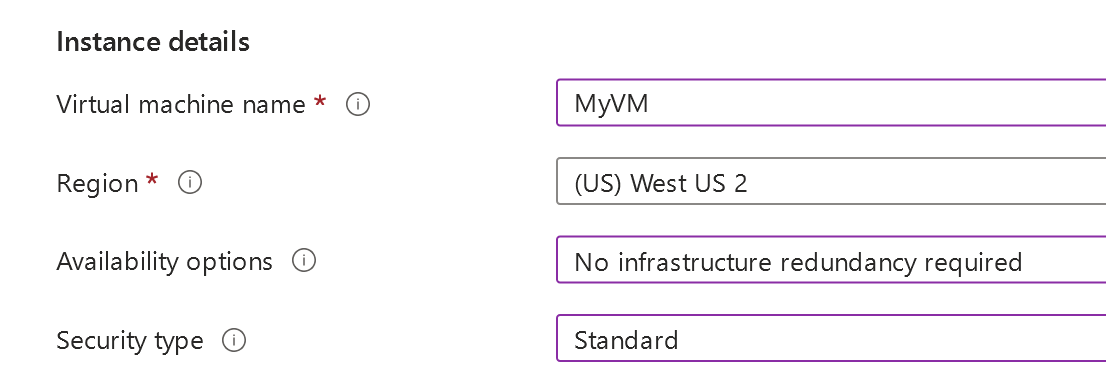
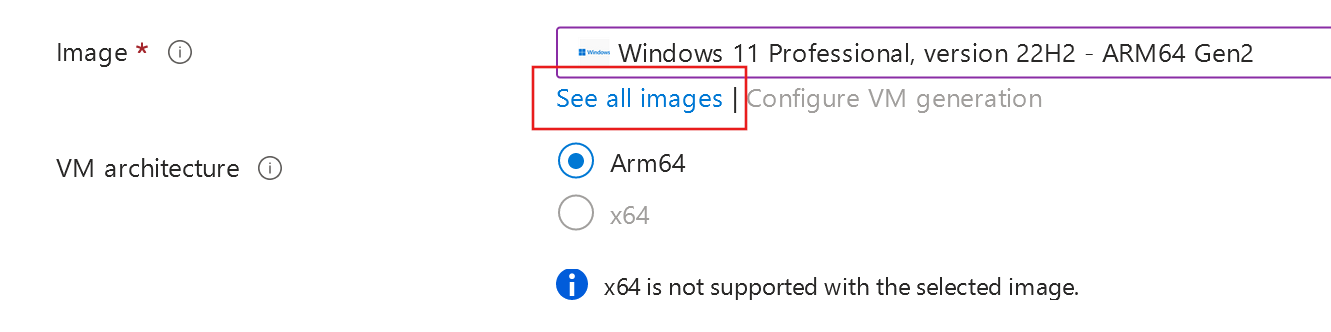
Under Image, select See all images. Select an image opens.
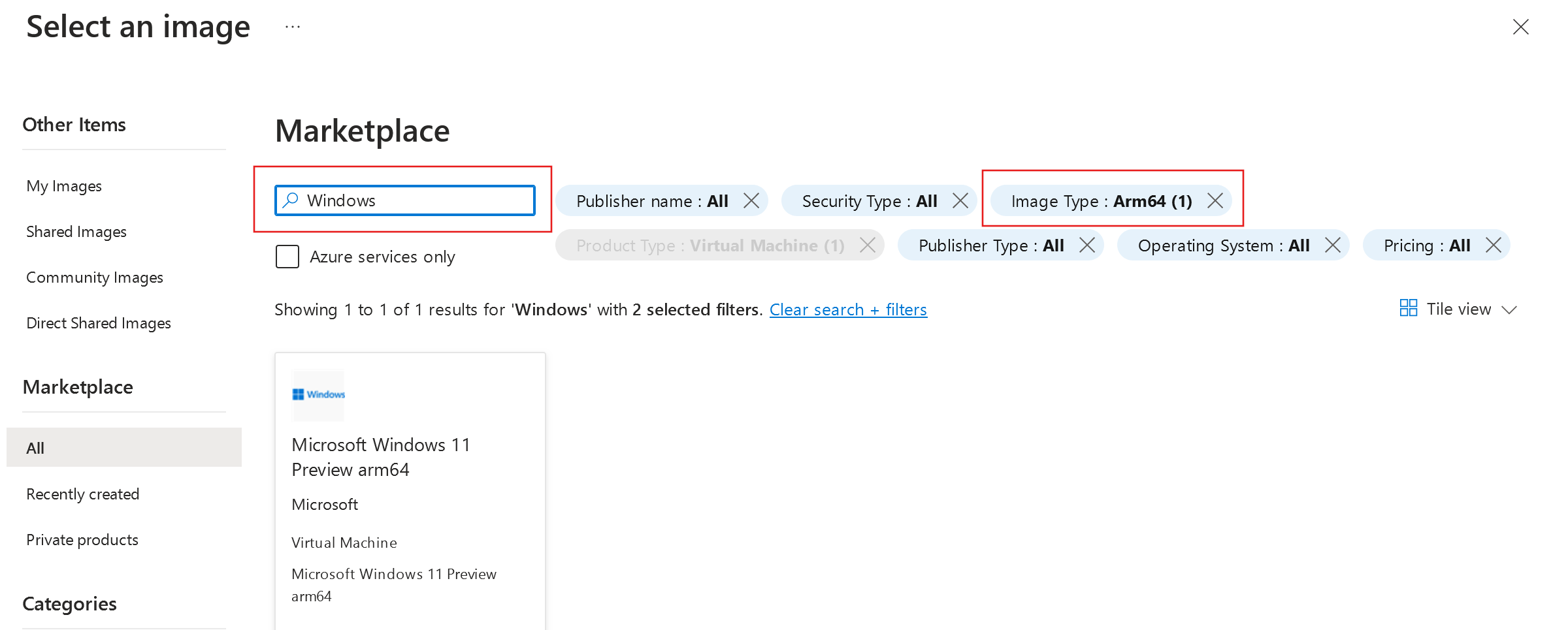
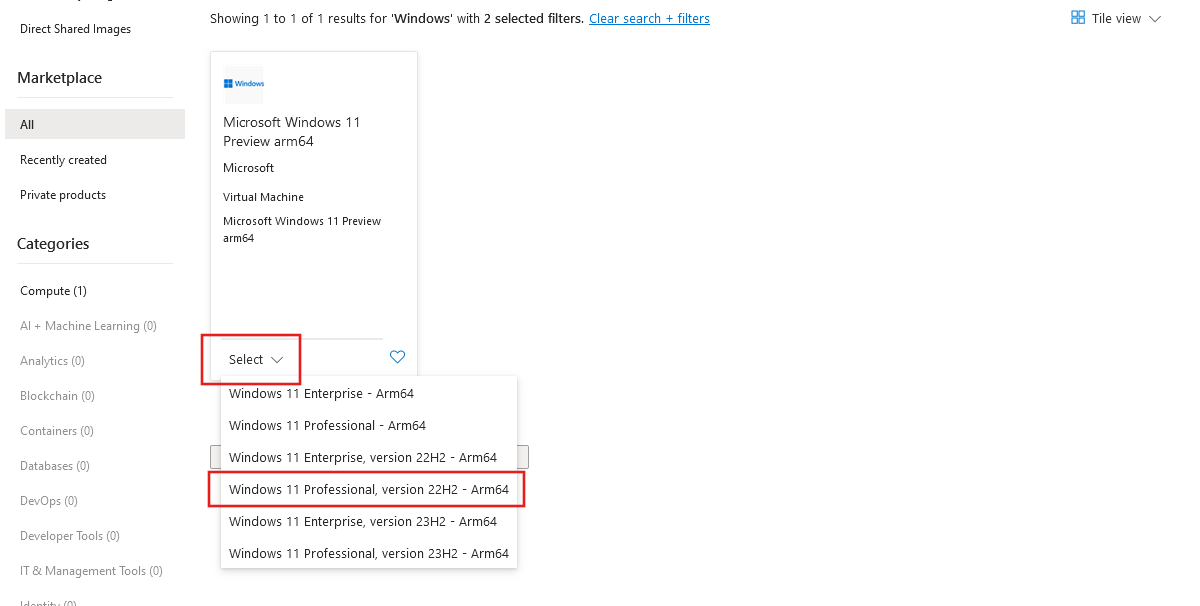
Enter Windows in the Search the Marketplace box. Next, select Image type to open a drop-down of options and select Arm64. This filter displays only available Windows on Arm64 VMs.
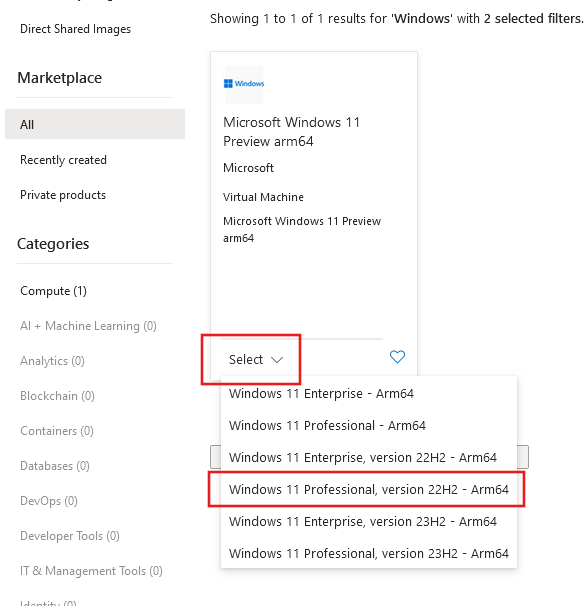
In the Windows 11 result card, select Select to display available images. Choose your preferred image from the list.
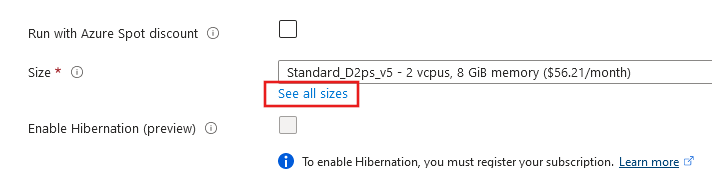
Under Size, select See all sizes. Select a VM size opens.
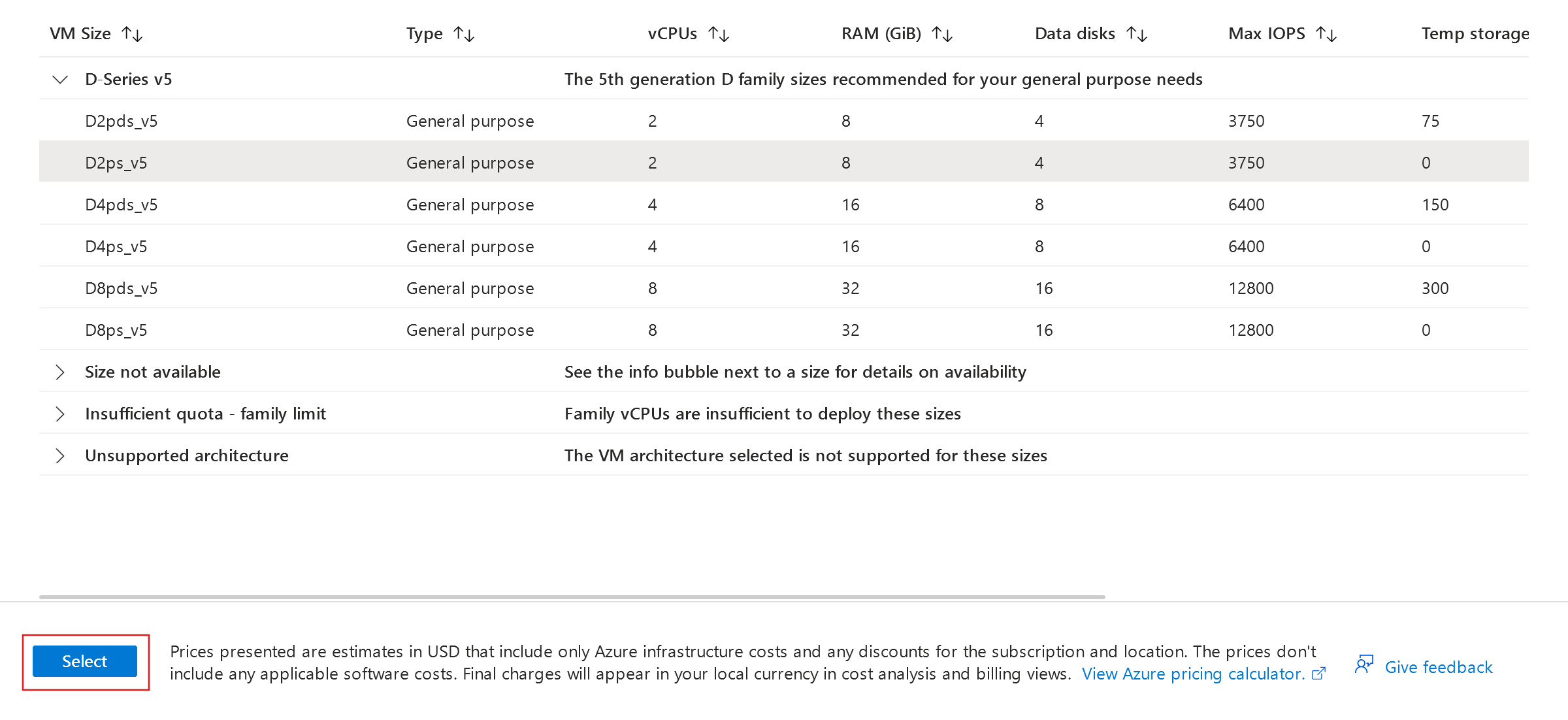
Expand one of the VM Size headers, then choose your desired VM size from the available options. We recommend D2ps_v5 to get started. Select Select to return to Create a virtual machine.
Under Administrator account, provide a username, such as azureuser and a password. The password must be at least 12 characters long and meet the defined complexity requirements.

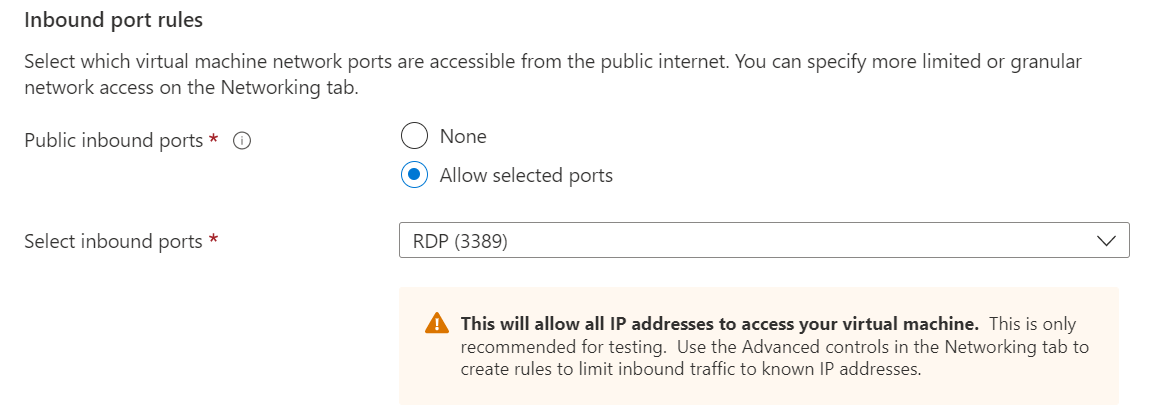
Under Inbound port rules, choose Allow selected ports and then select RDP (3389) from the drop-down.
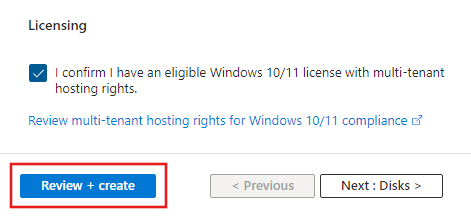
Review Subscription Licenses that qualify for Multitenant Hosting Rights to ensure you have the necessary Windows license. This license is required to use Windows 11 images in Azure for any production workload. Select the checkbox under Licensing after confirming this.
Leave the remaining defaults and then select Review + create.
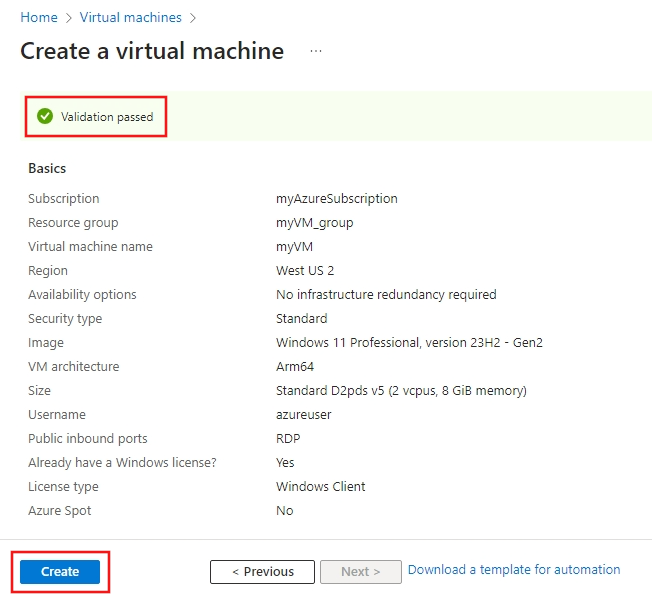
After validation runs, select Create.
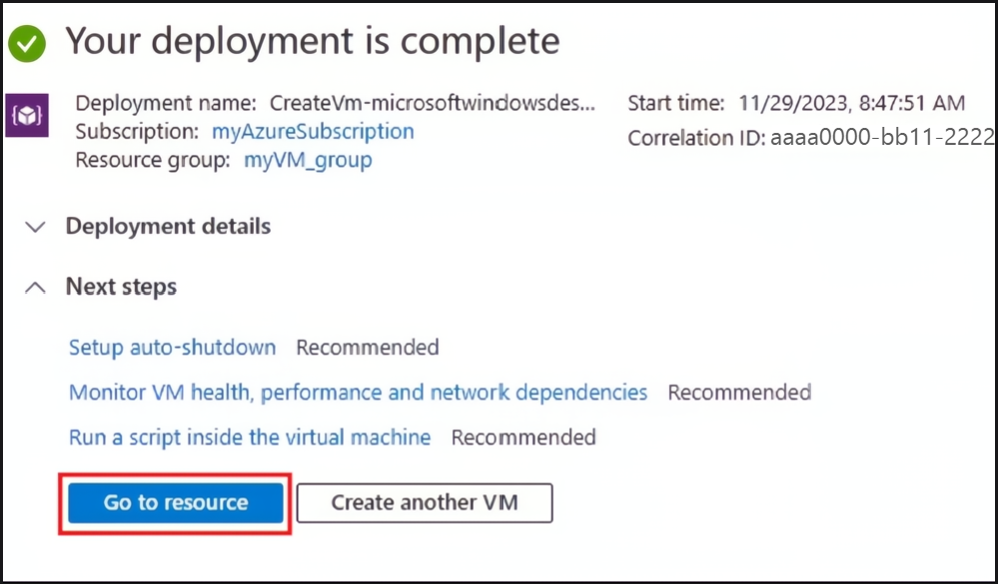
After deployment is complete, select Go to resource.



Connect to virtual machine
Create a remote desktop connection to the virtual machine. These directions explain how to connect to your VM from a Windows computer. On a Mac, you need an RDP client such as this Remote Desktop Client from the Mac App Store.
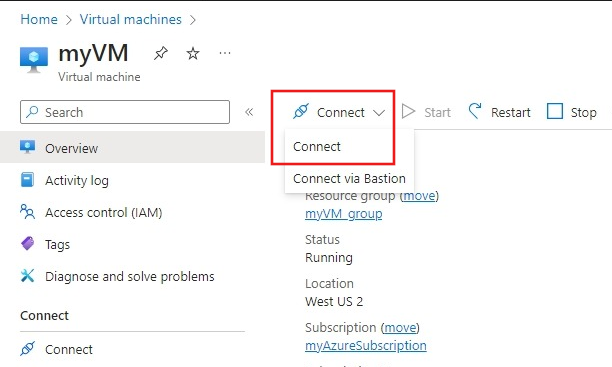
On the overview page for your virtual machine, select Connect > Connect.
In the Native RDP section, select Download RDP file.
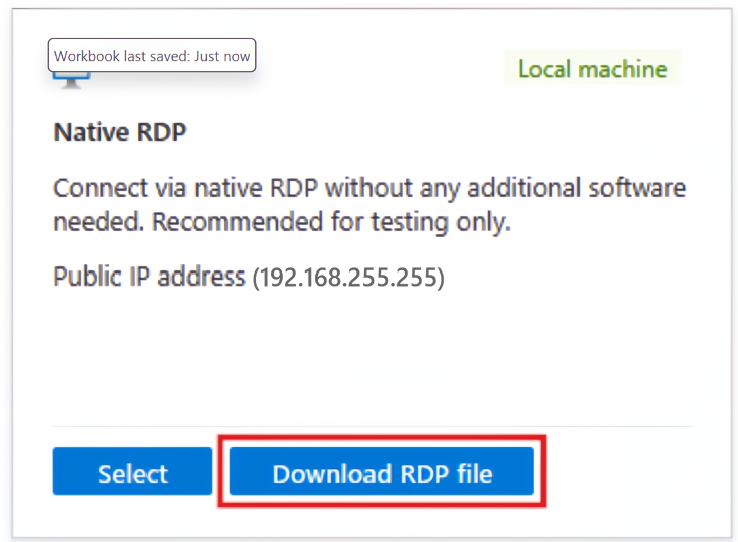
Open the downloaded RDP file and select Connect when prompted.
In the Windows Security window, select More choices and then Use a different account. Type the username as localhost\username, enter the password you created for the virtual machine, and then select OK.
You might receive a certificate warning during the sign-in process. Select Yes or Continue to create the connection.
Clean up resources
Delete resources
When you no longer need the resources, delete the resource group, virtual machine, and all related resources.
- On the Overview page for the VM, select the Resource group link.
- At the top of the page for the resource group, select Delete resource group.
- A page opens warning you that you're about to delete resources. Type the name of the resource group and select Delete to finish deleting the resources and the resource group.
Auto-shutdown
If you still need the VM, Azure provides an Auto-shutdown feature for virtual machines to help manage costs and ensure you aren't billed for unused resources.
- On the Operations section for the VM, select the Auto-shutdown option.
- A page opens where you can configure the auto-shutdown time. Select the On option to enable it, then set a time that works for you.
- After setting the time, select Save at the top to enable your Auto-shutdown configuration.
Note
Remember to configure the time zone correctly to match your requirements, as (UTC) Coordinated Universal Time is the default setting in the Time zone dropdown.
For more information, see Auto-shutdown.
Next steps
In this quickstart, you deployed a simple virtual machine, opened a network port for remote desktop traffic, and connected by using a Remote Desktop. To learn more about Azure Windows virtual machines, continue on to the detailed tutorials.
The App Assure Arm Advisory Service is available to help if you get stuck. This service is in addition to our existing promise: your apps run on Windows on Arm, and if you encounter any issues, Microsoft helps you remediate them.
Additional resources
- Announcing Azure Virtual Machines with Ampere Altra Arm–based processors
- Dpsv5 and Dpdsv5 virtual machine series documentation
- Microsoft Windows 11 Preview arm64 image details on Azure Marketplace
- Windows 11 release information
- Windows Commercial Licensing overview
Collaborate with us on GitHub
The source for this content can be found on GitHub, where you can also create and review issues and pull requests. For more information, see our contributor guide.

Windows on Arm