Note
Access to this page requires authorization. You can try signing in or changing directories.
Access to this page requires authorization. You can try changing directories.
Icons and screenshots occupy up to 50% of the surface area on a Microsoft Store product page, making them the first things customers notice. To maximize your impact, consider conducting A/B testing with different product page variations and then choosing the version that performs best to showcase on Microsoft Store.
To conduct a product page experiment, start by signing in to Partner Center and selecting your app. This new overview page in Partner Center consolidates all app actions and information in one place. The console also contextually prioritizes information cards based on your app's status.
From this view, you can start your product page experiment to test app logo and screenshots across all languages.
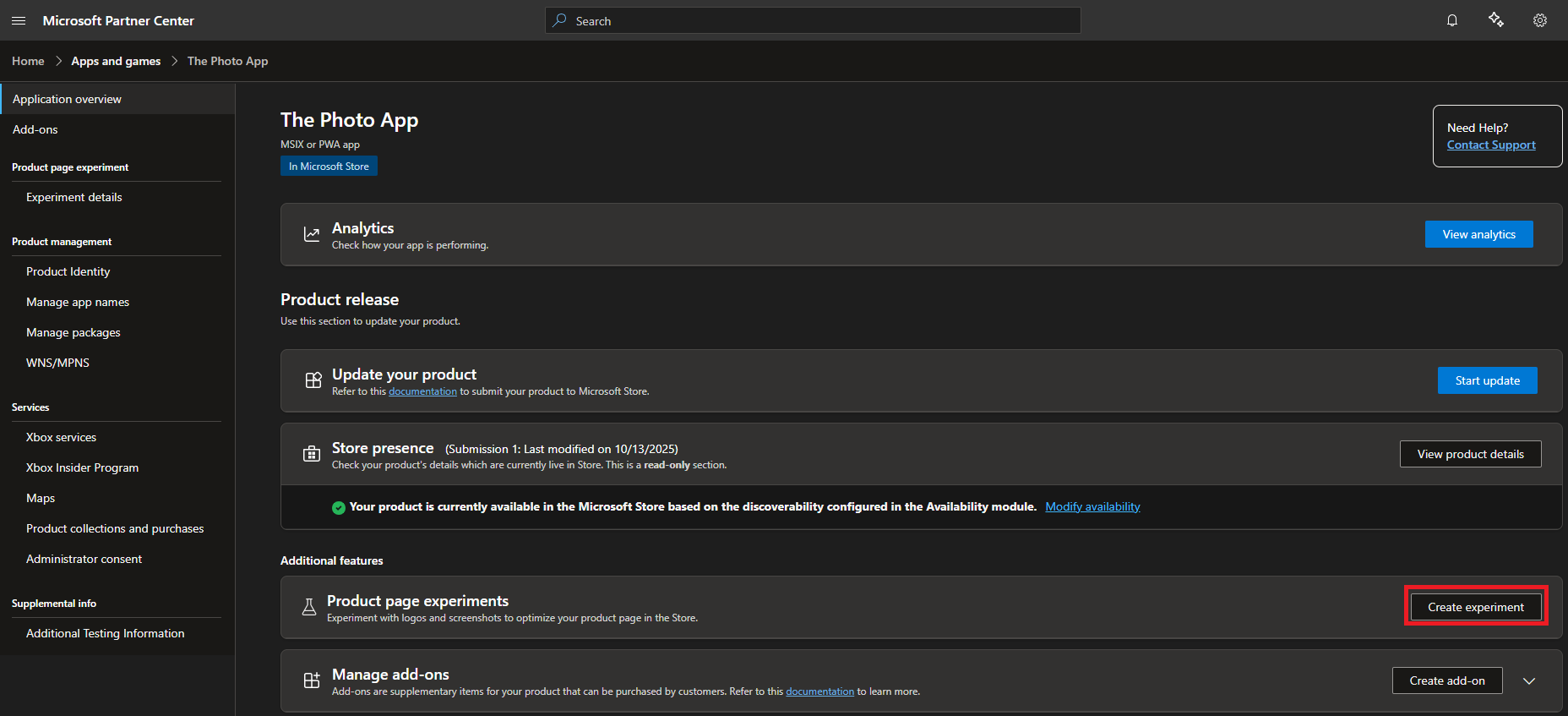
Step 1: Click on Create experiment button in the Product page experiments tab under Additional features.
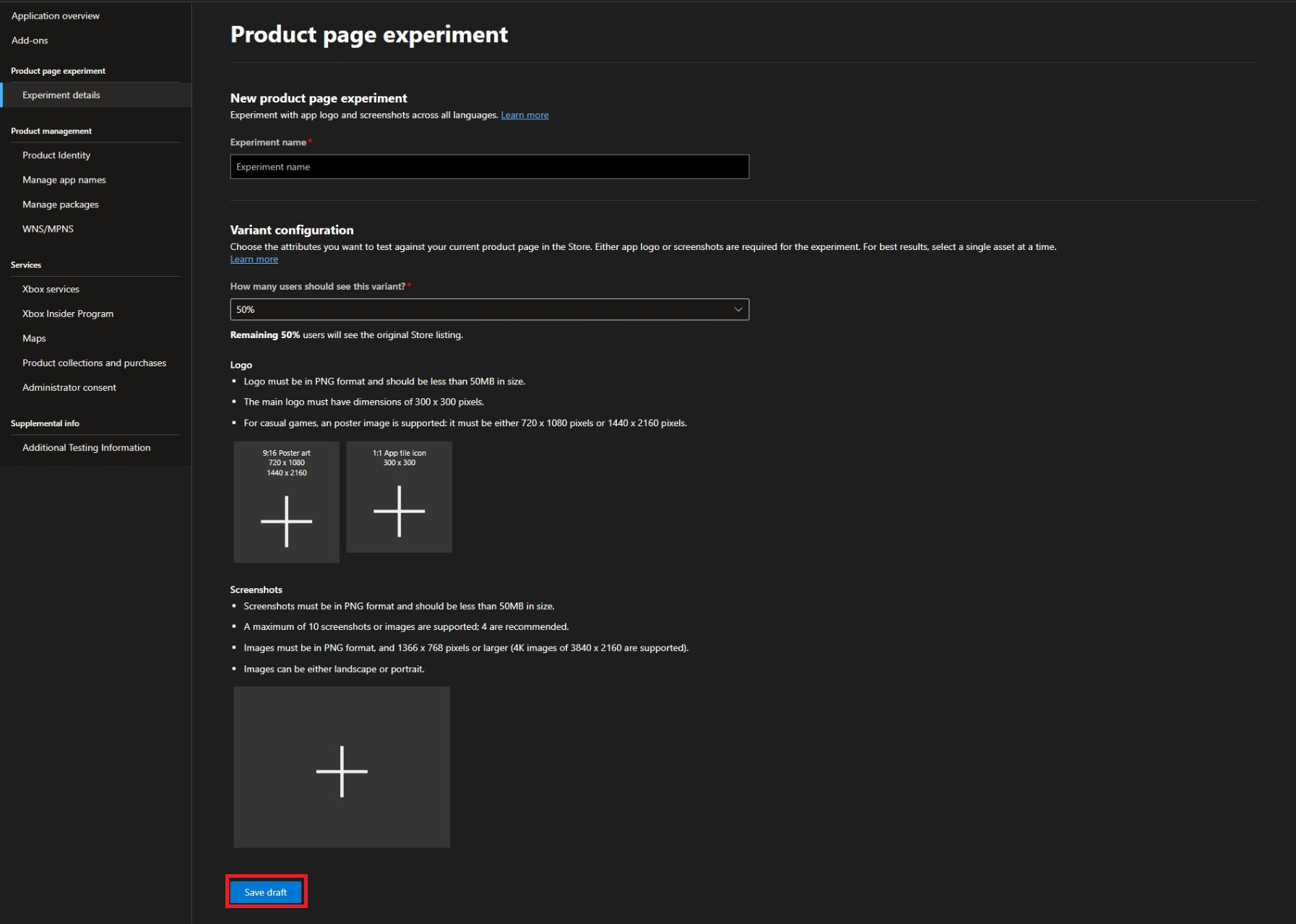
Step 2: Now fill in the following details and save the draft.
- Experiment name: Choose a name of 40 characters or less for your experiment that reflects your test. This field is required.
- How many users should see this variant?: Select the percentage of users who should be shown this variant during the experiment. The remaining users will continue to see the original Store listing. This field is required. Distributing traffic evenly across variants is recommended for the most reliable results.
- Logo: The logo must be in PNG format and should be less than 50MB in size. The main logo must have dimensions of 300 x 300 pixels. For casual games, a poster image is supported: it must be either 720 x 1080 pixels or 1440 x 2160 pixels.
- Screenshots: Screenshots must be in PNG format and should be less than 50MB in size. A maximum of 10 screenshots or images are supported; 4 are recommended. Images must be in PNG format, and 1366 x 768 pixels or larger (4K images of 3840 x 2160 are supported). Images can be either landscape or portrait.
Note
You can delete your experiment in draft from your app overview page in Partner Center.
Step 3: When you are ready, submit the experiment.
Note
By default, all experiments run for up to a maximum length of 90 days. You can also stop the experiment manually from your app overview page.
Step 4: Once submitted, your experiment will go through certification process.
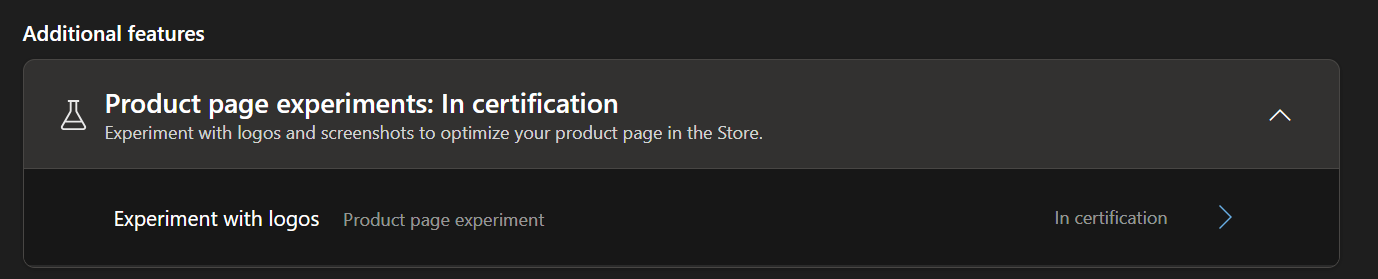
Your experiment will go live in Microsoft Store if it is compliant with Microsoft Store policies. Once approved, 50% of your customers on Microsoft Store will be taken to your new product page while the other 50% will view the original product page.
When your experiment is live, we recommend not changing logos or screenshots in your original listing via the update submission as that can invalidate the results of your experiment.
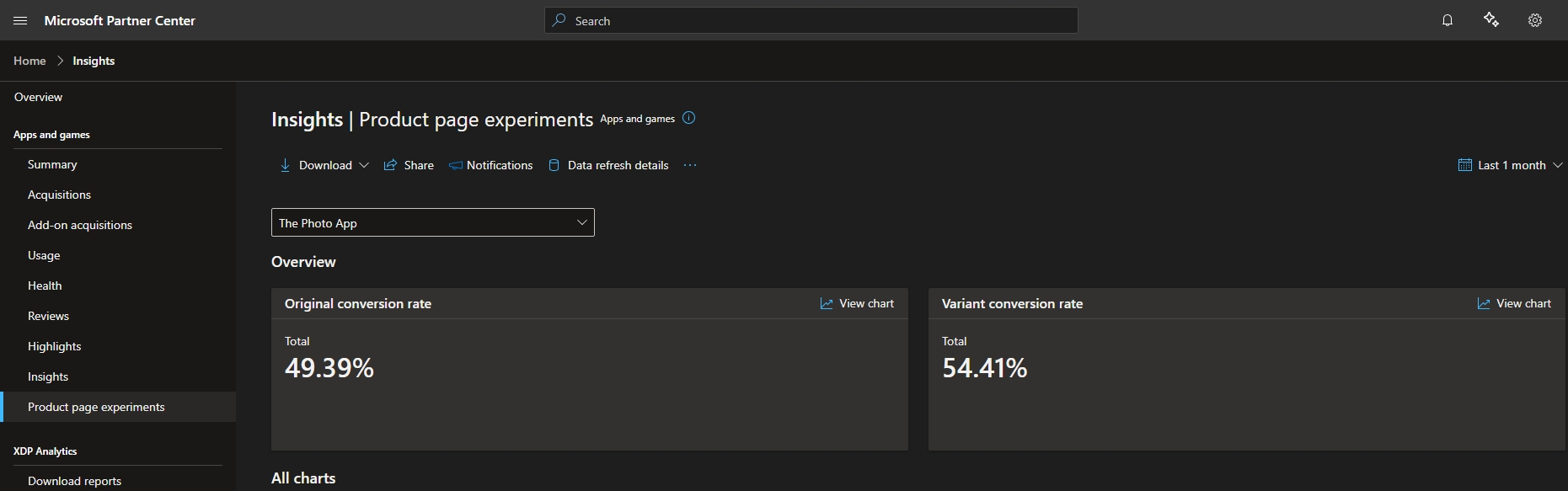
Step 5: To learn how your experiment is performing, you can go to Partner Center insights.
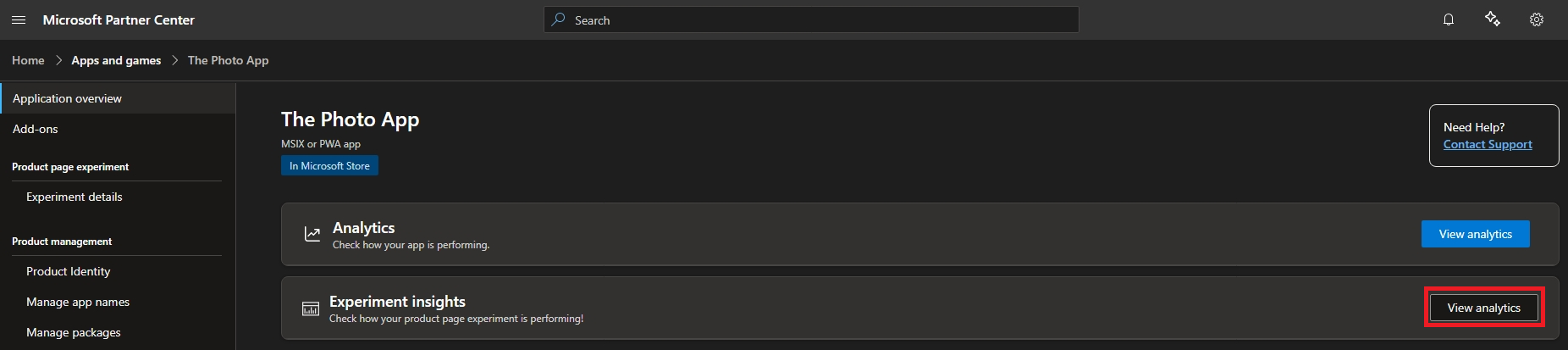
Step 6: Monitor the experiment results on the Product page experiments dashboard. Compare the Original conversion rate and Variant conversion rate to determine which product page performs better. If the variant achieves a higher conversion rate, you can apply the winning logo or screenshots to your product page so all customers see the best-performing assets.
Collaborate with us on GitHub
The source for this content can be found on GitHub, where you can also create and review issues and pull requests. For more information, see our contributor guide.

Windows developer