Note
Access to this page requires authorization. You can try signing in or changing directories.
Access to this page requires authorization. You can try changing directories.
The Remote connection experience settings apply just in time as a user connects to a targeted Cloud PC. Device group targeting is supported on this object type.
The Remote connection experience page lets IT administrators manage the following settings for the device:
Input protection (preview): Blocks input from local admin like keyboard, pen from entering the remote session. Only input generated within the remote session is accepted, improving isolation and reducing risk of interference. Learn more about Input protection.
Context-based redirections (preview): Enables organizations to control redirection behavior based on user and session conditions. By using authentication context, admins can define when specific client capabilities should be allowed or restricted based on factors such as user role, device compliance, or network location. This helps ensure that sensitive data is only accessible when the session meets the required level of trust. Learn more about Context-based redirections.
Add a new setting
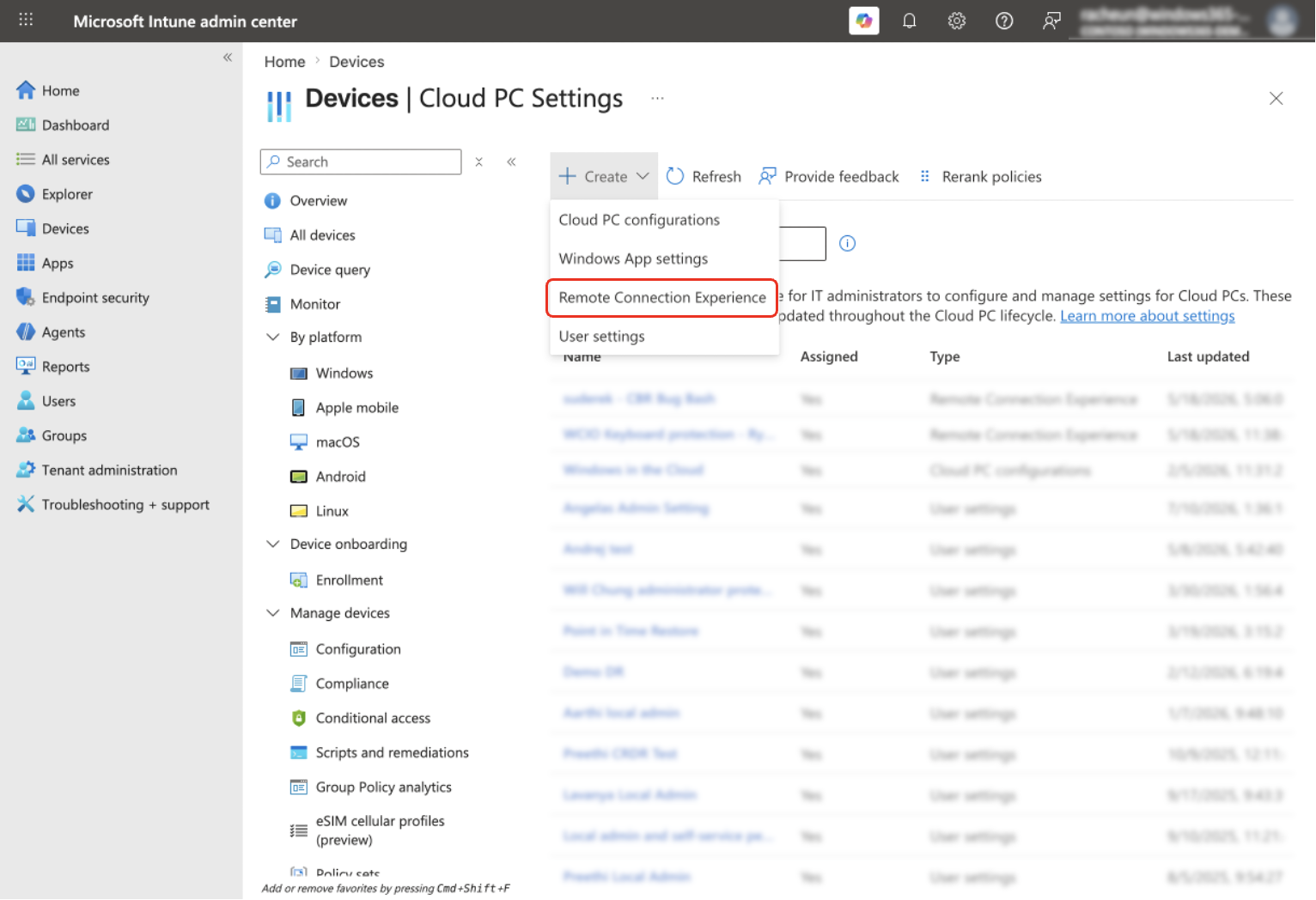
Sign in to the Microsoft Intune admin center, select Devices > Cloud PC Settings (under Manage Windows 365 Cloud PCs).
Select Create and select Remote connection experience from the dropdown.
Enter a Name for the setting and include a Description (optional).
On the Configuration settings tab, select Enable or Disable for any of the settings you would like to configure. For any settings you do not want to configure, you can leave them as their default state of Not configured.
Add any Scope tags you would like to configure. To learn more about scope tags, see Use role-based access control (RBAC) and scope tags for distributed IT.
Under Assignments, choose Add Groups.
Under Select groups to include, choose a group of devices to get the settings > Select.
Select Next.
On the Review + save page, select Create.
Edit a setting
Sign in to the Microsoft Intune admin center, select Devices > Cloud PC Settings (under Manage Windows 365 Cloud PCs).
Select the Remote connection experience policy that you want to edit.
To change the name of the policy or to turn settings on or off, select Edit next to Settings.
Make any changes you want.
On the Review + Save page, select Update.
To edit assignments, select Edit next to Assignments > Add Groups to add another group. To remove existing groups, select the ellipses (…) > Remove.
Select Next.
On the Review + Save page, select Update.
Delete a setting
Sign in to the Microsoft Intune admin center, select Devices > Cloud PC Settings (under Manage Windows 365 Cloud PCs).
On the Settings page, you can view the created settings.
Select the ellipses (…) in the row of the setting you want to delete > Delete.
Select Yes on the confirmation pop up to delete the setting permanently.