Note
Access to this page requires authorization. You can try signing in or changing directories.
Access to this page requires authorization. You can try changing directories.
Microsoft Purview Customer Key is a security feature that lets you add an extra layer of compliance to your data within Microsoft 365 services.
When you use Customer Key with Windows 365 Cloud PCs:
- Your Cloud PC disks, snapshots, and images are encrypted at rest with customer-managed keys instead of Microsoft-managed keys.
- These keys are supplied by you and managed using Azure Key Vault.
- Microsoft manages all other keys, supporting a secure and controlled environment.
You can also set up Customer Key with managed HSM.
Set up Customer Keys for your Windows 365 Cloud PCs
Set up Customer Key as explained in the Microsoft Purview Customer Key documentation.
Create a data encryption policy for use with multiple workloads for all tenant users. This step includes assigning a multi-workload policy. After completing this step, it takes 3-4 hours to update your Intune admin center to include the Configure button.
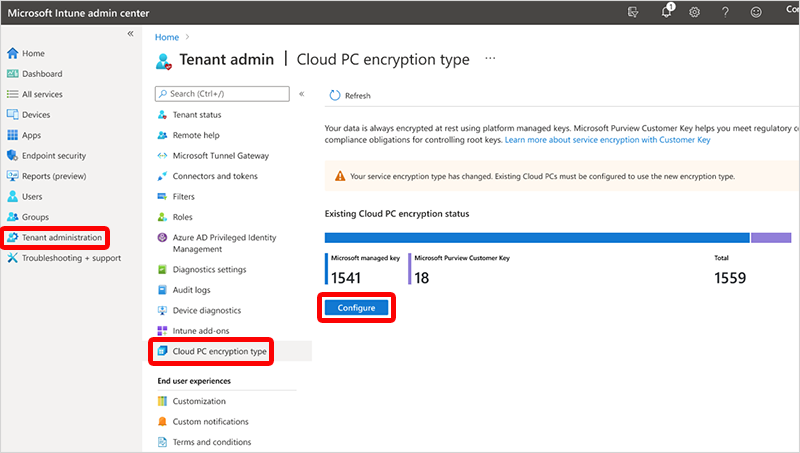
Sign in to the Microsoft Intune admin center > Tenant administration > Cloud PC encryption type > Configure.
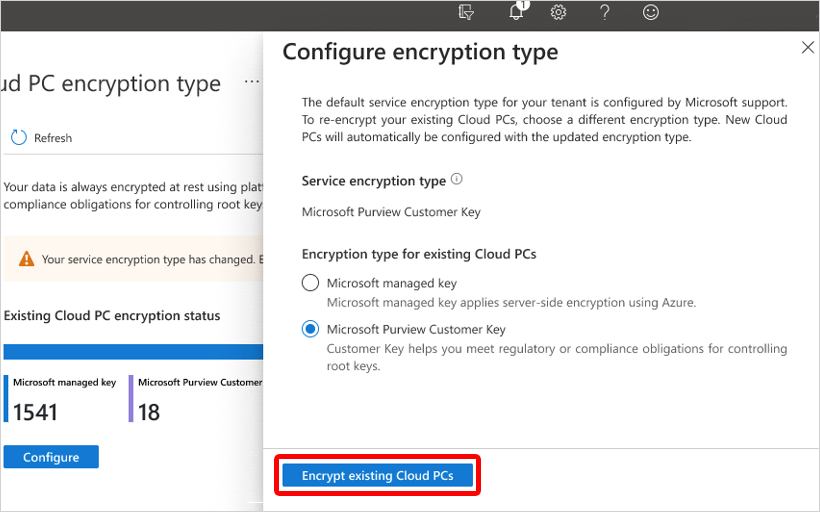
Under Configure encryption type, select Microsoft Purview Customer Key > Encrypt existing Cloud PCs.
In the confirmation window, select Encrypt. A notification states that encrypting started.
Important
Switching encryption types is a deliberate re-encryption operation, not a background transition. After the key change is applied, the Windows 365 backend automatically re-encrypts each Cloud PC's storage and then restarts the Cloud PC. Users will be disconnected during this restart.
Encryption is limited to 20,000 Cloud PCs at a time. You can repeat these steps to encrypt more Cloud PCs.
Encryption can take a long time based on the number of Cloud PCs and the size of the disks. The Cloud PC encryption type page is updated with a notification when the encryption is complete.
Switch to Microsoft-managed keys
You can switch your Cloud PCs from customer-managed keys back to Microsoft-managed (platform-managed) keys at any time.
Sign in to the Microsoft Intune admin center > Tenant administration > Cloud PC encryption type > Configure.
Under Configure encryption type, select Microsoft-managed keys > Encrypt existing Cloud PCs.
In the confirmation window, select Encrypt. A notification states that encrypting started.
Important
Switching encryption types is a deliberate re-encryption operation, not a background transition. After the key change is applied, the Windows 365 backend automatically re-encrypts each Cloud PC's storage and then restarts the Cloud PC. Users will be disconnected during this restart.
Re-encryption is limited to 20,000 Cloud PCs at a time. You can repeat these steps to re-encrypt more Cloud PCs.
Re-encryption can take a long time based on the number of Cloud PCs and the size of the disks. The Cloud PC encryption type page is updated with a notification when the re-encryption is complete.
Next steps
For more information about Microsoft Purview Customer Key, see Overview of service encryption with Microsoft Purview Customer Key.