Note
Access to this page requires authorization. You can try signing in or changing directories.
Access to this page requires authorization. You can try changing directories.
This article provides a resolution for an issue where you can't register your machine with Microsoft Power Automate for desktop.
Symptoms
When you register your machine with Power Automate for desktop, the registration fails with the following error message:
The registration failed because Dataverse solution has the process 'RegisterFlowMachine' deactivated.
Cause
This issue occurs because the RegisterFlowMachine process is deactivated in Dataverse.
For more information, see the processes that need to be activated for Power Automate for desktop.
Resolution
To solve this issue, activate the RegisterFlowMachine process.
Prerequisites
You should have access to your organization endpoint like https://[org].crm.dynamics.com.
The organization endpoint could be found in Environments by selecting your environment name where you want to register the machine.
Steps to activate the RegisterFlowMachine process
Open the following url in a web browser (replace [org] with your organization identifier) and sign in.
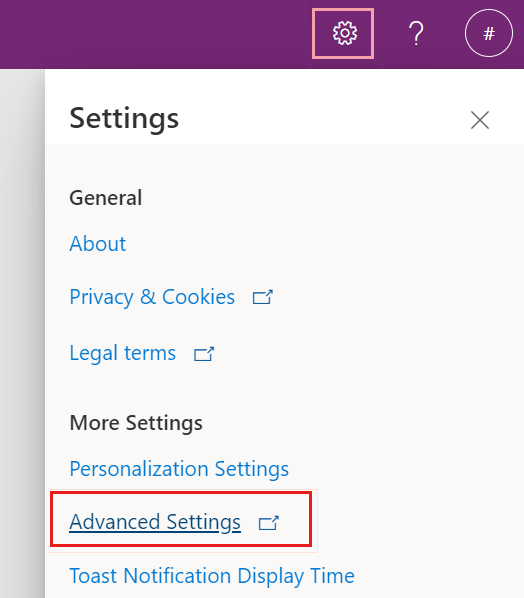
https://[org].crm.dynamics.comSelect the gear icon in the upper-right corner and select Advanced Settings.
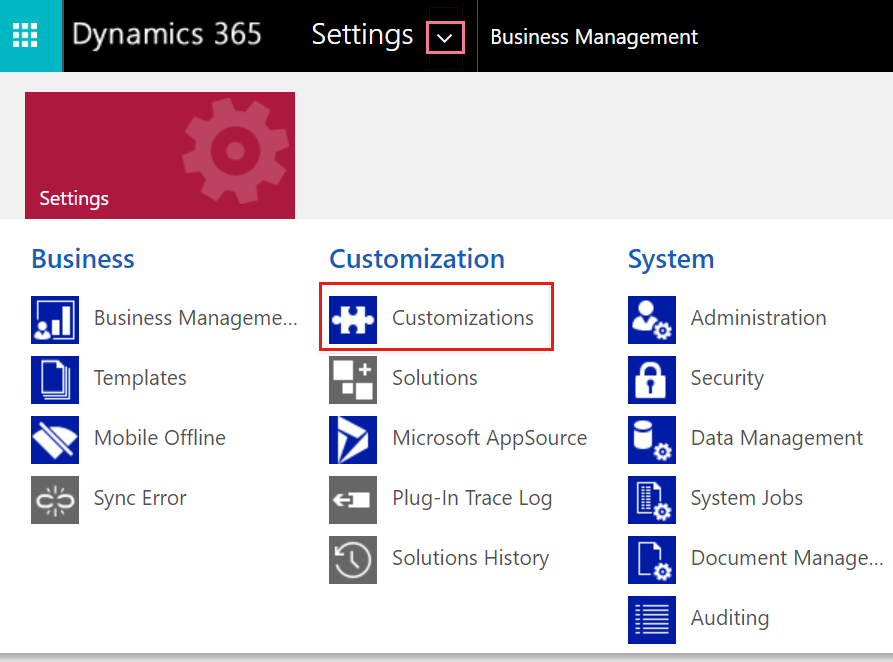
Select Settings > Customizations.
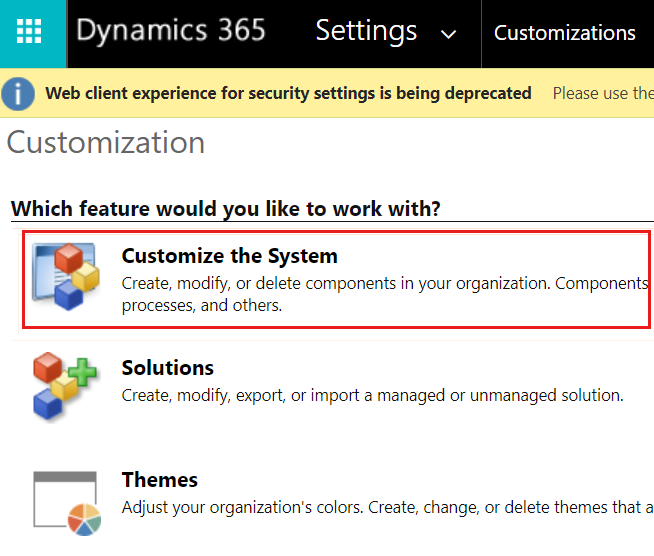
Select Customize the System.
Go to Components > Processes and set the View to All. Check the status of the RegisterFlowMachine process. If the status is Deactivated, go to step 6.
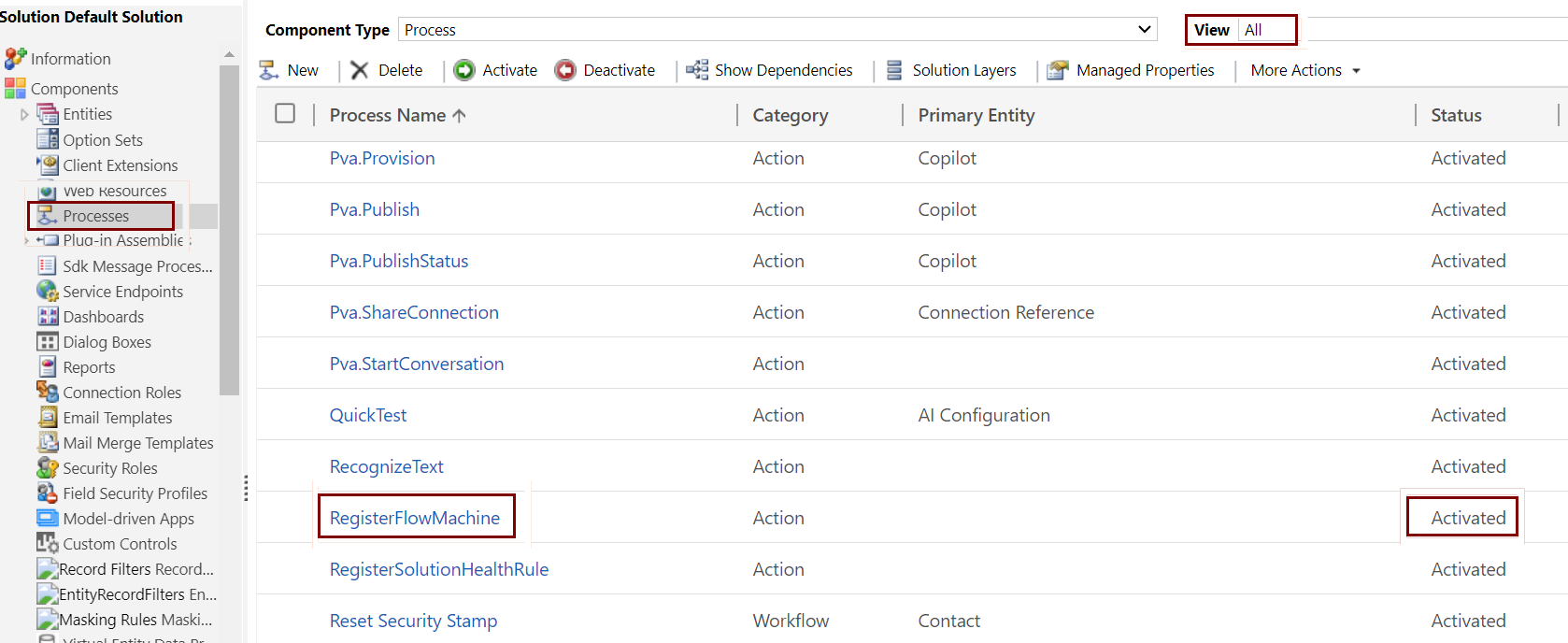
Select the checkbox before the RegisterFlowMachine process name and then select Activate.
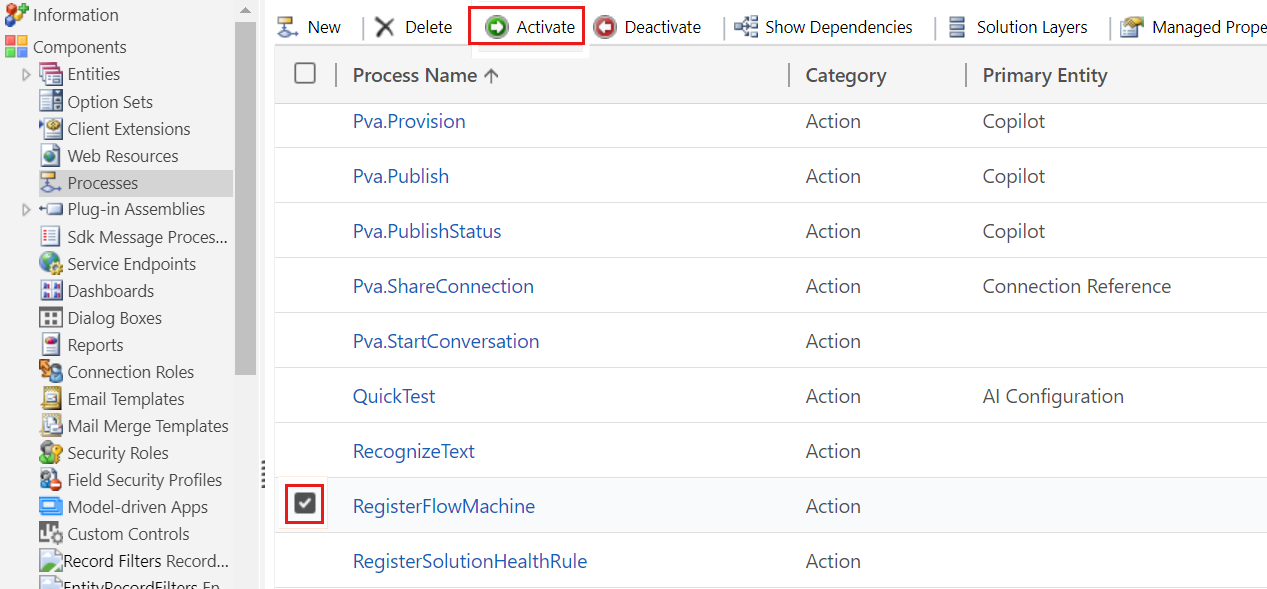
Open the Power Automate machine runtime application and try to register again in the same environment.
Processes that should be activated for Power Automate
- BatchGetFlowMachineStatus
- GetPublicKey
- LeaveGroup
- PowerAutomateProxy
- RegisterFlowMachine
More information
For other registration issues, see Machine registration failure in Power Automate.