Understand default and individual user and group quotas in Azure NetApp Files
User and group quotas enable you to restrict the logical space that a user or group can consume in a volume. User and group quotas apply to a specific Azure NetApp Files volume.
You can restrict user capacity consumption on Azure NetApp Files volumes by setting user and/or group quotas on volumes. User and group quotas differ from volume quotas in the way that they further restrict volume capacity consumption at the user and group level.
- To set a volume quota, you can use the Azure portal or the Azure NetApp Files API to specify the maximum storage capacity for a volume. Once you set the volume quota, it defines the size of the volume, and there's no restriction on how much capacity any user can consume.
- To restrict users’ capacity consumption, you can set a user and/or group quota. You can set default and/or individual quotas. Once you set user or group quotas, users can't store more data in the volume than the specified user or group quota limit.
- By combining volume and user quotas, you can ensure that storage capacity is distributed efficiently and prevent any single user or group of users, from consuming excessive amounts of storage.
Behavior of default and individual user and group quotas
The volume capacity that can be consumed can be restricted at the user and/or group level.
- User quotas are available for SMB, NFS, and dual-protocol volumes.
- Group quotas are not supported on SMB and dual-protocol volumes.
When a user or group consumption reaches the maximum configured quota, further space consumption is prohibited.
Default user quota
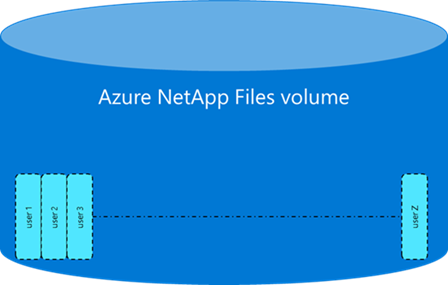
A default user quota automatically applies a quota limit to all users accessing the volume without creating separate quotas for each target user. Each user can only consume the amount of storage as defined by the default user quota setting. No single user can exhaust the volume’s capacity, as long as the default user quota is less than the volume quota. The following diagram depicts this behavior.
Individual user quota
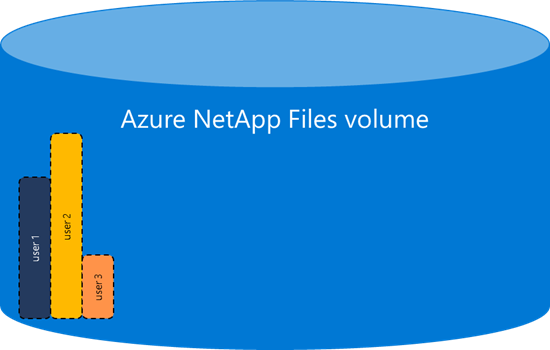
An individual user quota applies a quota to individual target user accessing the volume. You can define multiple individual user quota settings on a volume. Each user can only consume the amount of storage as defined by their individual user quota setting. No single user can exhaust the volume’s capacity, as long as, the individual user quota is less than the volume quota. Individual user quotas override a default user quota, where applicable. The following diagram depicts this behavior.
Combining default and individual user quotas
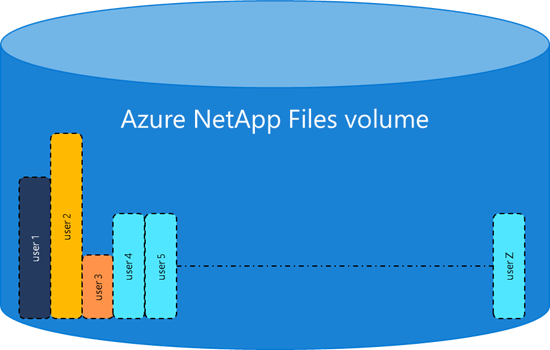
You can create quota exceptions for specific users by allowing those users less or more capacity than a default user quota setting by combining default and individual user quota settings. In the following example, individual user quotas are set for user1, user2, and user3. Any other user is subjected to the default user quota setting. The individual quota settings can be smaller or larger than the default user quota setting. The following diagram depicts this behavior.
Default group quota
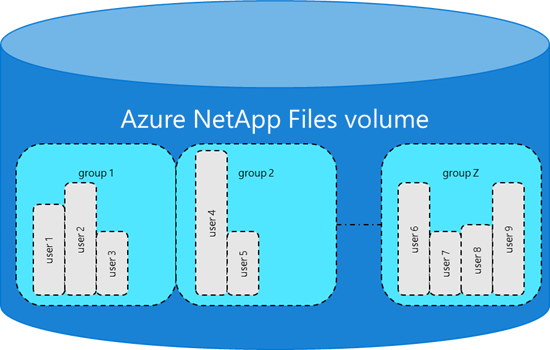
A default group quota automatically applies a quota limit to all users within all groups accessing the volume without creating separate quotas for each target group. The total consumption for all users in any group can't exceed the group quota limit. Group quotas aren’t applicable to SMB and dual-protocol volumes. A single user can potentially consume the entire group quota. The following diagram depicts this behavior.
Individual group quota
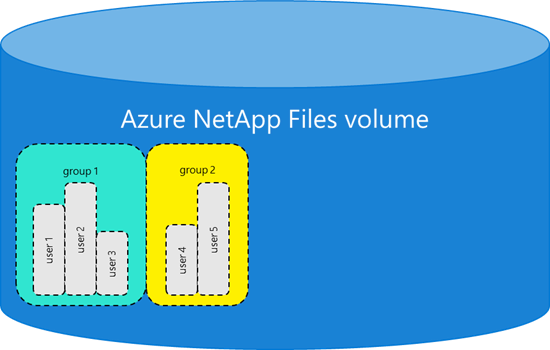
An individual group quota applies a quota to all users within an individual target group accessing the volume. The total consumption for all users in that group can't exceed the group quota limit. Group quotas aren’t applicable to SMB and dual-protocol volumes. You specify the group by a UNIX group ID (GID). Individual group quotas override default group quotas where applicable. The following diagram depicts this behavior.
Combining individual and default group quota
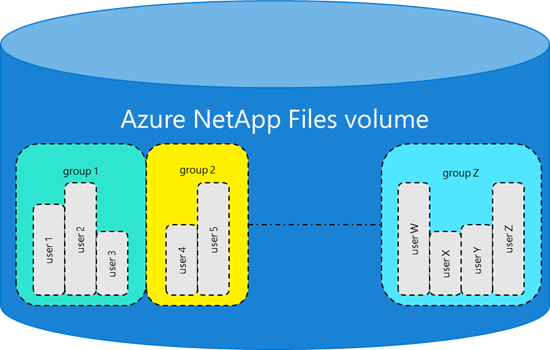
You can create quota exceptions for specific groups by allowing those groups less or more capacity than a default group quota setting by combining default and individual group quota settings. Group quotas aren’t applicable to SMB and dual-protocol volumes. In the following example, individual group quotas are set for group1 and group2. Any other group is subjected to the default group quota setting. The individual group quota settings can be smaller or larger than the default group quota setting. The following diagram depicts this scenario.
Combining default and individual user and group quotas
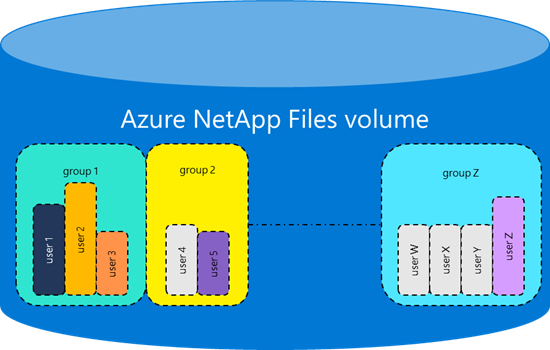
You can combine the various previously described quota options to achieve very specific quota definitions. You can create very specific quota definitions by (optionally) starting with defining a default group quota, followed by individual group quotas matching your requirements. Then you can further tighten individual user consumption by first (optionally) defining a default user quota, followed by individual user quotas matching individual user requirements. Group quotas aren’t applicable to SMB and dual-protocol volumes. In the following example, a default group quota has been set as well as individual group quotas for group1 and group2. Furthermore, a default user quota has been set as well as individual quotas for user1, user2, user3, user5, and userZ. The following diagram depicts this scenario.