Capacity management in Azure NetApp Files
Azure NetApp Files provides tools to monitor and manage capacity utilization.
Virtual machine monitoring
The highest level of monitoring is from within the application virtual machine. You can observe a change in behavior in capacity reporting from within the virtual machine (VM) client operating system.
In the following two scenarios, consider an Azure NetApp Files volume configured at 1-TiB size (quota) on a 4-TiB, Ultra service-level capacity pool.
Windows
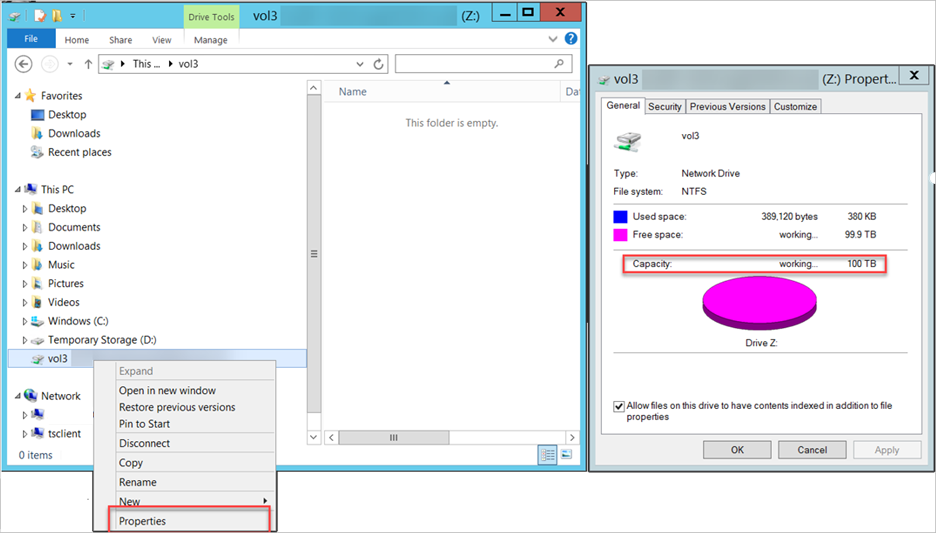
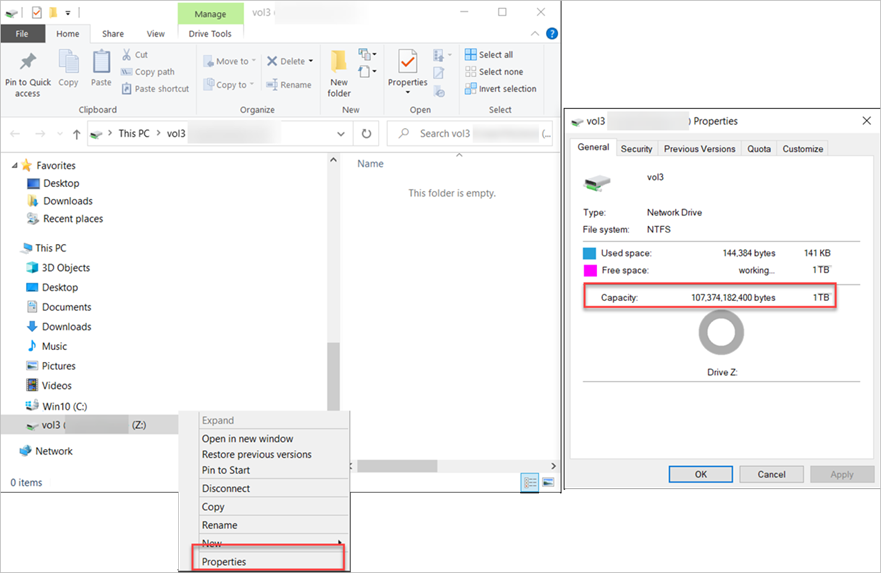
Windows clients can check the used and available capacity of a volume by using the network mapped drive properties. You can use the Explorer > Drive > Properties option.
The following examples show the volume capacity reporting in Windows before the changed behavior:
The following examples show the volume capacity reporting in Windows after the changed behavior:
Linux
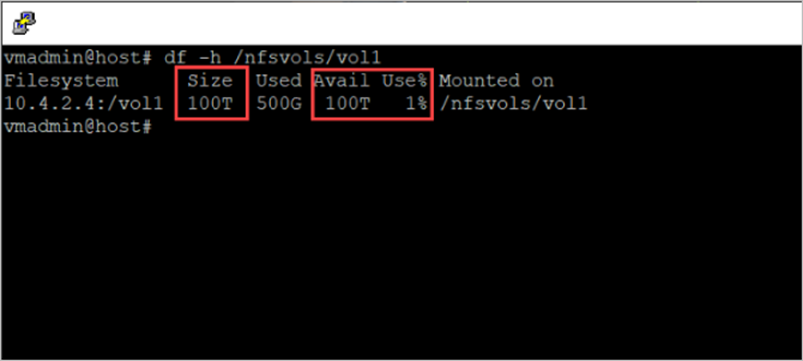
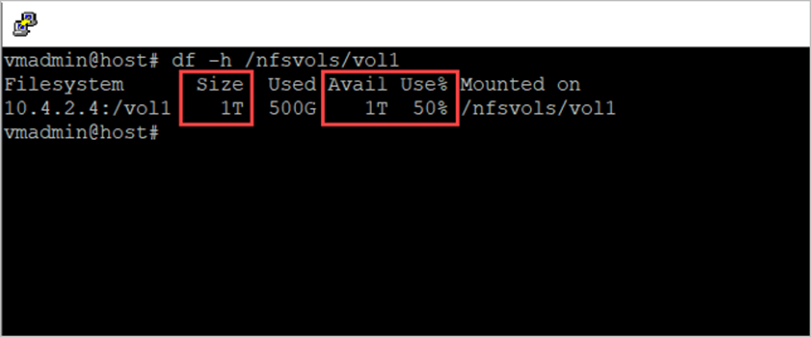
Linux clients can check the used and available capacity of a volume by using the df command. The -h option will show the size, used space, and available space in human-readable format, using M, G, and T unit sizes.
The following example shows volume capacity reporting in Linux before the changed behavior:
The following example shows volume capacity reporting in Linux after the changed behavior:
Manage capacity using Azure NetApp Files
In addition to monitoring and alerting, you should also incorporate an application capacity management practice that can manage Azure NetApp Files (increased) capacity consumption. This section describes various manual and automated ways to increase volume and capacity pool provisioned space as needed.
Manual
You can manually manage capacity using the Azure portal or the CLI.
Azure portal
Watch this video to understand how you can use the Azure portal to manage the capacity for Azure NetApp Files system.
CLI
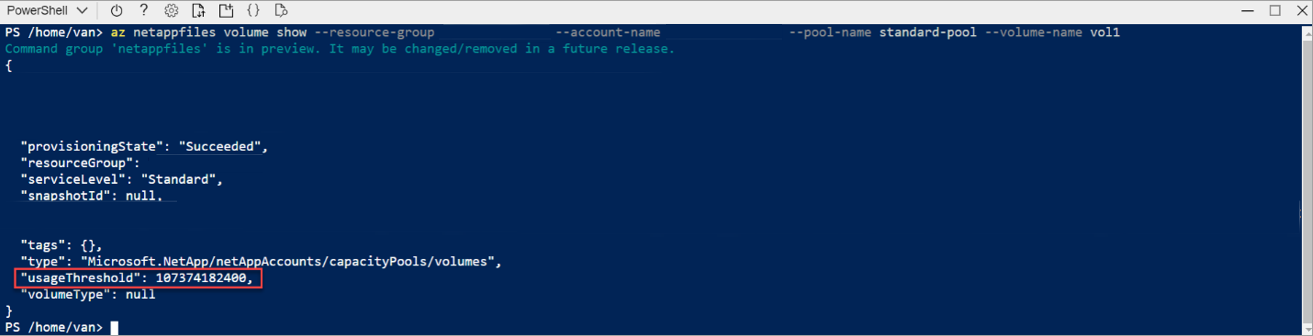
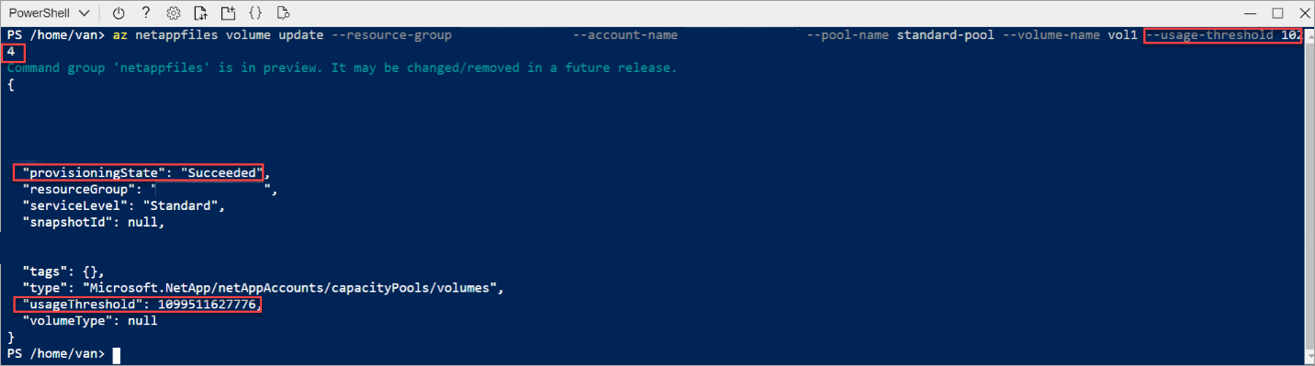
You can use the Azure NetApp Files CLI tools, including the Azure CLI and Azure PowerShell, to manually change the volume or capacity pool size. The az netappfiles pool and az netappfiles volume commands can be used to manage Azure NetApp Files volume and pool resources.
This screenshot captures the output of the az netappfiles volume show command:
This screenshot captures the output of the az netappfiles volume update command:
Automated
You can build an automated process to manage the changed behavior using.
- REST API: The REST API for the Azure NetApp Files service defines HTTP operations against resources such as the NetApp account, the capacity pool, the volumes, and snapshots.
- REST API using PowerShell: The REST API for the Azure NetApp Files service defines HTTP operations against resources such as the NetApp account, the capacity pool, the volumes, and snapshots.
- Capacity management using ANFCapacityManager: ANFCapacityManager is an Azure Logic App that manages capacity-based alert rules. It automatically increases volume sizes to prevent your Azure NetApp Files volumes from running out of space. In addition to sending alerts, it can enable the automatic increase of volume and capacity pool sizes to prevent your Azure NetApp Files volumes from running out of space.