Note
Access to this page requires authorization. You can try signing in or changing directories.
Access to this page requires authorization. You can try changing directories.
The Data Security Triage Agent in Data Loss Prevention (DLP) can send remediation messages through Microsoft Teams to users who last modified files containing sensitive information. Before the agent can deliver these messages, you must configure two settings in the Microsoft Teams Admin Center.
This article covers the required Microsoft Teams configuration, how to control which users receive remediation messages, and how to troubleshoot common delivery failures.
Important
Remediation reminders for the Data Security Triage Agent are currently in Preview. Features and steps described in this article might change before general availability.
For information about deploying and configuring the triage agent itself, see Get started with the Microsoft Purview Triage Agent in Data Loss Prevention.
Prerequisites
Before configuring Teams for remediation messages, ensure these requirements are met:
- The Data Security Triage Agent in DLP must be deployed and configured.
- Remediation reminders must be enabled in the agent's settings. For more information, see Remediation reminder (Preview).
- You must have Teams admin permissions to configure the Microsoft Teams Admin Center settings described in this article.
Note
The Purview admin or analyst who configures the triage agent might not have permissions to access the Microsoft Teams Admin Center. If that's the case, coordinate with a user in your organization who has Teams admin permissions to configure these settings.
Required Teams Admin Center settings
Two settings must be correctly configured for the Data Security Triage Agent to send remediation messages through Microsoft Teams.
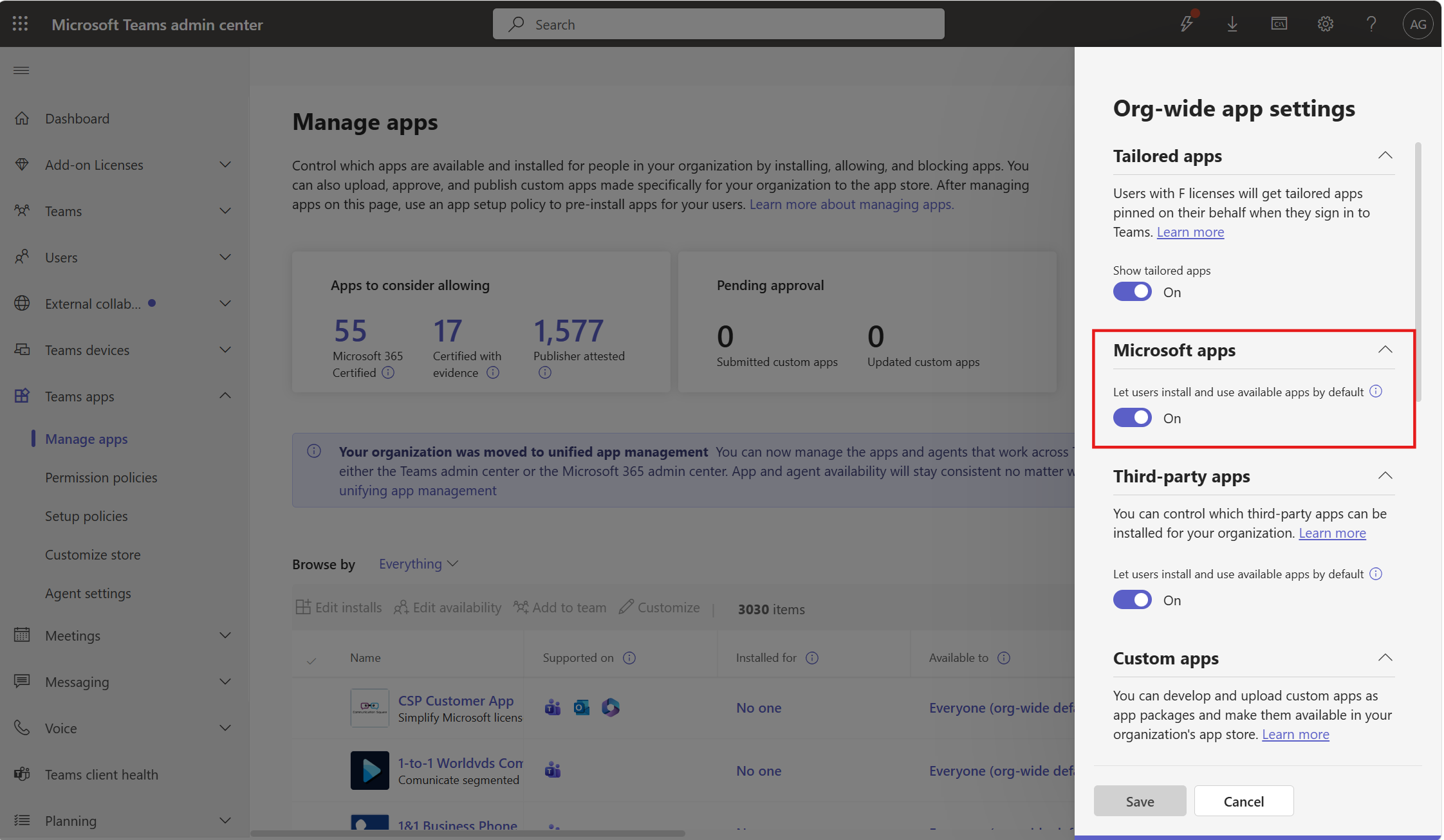
Enable org-wide Microsoft apps
The org-wide Microsoft apps setting controls whether Microsoft-published apps can be used across your organization. This toggle must be set to On for the Data Security Triage Agent to function.
- Sign in to the Teams Admin Center.
- Go to Teams apps > Manage apps.
- Select Actions > Org-wide app settings.
- In the Org-wide app settings panel, set the Microsoft apps toggle to On.
- Select Save.
Make the Data Security Triage Agent app available
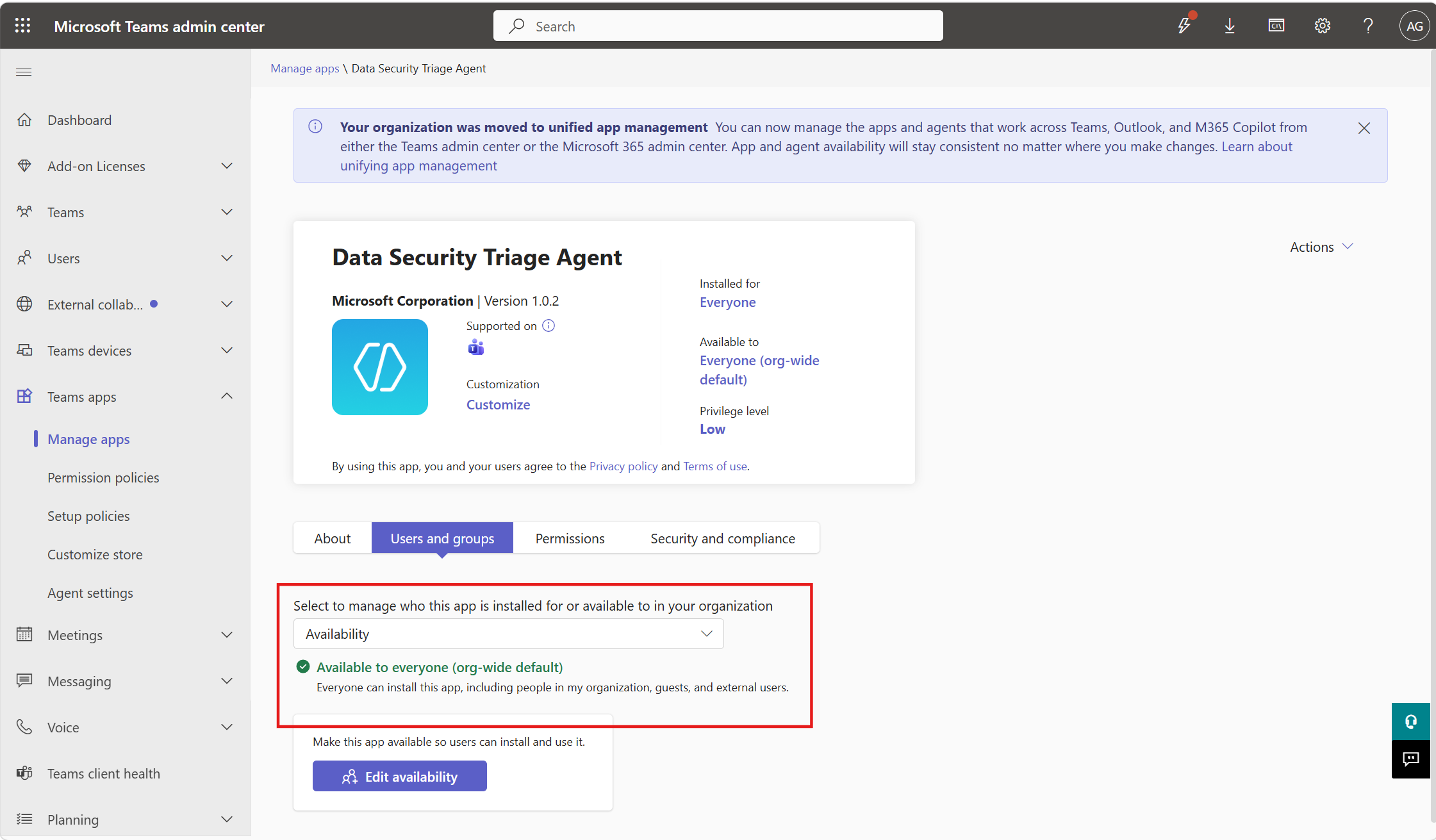
The Data Security Triage Agent app must not be blocked for users who should receive remediation messages.
- Sign in to the Teams Admin Center.
- Go to Teams apps > Manage apps.
- Search for Data Security Triage Agent and select it.
- Go to the Users and groups tab.
- Verify that Availability is set to Available to everyone (org-wide default).
Important
The Data Security Triage Agent app doesn't need to be preinstalled for users. Microsoft Purview automatically installs the app for a specific user at the time a remediation message is sent. The app only needs to be available (not blocked) in your organization.
Control who receives remediation messages
When remediation reminders are enabled, the Data Security Triage Agent sends Microsoft Teams messages to users who last modified files containing sensitive information. You can control which users receive these messages through two mechanisms.
Limit remediation to specific policies
To limit the scope of remediation to specific files or locations, edit the agent's policy scope to enable remediation on only a subset of triage-eligible policies. Policies enabled for remediation are always a subset of policies enabled for triage.
- In the Microsoft Purview portal, go to Agents > Explore agents.
- Select Go to agent for the Triage Agent in Data Loss Prevention.
- Select Edit agent > Agent configuration.
- Under Set agent scope, select Edit.
- In the Select policies panel, enable the Remediation toggle only for the policies where you want remediation messages sent to users.
- Select Select policies to save.
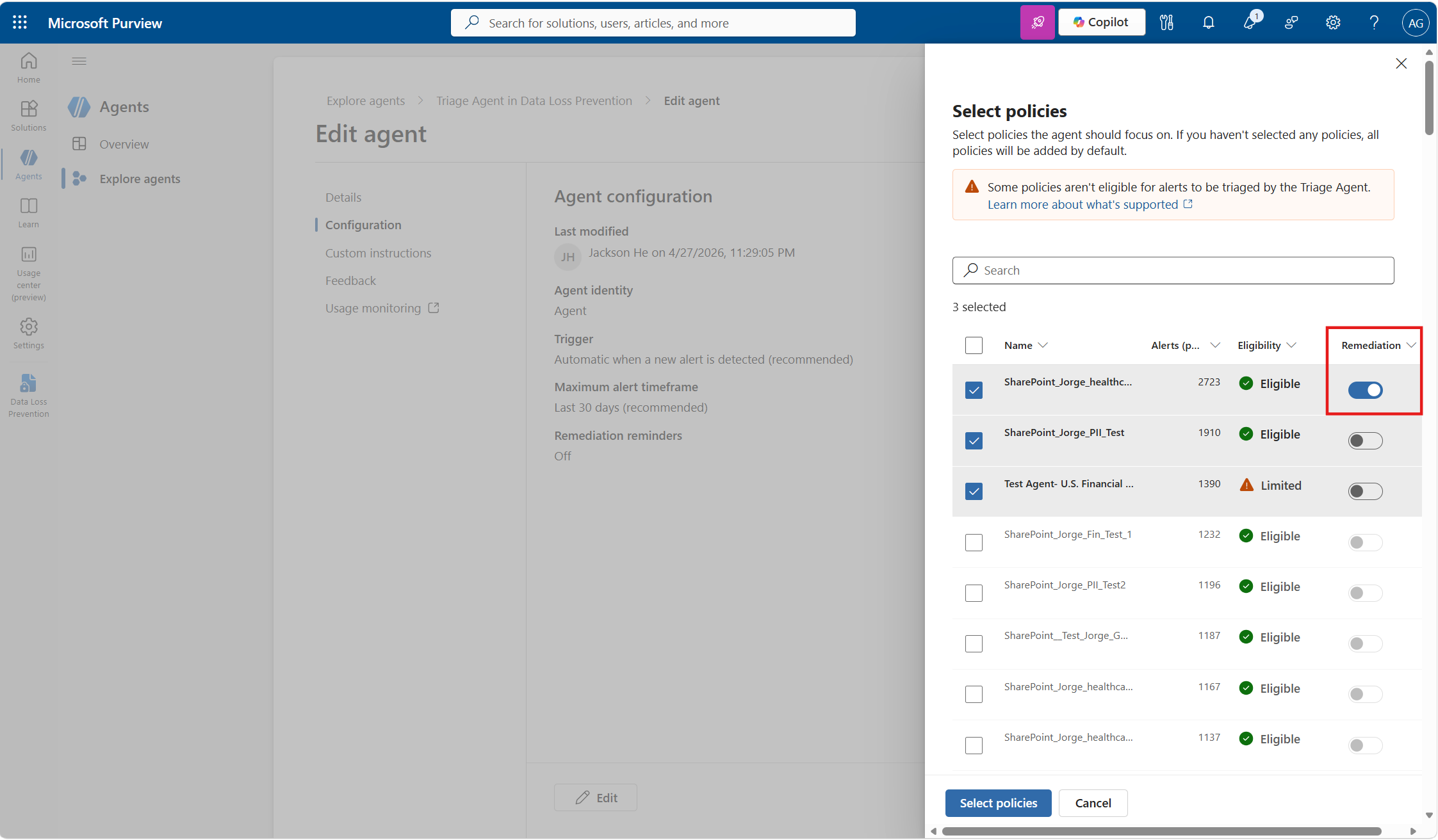
This approach limits remediation by controlling which DLP policies trigger remediation messages. Users who violate policies that aren't enabled for remediation don't receive Teams messages from the agent.
Block the app for specific users or groups
To prevent the agent from sending messages to specific users--such as executives, sensitive roles, or specific organizational groups--change the app's availability in the Microsoft Teams Admin Center.
- Sign in to the Teams Admin Center.
- Go to Teams apps > Manage apps.
- Search for Data Security Triage Agent and select it.
- Go to the Users and groups tab.
- Select Edit availability.
- Change the availability from Everyone to Specific users or groups, then add only the users or groups who should receive remediation messages.

Important
Blocking the app for a user is a hard block. Even if an alert is triaged and a remediation message is generated, the message won't be sent to users for whom the app is blocked. This result is a failsafe mechanism--if you need to immediately stop all remediation messages, set availability to No one.
Tip
Use policy scoping in Purview for routine control over what files and locations trigger remediation. Use Teams Admin Center blocking as another safeguard when you need to guarantee that specific users never receive messages from this agent, regardless of which policies are in scope.
Troubleshoot remediation message delivery
If remediation messages aren't being sent, check:
| Symptom | Likely cause | Resolution |
|---|---|---|
| No users receive messages | Org-wide Microsoft apps toggle is off | Enable org-wide Microsoft apps |
| No users receive messages | Data Security Triage Agent app is blocked | Make the app available |
| Some users don't receive messages | App is blocked for specific users or groups | Check the app's Users and groups settings in Teams Admin Center |
| Messages sent but not appearing | User hasn't opened Teams recently | Messages appear once the user signs in to Teams |
Important
A common misconfiguration occurs when the org-wide Microsoft apps toggle is enabled but the Data Security Triage Agent app is individually blocked. Both settings must be correctly configured for remediation to work.