Note
Access to this page requires authorization. You can try signing in or changing directories.
Access to this page requires authorization. You can try changing directories.
Summary
| Item | Description |
|---|---|
| Release state | General availability |
| Products | Excel Power BI (Semantic models) Power BI (Dataflows) Fabric (Dataflow Gen2) Power Apps (Dataflows) Dynamics 365 Customer Insights Analysis Services |
| Function Reference Documentation | File.Contents Lines.FromBinary Csv.Document |
Note
Some capabilities might be present in one product but not others due to deployment schedules and host-specific capabilities.
Capabilities supported
- Import
Connect to local text/CSV file from Power Query Desktop
To load a local text or CSV file:
Select the Text/CSV option in Get Data. This action launches a local file browser where you can select your text file.

Select Open to open the file.
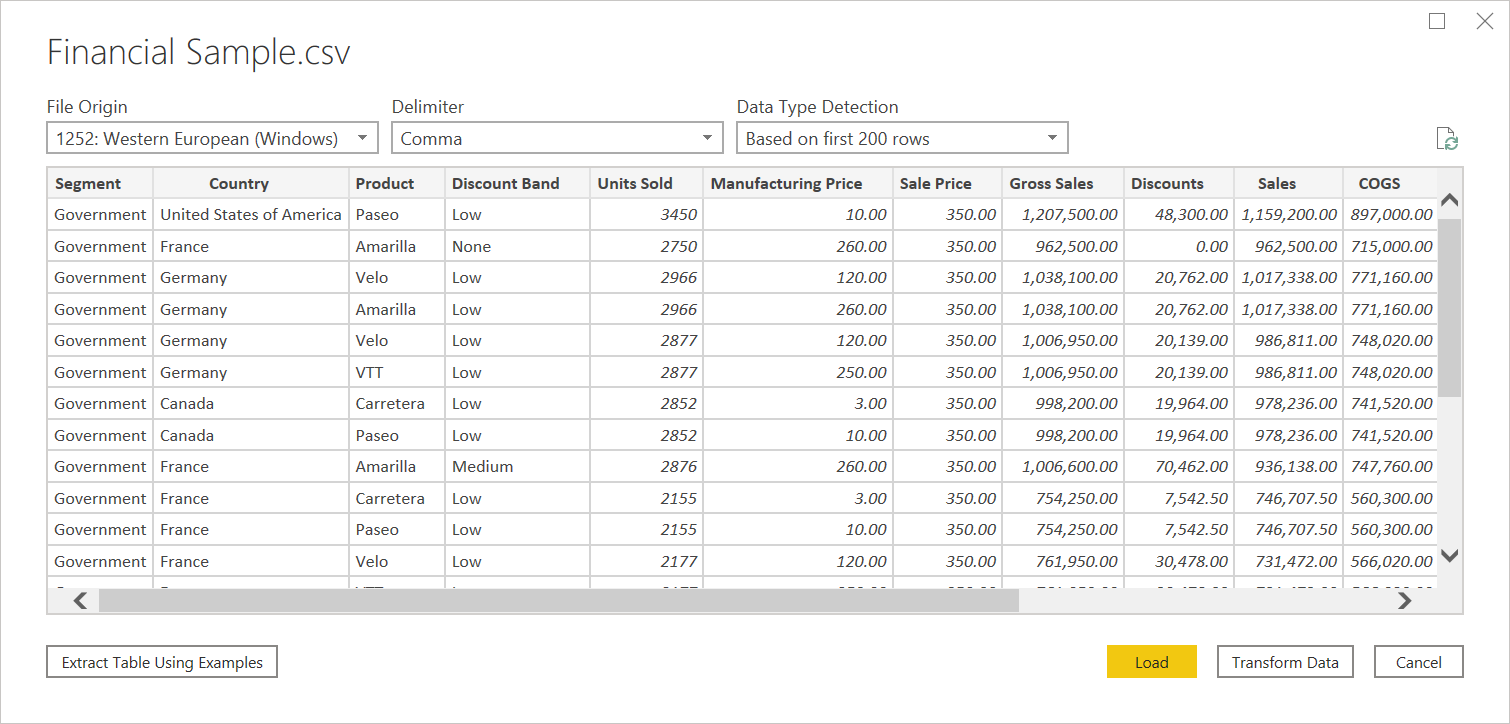
From the Navigator, you can either transform the data in the Power Query editor by selecting Transform Data, or load the data by selecting Load.

Connect to text/CSV file from Power Query Online
To load a local text or CSV file:
From the Data sources page, select Text/CSV.
In Connection settings, either upload the file or enter a file path to the local text or CSV file you want.
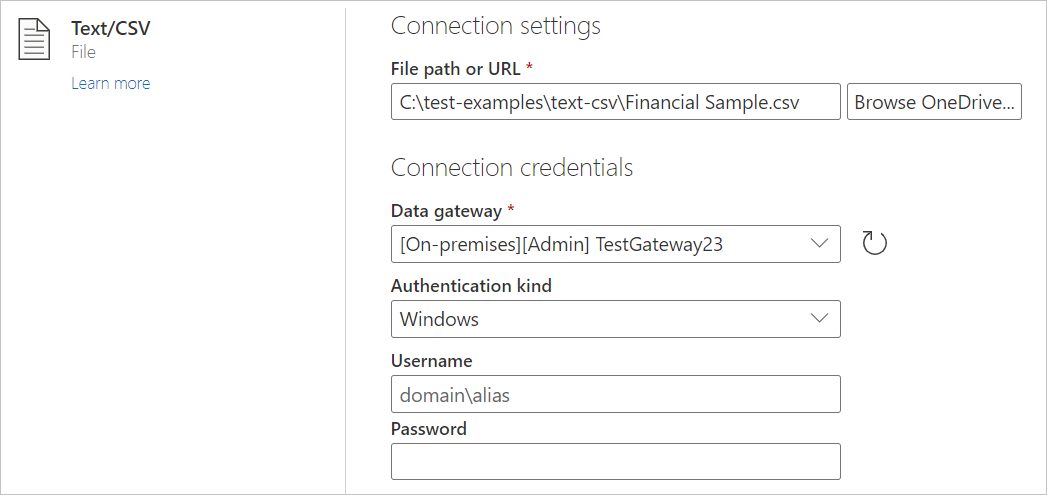
Select an on-premises data gateway from Data gateway.
Enter a username and password.
Select Next.
From the Navigator, select Transform Data to begin transforming the data in the Power Query editor.


Load from the web
To load a text or CSV file from the web, select the Web connector, enter the web address of the file, and follow any credential prompts.
Text/CSV delimiters
Power Query treats CSVs as structured files with a comma as a delimiter - a special case of a text file. If you choose a text file, Power Query automatically attempts to determine if it has delimiter separated values, and what that delimiter is. If it can infer a delimiter, it automatically treats it as a structured data source.
Unstructured text
If your text file doesn't have structure, you get a single column with a new row for each line encoded in the source text. As a sample for unstructured text, consider a Notepad file with the following contents:
Hello world.
This is sample data.
When you load it, you're presented with a navigation screen that loads each of these lines into their own row.

You can configure only one option on this dialog, which is the File Origin dropdown select. This dropdown lets you select which character set was used to generate the file. Currently, the character set isn't inferred, and UTF-8 is only inferred if it starts with a UTF-8 BOM.

CSV
You can find a sample CSV file here.
In addition to file origin, CSV also supports specifying the delimiter and how data type detection is handled.
Delimiters include colon, comma, equals sign, semicolon, space, tab, a custom delimiter (which can be any string), and a fixed width (splitting up text by some standard number of characters).

The final dropdown lets you select how you want to handle data type detection. You can base it on the first 200 rows or on the entire data set. You can also choose to turn off automatic data type detection and instead let all columns default to 'Text.' Warning: if you choose the entire data set, it might cause the initial load of the data in the editor to be slower.

Since inference can be incorrect, double check settings before loading.
Structured text
When Power Query detects structure in your text file, it treats the text file as a delimiter separated value file. It gives you the same options available when opening a CSV. A CSV is essentially a file with an extension indicating the delimiter type.
For example, if you save the following example as a text file, Power Query reads it as having a tab delimiter rather than unstructured text.
Column 1	Column 2	Column 3
This is a string.	1	ABC123
This is also a string.	2	DEF456

You can use this structure for any kind of other delimiter-based file.
Editing source
When you edit the source step (in the Applied steps pane of Power Query Desktop), you see a slightly different dialog than when you initially load the file. Depending on how you currently treat the file (as text or CSV), you see a screen with various dropdowns.

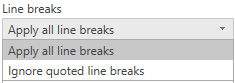
Use the Line breaks dropdown to select if you want to apply line breaks that are inside quotes or not.
For example, if you edit the 'structured' sample previously provided, you can add a line break.
Column 1	Column 2	Column 3
This is a string.	1	"ABC
123"
This is also a string.	2	"DEF456"
If you set Line breaks to Ignore quoted line breaks, the sample loads with the second half of the string under the first half in the same column.

If you set Line breaks to Apply all line breaks, the sample loads an extra row, with the content after the line breaks being the only content in that row (exact output might depend on structure of the file contents).

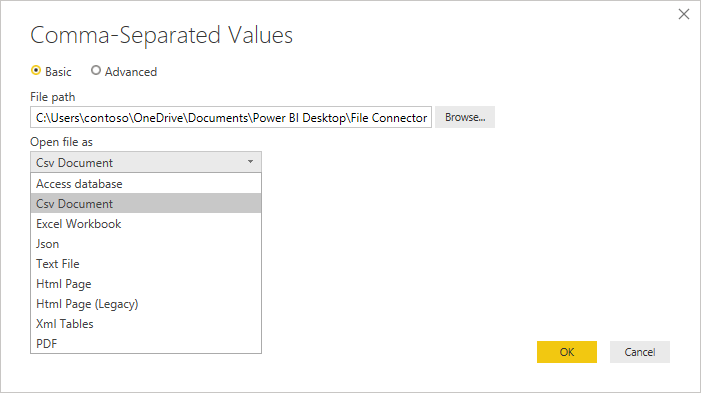
Use the Open file as dropdown to edit what you want to load the file as. This setting is important for troubleshooting. For structured files that aren't technically CSVs (such as a tab separated value file saved as a text file), keep Open file as set to CSV. This setting also determines which dropdowns are available in the rest of the dialog.
Text/CSV by Example
Text/CSV By Example in Power Query is a generally available feature in Power BI Desktop and Power Query Online. When you use the Text/CSV connector, you see an option to Extract Table Using Examples on the bottom-left corner of the navigator.

When you select that button, you're taken into the Extract Table Using Examples page. On this page, you specify sample output values for the data you'd like to extract from your Text/CSV file. After you enter the first cell of the column, other cells in the column are filled out. For the data to be extracted correctly, you might need to enter more than one cell in the column. If some cells in the column are incorrect, you can fix the first incorrect cell and the data is extracted again. To ensure that the data extracted successfully, check the data in the first few cells.
Note
Enter the examples in column order. Once the column is successfully filled out, create a new column and begin entering examples in the new column.

Once you complete constructing that table, you can either select to load or transform the data. Notice how the resulting queries contain a detailed breakdown of all the steps that were inferred for the data extraction. These steps are regular query steps that you can customize as needed.

Troubleshooting
Loading files from the web
If you're requesting text/csv files from the web and also promoting headers, and you're retrieving enough files that you need to be concerned with potential throttling, consider wrapping your Web.Contents call with Binary.Buffer(). In this case, buffering the file before promoting headers causes the file to be requested only once.
Working with large CSV files
If you're dealing with large CSV files in the Power Query Online editor, you might receive an Internal Error. Work with a smaller sized CSV file first, apply the steps in the editor, and once you're done, change the path to the bigger CSV file. This method lets you work more efficiently and reduces your chances of encountering a timeout in the online editor. You don't expect to encounter this error during refresh time, as the service allows for a longer timeout duration.
Unstructured text is interpreted as structured
In rare cases, Power Query interprets a document as a CSV when similar comma numbers appear across paragraphs. If this problem occurs, edit the Source step in the Power Query editor, and select Text instead of CSV in the Open File As dropdown select.
Columns in Power BI Desktop
When you import a CSV file, Power BI Desktop generates a columns=x step in the Power Query editor, where x is the number of columns in the CSV file during initial import. If you later add more columns and set the data source to refresh, the refresh operation doesn't include any columns beyond the initial x count of columns.
Error: Connection closed by host
When loading Text/CSV files from a web source and promoting headers, you might sometimes encounter the following errors: "An existing connection was forcibly closed by the remote host" or "Received an unexpected EOF or 0 bytes from the transport stream." The host might cause these errors by employing protective measures and closing a connection that might be temporarily paused, such as when waiting on another data source connection for a join or append operation. To work around these errors, try adding a Binary.Buffer (recommended) or Table.Buffer call. These functions download the file, load it into memory, and immediately close the connection. This action prevents any pause during download and keeps the host from forcibly closing the connection before the content is retrieved.
The following example illustrates this workaround. This buffering needs to be done before the resulting table is passed to Table.PromoteHeaders.
- Original:
Csv.Document(Web.Contents("https://.../MyFile.csv"))
- With
Binary.Buffer:
Csv.Document(Binary.Buffer(Web.Contents("https://.../MyFile.csv")))
- With
Table.Buffer:
Table.Buffer(Csv.Document(Web.Contents("https://.../MyFile.csv")))