Note
Access to this page requires authorization. You can try signing in or changing directories.
Access to this page requires authorization. You can try changing directories.
APPLIES TO:  Power BI Desktop
Power BI service
Power BI Desktop
Power BI service
Power BI lets you export reports to PDF format from both the Power BI service and Power BI Desktop. Exporting to PDF gives you a portable copy of your report that you can share, print, or archive outside of Power BI.
This article walks you through the export steps for both the Power BI service and Power BI Desktop.
When you export to PDF, each page in the Power BI report becomes an individual page in your PDF document. If your report has a sensitivity label, the label and any encryption settings carry over to the exported file, ensuring that your data remains protected even after it leaves Power BI.
Export to PDF from the Power BI service
In the service, select a report to display it on the canvas. You can select a report from your Home page, Apps, or any other container from the nav pane.
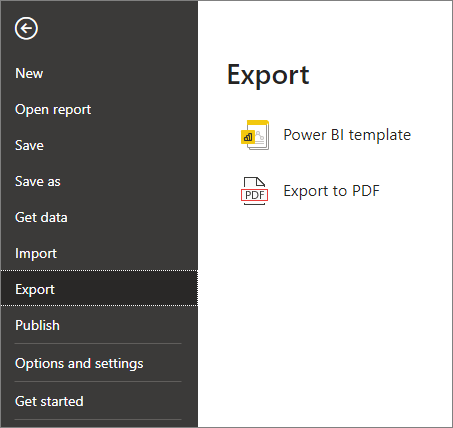
In the Power BI service, select Export > PDF from the menu bar.

A pop-up appears where you can select Current values or Default values. Current values exports the report in the current state, which includes the active changes you made to slicer and filter values. Most users select this option. Alternatively, selecting Default values exports the report in its original state, as the designer shared it, and doesn't reflect any changes you made to that original state.
Additionally, there's a check box to select whether to export the hidden pages of a report. Select this check box if you want to export only report pages that are visible to you in your browser. If you prefer to get all hidden pages as part of your export, leave this check box cleared. If the check box is grayed out, there are no hidden pages in the report. After you make your selections, select Export to continue.
You can also choose to export only the current page you're viewing in a report by checking the Only export current page option. By default, this option is unchecked and all pages are exported from your report.
A progress bar displays in the upper-right corner. Exporting might take a few minutes. You can continue to work in the Power BI service while the report is being exported.
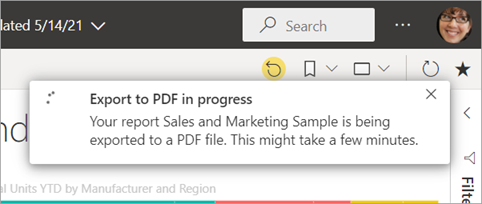
After the Power BI service finishes the export process, the notification banner changes to let you know. In Microsoft Edge, you're prompted to save or open the PDF.

In Google Chrome, the file options display in the lower-left corner of the browser.

If you make no selection, the PDF is saved in your Downloads folder by default.
Considerations and limitations
Keep a few considerations and limitations in mind when you work with the Export to PDF feature.
If you don't see the Export option
- Make sure that you're viewing a report (not a dashboard).
- Your administrator might have disabled this feature. Contact your administrator for details. Administrators: See Export reports as PowerPoint presentations or PDF documents.
Visuals that aren't supported
The following visuals aren't supported for Export to PDF. Either the PDF export option is grayed out or isn't listed at all on the Export dropdown. In some cases, such as for R visuals, the report exports but the visual renders as a gray box with an error message.
These Power BI visuals aren't supported. When you subscribe to a report containing these visuals, they display an error symbol:
- Power BI custom visuals. The exception is those Power BI custom visuals that are certified.
- ESRI ArcGIS visuals.
- Power Apps visuals.
- Power Automate visuals.
- The Paginated report visual.
- Visio visuals.
- The Copilot narrative visual.
- Visual displayed as a Data point table or displayed with "Show data point as a table", can't be exported to PDF.
- R and Py visuals don't render when exported by using REST APIs.
Reports that can't be exported
- You can't export Power BI reports with more than 50 report pages. Paginated reports don't have this limitation. For more information, see Print a paginated report.
- You can't export reports larger than 250 MB.
- You can't publish to PDF reports that are owned by a user outside your Power BI tenant domain, such as a report owned by someone outside your organization and shared with you.
- You can share a dashboard with someone outside your organization, someone who isn't in your Power BI tenant. However, that user can't export the shared dashboard's associated reports to PDF. For example, if you're Aaron in your tenant and you share with an external user in another tenant, that external user can't export the associated reports to PDF.
Other limitations
Export to PDF isn't supported when the admin setting Azure private link > Block public internet access is enabled in Power BI. In this case, the export fails. The export might also fail if the admin setting Azure private link is on and Block public internet access is off.
Semantic model refresh operations using an XMLA endpoint.
In the Power BI service, URL filters aren't currently respected when you choose Current Values for your export.
Visuals displayed as a Data table or displayed with "Show as a table" are included in the export, but the visual displays in its default state, without the table.
The process of exporting the report to PDF might take a few minutes to complete. Factors that can affect the time required include the structure of the report and the current load on the Power BI service or Power BI Desktop.
Background images are cropped with the visualization's bounding area. Also, when you export to PDF with reports that contain a background image, you might see a distorted image in the export if you use the Normal or Fill options for the Page Background. For best results, use the Fit option to avoid issues with your exported document. Or, remove backgrounds before exporting.
The Power BI service uses your Power BI language setting as the language for the PDF export. To see or set your language preference, select the cog icon
 > Settings > General > Language.
Reports with unusual custom page sizes may experience issues in export scenarios. For best results, consider switching to a standard page size for your report.
Hidden pages aren't included in report exports and subscriptions. You can export hidden pages by going to the report in the Power BI service and exporting to the format of choice.
Reports using themes with custom fonts have the custom font replaced with a default font.
While Microsoft looks to provide a consistent experience, it can't guarantee the exported PDF from the Power BI service will always match the exported PDF from a local Power BI Desktop file.
Microsoft can't guarantee precise fidelity for Power BI reports. The resolution of exported report pages is 1,280 pixels x 720 pixels.
Visuals with scrollbars are exported in their default state. The visual displays all possible rows, starting with the first row. Even if you have the visual scrolled down, when exported, the visual displays unscrolled.
Export to PDF supports Unicode 6 and earlier. If, for example, Unicode 7 is used, Power BI export displays that image as a blank box.
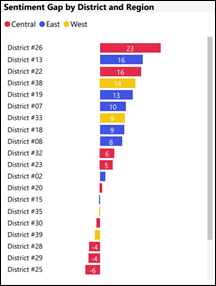
Visuals in a drilled down state are exported in their default state.
User selection of bookmark navigators isn't reflected. If a default is defined, then the default always shows as selected in the export.
The feature doesn't export any wallpaper you apply to the report. Since wallpaper isn't exported to the PDF, pay special attention to reports that use dark wallpaper. If the text in your report is light or white, it's difficult to read in the export to PDF process since the dark wallpaper isn't exported with the rest of the report.
All Power BI reports have a page margin when exported to PDF. That margin is a band of white space at the top and bottom of the exported file.
If you access a report using a bookmark, the exported report displays with the bookmark filters applied. Any filters applied at the time of the export are ignored. You can get around this limitation by creating a bookmark with the required filters and then exporting the report.
Export to PDF isn't currently supported for tenants in the China North region.