Note
Access to this page requires authorization. You can try signing in or changing directories.
Access to this page requires authorization. You can try changing directories.
Saving and publishing an app are two different actions:
- Save stores your latest changes so you and other app editors can keep working on them. Saving doesn't change what end users see.
- Publish makes your saved changes available to everyone the app is shared with.
Use this article to save your work, turn AutoSave on or off, publish updates, and manage app versions. To share an app with users, see Share a canvas app.
Save your app
Open your app for editing in Power Apps, and then save your work in one of these ways:
Select Save
 on the command bar to save any unsaved changes. Each save creates a new entry in the app's version history.
Select the dropdown arrow next to Save and choose one of the following options:
Option What it does Save with version notes Saves the app and lets you add notes that describe what changed in this version. Save as Creates a copy of the app with a different name. Download a copy Downloads a local .msappfile of the app for backup or offline editing.
Turn AutoSave on or off
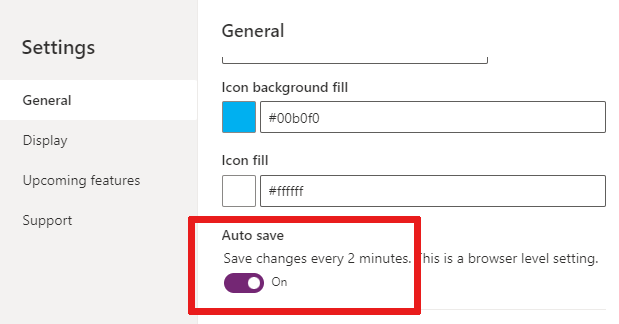
By default, Power Apps saves your work automatically every two minutes. AutoSave helps prevent lost changes if your browser or device closes unexpectedly.
To change the setting:
On the command bar, select Settings, and then go to the General tab.
In the Auto save section, set the Auto save toggle to On or Off.
Tip
Even with AutoSave on, select Save before you close the browser tab to make sure your most recent changes are captured.
Publish your app
Publishing your app pushes your latest saved changes to the users you've shared the app with.
- On the command bar, select Publish. If you have unsaved changes, you're prompted to save first. After you save, select Publish again.
- (Optional) Enter a description of what's new in this version.
- Select Publish this version.
Users see the new version the next time they open or refresh the app.
Note
- When you publish a canvas app, the app runs on the latest version of Power Apps and picks up the newest features and performance improvements. If you haven't published in several months, you usually see an immediate performance benefit when you republish.
- To make app startup faster, Power Apps caches some details (such as environment and connection information) in the user's browser. Cached data stays until the browser clears it. For steps, see Clear your browser cache.
Create an app description with Copilot (preview)
If your app is in a managed environment, you can use AI to help create a description for your app.
In the Publishing dialog box, select Create descriptions using AI when you save and publish your app.
You can also generate an app description by going to Settings > General. Under Description, select Create descriptions using AI.
Admins can disable this feature for managed environments in Power Platform admin. For more information, see Managed Environments panel.
Note
If you don't add a description before publishing the app, Copilot generates one after the app is published. Makers can edit this description if Copilot doesn't generate it correctly.
Important
- To use this capability, your app must be in a managed environment.
- Preview features aren't meant for production use and can have restricted functionality. These features are available before an official release so customers get early access and provide feedback.
- For more information, go to our preview terms.
- This capability is powered by Azure OpenAI Service.
- This capability isn't available in all regions yet and can be subject to usage limits or capacity throttling.
- To learn about capabilities and limitations of AI-powered and Copilot features in Power Apps, see Responsible AI FAQs for Power Apps.
Identify and manage app versions
Each time you save the app, Power Apps adds a new entry to the version history. The version marked Live is the one your shared users currently run. Other versions are saved drafts that you can review or restore.
To view all versions of an app:
- Go to Power Apps, and in the left pane, select Apps.
- Select the More commands icon
 next to the app name.
 - Select Details > Details.
- Go to the Versions tab.

From this tab you can:
- See which version is Live.
- Select an earlier version and publish it to roll back. For details, see Restore a canvas app to a previous version.
To publish the most recent saved version, open the app in the studio and select the publish icon  .
.
Note
- Newly published changes can take a few seconds to appear when users launch the app. Publishing time depends on app complexity and can take a few minutes for large apps.
- If users already have the app open when you publish, they need to reload the app to see the new version.
- App preload is on by default to reduce wait time. You can turn it off if needed. For more information, see Create performant apps.
In-app notifications for new versions
When you publish an update, users who currently have the app open see two notifications:
- A new version of this app is coming. We'll let you know when it's available. — appears while the new version is being prepared.
- You're using an old version of this app. Refresh to use the latest version. — appears when the new version is ready. Users select Refresh to load it.
Where these notifications appear
| Scenario | Notification available? |
|---|---|
| Canvas app on web | Yes |
| Canvas app embedded in an iframe | Yes |
| Customized SharePoint forms | No |
| Canvas app embedded in Microsoft Teams | No |
| Canvas app embedded in Power BI | No |
| Power Apps web part | No |
Related information
- Run an app in a browser or on a mobile device.
- Rename a canvas app.
- Restore a canvas app to an earlier version.
- Share a canvas app with other users.