Note
Access to this page requires authorization. You can try signing in or changing directories.
Access to this page requires authorization. You can try changing directories.
Note
Teams Phone Agent is currently only available to customers in the Frontier Public Preview program.
Need help configuring Teams Phone Agent? Book a session with us: Teams Phone Agent Frontier Public Preview Support Sessions
Help shape the product by filling out our feedback form or by sending us an email
This article is for IT pros and Teams administrators who want to create Questions and Answers tools for use with Teams Phone Agent.
Planning and licensing review
Planning
Licensing
Known issues
None.
What's new for Questions and Answers tools in the past six months
- June 15
- Entered Frontier Public Preview
Steps to create a Questions and Answers tool for Teams Phone Agent
In the Teams admin center, expand Voice, select Templates and resources, select Tools, and then select Add.

Enter a Name and Description for the tool.
Select Questions and Answers as the tool type.
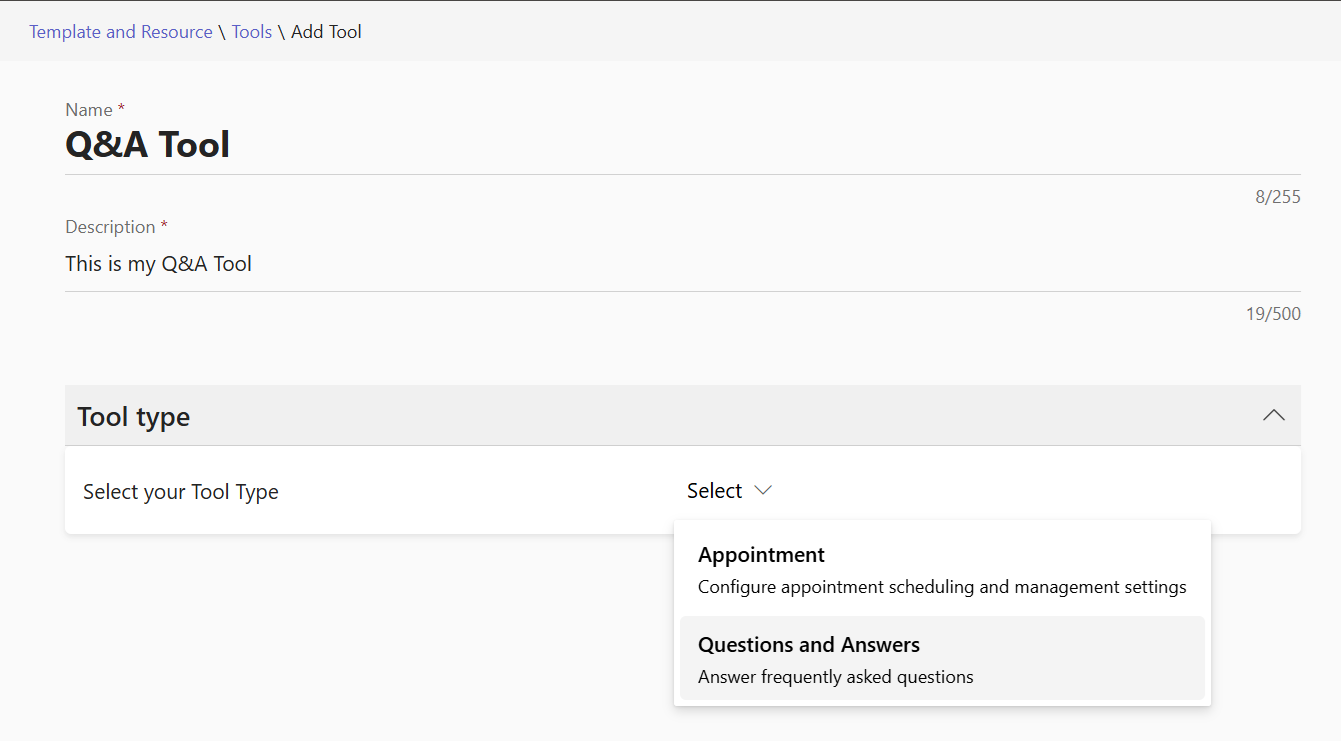
Select Knowledge - Document or Knowledge - URL.
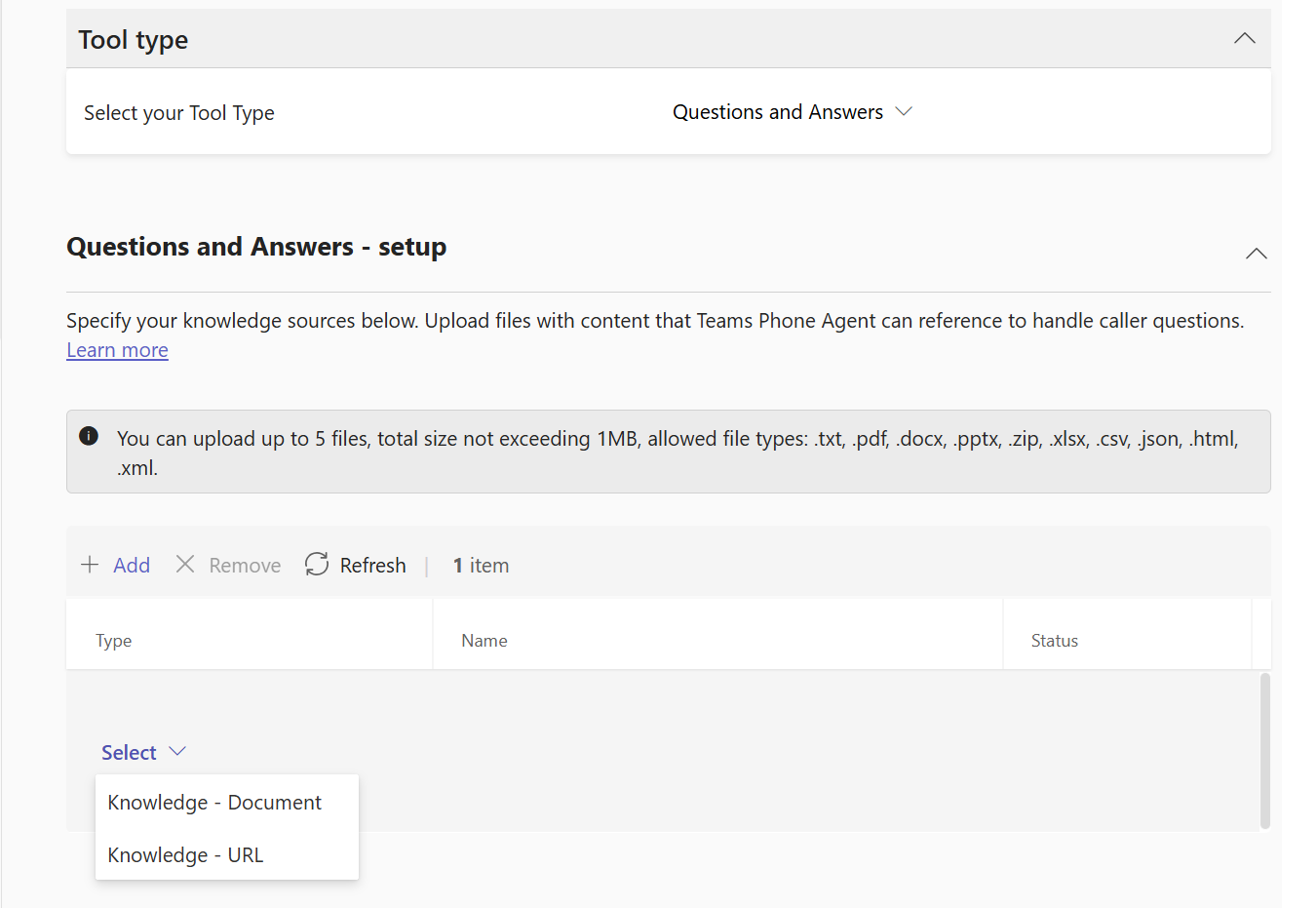
For Knowledge - Document:

During Frontier Public Preview, Teams Phone Agent Questions and Answers tool articles support the following local file types:
- JSON, XML
- TXT, CSV
- DOC, DOCX (Microsoft Word)
- XLS, XLSX (Microsoft Excel)
- PPTX (Microsoft PowerPoint)
- ZIP (of any of the supported file types)
Each Questions and Answers tool may contain a maximum of ten files, totaling no more than 5 MB in size.
The overall size of the ZIP file is still restricted to 5 MB in size; the expanded file sizes can be larger.
Tip
Remember to update your Questions and Answers tools as documents are updated so that Teams Phone Agent can continue to provide the most up-to-date information to callers.
For Knowledge - URL:
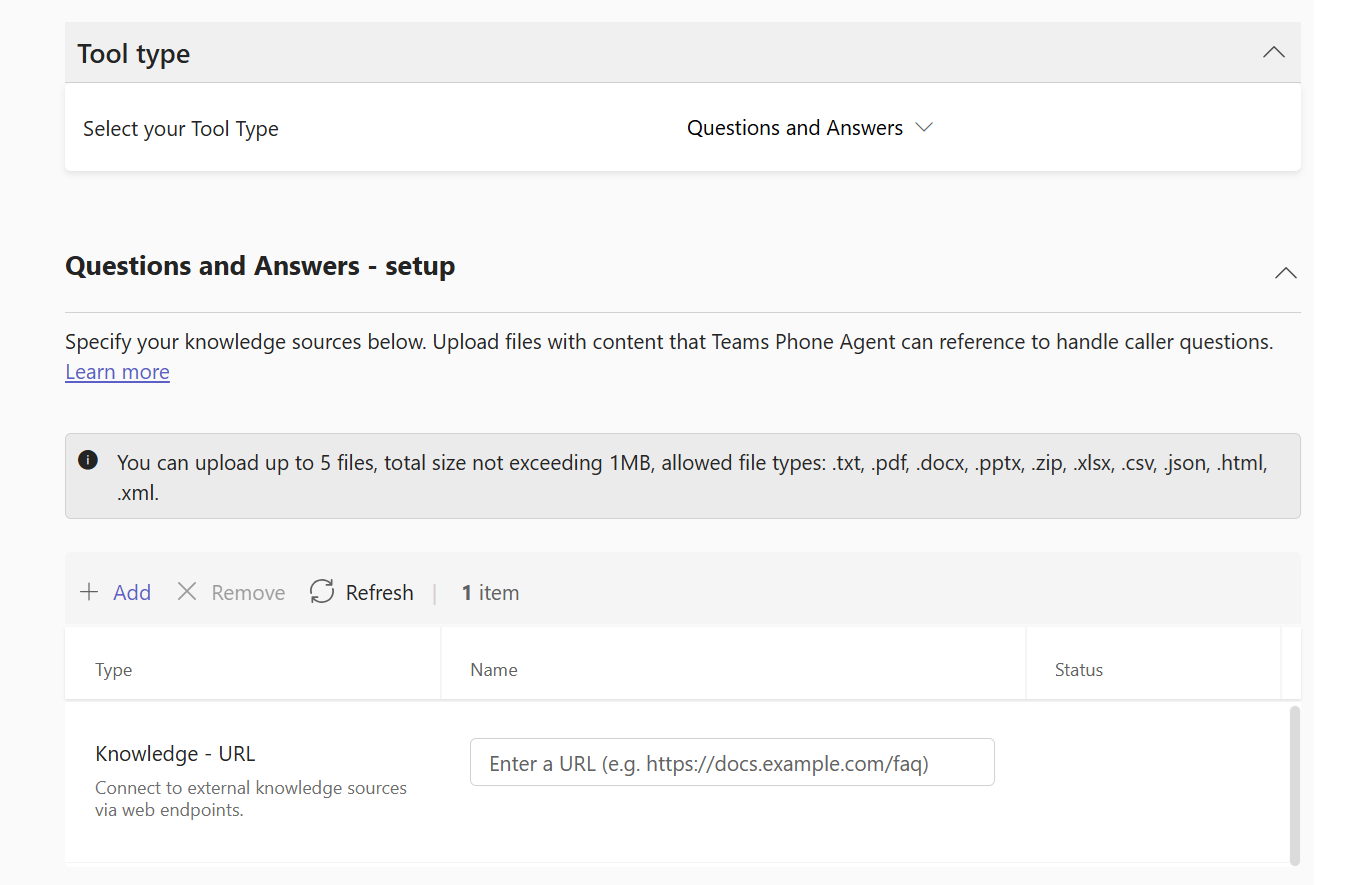
During Frontier Public Preview, Teams Phone Agent Questions and Answers tool articles support public facing web pages (URLs):
- Teams Phone Agent does not crawl the website. Only the specific page referenced by the URL is used. Links on the page are not followed.
- Highly interactive pages requiring user input are not suitable.
- Pages requiring authentication are not supported.
- Intranet pages that are only accessible within an organization are not supported. All pages must be public facing.
During Frontier Public Preview, web pages will NOT be rescanned/refreshed automatically.
Select Save to save your changes.
Related Teams Phone Agent setup and configuration articles
PowerShell
For instructions on creating a Questions and Answers tool using PowerShell, see Set up Teams Phone Agent with PowerShell.