Note
Access to this page requires authorization. You can try signing in or changing directories.
Access to this page requires authorization. You can try changing directories.
Tip
The integrated apps portal is the recommended and most feature-rich way for most customers to centrally deploy Office add-ins to users and groups within your organization.
Office Add-ins, also known as Integrated Apps, help users in your organization to personalize documents and streamline access to information on the web. An admin can centrally manage add-ins that are deployed to users and groups via the Microsoft 365 admin center. For example, an admin can:
- Enable or disable add-ins.
- Change which users or groups have access to add-ins.
- Remove add-ins that are no longer used.
For more information about installing add-ins from the Microsoft 365 admin center, see Deploy Office Add-ins in the Microsoft 365 admin center.
Add-in states in the Microsoft 365 admin center
An add-in can be in one of the following states:
| State | How the state occurs | Effect |
|---|---|---|
| Enabled | Admin downloads the add-in in the Microsoft 365 admin center and assigns it to users or groups. | Users and groups assigned the add-in have access to the add-in. |
| Not assigned | Admin downloads the add-in in the Microsoft 365 admin center but the add-in isn't assigned to a user or group. | Unassigned users and groups can't access the add-in. |
| Removed | Admin removes the add-in from the Microsoft 365 admin center. | No users can access the add-in. |
Choosing not to assign an add-in versus removing it might make sense if the add-in is only used during specific times of the year. If no one is using an add-in anymore, consider removing the add-in from the Microsoft 365 admin center.
Remove an add-in from the Microsoft 365 admin center
To remove an add-in that you deployed and no longer need, follow these steps:
Sign in to the Microsoft 365 admin center.
From the left navigation bar, select … Show all, and then select Settings to expand it.
Under Settings, select Integrated apps.
In the Integrated apps page, select the deployed add-in that you want to remove.
In the add-in properties pane, make sure Overview is selected.
In the Remove apps window, select Yes, I'm sure I want to remove the app and associated data, and then select Remove.
Edit user access to an add-in in the Microsoft 365 admin center
After you deploy an add-in, you can manage user access to the add-in. To manage user access to an add-in, follow these steps:
Sign in to the Microsoft 365 admin center.
From the left navigation bar, select … Show all, and then select Settings to expand it.
Under Settings, select Integrated apps.
In the Integrated apps page, select the deployed add-in that you want to edit.
In the add-in properties pane, select Users.
Under Assigned users, add or remove users who should have access to the add-in, and then select Update.
Manage add-in downloads by enabling or disabling Microsoft Marketplace
Important
In the Microsoft 365 admin center, Microsoft Marketplace is sometimes referred to as Office Store.
As an admin, you can manage access to the Microsoft Marketplace and control whether users can download add-ins. Managing access to the Microsoft Marketplace is important for the following reasons:
- Ensure users can download Office Add-ins and take advantage of their features.
- Ensure users can access only add-ins approved through centralized deployment.
Use this setting if you want to:
- Allow users to discover and install approved add-ins themselves.
- Block all user-initiated add-in downloads and rely only on centralized deployment.
Enable or disable access to the Microsoft Marketplace for all apps
Support for enabling or disabling access to the Microsoft Marketplace starts in the following versions:
- Office on Windows: 16.0.9001.
- Office on Mac: 16.10.18011401.
- Office on iOS: 2.9.18010804.
- Office for the web.
To enable or disable access to the Microsoft Marketplace and downloading of add-ins, follow these steps:
Sign in to the Microsoft 365 admin center.
From the left navigation bar, select … Show all, and then select Settings to expand it.
Under Settings, select Org settings.
In the Org settings page, make sure Services is selected, and then select User owned apps and services.
In the User owned apps and services pane:
Select Let users access the Office Store to give users access to the Microsoft Marketplace and allow users to download. This setting is the default setting.
Clear Let users access the Office Store to block users from accessing the Microsoft Marketplace and prevent users from downloading add-ins.

Select Save after you choose the desired setting. If the setting is already in the desired state, select the X in the top-right corner to cancel.
The Let users access the Office Store setting controls all users' ability to acquire the following add-ins from Microsoft Marketplace:
- Add-ins for non-subscription Word, Excel, and PowerPoint on Windows and Mac
- Add-ins for subscription Microsoft 365
When you disable access to the Microsoft Marketplace, a user who tries to access it sees the following message:
Office store not available. Unfortunately, your organization has disabled access to the Office Store. Please contact your administrator to get access to the store.
Important limitations and exceptions
Access to the Microsoft Marketplace doesn't apply to Microsoft Outlook add-ins. To manage Microsoft Outlook add-ins, see Specify the administrators and users who can install and manage add-ins for Outlook in Exchange Online.
Even if users can download add-ins from Microsoft Marketplace, they can't launch or use the add-in in the client.
To prevent a user from signing into the Microsoft Marketplace by using a personal Microsoft account, restrict sign in to use only an organizational account. For more information, see Identity, authentication, and authorization in Office 2016.
If you prevent users from accessing Microsoft Marketplace, they also can't Sideload Office Add-ins for testing from a network share.
User owned apps and services settings for educational tenants
Additional access options are available for educational tenants in the User owned apps and services pane. You can control access based on whether a user is:
- A faculty, staff, and other non-student users.
- An adult student.
- A non-adult student.

The user's license information defines the type of user.
- A faculty, staff, and other non-student users: A user who doesn't have an educational license.
- An adult or non-adult student: A user who has an educational license. The Age Group property checks whether the student is an adult.
For more information, see the following articles:
- Assign or unassign licenses for users in the Microsoft 365 admin center.
- Add or update a user's profile information and settings in the Microsoft Entra admin center.
End-user experience with add-ins in Office applications
After you deploy an add-in, users interact with the add-in directly in their Office apps. An add-in appears on all platforms that the add-in supports. For more information, see Start using your Office Add-in.
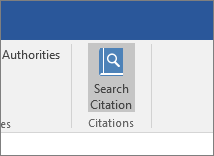
Some add-ins support commands that appear in the ribbon. For example, the Citations add-in shows the command Search Citation in the ribbon:
If an add-in doesn't support commands that appear in the ribbon, the user can view the add-in via Manage your apps. They can also view all add-ins that are deployed in the organization in Manage your apps.
View add-ins in Manage your apps
To view add-ins in Manage your apps, select the tab based on which application you want to view add-ins for:


 Word, Excel, or PowerPoint
 Outlook
View add-ins in Word, Excel, or PowerPoint
To view add-ins in Manage your apps in Word, Excel, or PowerPoint, follow these steps:
On the Home ribbon of the app, select Add-ins.
In the pane that opens, select + More Add-ins.
At the bottom of the left-hand navigation pane of the Apps page, select Manage your apps to see a list of all deployed apps, agents, and add-ins.
To see the details of an add-in, select it from the list.