Note
Access to this page requires authorization. You can try signing in or changing directories.
Access to this page requires authorization. You can try changing directories.
The integrated apps portal is the recommended and most feature-rich way for most customers to centrally deploy Office Add-ins to users and groups within your organization.
However, if the integrated apps portal isn't available to you, or if you're a customer in a sovereign or government cloud (GCC, GCC‑H, DoD, AirGap, or Gallatin), use this article as guidance. Use it to determine whether your organization and users meet the requirements for centralized deployment.
Centralized deployment allows admins to deploy Office Add-ins to users and groups within an organization. It provides the following benefits:
An admin can deploy and assign an add-in directly to a user, to multiple users via a group, or to everyone in the organization (see Admin requirement section for information).
When the relevant Office application starts, the add-in automatically downloads. If the add-in supports add-in commands, the add-in automatically appears in the ribbon within the Microsoft 365 application.
Add-ins no longer appear for users if:
- The admin turns off or deletes the add-in.
- The user is removed from Microsoft Entra ID or from a group that the add-in is assigned to.
Centralized deployment supports two platforms: Office on Windows and Mac. It also supports Office for the web. For Outlook Mobile Add-ins only, centralized deployment also supports iOS and Android.
Important
After you centrally deploy an add-in, it can take up to 24 hours for the add-in to appear on all users' clients.
Before you begin
Centralized deployment of add-ins requires that the users have one of the following licenses:
- Microsoft 365 Business (Business Basic, Business Standard, Business Premium).
- Office 365 Enterprise (E1/E3/E5/F3).
- Microsoft 365 Enterprise (E3/E5/F3) (and are signed in Microsoft 365 using their organizational ID).
- Office 365 Education (A1/A3/A5).
- Microsoft 365 Education (A3/A5).
- Office 365 Government (G3/G5).
- Microsoft 365 Government (G3/G5).
Users must also have Exchange Online and active Exchange Online mailboxes. Your subscription directory must either be in or federated to Microsoft Entra ID.
The following are specific requirements for Microsoft 365 and Exchange, or use the Centralized Deployment Compatibility Checker.
Centralized deployment doesn't support the following items:
- Add-ins that target Office MSI versions, except Outlook.
- An on-premises directory service.
- Add-in deployment to an Exchange on-premises Mailbox.
- Add-in deployment to SharePoint.
- Apps for Microsoft 365 that include more than an add-in (For example, an app for Microsoft 365 that includes a Teams app).
- Deployment of Component Object Model (COM) or Visual Studio Tools for Office (VSTO) add-ins.
- Deployments of Microsoft 365 that don't include Exchange Online such as SKUs: Microsoft 365 Apps for Business and Microsoft 365 Apps for Enterprise.
Microsoft 365 requirements
For Word, Excel, and PowerPoint add-ins, your users must use one of the following versions:
- On a Windows device, Version 1704 or later of Microsoft 365 Business licenses (Microsoft 365 Business Basic, Microsoft 365 Business Standard, Microsoft 365 Business Premium), Office 365 Enterprise licenses (E1/E3/E5/F3), or Microsoft 365 for enterprise licenses (E3/E5/F3).
- On a Mac, Version 15.34 or later.
For Outlook, your users must use one of the following versions:
| Product / Platform | Minimum version required | Add-in in My add-ins | Add-in in Outlook ribbon |
|---|---|---|---|
| Microsoft 365 Business licenses (Microsoft 365 Business Basic, Microsoft 365 Business Standard, Microsoft 365 Business Premium), Office 365 Enterprise licenses (E1/E3/E5/F3), or Microsoft 365 for enterprise licenses (E3/E5/F3) | Version 1701 or later | ✅ | |
| Office Professional Plus 2019 or Office Standard 2019 | Version 1808 or later | ✅ | |
| Office Professional Plus 2016 (MSI) or Office Standard 2016 (MSI)* | Version 16.0.4494.1000 or later | ✅ | |
| Office Professional Plus 2013 (MSI) or Office Standard 2013 (MSI)* | Version 15.0.4937.1000 or later | ✅ | |
| Office 2016 for Mac | Version 16.0.9318.1000 or later | ✅ | |
| Outlook mobile for iOS | Version 2.75.0 or later | ✅ | |
| Outlook mobile for Android | Version 2.2.145 or later | ✅ |
Exchange Online requirements
Microsoft Exchange stores the add-in manifests within your organization's tenant. The admin deploying add-ins and the users receiving those add-ins must be on a version of Exchange Online that supports OAuth authentication.
To find out which configuration is in use, check with your organization's Exchange admin. You can verify OAuth connectivity per user by using the Test-OAuthConnectivity PowerShell cmdlet.
Exchange Online user role requirements
Use the Exchange admin center (EAC) to assign permissions to users. The following steps detail the permissions required to view and modify deployed add-ins.
Sign in to the classic EAC as a global administrator.
Go to Permissions and then select User Roles.
Select an existing role assignment policy or create a new policy.
Type a name for the policy if you're creating a new policy.
Select the following roles: My Custom Apps, My MarketPlace Apps, and My ReadWriteMailbox Apps.
Select Save.
Note
These roles are selected by default.
Important
Microsoft recommends that you use roles with the fewest permissions. This helps improve security for your organization. Global Administrator is a highly privileged role that should be limited to emergency scenarios when you can't use an existing role.
For more information, see Manage role groups in Exchange Online. For a detailed description of the different roles, see Role assignment policies in Exchange Online.
Admin requirements
To deploy an add-in through centralized deployment, you need to be an Exchange admin in the organization.
Note
An Exchange admin can deploy an add-in if they add the Application Administrator role or set the App Registrations property to true in Microsoft Entra admin center, as shown in the following image:

Centralized Deployment Compatibility Checker
By using the Centralized Deployment Compatibility Checker, you can verify whether the users in your tenant are set up to use centralized deployment for Word, Excel, and PowerPoint. The Compatibility Checker isn't required for Outlook support. Download and install the compatibility checker.
Note
The Compatibility Checker currently isn't supported in any of the sovereign or government clouds (GCC, GCC-H, DoD, AirGap, Gallatin).
Run the compatibility checker
Start an elevated PowerShell.exe window.
Run the following command:
Import-Module O365CompatibilityCheckerRun the Invoke-CompatibilityCheck command:
Invoke-CompatibilityCheckThis command prompts you for TenantDomain (for example, TailspinToysIncorporated.onmicrosoft.com) and TenantAdmin credentials (use your global admin credentials), and then requests consent.
Note
Depending on the number of users in your tenant, the checker can complete in minutes or hours.
Important
Microsoft recommends that you use roles with the fewest permissions. This helps improve security for your organization. Global Administrator is a highly privileged role that should be limited to emergency scenarios when you can't use an existing role.
When the tool finishes running, it produces an output file in comma-separated (.csv) format. The tool saves the file to the current working directory by default. The output file contains the following information:
- User name.
- User ID (User's email address).
- Centralized Deployment ready - If the remaining items are true.
- Microsoft 365 plan - The plan of Office they're licensed for.
- Microsoft 365 Activated - If they activated Microsoft 365.
- Supported Mailbox - If they are on an OAuth-enabled mailbox.
If your Microsoft 365 reports show anonymous user names instead of actual user names, fix this issue by changing the reports setting in Microsoft 365 admin center. For detailed steps, see Microsoft 365 reports show anonymous user names instead of actual user names.
Note
Multifactor authentication isn't supported when using the Central Deployment PowerShell module. The module only works with Basic authentication.
User and group assignments
The centralized deployment feature currently supports most groups supported by Microsoft Entra ID, including:
- Microsoft 365 groups.
- Distribution lists.
- Dynamic groups.
- Security groups.
Note
The feature doesn't currently support non-mail-enabled security groups.
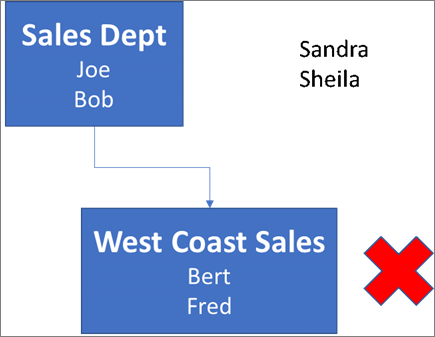
Centralized deployment supports assignments to individual users, groups, and everyone in the tenant. Centralized deployment supports users in top-level groups (groups without parent groups), but not users in nested groups (groups that have parent groups).
Take a look at the following example where Sandra, Sheila, and the Sales Department group are assigned to an add-in. Because the West Coast Sales Department is a nested group, Bert and Fred aren't assigned to an add-in.
Find out if a group contains nested groups
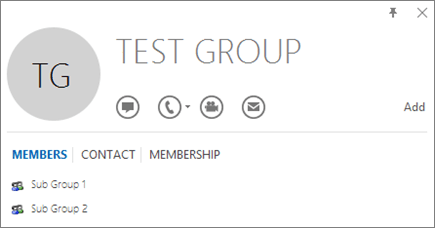
The easiest way to detect if a group contains nested groups is to view the group contact card within Outlook. If you enter the group name within the To field of an email and then select the group name when it resolves, it shows you if it contains users or nested groups. In the following example, the Members tab of the Outlook contact card for the Test Group shows no users and only two sub groups.
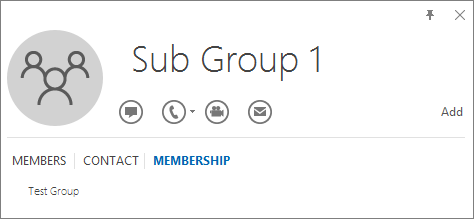
You can do the opposite query by resolving the group to see if it's a member of any group. In the following example, you can see under the Membership tab of the Outlook contact card that Sub Group 1 is a member of the Test Group.
Alternately, you can use the Microsoft Graph API to run queries to find the list of groups within a group. For more information, see Manage groups in Microsoft Graph.
Contact Microsoft for support
If you or your users encounter problems loading the add-in while using centrally deployed Microsoft 365 apps for the web (Word, Excel, etc.), contact Microsoft support. Provide the following information about your Microsoft 365 environment in the support ticket.
| Platform | Debug information |
|---|---|
| Microsoft 365 | Charles/Fiddler logs Tenant ID (learn how) CorrelationID. View the source of one of the Office pages and look for the Correlation ID value and send it to support: <input name=" **wdCorrelationId**" type="hidden" value=" **{BC17079E-505F-3000-C177-26A8E27EB623}**"> <input name="user_id" type="hidden" value="1003bffd96933623"></form> |
| Rich clients (Windows, Mac) | Charles/Fiddler logs Build numbers of the client app (preferably as a screenshot from File/Account) |