Note
Access to this page requires authorization. You can try signing in or changing directories.
Access to this page requires authorization. You can try changing directories.
You can view and manage agent details for each agent listed in the agent registry within Microsoft 365 admin center. When you select an agent from the list, you can view these details in a fly-out pane. The Details pane provides information and actions, as well as additional information provided within tabs. Each tab provides capabilities and details specifically for the selected agent. Many of the tabs are standard to all agents, but some tabs are provided based on an agent's capabilities. For example, if an agent is designed to provide information and answers from other agents, the Connected Agents tab is provided. In addition to providing information about an agent in the details fly-out pane, you can also select specific actions for the agent, such as Install, Block, Uninstall, and Pin for users.

View agent details
To access the details available for an agent, use the following steps:
- Sign in to the Microsoft 365 admin center.
- Go to Agents > All agents. The agent Registry tab is selected.
- Select an agent from the Registry list. The agent details are displayed.
When you select an agent from the Registry, the details fly-out pane displays common actions available for the agent. The following table describes the actions for the agent:
| Agent action | Description |
|---|---|
| Install | Deploys and installs the agent for the selected users at your organizations. |
| Uninstall | Removes the agent. Members of your organization can't install or use the agent. |
| Block | Blocks the agent from members of your organization. They can't install or use the agent. Additionally, the agent is removed from any member of your organization who already installed it. |
| Update in store | Updates an existing agent in Agent Store based on a provided ZIP packet file. |
| Pin for users | The agent is pinned in the UI (based on channel) where the agent was deployed, so that the agent can be found more easily. Based on the users or groups where the agent was deployed, you can specify who has the agent pinned. |
For more information about agent actions, see Agent actions available in Microsoft 365 admin center.
Tag an agent
Tags are labels that admins and users apply to agents to organize and find them, such as by team, function, or project. Tags don't change what an agent can do or access.
To apply a tag to an agent:
- Go to Agents > All agents, select an agent from the Registry list.
- In the agent details pane, select Add tag.
- Select up to five tags from the tags available in your organization.
The applied tags appear on the agent's page and in the Tags column of the agents list. To find related agents, filter the list by tag. This filter is useful when you want to review all agents owned by one team or all agents that support a particular function.
Admins manage the tags available in your organization from Agent settings. If the tag you need isn't available, see Manage tags.
Tabs provided within agent details
The information, actions, and tabs provided in the agent details fly-out pane are based on agent capabilities.
Note
The displayed tabs for an agent are based on the agent's capabilities. The tabs listed in the following table don't apply to every agent.
The following table provides agent tabs based on agent capability:
| Agent tab | Description |
|---|---|
| Details | This tab provides a description, instructions, status, and other general details about the agent. |
| Users | This tab allows you to view and select the allowed users for the agent. You can select users that have the agent preinstalled and users that have the agent available to install. |
| Data & Tools | This tab provides details about Microsoft Purview protections, such as capabilities, knowledge sources, and tools available to the agent. Also, it provides Microsoft Entra protection details, such as Agent User ID and Agent ID. |
| Security | This tab provides details about monitoring agent activity, protecting sensitive data, and evaluating compliance gaps. |
| Permissions | This tab allows you to review and grant permission to data the agent can access and perform actions on. For more information, see Agent permissions. |
| Certification | This tab gives you a single place to review the trust and attestation signals that are available for the selected agent before you deploy the agent across your organization. For more information, see Agent certification. |
| Activity | This tab gives you a focused view of how a single agent is being used and how it's performing across the tenant. |
| Agent instances | This tab appears when you select an agent that is tagged as an AI teammate in the Agent Registry. AI teammate agents are agent templates from which your organization can instantiate one or more agent instances. |
| Connected Agents | This tab allows you to connect the selected agent with other agents. When using the selected agent, users can get additional information and answers from the connected agents. You can connect up to 10 agents to the selected agent, excluding those added by the agent's maker. Depending on how the agent's maker connected the agents, you might be able to remove them as well. You must make sure the connected agents are available to everyone who needs access. |
| Computer use | This tab is used to allow the selected agent to perform actions on behalf of the users, as well as access work data. Additionally, you can choose which websites are allowed for Computer use. Note that Web search is required for Computer use. |
Agent details
The Details tab provides details about the agent's intended purpose. This tab contains the agent's description, instructions, publish status, availability, publisher, deployment, agent type, channel, platform, last updated, sensitivity, and version. Use this tab to assess the agent's general capabilities and state.
Agent users
You can control how agents created in your organization are available across your organization. You can configure the following agent availability options:
- Who can discover and install an agent
- Which users have the agent preinstalled
- Whether the agent is available organization-wide or to specific groups
These options help organizations publish and install agents in a governed manner aligned with internal compliance and rollout policies.
Agent availability and installation
Each agent includes availability and installation settings. The following table describes these settings:
| Setting | Description |
|---|---|
| Installed for | Controls which users automatically have the agent preinstalled. |
| Available to | Controls which users can install and use an agent. |
Set agent availability and installation
Agent availability and installation are independent actions. You can control who can discover an agent, versus who has the agent automatically installed. For example:
- You can publish an agent to one group of users (for example, Group A), so that group can discover and install the agent.
- You can install (pre-install) the same agent to a different group (for example, Group B).
If you install an agent to your entire organization, it automatically installs regardless of its availability scope. This installation behavior is by design, based on the following conditions:
- When you make an agent available to specific users, only those users can see and install it.
- When you select to install the agent, the agent is installed for the targeted users, even if they weren't included in the original availability audience.
- Configure availability and installation
To set an individual agent's availability and installation settings from the Agent Registry within Microsoft 365 admin center, use the following steps:
- Select an agent to manage from the Agent Registry.
- Select the Users tab in the agent details pane.
- Select Installed to to assign users that have the agent preinstalled. Choose from the following options:
- Just me
- Entire organization
- Specific users or groups
- Select Available to to select users that can install and use the agent. Choose from the following options:
- No users in the organization can install
- All users in the organization can install
- Specific users or groups can install
- Select Update to save these settings.
Agent data and tools
The Data & tools tab, displayed in the fly-out pane of a selected agent in the agent Registry, provides details about the selected agent's access and capabilities within your organization. This tab surfaces three categories of agent metadata:
- Capabilities - How the agent performs specific tasks and accesses data sources to provide accurate, contextual responses.
- Knowledge sources - Data that the agent uses to answer questions accurately.
- Tools - Processes that the agent uses to handle requests.
Use this information to understand the data the agent has access to, the external sources it references, and the actions it can perform. By understanding these categories, you can make informed governance decisions about the agents deployed in your tenant.
Important
Admins with the AI Administrator or Global Administrator role have full access to view Data & tools for all agents. Use roles with the fewest permissions. Accounts with lower permissions help improve security for your organization. Global Administrator is a highly privileged role. Limit its use to emergency scenarios when you can't use an existing role. For more information, see About admin roles in the Microsoft 365 admin center.
View data and tools of an agent
To access the Data and tools tab for an agent, use the following steps:
- Select an agent from the Agent Registry list within Microsoft 365 admin center.
- In the agent details pane, select the Data & tools tab.
The Data & tools tab is read-only and shows metadata reported by the agent platform. To change an agent's data sources or tools, the agent developer must update the agent configuration in the authoring platform, such as Copilot Studio, or Foundry.
Some agents might have an empty Data & tools tab. This condition occurs based on the following conditions:
- The agent developer didn't configure knowledge sources or tools for the agent.
- The agent type doesn't support these metadata fields.
- The agent's metadata isn't yet synced to Microsoft 365 admin center.
Agent capabilities
The Capabilities section of the Data & tools tab shows the types of content and data sources the agent can access to provide accurate, contextual responses.
The Can read section indicates the categories of content the agent has read access to. The following table provides examples of content that can be included:
| Category | Description |
|---|---|
| Public sites | Agent can read publicly accessible web content |
| Organization files | Agent can read files within your Microsoft 365 tenant (SharePoint, OneDrive) |
| Agent can read user email content | |
| Calendar | Agent can read calendar events |
Note
The capabilities shown depend on the permissions you configure for the agent and might vary by agent type and platform.
Public sites refers to when the agent can access publicly available web content. This access doesn't mean the agent has unrestricted internet access. It can read public web pages as a knowledge source to inform its responses.
Agent knowledge sources
The Knowledge sources section provides data sources and URLs that the agent uses to answer questions accurately. These knowledge sources are the external or internal references the agent draws from when responding to user queries.
The following table provides knowledge sources and examples that you can include with the agent:
| Source type | Examples |
|---|---|
| Web URLs | https://bing.com/, https://contoso.com/docs/ |
| SharePoint sites | https://contoso.sharepoint.com/sites/hr-policies |
| Files and folders | Specific documents or folder paths configured as the agent's knowledge base |
| Graph connectors | Data indexed via Microsoft Graph connectors |
Note
Review knowledge source URLs to verify the agent is only referencing approved, trusted sources. Unfamiliar or external URLs might indicate the agent has access to data outside your organization's boundaries.
Agent tools
The Tools section, within the Data & Tools tab, provides the processes, connectors, and actions that the agent uses to handle requests. Tools represent what the agent can do, not just what it can read.
The following table provides tool types and examples that you can include with the agent:
| Tool type | Examples |
|---|---|
| Microsoft 365 connectors | shared_office365_ContactGetItem_V2 (reads contact data from Office 365) |
| MCP servers | Third-party or customer-hosted MCP servers connected to the agent |
| Work IQ tools | Work IQ Mail (Preview) (email-related actions) |
| Custom actions | API actions defined by the agent developer |
Note
Each tool listed represents an action the agent can invoke at runtime. Review the tool list to understand the scope of what the agent can do on behalf of users. Tools that access external services or write data (send email, update records) warrant closer review.
Data & tools by agent type
The metadata surfaced in the Data & tools tab varies depending on the agent type and platform. Agent type is largely based on the tool and method of creating the agent.
Note
Currently, Microsoft 365 admin center doesn't have data and tools information for all agents.
Agent security
The Security tab helps you monitor agent activity, protect sensitive data, and evaluate compliance gaps based on Microsoft Purview protections.
Note
You need a Microsoft E7 or Agent 365 license to see the Risks column in the Agent Registry and to see the Security tab details of an agent.
View agent security details
To access the Security tab for an agent, use the following steps:
- Select an agent from the Agent Registry list in the Microsoft 365 admin center.
- In the agent details pane, select the Security tab.
The Security tab provides the following actions related to Microsoft Purview protections:
- Monitor agent activity
- Protect sensitive data
- Evaluate compliance gaps
Monitor agent activity
The system monitors interactions with a selected agent for security and observability. You can view agent activity by using the Activity explorer in Microsoft Purview. Activity explorer allows you to review activity related to content that contains sensitive information, including label activity. The system monitors label activity across Exchange, SharePoint, OneDrive, and endpoint devices. For more information, see Get started with activity explorer.
Protect sensitive data
Protection for sensitive data helps prevent leaks and oversharing. You can view sensitive interactions by using AI observability in Microsoft Purview. AI observability provides a centralized view of agent activity across your organization. For more information, see Microsoft Purview data security and compliance protections for generative AI apps.
Evaluate compliance gaps
If the selected agent has an AI baseline assessment available, you can evaluate compliance gaps for your agent. For more information, see Microsoft Purview Compliance Manager.
Agent permissions
In the Microsoft 365 admin center, when you grant permissions to agents, consider two types of permissions:
Each permission type grants different actions that agents can perform on behalf of users, depending on the scope of the access. This section explains these two types of permissions and provides an overview of the common permissions available.
Important
Some Microsoft Graph permissions exist in both application and delegated forms. The permission name can be the same, but the effective access differs. Application permissions allow app-only access without a signed-in user, while delegated permissions allow access only on behalf of the signed-in user.
Application permissions
Use application permissions to let the agent access data and perform actions without requiring a user to sign in. These permissions let agents do tasks without needing a user to be signed in, like reading directory data, managing teams, or sending messages.
Key features of application permissions:
- No user context required - The agent can operate without an active user session.
- Wide-reaching capabilities - Agents with application permissions can act at the organizational level, so they can access a large range of data.
- Administrator consent required - An administrator typically needs to grant consent for application permissions.
Common application permissions
| Permission | Details |
|---|---|
| Group.Read.All | Read all groups in the organization. |
| TeamsActivity.Send | Send a teamwork activity to any user. |
| RoleManagement.Read.Directory | Read all directory role-based access control (RBAC) settings. |
| User.Read.All | Read all users' full profiles. |
| Team.ReadBasic.All | Get a list of all teams in the organization. |
Delegated permissions
Use delegated permissions to allow the agent to act on behalf of a user when the user signs in. These permissions provide access to user-specific data and allow agents to perform actions in the context of a particular user.
Use delegated permissions for applications where the agent interacts directly with the user's data or takes actions on their behalf.
Key features of delegated permissions
- User context required - The agent performs actions with the signed-in user's permission.
- Granular access - These permissions typically restrict access to only the user's data.
- User consent might be required - Depending on the permissions, users might need to grant consent for the application to act on their behalf.
Common delegated permissions
| Permission | Details |
|---|---|
| User.ReadBasic.All | Read all users' basic profiles. |
| TeamsActivity.Send | Send a teamwork activity to any user. |
| RoleManagement.Read.Directory | Read all directory role-based access control (RBAC) settings. |
| User.Read.All | Read all users' full profiles. |
| Team.ReadBasic.All | Get a list of all teams. |
View permissions of an agent
You can find the details of all types of permissions in the Permissions tab on the agent details page.
Select a deployed agent from the Agent Registry list in the Microsoft 365 admin center.
In the agent details pane that opens, select the Permissions tab to view all the permissions granted to the agent.


Agent certification
The Certification tab provided in the agent's details pane in the Microsoft 365 admin center gives you a single place to review the trust and attestation signals that are available for the selected agent before you deploy the agent across your organization. For Microsoft-built agents and agents from external publishers, this tab surfaces the publisher attestation provided by the agent's developer, along with any Microsoft 365 Certification status that's been earned through Microsoft's app certification program. Publisher attestation captures the developer's self-reported information about how the agent handles data, security, and compliance. Microsoft 365 Certification reflects an independent security and compliance assessment that's valid for 12 months and helps confirm that the agent meets Microsoft's standards for handling tenant data. By reviewing the Certification tab alongside the Overview, Data & tools, and Security tabs, you can make an informed governance decision for the agent, where you can approve, deploy, block, or remove the agent. Your decision may largely be based on who built the agent, what it has been validated against, and the level of trust the publisher has documented.
Agent activity
The Activity tab in the agent details of the Microsoft 365 admin center provides a focused view of how a single agent is used and how it performs across the tenant. By default, the metrics on this tab reflect the last 30 days, but you can adjust the date range to scope the view to a different time window.
Note
You need a Microsoft E7 or Agent 365 license to see the Activity tab details of an agent.
Additional details include the following information:
- Active users - The number of unique users who interacted with the agent at least once during the selected date range. A user counts as active after a single interaction, regardless of how many times they engage with the agent.
- Sessions - The number of conversations in the selected date range. A conversation is defined as back-and-forth interactions between a user and an agent. Each new session starts after 30 minutes of inactivity.
- Exceptions - The number of sessions in the selected date range that had an error. This metric helps administrators spot reliability issues and investigate agents that are failing to complete work as expected.
- Agent run-time - The total hours worked by the agent over the selected date range, calculated from when a user starts an interaction with an agent to when the agent completes its activities, such as executing tool calls and preparing responses. Use this metric to gauge the overall workload an agent accomplishes on behalf of users.
Snapshots provide agent activity:
- Active users over time
- Sessions over time
- Active users
- User principal name
- Total sessions
- Last activity date (UTC)
Note
You can export the Active users table to a CSV file. The table also supports pagination.
These signals let you monitor adoption, measure impact, and identify agents that need your attention. Agents that need your attention might include high exception rates, low active-users counts, and long run-times. Activity metrics currently support Microsoft Copilot Agent Builder, SharePoint, and Microsoft 365 Agents Toolkit agent types.
Agent instances
The Instances tab appears when you select an agent that you tag as an AI teammate in the Agent Registry. AI teammate agents are agent templates from which your organization can create one or more agent instances. Each agent instance has its own Microsoft Entra-backed agent identity, license, mailbox, OneDrive, and Teams presence, so it can participate in Microsoft 365 workflows.
The Instances tab provides a detailed table of all instances created from the selected agent. The table includes the following columns:
- Name - The name of the agent instance.
- Email - The email for the agent instance.
- Status - The status of the agent, such as Active or Not active.
- Risks - The number of detected risks.
- Total sessions - The total number of sessions over the last 30 days.
- Owner - The owner of the agent instance.
Selecting a row opens that instance's details. Based on your assigned role, such as AI Administrator or Global Administrator, you can manage individual instance settings, review security and compliance status, assign or update Microsoft 365 licenses, and take lifecycle actions such as Block, Unblock, or Delete the instance.
For more information about agent instances, see Manage agent instances in Microsoft 365 admin center.
Connected agents
The Connected Agents tab allows you to connect the selected agent with other agents. When users use the selected agent, they can get additional information and answers from the connected agents. You can connect up to 10 agents to the selected agent, excluding those added by the agent's maker. Depending on how the agent maker connected the agents, you might be able to remove them as well.
Important
You must make sure the connected agents are available to everyone who needs access.
The Connected agents tab provides a table of agents that are currently connected.
Add a connected agent
To add a connected agent in the Agent Registry list in Microsoft 365 admin center:
- Select an agent from the Registry list. The agent details are displayed.
- Select the Connected agents tab.
- Select Connect agents.
- Use the search box to add the name of the agent to connect.
- Select the check box next to the agent.
- Select Save.
Computer use
The Computer use tab appears in the agent details pane for select agents that support computer-use capabilities, such as Researcher. When an agent supports this feature, an extra Computer use tab shows alongside the other agent details tabs. Computer use allows you to govern how the agent interacts with web content through a secure virtual computer. For Researcher specifically, you can extend Researcher beyond research and reasoning, allowing it to securely interact with public, gated, and interactive web content through a Windows 365-backed virtual computer. You can select whether Researcher can generate richer reports grounded in both their work data and the web. The Computer use tab is where you establish the guardrails before users can take advantage of these capabilities.
The Computer use tab allows you to configure three primary policies that scope who can use the feature, what work data it can combine with the web, and which sites the virtual computer is allowed to reach:
- Allow Researcher with Computer Use to perform actions on behalf of users: Choose who in your organization can use Researcher with Computer Use. When you disable access for a user, the Computer use option appears grayed out in the Researcher experience.
- Allow Researcher to access work data: Control whether users can combine enterprise data (such as emails, chats, and files) with web-based research during a Computer use session.
- Choose which websites are allowed for Computer Use: Define which sites the virtual computer is allowed to navigate.
For more information, see Researcher with Computer Use admin configuration.
Manage agents with embedded file content as a knowledge source
Agent creators can use Agent Builder in Microsoft Copilot to upload files for the agent to use as knowledge. Copilot stores the uploaded files in tenant-owned SharePoint Embedded containers. It then embeds the file content as knowledge for the agent to use in responses. For more information, see Embedded file content.
Important
Microsoft Purview Information Barriers (IB) isn't supported on embedded files. Any user who can access the agent can see responses grounded in the embedded file content.
This article explains how to handle embedded files, how you can manage agents and containers, and what to expect with sensitivity labels and deletion workflows.
Supported file types and limits

Embedded knowledge agents support uploading files as knowledge sources. Copilot only uses the text content of these files for grounding.
Supported file types
- .doc, .docx
- .ppt, .pptx
- .xls, .xlsx
- .txt
Maximum file size
| File type | Maximum file size |
|---|---|
| .doc, .ppt, .xls, .xlsx, .txt | 150 MB |
| .docx, .pptx, and .pdf | 512 MB |
Files that exceed these limits aren't accepted.
Maximum number of files
Users can upload up to 20 files per agent.
SharePoint Embedded containers
When you upload a file to an agent, Copilot stores the file in a SharePoint Embedded container. The Microsoft 365 service automatically creates this container and your organization owns it. The container appears in the SharePoint admin center and PowerShell under the application name Declarative Agent.
Important
Don't delete these containers. Deleting these containers might break the functionality of agents that rely on them.
View agent metadata
In the All agents page in the Microsoft 365 admin center, you can filter the agent inventory to view only agents that use embedded files as knowledge sources.

For each agent, the following metadata is available:
- File name - The name of the uploaded file.
- File sensitivity - The sensitivity label applied to the file.
- SharePoint container ID - The unique identifier for the container storing the file.
This metadata helps you track and audit the use of embedded content across agents.
Sensitivity labels and access control
The service applies sensitivity labels to the embedded content in the agent based on the most restrictive label from the uploaded files. The following rules determine how the service applies sensitivity labels:
The service uses the most restrictive sensitivity label from the following options:
- The most restrictive sensitivity label from all uploaded files. For example, the highest priority label on the uploaded files.
- If your organization configures and applies a default sensitivity label policy.
If a default sensitivity labeling policy is in place, the service automatically assigns a label.
The service only applies sensitivity labels if:
- You create the agent by using Microsoft Copilot Agent Builder.
- The agent includes embedded files.
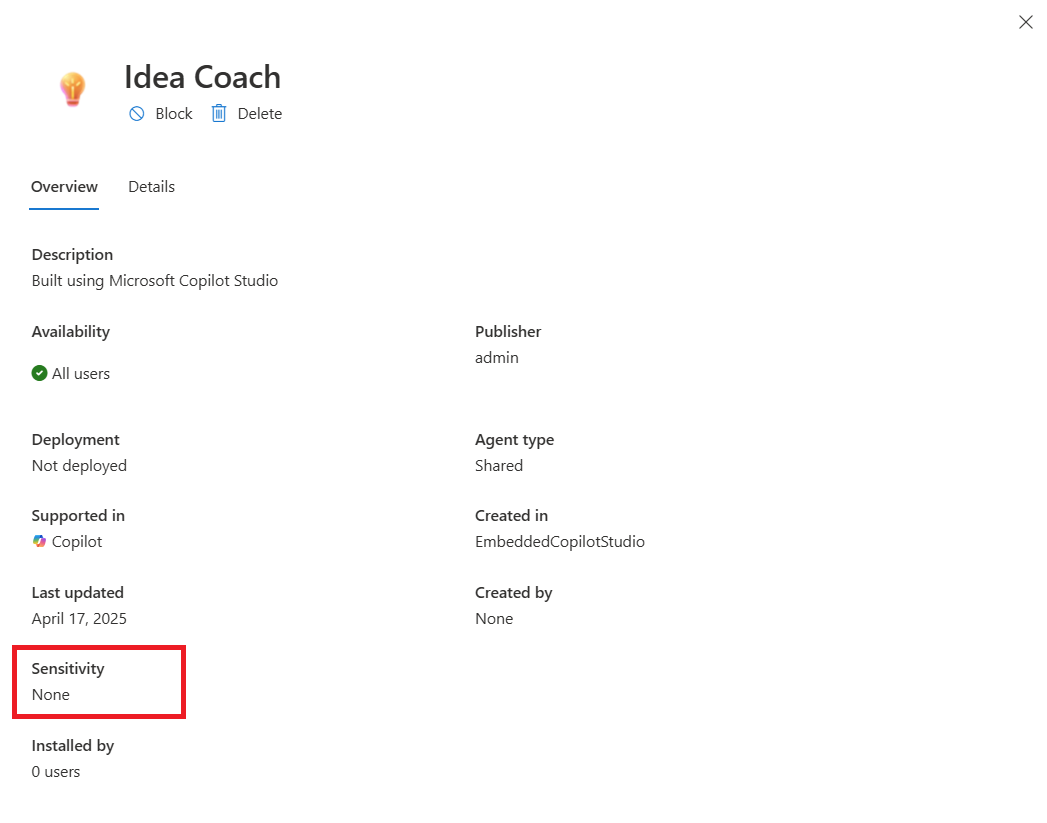
You can view the sensitivity label for each agent in the Overview tab of the Microsoft 365 admin center.
User access and visibility
If a user doesn't have extract rights to any of the sensitivity labels applied to the uploaded files, they can't access the agent.
If a user has extract rights, they can view the agent's sensitivity label in the agent details pane.
For more information, see Sensitivity labels for agent embedded content.
Researcher with Computer Use admin configuration
For Researcher with Computer Use onboarding instructions, see the following short video:
Researcher with Computer Use is a powerful extension that builds on the capabilities of the Researcher agent. By using Computer Use, the Researcher agent can securely interact with public, gated, and interactive web content through a virtual computer. By using this method, users can uncover deeper insights, take action, and generate richer reports grounded in both their work data and the web. For more information, see Use Researcher with Computer use in Microsoft Copilot.

Configure admin settings for Researcher agent with Computer Use
To configure admin settings for Researcher agent with Computer Use, follow these steps:
Go to the Microsoft Admin Controls (Microsoft 365 admin center) Agents page.
In the left navigation pane, select Researcher under Agents, and check if there's another tab for Computer Use.
Customize users that have access to Researcher with Computer Use.

There are three options for configuring who has access to the experience:
- Allow all users in your organization.
- Allow specific users or groups only.
- No users in your organization.

- For users that have this option disabled, the Computer Use option is grayed out.

Configure Work access for Researcher with Computer Use:
The Work option allows users to toggle on Work in the Sources menu, so the Researcher agent can use a user's work content with Computer Use. For example, emails, chats, and files.
When admins enable this option, users must still manually toggle on Work access.

When disabled, the Work source appears grayed out and isn't selectable.

Select which websites are allowed for Computer Use:
There are three options for configuring websites the virtual device can access:
All websites.
Allow specific URLs or domains only.
Exclude specific URLs or domains.
You can allow All websites, block some websites by using the Exclude specified option, or only allow certain sites by using the Allow specified option.
Learn more about Researcher with Computer Use
- Introducing Researcher with Computer Use in Microsoft Copilot.
- Get started using Researcher with Computer Use.
- Frequently asked questions for Researcher with Computer Use.
Agent metadata in the Microsoft 365 admin center

You can access key metadata for Copilot agents in Agents > All Agents. When you select an agent, you see the metadata in the Data & tools tab.
The metadata includes details such as the agent's capabilities, data sources, and custom actions. Example data sources include OneDrive and SharePoint files and sites, or Graph connectors. Metadata is only for custom agents, which are designed to perform specific tasks based on predefined rules and configurations.