If AWS hosts your domain's DNS, follow the steps in this article to verify domain ownership and manually add the DNS records required for Microsoft 365 services such as email, Microsoft Teams, and device management. After you add these records at AWS, your domain is ready to work with Microsoft 365.
This article covers the creation of the following DNS records at AWS:
Note
AWS is a non-Microsoft site. Microsoft doesn't control the AWS site. Additionally, AWS might change their website and tools so that the steps in this article are no longer valid. For support with AWS's site and tools, contact AWS support.
Before you begin
- You must own a domain registered with AWS.
- You must add the domain in the Microsoft 365 admin center. If the domain isn't added in the Microsoft 365 admin center, follow the steps in Add a domain to add your domain before you start adding DNS records at AWS.
Sign in to AWS to manage your domain's DNS records
To add DNS records at AWS, sign in to your AWS account and then go to the page where you can manage your domain's DNS records. Follow these steps to get there:
To get started, go to your domains page at AWS and sign in.
On the landing page, under Domains, select Registered domains.
Under Domain Name, select the domain you want to set up in Microsoft 365.
Important
If a hosted zone for your domain doesn't exist, select Create hosted zone and complete the steps before moving to the next step.

Select Manage DNS.

Under Domain name, select the domain name for the hosted zone version of the domain you want to set up in Microsoft 365.

Add Microsoft 365 DNS records at AWS
To add the required DNS records at AWS for Microsoft 365 services, select the tab based on which DNS records you need to add:
Add a TXT record for domain ownership verification
Before you can use your domain with Microsoft 365, you need to prove you own the domain. Your ability to sign in to your account at your domain registrar and create the DNS record proves to Microsoft that you own the domain. This process involves creating a TXT record at your domain registrar with a specific value that Microsoft can look for. When Microsoft finds the record with the correct value, your domain is verified. The TXT record is used only to verify that you own your domain. It doesn't affect anything else and can be deleted once domain verification is complete.
Note
The procedures in this section assume that you started the process of adding a domain, but you didn't verify domain ownership yet.
To add the TXT record for domain verification at AWS, follow these steps:
Get the TXT value specific for your domain from the Microsoft 365 admin center. For help on finding the value of your TXT record in the Microsoft 365 admin center, see Gather the information you need to create DNS records.
If you're not already signed in to the AWS Hosted Zones page and selected the domain you want to add the TXT record for, follow the steps in Sign in to AWS to manage your domain's DNS records to get there.
Select Create record.

In the boxes for the new record, enter the values from the following table:
| Record name |
Record type |
Value |
TTL (seconds) |
Routing policy |
| {Leave empty} |
TXT |
MS=msXXXXXXXX |
1800 |
Simple routing |
- In the Value field, replace MS=msXXXXXXXX with the TXT value you gathered earlier from the Microsoft 365 admin center. The value shown in the table is only an example.
- Select the Record type and Routing policy values from the drop-down menus.
Select Create records.

Once you add the record at your domain registrar's site, go back to Microsoft and request a search for the record. When Microsoft finds the correct TXT record, your domain is verified.
To verify the record in Microsoft 365:
Sign in to the Microsoft 365 admin center.
From the left navigation bar, select … Show all, and then select Settings to expand it.
Under Settings, select Domains.
In the Domains page, select the domain that you're verifying, and select Start setup.

Select Continue.
On the Verify domain page, select Verify.
DNS records for Microsoft 365 email
Microsoft 365 email requires three types of DNS records:
- An MX record for email delivery.
- A CNAME record for email account discovery.
- A TXT record for SPF email spam protection.
To add each of these types of records at AWS, follow the steps in the following sections.
Add an MX record to enable email delivery to Microsoft 365
To add the MX record for email at AWS, follow these steps:
Get the MX value specific for your domain from the Microsoft 365 admin center. For help on finding the value of your MX record in the Microsoft 365 admin center, see Gather the information you need to create DNS records.
If you're not already signed in to the AWS Hosted Zones page and selected the domain you want to add an MX record for, follow the steps in Sign in to AWS to manage your domain's DNS records to get there.
Select Create record.
In the boxes for the new record, enter the values from the following table:
| Record name |
Record type |
Value |
TTL (seconds) |
Routing policy |
| {Leave empty} |
MX |
0 <mx-value>.mail.protection.outlook.com. |
300 |
Simple routing |
- In the Value field, replace <mx-value> with the MX value you gathered earlier from the Microsoft 365 admin center. Make sure this entry ends with a period (.). The value shown in the table is only an example.
- Make sure to include the 0 at the beginning of the entry in the Value field. This value is the MX priority. Add it before the MX value separated from the remainder of the value by a space. For more information about priority, see What is MX priority?
- Select the Record type and Routing policy values from the drop-down menus.
Select Create records.

Remove all previous MX records except for the one that you just added by selecting the record, and then selecting Delete.
Add a CNAME record so email accounts are automatically set up in Outlook and other email clients
To add a CNAME record for email account discovery at AWS, follow these steps:
If you're not already signed in to the AWS Hosted Zones page and selected the domain you want to add a CNAME record for, follow the steps in Sign in to AWS to manage your domain's DNS records to get there.
Select Create record.
In the boxes for the new record, enter the values from the following table:
| Record name |
Record type |
Value |
TTL (seconds) |
Routing policy |
| autodiscover |
CNAME |
autodiscover.outlook.com. |
300 |
Simple routing |
- Make sure autodiscover.outlook.com. in the Value field ends with a period (.).
- Select the Record type and Routing policy values from the drop-down menus.
Select Create records.

Add an SPF TXT record to help prevent email spam
Important
If your domain already has an SPF record, don't create a new one for Microsoft 365. Instead, add the required Microsoft 365 values to the existing record so that you have a single SPF record that includes both sets of values.
To add an SPF TXT record for email spam protection at AWS, follow these steps:
If you're not already signed in to the AWS Hosted Zones page and selected the domain you want to add an SPF TXT record for, follow the steps in Sign in to AWS to manage your domain's DNS records to get there.
Select Create record.
In the boxes for the new record, enter the values from the following table:
| Record name |
Record type |
Value |
TTL (seconds) |
Routing policy |
| {Leave empty} |
TXT |
v=spf1 include:spf.protection.outlook.com -all |
1800 |
Simple routing |
- Select the Record type and Routing policy values from the drop-down menus.
Select Create records.
DNS records for Microsoft Teams
Microsoft Teams needs four records:
- Two SRV records for user-to-user communication.
- Two CNAME records to sign in and connect users to the service.
Only add these DNS records if your organization uses Microsoft Teams.
Add the two required SRV records for Microsoft Teams
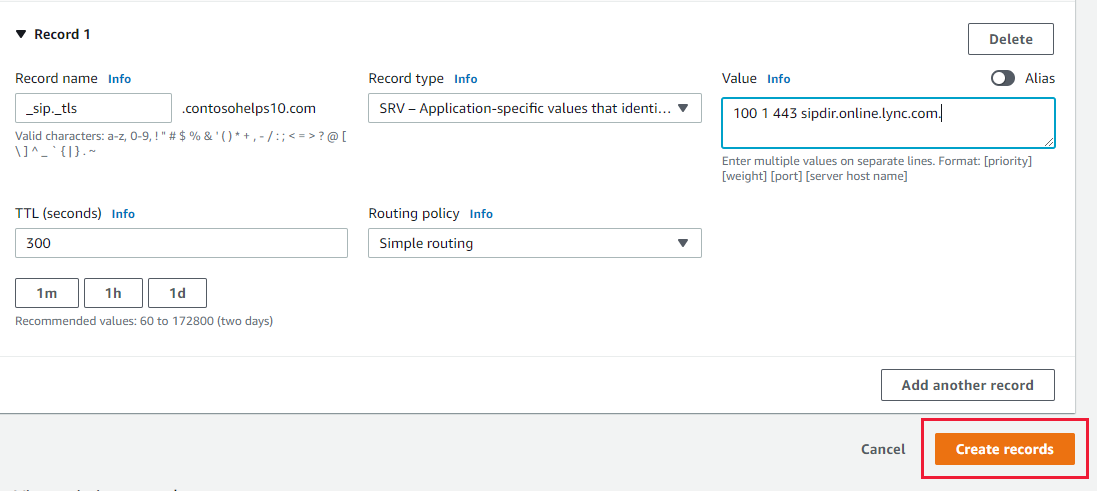
To add SRV records for Microsoft Teams at AWS, follow these steps:
If you're not already signed in to the AWS Hosted Zones page and selected the domain you want to add an SRV record for, follow the steps in Sign in to AWS to manage your domain's DNS records to get there.
Select Create record.
In the boxes for the new record, enter the values from the following table:
| Record name |
Record type |
Value |
TTL (seconds) |
Routing policy |
| _sip._tls |
SRV |
100 1 443 sipdir.online.lync.com. |
300 |
Simple routing |
| _sipfederationtls._tcp |
SRV |
100 1 5061 sipfed.online.lync.com. |
300 |
Simple routing |
- Make sure that the spacing is preserved for the entry in the Value field.
- Make sure that sipdir.online.lync.com. and sipfed.online.lync.com. in the Value field end with a period (.).
- Select the Record type and Routing policy values from the drop-down menus.
To add the second SRV record, select Add another record and then create a record using the values from the second row in the table.
After you add both records, select Create records.
Add the two required CNAME records for Microsoft Teams
To add CNAME records for Microsoft Teams at AWS, follow these steps:
If you're not already signed in to the AWS Hosted Zones page and selected the domain you want to add a CNAME record for, follow the steps in Sign in to AWS to manage your domain's DNS records to get there.
Select Create record.
In the boxes for the new record, enter the values from the following table:
| Record name |
Record type |
Value |
TTL (seconds) |
Routing policy |
| sip |
CNAME |
sipdir.online.lync.com. |
300 |
Simple routing |
| lyncdiscover |
CNAME |
webdir.online.lync.com. |
300 |
Simple routing |
- Make sure that sipdir.online.lync.com. and webdir.online.lync.com. in the Value field end with a period (.).
- Select the Record type and Routing policy values from the drop-down menus.
To add the second CNAME record, select Add another record and then create a record using the values from the second row in the table.
After you add both records, select Create records.
DNS records for Microsoft Intune and Mobile Device Management for Microsoft 365
Microsoft Intune and Mobile Device Management for Microsoft 365 help you secure and remotely manage devices that connect to your domain. Mobile Device Management for Microsoft 365 needs two CNAME records so that users can enroll devices to the service. Only add these records if your organization uses Microsoft Intune or Mobile Device Management for Microsoft 365.
Add the two required CNAME records for Microsoft Intune and Mobile Device Management for Microsoft 365
To add CNAME records for Microsoft Intune and Mobile Device Management for Microsoft 365 at AWS, follow these steps:
If you're not already signed in to the AWS Hosted Zones page and selected the domain you want to add a CNAME record for, follow the steps in Sign in to AWS to manage your domain's DNS records to get there.
Select Create record.
In the boxes for the new record, enter the values from the following table:
| Record name |
Record type |
Value |
TTL (seconds) |
Routing policy |
| enterpriseregistration |
CNAME |
enterpriseregistration.windows.net. |
300 |
Simple routing |
| enterpriseenrollment |
CNAME |
enterpriseenrollment-s.manage.microsoft.com. |
300 |
Simple routing |
- Make sure that enterpriseregistration.windows.net. and enterpriseenrollment-s.manage.microsoft.com. in the Value field end with a period (.).
- Select the Record type and Routing policy values from the drop-down menus.
To add the second CNAME record, select Add another record and then create a record using the values from the second row in the table.
After you add both records, select Create records.
Support
If you don't find what you're looking for, check the Domains FAQ.
Tip
Some configuration tasks might be complex to perform. For technical support, follow these steps:
- Sign in to the Microsoft 365 admin center.
- At the bottom right, select Help & Support.
- In the Support Assistant pane that opens, enter your question.
- Review the results. If you still have questions, select Contact support.
To learn about your options for contacting support, see Get support for Microsoft 365 for business.


 Domain Verify
 Email
Email Teams
Teams Intune/MDM


