Note
Access to this page requires authorization. You can try signing in or changing directories.
Access to this page requires authorization. You can try changing directories.
Use this article to sync Apple mobile devices with Apple Business, manage your enrollment tokens, and distribute devices to users.
Note
The steps in this article are the same whether you're using Apple Business or Apple School Manager. For brevity, this article refers to Apple Business only, except where clarification is necessary.
This article applies to:
- iOS/iPadOS
- tvOS
- visionOS
Sync managed devices
Syncing refreshes existing device status and imports new devices assigned to the Apple MDM server. After creating a token, sync Intune with Apple to see your managed devices in the Microsoft Intune admin center.
- In the Microsoft Intune admin center, go to Devices > Enrollment.
- Select the Apple mobile tab.
- Under Bulk Enrollment Methods, select Enrollment program tokens.
- Select a token from the list.
- Select Devices > Sync.
Sync restrictions
To comply with Apple's terms for acceptable enrollment program traffic, Microsoft Intune imposes the following restrictions:
A full sync can run no more than once every seven days. During a full sync, Intune fetches the complete, updated list of serial numbers assigned to the connected Apple MDM server.
Important
If you delete a device from Intune but it remains assigned to the ADE token in Apple Business, the device reappears in Intune on the next full sync. If you don't want the device to reappear, unassign it from the Apple MDM server in Apple Business first.
If a device is released from Apple Business, it can take up to 45 days for it to be automatically deleted from the Devices page in Intune. You can manually delete released devices one by one if needed. Released devices are reported as removed from Apple Business in Intune until they're automatically deleted within 30–45 days.
A delta sync runs automatically every 12 hours. You can also trigger a sync manually by selecting Sync, no more than once every 15 minutes. All sync requests have 15 minutes to finish. The Sync button becomes inactive until the sync completes.
Apple Business and Apple School Manager sync approximately 3,000 devices to Intune per minute. If you have more than 200,000 devices per token, we recommend waiting for all devices to finish syncing before manually triggering another sync (total devices ÷ 3,000 devices per minute = estimated wait time).
Re-enroll a device
Complete these steps to re-enroll a device that already went through automated device enrollment.
- There are two options for resetting the device:
- Wipe the device in the Microsoft Intune admin center.
- Retire the device in the admin center, and then reset the device to factory settings using the Settings app or Apple Configurator 2.
- Turn on the device and follow the onscreen steps in Setup Assistant to retrieve the remote management profile.
Renew your token
Go to Apple Business and sign in with an account that has an Administrator or Device Enrollment Manager role.
Select Settings. Under MDM Servers, select the MDM server associated with the token file you want to renew.
Select Download Token.
Note
Don't select Download Token unless you intend to renew the token. Doing so invalidates the token currently in use by Intune. If you already downloaded the token, complete the remaining steps to finish the renewal.
After downloading the token, go to the Microsoft Intune admin center.
Go to Devices > Enrollment.
Select the Apple mobile tab.
Under Bulk Enrollment Methods, select Enrollment program tokens.
Select the token you want to renew.
Select Renew token. Enter the Apple ID used to create the original token.
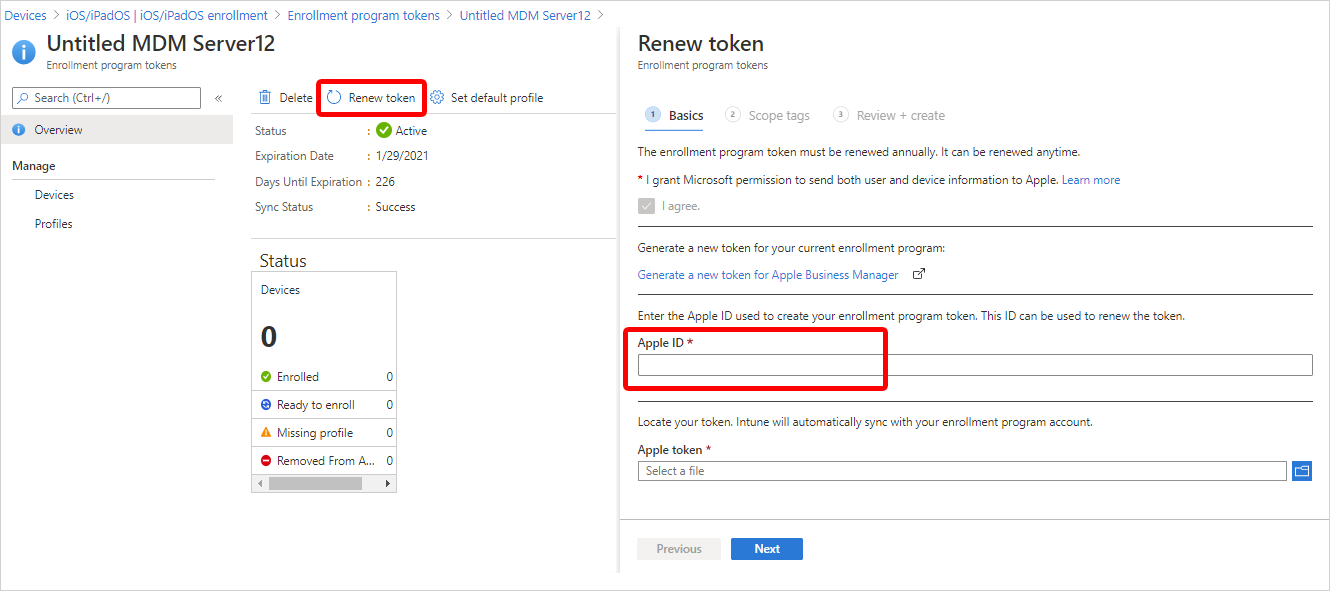
Upload the newly downloaded token.
Select Next. Assign scope tags if needed.
Select Renew token and wait for confirmation that the renewal is complete.

Delete an enrollment program token
Warning
Deleting devices from a token (required before you can delete the token) removes those devices from Intune management. If the devices are still in use, users will lose access to corporate resources and apps managed by Intune. Wipe and re-enroll devices with a new token if you want to continue managing them.
You can delete an enrollment program token from Intune as long as:
- No devices are assigned to the token.
- No devices are assigned to the default policy.
- There are no enrollment policies under that token.
To delete an enrollment program token:
- In the Microsoft Intune admin center, go to Devices > Enrollment.
- Select the Apple mobile tab.
- Under Bulk Enrollment Methods, select Enrollment program tokens.
- Select the token, and then select Devices.
- Delete all devices assigned to the token.
- Return to Enrollment program tokens. Select the token, and then select Enrollment policies.
- Delete all enrollment policies listed, including any default policy.
- Return to Enrollment program tokens. Select the token, and then select Delete.
Limits
If you exceed 200,000 devices per token, you might experience sync problems. Split devices across multiple ADE tokens instead.
| Resource | Maximum |
|---|---|
| Enrollment policies per token | 1,000 |
| ADE devices per policy | 200,000 |
| ADE tokens per Intune account | 2,000 |
| ADE devices per token | 200,000 |
Distribute devices
Users on devices enrolled with user affinity must have an Intune license assigned. Devices enrolled without user affinity need an Intune device license, unless an Intune-licensed user is associated with the device. For more information, see Microsoft Intune licensing and the Intune planning guide.
A device that is already activated needs to be wiped before it can enroll with automated device enrollment. After you wipe it but before activating it again, you can apply the enrollment policy. For more information, see Set up an existing iPhone, iPad, or iPod touch (opens Apple support site).
If you're enrolling with ADE and user affinity, the following error can happen during setup:
The SCEP server returned an invalid response.
You can resolve this error by trying to download the management profile again within 15 minutes. After 15 minutes, you have to factory reset the device to resolve the error. This error occurs because of a 15-minute time limit on SCEP certificates, enforced for security.
End user experience
For information about the end user experience, see: