Note
Access to this page requires authorization. You can try signing in or changing directories.
Access to this page requires authorization. You can try changing directories.
The Device Offboarding Agent identifies stale or misaligned devices across Intune and Entra ID, providing actionable insights and requiring admin approval before offboarding any devices. The Device Offboarding Agent complements existing Intune automation by surfacing insights and handling ambiguous cases where automated cleanup may not suffice.
Prerequisites
 Cloud requirements
The agent is supported on the public cloud only. It isn't supported on government clouds.
 Licensing requirements
To use Security Copilot agents in Microsoft Intune, your organization must meet specific licensing requirements.
Required licenses:
- Microsoft Intune Plan 1 subscription
- Microsoft Security Copilot with sufficient security compute units (SCUs)
 Plugins requirements
Plugins enable Security Copilot agents to connect with Microsoft services and perform specialized actions.
The Device Offboarding Agent requires the following plugin:
 Device platform requirements
The agent supports devices managed by Intune across multiple platforms, including Windows, iOS/iPadOS, macOS, Android, and Linux.
It applies to both corporate-owned and BYOD (bring-your-own-device) scenarios.The agent doesn't support:
- Hybrid Entra-joined Windows devices
- Windows Autopilot devices
- Shared devices
- Microsoft Teams Phones
 Roles requirements
Role requirements vary based on whether you're configuring the agent or using it, and on the specific actions performed.
To enable, configure, and delete the Device Offboarding Agent, use an account with the following roles:
Intune roles, either:
- Read Only Operator
- Custom role with Audit data/Read and Organization/Read permissions
Entra roles, either:
- Security Reader
- Custom role with Microsoft.Directory/Devices/Standard/Read permissions
Security Copilot roles:
To use the agent and perform offboarding actions, use an account with at least the following roles:
- Read Only Operator
- Custom role with Audit data/Read and Organization/Read permissions
- Security Reader
- Custom role with Microsoft.Directory/Devices/Standard/Read permissions
To take action from within the agent, such as to disable devices in Entra, you must have the Disable devices permission. You don't need this permission to run or view results from the agent.
How it works
To support secure and efficient device lifecycle management, the Device Offboarding Agent performs a series of automated evaluations and actions. Here's a breakdown of its workflow:
1. Signal aggregation

The Device Offboarding Agent begins by aggregating signals from Microsoft Intune and Microsoft Entra ID. These signals include indicators, that help determine whether a device is active, stale, or misconfigured.
2. Evaluation

The agent evaluates each device using predefined logic and any optional custom instructions provided by an admin.
3. Recommendations

Based on this assessment, the agent generates recommendations that flag devices for offboarding, along with suggested actions and the rationale behind them.
4. Admin approval

No changes are made to devices without explicit admin approval. The agent provides detailed recommendations, but the final decision to offboard a device rests with the IT admin.
5. Assisted remediation

Upon admin approval, the Device Offboarding Agent disables the corresponding Entra ID objects. It also facilitates the offboarding process by providing guidance on additional remediation steps, such as removing devices from Microsoft Defender or Apple Business Manager.
Agent identity
The Device Offboarding Agent runs under the identity and permissions of the Intune admin account used during setup. Its actions are limited to the permissions of that account, and the identity refreshes with each run. If the agent doesn't run for 90 consecutive days, its authentication expires, and subsequent runs fail until renewed. To maintain functionality, renew the agent identity before the 90-day limit.
Operational considerations
Before running the Device Offboarding Agent, note the following:
- Admins must start the agent manually; once launched, it cannot be paused or stopped.
- Admins can only launch the agent from the Microsoft Intune admin center.
- Only the admin who set up the agent can view session details in the Microsoft Security Copilot portal.
- The agent identifies devices that were retired, wiped, or deleted from Intune within the last 30 days.
- The agent limits results to the first 10,000 devices.
- Upon admin approval to offboard, the agent disables Entra ID objects. Other remediation steps are provided as instructions for admins.
- The agent doesn't persist suggestions across runs; re-running clears previous recommendations.
- Only one agent instance is supported per tenant.
Important
Data reported by the agent is surfaced through agent suggestions. This information may be visible to admins who have access to the agent in the Intune admin center, even if it includes data outside their assigned Administrative Units (AUs) in Microsoft Entra ID.
Enable the agent
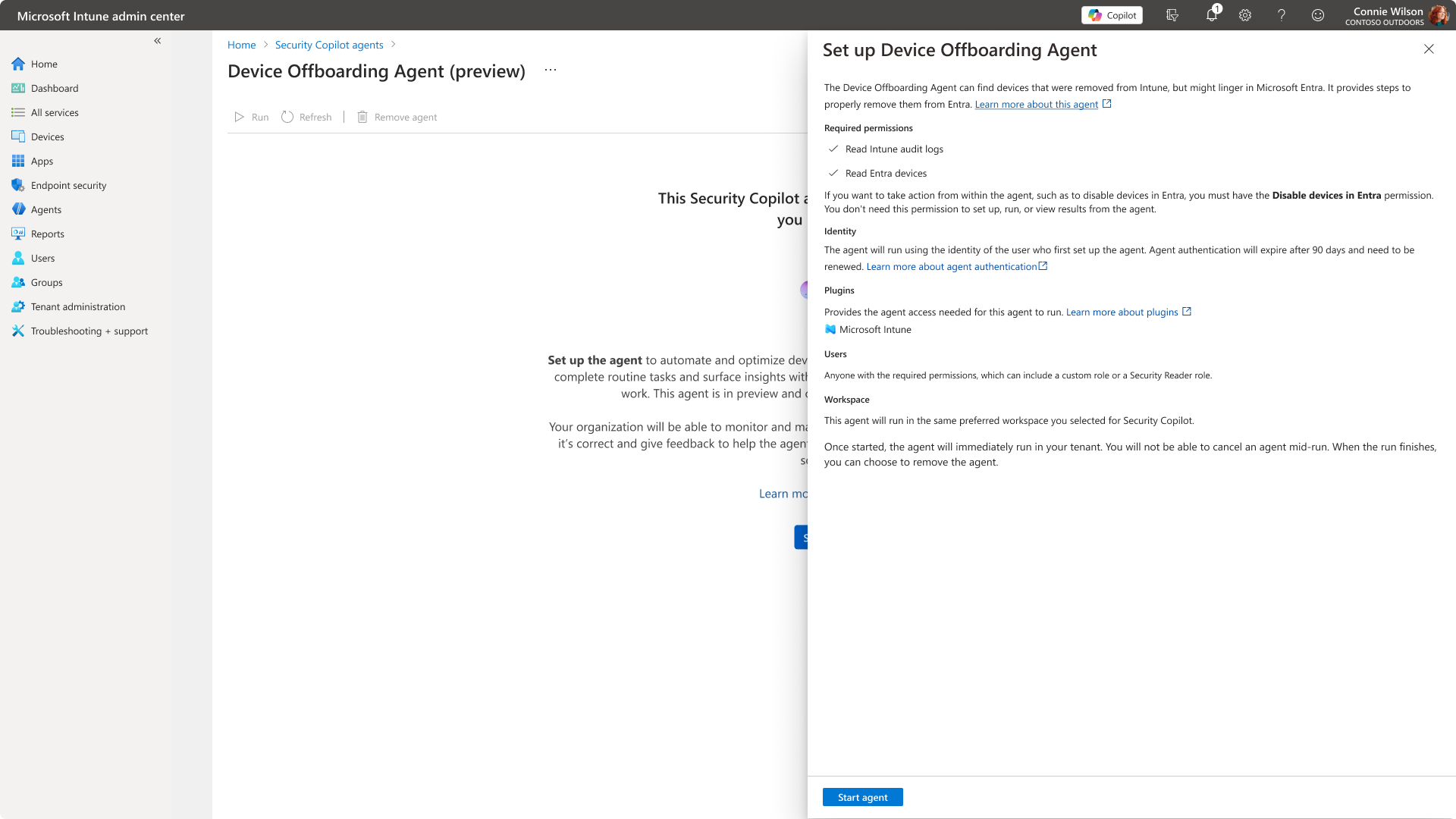
To enable the Device Offboarding Agent, follow these steps:
- In the Microsoft Intune admin center, select Agents and select the agent you want to enable.
- Select Set up Agent to open the set-up pane.
- Review the details to ensure requirements are in place, then select Start agent.
The agent runs until it finishes and then displays its results in the Overview tab.
Configure custom instructions
Use custom instructions to guide the agent's logic based on your organization's needs. Custom instructions help refine the agent's evaluation criteria, allowing you to include or exclude specific devices from offboarding recommendations.
These instructions can be used to:
- Include or exclude specific object IDs.
- Set thresholds for device activity.
For example, if your organization has executive devices that you don't want to flag for offboarding, you can use custom instructions to exclude them. Without this exclusion, the agent might detect identity mismatches on those devices and consume SCUs to suggest offboarding—even when it's not appropriate. Custom instructions help you prevent that issue by guiding the agent's logic based on your organizational needs.
Custom instructions persist between agent runs, so once you set them, they are evaluated every time the agent runs. You can change custom instructions at any time in the Settings tab and re-run the agent. The Factors section in a suggestion highlights details on which custom instructions were taken into account while forming the list of suggested devices to offboard.
To configure custom instructions:
- In the Microsoft Intune admin center, select Agents > Device Offboarding Agent (preview).
- Select the Settings tab.
- In the Instructions field, enter a prompt to customize the agent's evaluation criteria.
Examples of custom instructions you can use
Exclude devices with IDs […]
Exclude devices with last activity after […]
Exclude devices with last activity before […]
Include only devices with IDs […]
Important
If you include one or more deviceIds and none of them have been retired, wiped, or deleted within the last 30 days, the agent will fail to run.
Include only devices with last activity after […]
Include only devices with last activity before […]
Renew the agent
Agents expire after 90 days of inactivity. When authentication expires, agent runs fail until you reauthenticate. You can renew authentication at any time.
As expiration approaches, Intune displays a warning on the agent overview page. Both Copilot owners and Copilot contributors can see this banner, which prompts you to renew the agent identity.
To renew the agent:
- Open the Microsoft Security Copilot admin center and sign in with an account that has the required permissions.
- Select Agents.
- Find the agent that needs renewal and select Go to agent.
- On the agent details page, select ..., then select Edit.
- Select Renew authentication. The agent uses your signed-in credentials by default. To use different credentials, select Re-authenticate and provide them.
After renewal, the warning banner disappears and a toast notification confirms success.
Remove the agent
When you remove an agent, all associated data generated including suggestions and activities are deleted. Previously applied suggestions remain unchanged.
Steps to remove an agent instance:
- In the Microsoft Intune admin center, select Agents.
- Select the agent instance you want to remove.
- Select Remove agent and confirm the removal.
After removal:
- The agent pane returns to its original state.
- An admin can reinstall the agent later by repeating the setup process.
 Help shape the future of Intune agents
Join our Intune Agents Feedback Forum to share insights and influence upcoming capabilities in Microsoft Intune.
Sign up and learn more: https://aka.ms/IntuneAgentsForum