Note
Access to this page requires authorization. You can try signing in or changing directories.
Access to this page requires authorization. You can try changing directories.
In public preview, the Microsoft Intune Change Review Agent uses Microsoft Security Copilot's generative AI to evaluate Multi Admin Approval requests for PowerShell scripts on Windows devices. It provides risk-based recommendations and contextual insights to help administrators understand script behavior and associated risks. These insights help Intune administrators make informed decisions more quickly about whether to approve or deny requests.
To generate these recommendations, the agent aggregates signals from multiple sources:
- Microsoft Defender Vulnerability Management - for threat insights
- Microsoft -Entra ID - for identity risk
- Microsoft Intune - for Multi Admin Approval requests and historical context of similar requests
The agent analyzes these signals to assess the potential risk associated with each request and then delivers actionable insights to support secure and efficient change management.
Prerequisites
 Cloud requirements
The agent is supported on the public cloud only. It isn't supported on government clouds.
 Licensing requirements
To use Security Copilot agents in Microsoft Intune, your organization must meet specific licensing requirements.
Required licenses:
- Microsoft Intune Plan 1 subscription
- Microsoft Entra ID P2
- Microsoft Defender Vulnerability Management
- Microsoft Security Copilot with sufficient security compute units (SCUs)
 Plugins requirements
Plugins enable Security Copilot agents to connect with Microsoft services and perform specialized actions.
The Change Review Agent requires the following plugins:
 Platform requirements and scenarios
The agent supports evaluation and recommendations for the following platforms and scenarios:
- Windows
- PowerShell scripts in Intune
 Roles requirements
Role requirements vary based on whether you're configuring the agent or using it, and on the specific actions performed.
To enable and configure the Change Review Agent, use an account with the following roles:
Entra roles:
- Intune Administrator
- Security Reader
- Entra/Identity risky user (read) - This permission maps to the Unified RBAC permission Security posture / Identity risk / Risky users (read).
Defender roles - Defender role-based access control (RBAC) roles depend on your Defender XDR implementation:
Unified RBAC: Assign the Microsoft Entra ID Security Reader to the agent's identity account. This role provides read-only access to Defender Vulnerability Management data and automatically enforces device group scoping.
Granular RBAC: Assign a custom RBAC role with permissions equivalent to the Unified RBAC Security Reader role. For example:
- View data – Defender Vulnerability Management - This permission maps to the Unified RBAC permission Security posture / Posture management / Vulnerability management (read).
For details about mapping permissions to the Unified RBAC Security Reader role, see Microsoft Entra Global roles access in the Map Microsoft Defender XDR Unified role-based access control (RBAC) article in the Defender documentation.
Ensure the agent's identity is scoped in Microsoft Defender to include all relevant device groups. The agent can't access or report on devices outside its assigned scope.
Security Copilot roles:
To use the agent and perform offboarding actions, use an account with the following roles:
Intune roles:
- Read Only Operator or custom role with equivalent permissions.
- Use of the agent requires the same access as enabling and configuring the agent.
How the agent works
The Change Review Agent operates using an Intune admins account identity and runs manually when an admin starts it.
At a high level, the agent does the following steps each time it runs:
Signal aggregation - The agent begins by aggregating signals from the following sources:
- Microsoft Defender Vulnerability Management - for threat insights
- Microsoft Entra ID - for identity risk
- Microsoft Intune - for Multi Admin Approval requests and historical context of similar requests
Evaluation - The agent evaluates Windows PowerShell scripts for Multi Admin Approval requests using predefined logic that's built in to the agent configuration.
Recommendations - The agent reviews and then provides recommendations for a maximum of 10 requests per run.
Suggestions are suggestions only. The approval or rejection of a request remains with an Intune administrator.
The first column of the recommendation list presents Suggested Next Steps, which display the recommended action followed by the name of the request. Possible actions include:
- Approve - Low-risk request; likely safe to approve.
- Reject - High-risk request; shouldn't be approved.
- Needs more info - Risk couldn't be fully assessed. This request requires further review.
Each recommendation includes supporting details that explain:
- The rationale behind the agent's recommendation.
- What the script is intended to accomplish or do.
- A detailed list of factors that the agent reviewed as part of its process.
Agent identity
The agent runs under the identity and permissions of the Intune admin account used during setup. The agent's actions are limited to the permissions of that account, and the identity refreshes with each run. If the agent doesn't run for 90 consecutive days, its authentication expires, and subsequent runs fail until its renewed. To maintain functionality, renew the agent identity before the 90-day limit.
Operational considerations
Before setting up and starting the agent for the first time, review the following considerations:
- An admin must manually start the agent. Once started, there's no option to stop or pause it.
- The agent can only be started from the Microsoft Intune admin center.
- Session details in the Microsoft Security Copilot portal are visible only to the user who set up the agent.
- The agent reviews and then provides recommendations for a maximum of 10 requests per run.
- Only one agent instance is supported per tenant/user context.
Set up the agent
The agent operates under the identity and permissions of the Intune admin account used during setup. Its operations are limited to the permissions of that account, and the identity refreshes with each run. Any changes to the account's permissions affect the agent's capabilities during its next run.
To set up the Change Review Agent:
In the Microsoft Intune admin center, go to Agents > Change Review Agent.
In Overview, select Set up Agent to open the Set up Change review agent pane.
The Set up Change review agent pane lists the required permissions and provides details about setup requirements. When requirements are met, select Start agent.
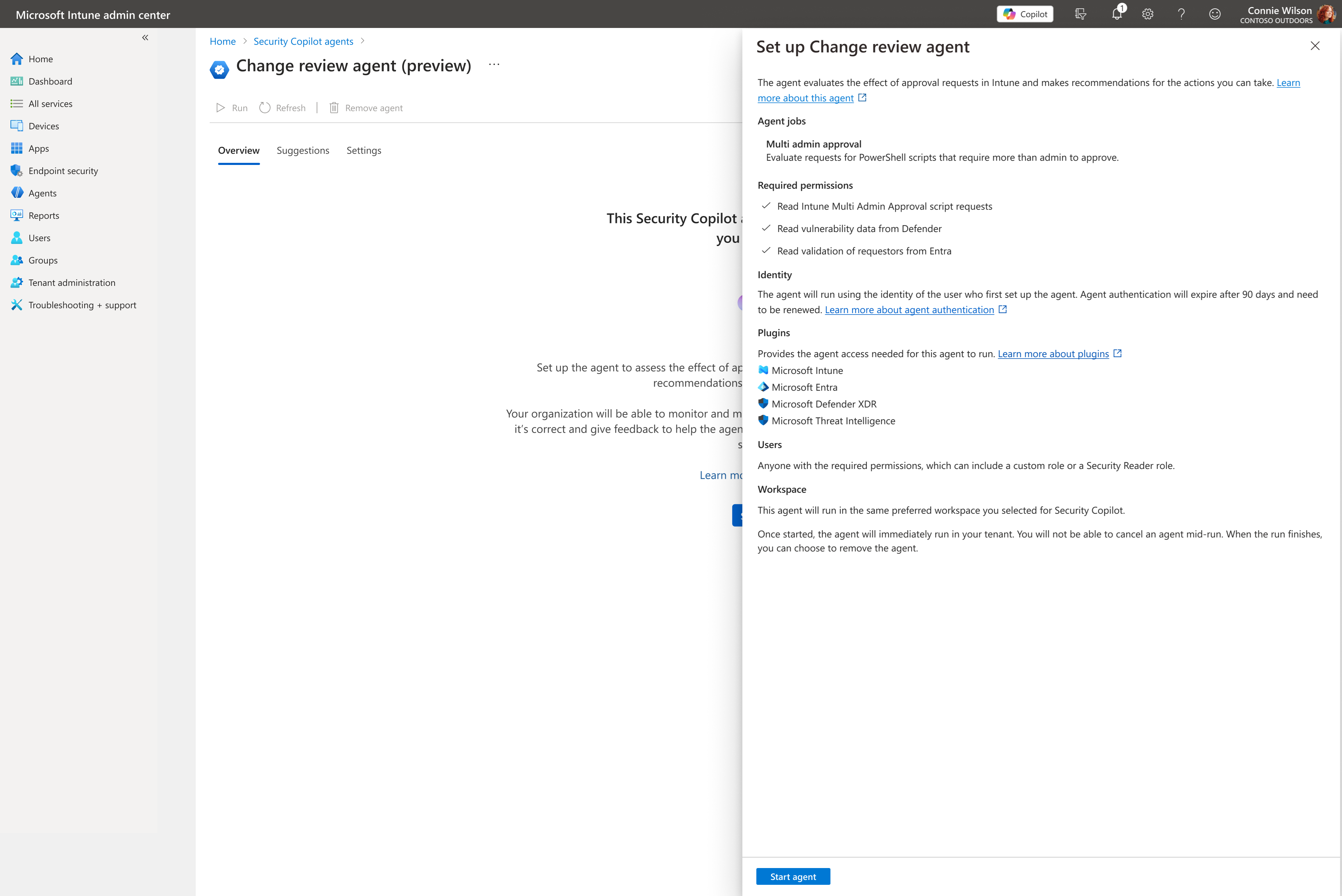
The agent operates until it completes its evaluation and displays results in the Overview tab. When the run finishes, the agent is ready to use.
To learn more about using the agent, see Use the Change Review Agent.
Remove the agent
When you remove an agent, all associated data generated including suggestions and activities are deleted. Previously applied suggestions remain unchanged.
Steps to remove an agent instance:
- In the Microsoft Intune admin center, select Agents.
- Select the agent instance you want to remove.
- Select Remove agent and confirm the removal.
After removal:
- The agent pane returns to its original state.
- An admin can reinstall the agent later by repeating the setup process.
 Help shape the future of Intune agents
Join our Intune Agents Feedback Forum to share insights and influence upcoming capabilities in Microsoft Intune.
Sign up and learn more: https://aka.ms/IntuneAgentsForum