Note
Access to this page requires authorization. You can try signing in or changing directories.
Access to this page requires authorization. You can try changing directories.
Shortcuts in Microsoft OneLake unify your data across domains, clouds, and accounts by making OneLake the single virtual data lake for your entire enterprise. Fabric experiences and analytical engines can connect to your existing data sources, including Azure, Amazon Web Services (AWS), and OneLake through a unified namespace. OneLake manages all permissions and credentials, so you don't need to separately configure each Fabric workload to connect to each data source. Additionally, you can use shortcuts to eliminate edge copies of data and reduce process latency associated with data copies and staging. Shortcuts also maintain synchronization with the source data, including automatic schema updates for shortcut tables.
What are shortcuts?
Shortcuts are objects in OneLake that point to other storage locations. The location can be internal or external to OneLake. The location that a shortcut points to is the target path of the shortcut. The location where the shortcut appears is the shortcut path.
Shortcuts appear as folders in OneLake and any workload or service that has access to OneLake can use them. Shortcuts behave like symbolic links. They're an independent object from the target. If you delete a shortcut, the target remains unaffected. If you move, rename, or delete a target path, the shortcut can break.

Where can I create shortcuts?
You can create shortcuts in lakehouses and Kusto Query Language (KQL) databases.
You can use the Fabric portal to create shortcuts interactively, and you can use the REST API to create shortcuts programmatically.
Lakehouse
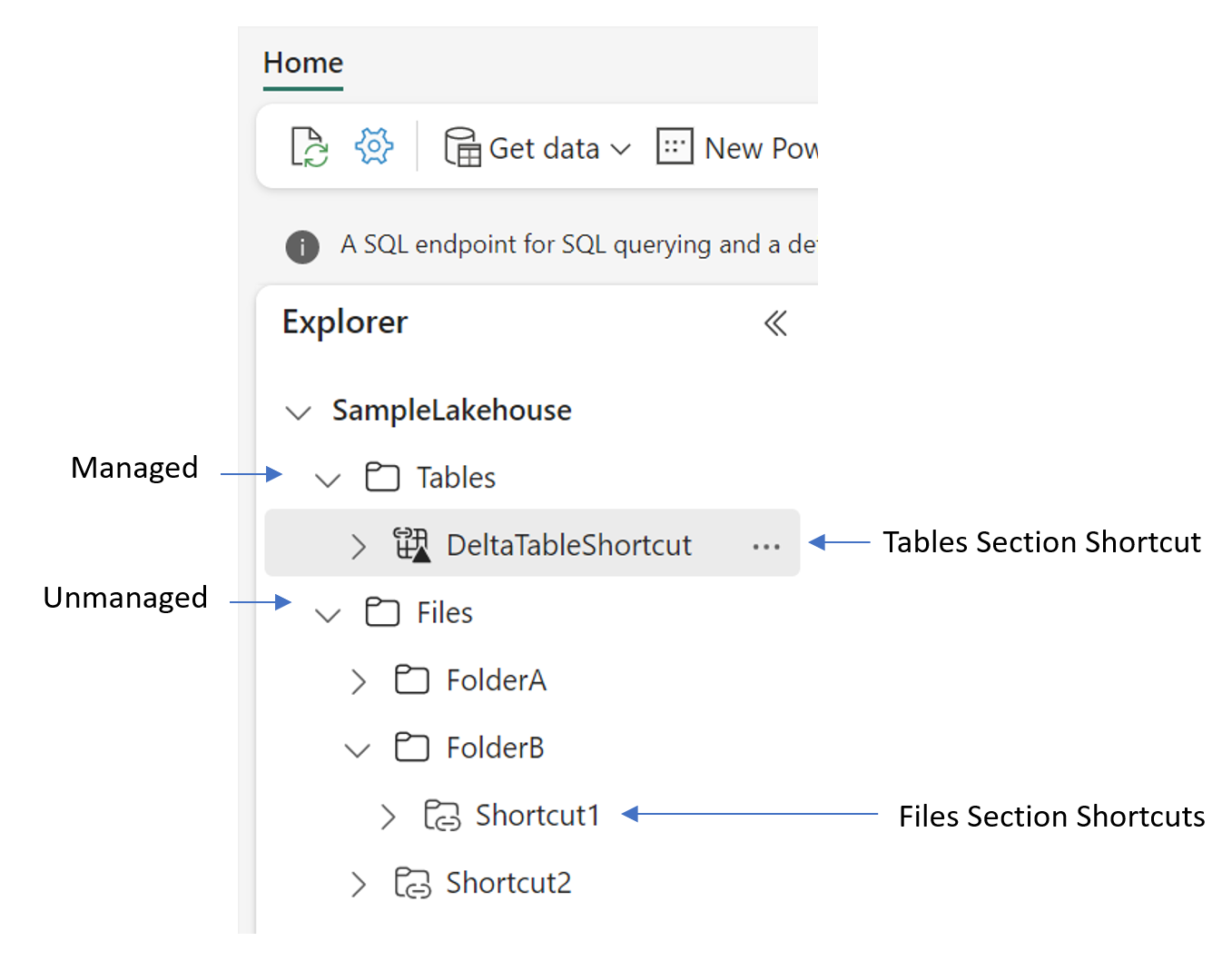
When creating shortcuts in a lakehouse, you must understand the folder structure of the item. Lakehouses have two top-level folders: the Tables folder and the Files folder. The tables folder is for structured datasets. The files folder is for unstructured or semi-structured data.
In the Tables folder, you can create shortcuts only at the top level. OneLake doesn't support shortcuts in subdirectories of the Tables folder. Shortcuts in the Tables section typically point to internal sources within OneLake or link to other data assets that conform to the Delta table format. If the target of the shortcut contains data in a supported table format (such as Delta), the lakehouse automatically synchronizes table metadata and recognizes the folder as a table.
Table schemas are synchronized automatically for all shortcut tables, including both new and existing tables. This synchronization ensures that schema changes in the source are reflected in the shortcut without requiring manual updates. Shortcuts in the Tables section can link to either a single table or a schema, which is a parent folder for multiple tables.
Note
The Delta format doesn't support tables with space characters in the name. OneLake doesn't recognize any shortcut containing a space in the name as a Delta table in the lakehouse.
In the files folder, there are no restrictions on where you can create shortcuts. You can create shortcuts at any level of the folder hierarchy. Table discovery doesn't happen in the files folder. Shortcuts here can point to either internal OneLake and external storage systems with data in any format.
KQL database
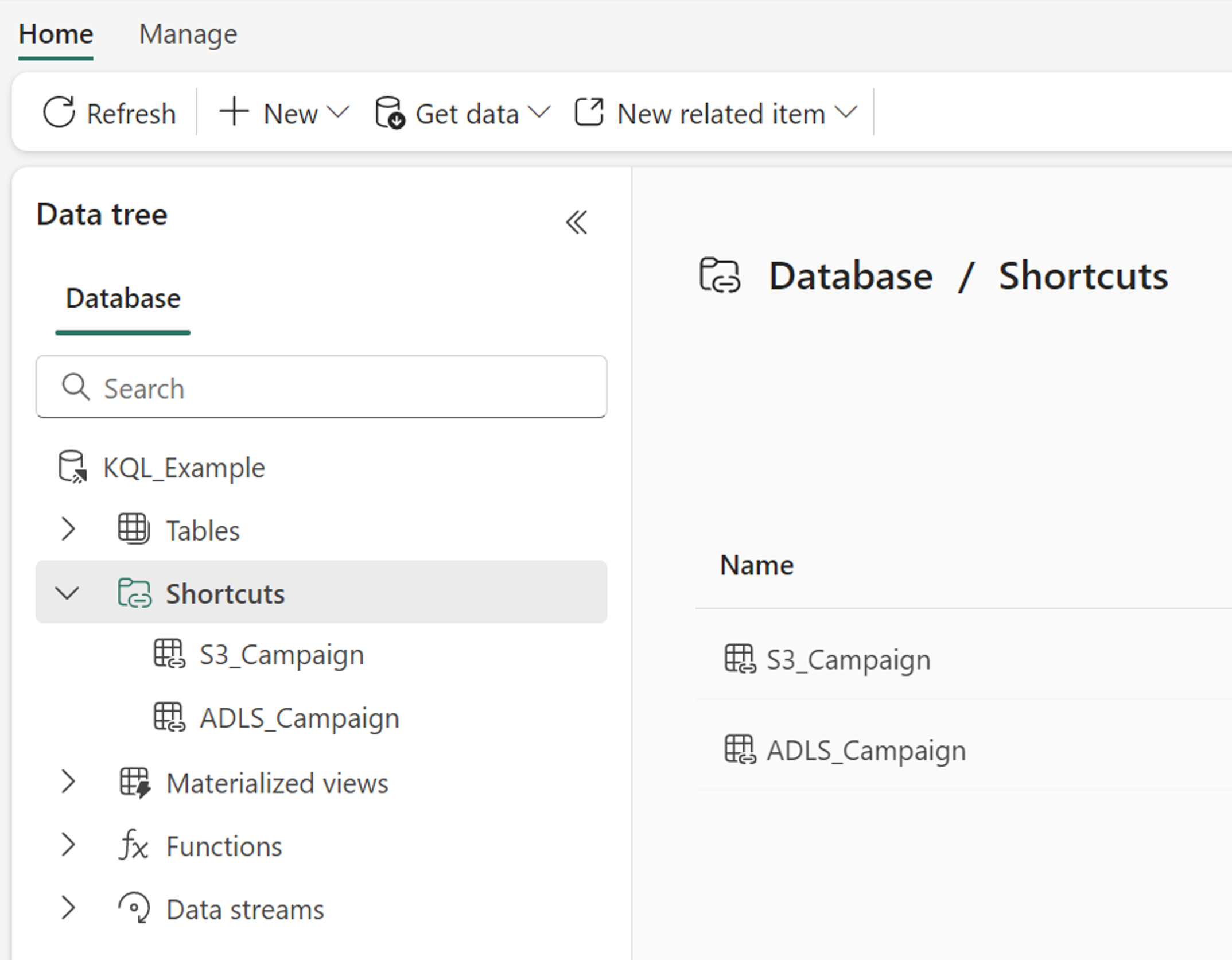
When you create a shortcut in a KQL database, it appears in the Shortcuts folder of the database. The KQL database treats shortcuts like external tables. To query the shortcut, use the external_table function of the Kusto Query Language.
Eventhouse database shortcuts
When you create a database shortcut in an eventhouse, you can choose to include all subitems from the source database or select specific subitems to share. This table-level sharing capability enables secure, controlled data sharing without exposing entire databases.
Select specific subitems
When creating a new database shortcut, you can select from the following subitem types:
- Tables - Regular tables from the source database
- Shortcut tables - Tables that are themselves shortcuts
- Materialized views - Precomputed views for optimized queries
- Functions - Stored functions for reusable query logic

To select specific subitems:
- In an eventhouse, select + New > Database shortcut.
- Choose a method for identifying the source database:
- OneLake catalog - Browse and select a database from Fabric.
- Cluster URI - Enter an Azure Data Explorer cluster URI and database name manually.
- Invitation token - Paste a token issued by the data producer. The subitem selection is predefined by the producer.
- In the Subitems to include section, select Include all subitems (default) or Select specific subitems.
- If you select specific subitems, use the inline picker to filter by type and search by name.
- Select Create to create the shortcut.
Note
You can only see and select subitems you have permission to share. Subitems you don't have permission to share are hidden.
Automatic schema sync
There are two types of automatic schema sync for eventhouse database shortcuts:
- Auto schema sync for the database shortcut: Adds or removes tables, shortcut tables, materialized views, and functions. This sync happens only when you create a database shortcut and select Include all subitems. If you select only a subset of the subitems, this sync doesn't apply.
- Auto schema sync for a shortcut table: Adds, deletes, or renames columns, and changes column types. This sync happens for all shortcut tables by default, unless you turn it off with the KQL command in the following example.
Consumers of a table-level share can only query and view subitems explicitly included in the share. Names of nonshared subitems aren't visible to consumers.
To disable automatic schema sync for a shortcut table, run the following command in the source database:
.create-or-alter external table ExternalTable
kind=delta
(
   h@'https://storageaccount.blob.core.windows.net/container1;secretKey'
) with (AutoUpdateSchema=false)
Subitem dependencies
When you select subitems, the system automatically handles dependencies:
- When you select a materialized view or function, the referred tables are automatically selected.
- When you deselect a materialized view or function, the referred tables remain selected.
- When you deselect a table, any materialized views or functions that depend on it are automatically deselected.
Note
When you access a shortcut table, you can only query the table and view its metadata if you have permissions for both the followed database and the source data of the shortcut table. The same permission requirements apply to functions and materialized views that refer to shortcut tables.
Where can I access shortcuts?
Any Fabric or non-Fabric service that can access data in OneLake can use shortcuts. Shortcuts are transparent to any service accessing data through the OneLake API. Shortcuts just appear as another folder in the lake. Apache Spark, SQL, Real-Time Intelligence, and Analysis Services can all use shortcuts when querying data.
Apache Spark
Apache Spark notebooks and Apache Spark jobs can use shortcuts that you create in OneLake. Use relative file paths to read data directly from shortcuts. Additionally, if you create a shortcut in the Tables section of the lakehouse and it is in the Delta format, you can read it as a managed table using Apache Spark SQL syntax.
df = spark.read.format("delta").load("Tables/MyShortcut")
display(df)
df = spark.sql("SELECT * FROM MyLakehouse.MyShortcut LIMIT 1000")
display(df)
SQL
You can read shortcuts in the Tables section of a lakehouse through the SQL analytics endpoint for the lakehouse. You can access the SQL analytics endpoint through the mode selector of the lakehouse or through SQL Server Management Studio (SSMS).
SELECT TOP (100) *
FROM [MyLakehouse].[dbo].[MyShortcut]
Real-Time Intelligence
Shortcuts in KQL databases are recognized as external tables. To query the shortcut, use the external_table function of the Kusto Query Language.
external_table('MyShortcut')
| take 100
Analysis Services
You can create semantic models for lakehouses containing shortcuts in the Tables section of the lakehouse. When the semantic model runs in Direct Lake mode, Analysis Services can read data directly from the shortcut.
Non-Fabric services
Applications and services outside of Fabric can also access shortcuts through the OneLake API. OneLake supports a subset of the ADLS Gen2 and Blob storage APIs. To learn more about the OneLake API, see OneLake access with APIs.
https://onelake.dfs.fabric.microsoft.com/MyWorkspace/MyLakhouse/Tables/MyShortcut/MyFile.csv
Types of shortcuts
Shortcuts in OneLake support multiple filesystem data sources. These sources include internal OneLake locations and external or non-Microsoft sources.
You can also create shortcuts to on-premises or network-restricted locations by using the Fabric on-premises data gateway (OPDG).
Internal OneLake shortcuts
Use internal OneLake shortcuts to reference data within existing Fabric items, including:
- KQL databases
- Lakehouses
- Mirrored Azure Databricks Catalogs
- Mirrored Databases
- Semantic models
- SQL databases
- Warehouses
For instructions to create an internal shortcut, see Create an internal OneLake shortcut.
The shortcut can point to a folder location within the same item, across items within the same workspace, or even across items in different workspaces. When you create a shortcut across items, the item types don't need to match. For example, you can create a shortcut in a lakehouse that points to data in a warehouse.
When a user accesses data from another OneLake location through a shortcut, OneLake uses the identity of the calling user to authorize access to the data. This user must have permissions in the target location to read the data.
Important
When users access shortcuts through Power BI semantic models using Direct Lake over SQL or T-SQL engines in Delegated identity mode, the calling user's identity isn't passed through to the shortcut target. Instead, the calling item's owner's identity is passed, which delegates access to the calling user. To resolve this limitation, use Power BI semantic models in Direct Lake over OneLake mode or T-SQL in User identity mode.
External OneLake shortcuts
For detailed instructions to create a specific shortcut type, select an article from this list of supported external sources:
- Amazon S3 shortcuts
- Amazon S3 compatible shortcuts
- Azure Data Lake Storage (ADLS) Gen 2 shortcuts
- Azure Blob Storage shortcuts
- Dataverse shortcuts
- Google Cloud Storage shortcuts
- Iceberg shortcuts
- OneDrive and SharePoint shortcuts
Caching
Shortcut caching can reduce egress costs associated with cross-cloud data access. As OneLake reads files through an external shortcut, the service stores the files in a cache for the Fabric workspace. OneLake responds to subsequent read requests from the cache rather than the remote storage provider. You can set the retention period for cached files between 1-28 days. Each time you access the file, the retention period is reset. If the remote storage provide has a more recent version of the file than the cache's version, then OneLake serves the request from the remote storage provider and updates the file in the cache. If you don't access a file within the selected retention period, it's purged from the cache. Individual files greater than 1 GB in size aren't cached.
Note
Shortcut caching currently supports Google Cloud Storage (GCS), S3, S3 compatible, and on-premises data gateway shortcuts.
Caching is also supported for on-premises Amazon S3 shortcuts that use Microsoft Entra service principal authentication.
To enable caching for shortcuts, open the Workspace settings panel. Choose the OneLake tab. Toggle the cache setting to On and select the Retention Period.
You can clear the cache at any time. From the same settings page, select the Reset cache button. This action removes all files from the shortcut cache in this workspace.

How shortcuts use cloud connections
ADLS and S3 shortcuts delegate authorization by using cloud connections. When you create a new ADLS or S3 shortcut, you either create a new connection or select an existing connection for the data source. Setting a connection for a shortcut is a bind operation. Only users with permission on the connection can perform the bind operation. If you don't have permission on the connection, you can't create new shortcuts using that connection.
For more information about viewing and updating cloud connections, see Manage connections for shortcuts.
Shortcut security
Shortcuts require certain permissions to manage and use. OneLake shortcut security explains the permissions you need to create shortcuts and access data through them.
How do shortcuts handle deletions?
Shortcuts don't support cascading deletes. When you delete a shortcut, you only delete the shortcut object. The data in the shortcut target stays unchanged. However, if you delete a file or folder within a shortcut, and you have permissions in the shortcut target to perform the delete operation, you also delete the file or folder in the target.
For example, consider a lakehouse with the following path in it: MyLakehouse\Files\MyShortcut\Foo\Bar. MyShortcut is a shortcut that points to an ADLS Gen2 account that contains the Foo\Bar directories.
If you delete MyLakehouse\Files\MyShortcut, you delete the MyShortcut shortcut from the lakehouse but the files and directories in the ADLS Gen2 account Foo\Bar stay unaffected.
If you delete MyLakehouse\Files\MyShortcut\Foo\Bar, and you have write permissions in the ADLS Gen2 account, you delete the Bar directory from the ADLS Gen2 account.
As another example, consider a schema-enabled lakehouse with the following path in it: MyLakehouse\Tables\MySchemaShortcut\Dir1. MySchemaShortcut is a schema shortcut that points to an ADLS Gen2 account that contains the Dir1 directory.
If you delete MyLakehouse\Tables\MySchemaShortcut, you delete the MySchemaShortcut schema shortcut from the lakehouse but the files and directories in the ADLS Gen2 account Dir1 stay unaffected.
If you delete MyLakehouse\Tables\MySchemaShortcut\Dir1, and you have write permissions in the ADLS Gen2 account, you delete the Dir1 directory from the ADLS Gen2 account.
Workspace lineage view
When you create shortcuts between multiple Fabric items within a workspace, you can visualize the shortcut relationships through the workspace lineage view. Select the Lineage view button ( ) in the upper right corner of the Workspace explorer.

Note
The lineage view is scoped to a single workspace. Shortcuts to locations outside the selected workspace don't appear.
Limitations and considerations
- Each Fabric item supports up to 100,000 shortcuts. In this context, the term item refers to apps, lakehouses, warehouses, reports, and more.
- A single OneLake path supports up to 10 shortcuts.
- The maximum number of direct shortcuts to shortcut links is 5.
- Shortcut names, parent paths, and target paths can't contain "%" or "+" characters.
- Shortcuts don't support non-Latin characters.
- Lineage for shortcuts to warehouses and semantic models isn't currently available.
- A Fabric shortcut synchronizes with the source automatically. Schema and metadata updates are applied without manual intervention, but propagation time might vary due to data source performance, cached views, or network connectivity.
- It might take up to a minute for the Table API to recognize new shortcuts.
- Schema shortcuts can only be created in schema-enabled lakehouses.