Note
Access to this page requires authorization. You can try signing in or changing directories.
Access to this page requires authorization. You can try changing directories.
This article outlines the steps to create an SAP HANA database connection.
Supported authentication types
The SAP HANA database connector supports the following authentication types for copy and Dataflow Gen2 respectively.
| Authentication type | Copy | Dataflow Gen2 |
|---|---|---|
| Basic (Username/Password) | √ | √ |
| Windows | √ | √ |
Set up your connection for Dataflow Gen2
You can connect Dataflow Gen2 in Microsoft Fabric to SAP HANA database using Power Query connectors. Follow these steps to create your connection:
- Check capabilities, limitations, and considerations to make sure your scenario is supported.
- Complete prerequisites for SAP HANA database.
- Get data in Fabric.
- Connect to an SAP HANA database.
Capabilities
- Import
- Direct Query (Power BI semantic models)
- Advanced
- SQL Statement
Prerequisites
You need an SAP account to sign in to the website and download the drivers. If you're unsure, contact the SAP administrator in your organization.
To use SAP HANA in Power BI Desktop or Excel, you must have the SAP HANA ODBC driver installed on the local client computer for the SAP HANA data connection to work properly. You can download the SAP HANA Client tools from SAP Development Tools, which contains the necessary ODBC driver. Or you can get it from the SAP Software Download Center. In the Software portal, search for the SAP HANA CLIENT for Windows computers. Since the SAP Software Download Center changes its structure frequently, more specific guidance for navigating that site isn't available. For instructions about installing the SAP HANA ODBC driver, go to Installing SAP HANA ODBC Driver on Windows 64 Bits.
To use SAP HANA in Excel, you must have either the 32-bit or 64-bit SAP HANA ODBC driver (depending on whether you're using the 32-bit or 64-bit version of Excel) installed on the local client computer.
This feature is only available in Excel for Windows if you have Office 2019 or a Microsoft 365 subscription. If you're a Microsoft 365 subscriber, make sure you have the latest version of Office.
HANA 1.0 SPS 12rev122.09, 2.0 SPS 3rev30, and BW/4HANA 2.0 is supported.
Get data
To get data in Data Factory:
On the left side of Data Factory, select Workspaces.
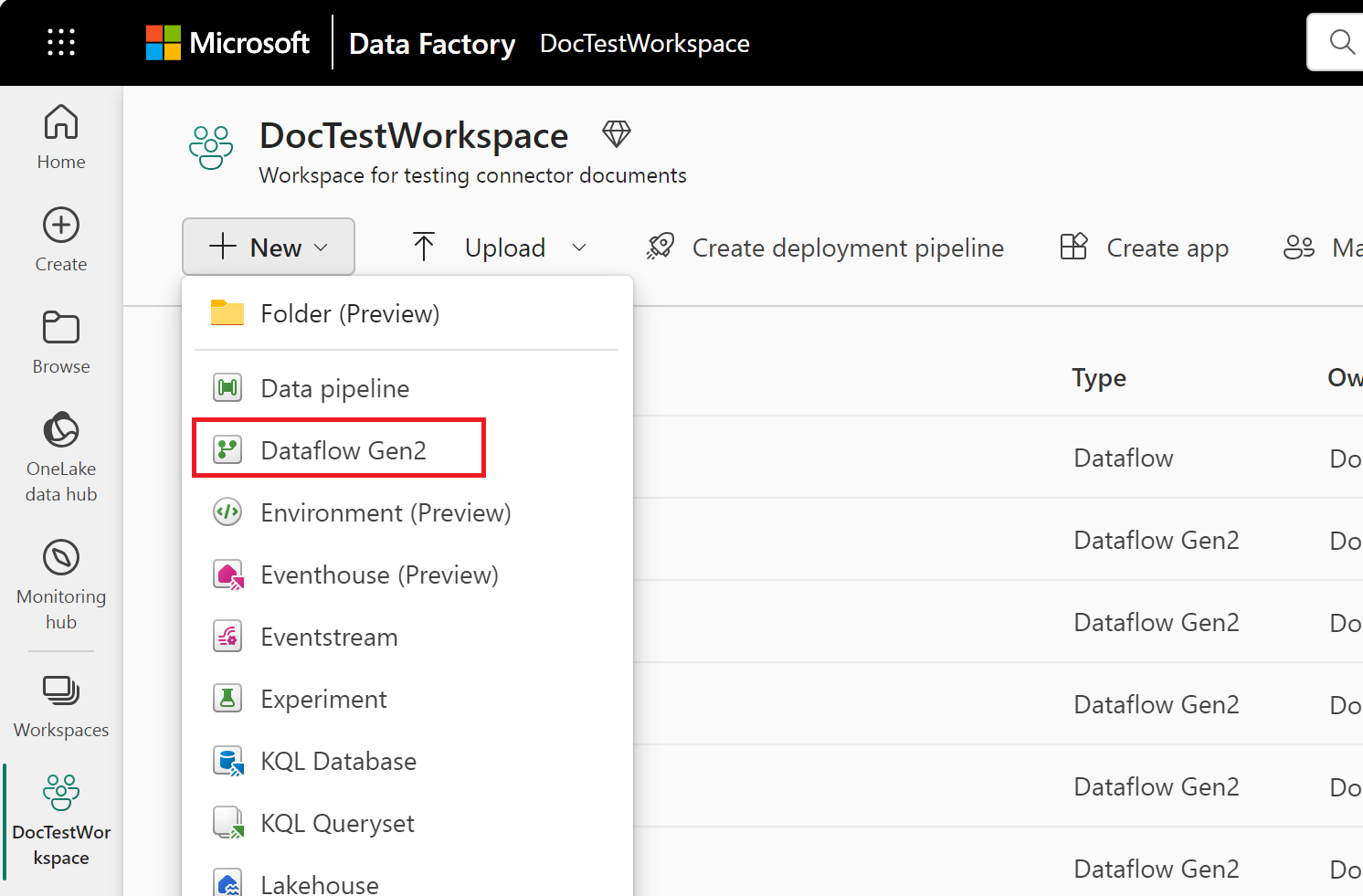
From your Data Factory workspace, select New > Dataflow Gen2 to create a new dataflow.
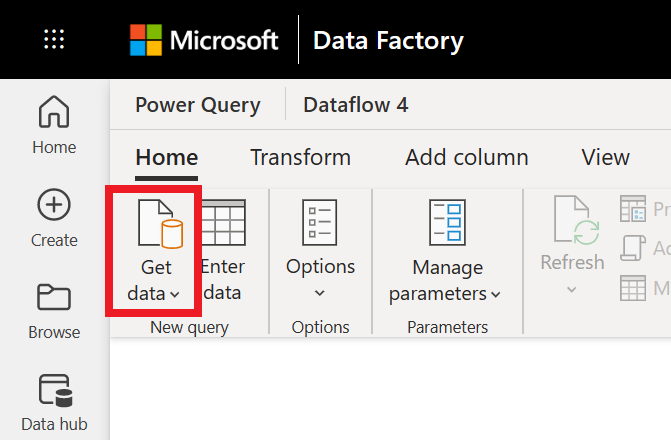
In Power Query, either select Get data in the ribbon or select Get data from another source in the current view.
In the Choose data source page, use Search to search for the name of the connector, or select View more on the right hand side the connector to see a list of all the connectors available in Power BI service.
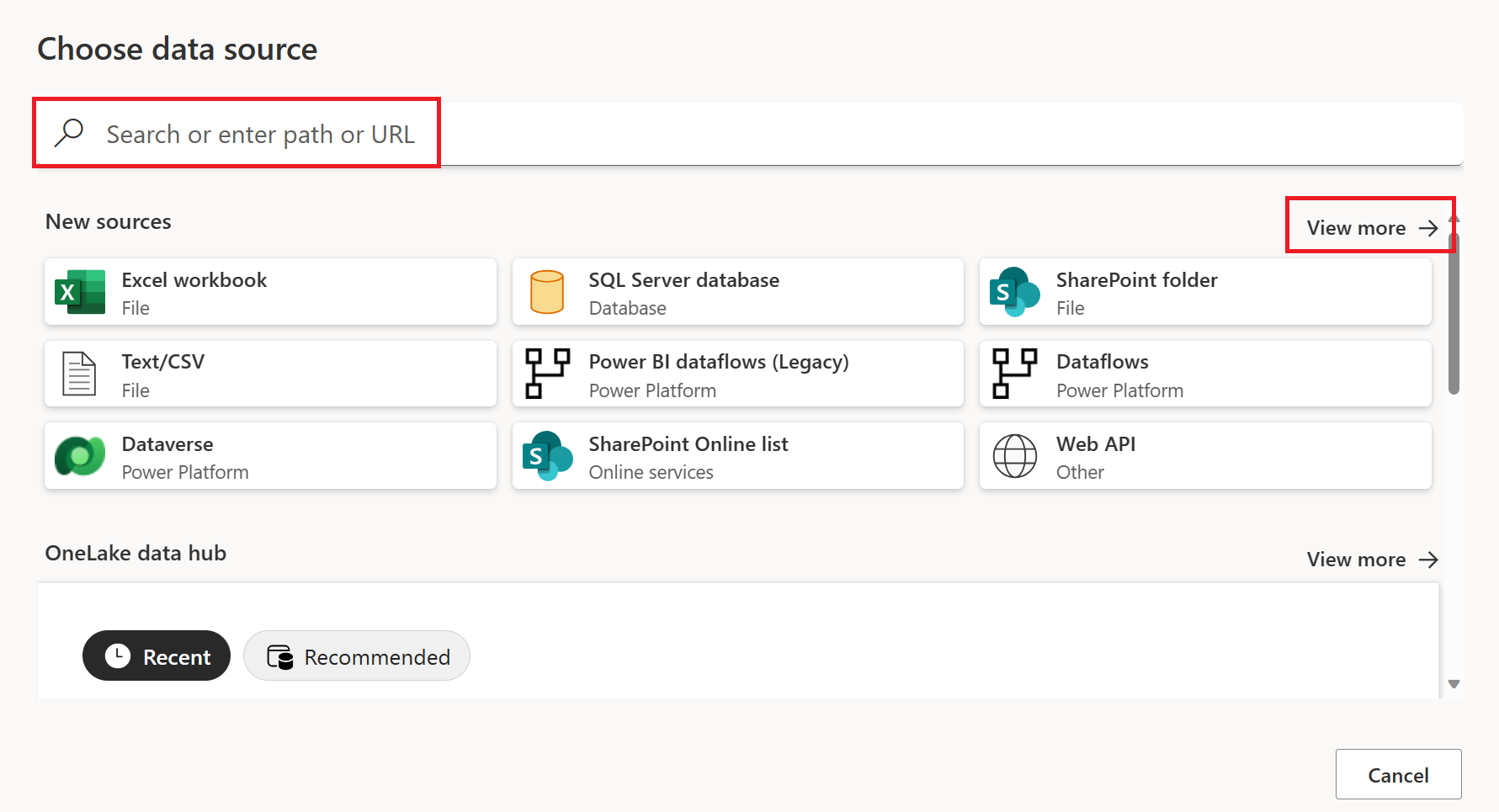
If you choose to view more connectors, you can still use Search to search for the name of the connector, or choose a category to see a list of connectors associated with that category.


Connect to an SAP HANA database
To connect to SAP HANA data from Power Query Online:
From the Data sources page, select SAP HANA database.
Enter the name and port of the SAP HANA server you want to connect to. The example in the following figure uses
SAPHANATestServeron port30015.Optionally, enter a SQL statement from Advanced options. For more information, go to Connect using advanced options.
Select the name of the on-premises data gateway to use for accessing the database.
Note
You must use an on-premises data gateway with this connector, whether your data is local or online.
Choose the authentication kind you want to use to access your data. You also need to enter a username and password.
Note
Currently, Power Query Online only supports Basic authentication.
Select Use Encrypted Connection if you're using any encrypted connection, then choose the SSL crypto provider. If you're not using an encrypted connection, clear Use Encrypted Connection. More information: Enable encryption for SAP HANA

Select Next to continue.
From the Navigator dialog, you can either transform the data in the Power Query editor by selecting Transform Data, or load the data by selecting Load.
Limitations and considerations
The following limitations apply to the Power Query SAP HANA database connector.
Connect to SAP HANA database over proxy
The SAP HANA database connector doesn't support connecting to cloud database through proxy. To work around, use the ODBC connector instead and specify the proxy settings in DSN or connection string.
Set up your connection in Manage connections and gateways
The following table contains a summary of the properties needed for an SAP HANA connection:
| Name | Description | Required |
|---|---|---|
| Gateway cluster name | Select the on-premises data gateway cluster that you use to connect to the SAP HANA server. | Yes |
| Connection name | A name for your connection. | Yes |
| Connection type | Select SAP HANA. | Yes |
| Server | The host name or IP address of the SAP HANA server. | Yes |
| Authentication method | Go to Authentication. | Yes |
| Validate server certificate | Specifies whether to validate the SAP HANA server certificate. | No |
| SSL crypto provider | The SSL crypto provider that you want to use. Allowed values are mscrypto, sapcrypto, and commoncrypto. | Yes if you enable Validate server certificate |
| Single sign-on | Configure SSO options for Kerberos or SAML based on your query mode. | No |
| Privacy level | The privacy level that you want to apply. Allowed values are None, Organizational, Private, and Public. | Yes |
For specific instructions to set up your connection in Manage connections and gateways, follow these steps:
From the page header in Data Factory, select Settings
 > Manage connections and gateways.
Select New at the top of the ribbon to add a new connection.
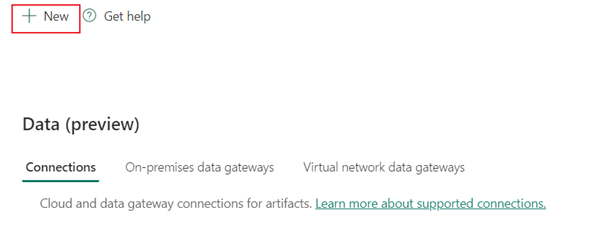
The New connection pane appears on the left side of the page.

In the New connection pane, choose On-premises, and specify the following fields:

- Gateway cluster name: Select the on-premises data gateway cluster that you use to connect to the SAP HANA server.
- Connection name: Specify a name for your connection.
- Connection type: Select SAP HANA.
- Server: Specify the host name or IP address of the SAP HANA server. For example,
saphana-db.contoso.net.
Under Authentication method, select your authentication type from the drop-down list and complete the related configuration. The SAP HANA connector supports the following authentication types:

Optionally, in SSL, choose Validate server certificate, and select your SSL crypto provider. The supported providers are mscrypto, sapcrypto, and commoncrypto.
Optionally, in Single sign-on, select one or more SSO options based on your scenario:
- Use SSO via Kerberos for DirectQuery queries: This option will only be applied for DirectQuery queries. Import will use the Username and Password specified in the data source details. For more information, see this article.
- Use SSO via Kerberos for DirectQuery and Import queries: For Import, it will use the Dataset owner's windows credentials. For more information, see this article.
- Use SSO via SAML for DirectQuery queries
In General, set the privacy level that you want to apply. Allowed values are None, Organizational, Private, and Public. For more information, see privacy levels in the Power Query documentation.
Select Create to create your connection. Your creation is successfully tested and saved if all the credentials are correct. If not correct, the creation fails with errors.

Authentication
This section lists the instructions for each authentication type supported by the SAP HANA connector:
Basic authentication

- Username: Specify the user name to connect to the SAP HANA server.
- Password: Specify the password for the user account.
Windows authentication

- Username: Specify user name when using Windows authentication. For example:
user@domain.com - Password: Specify the password for the user account.