Note
Access to this page requires authorization. You can try signing in or changing directories.
Access to this page requires authorization. You can try changing directories.
This article outlines the steps to create an SAP BW Message Server connection.
Supported authentication types
The SAP BW Message Server connector supports the following authentication types for copy and Dataflow Gen2 respectively.
| Authentication type | Copy | Dataflow Gen2 |
|---|---|---|
| Basic (Username/Password) | n/a | √ |
| Windows | n/a | √ |
Set up your connection for Dataflow Gen2
You can connect Dataflow Gen2 in Microsoft Fabric to SAP BW Message Server using Power Query connectors. Follow these steps to create your connection:
- Check capabilities to make sure your scenario is supported.
- Complete prerequisites for SAP BW Message Server.
- Get data in Fabric.
- Connect to an SAP BW Message Server.
Capabilities
- Import
- Direct Query (Power BI semantic models)
- Advanced
- Language code
- Execution mode
- Batch size
- MDX statement
- Enable characteristic structures
Prerequisites
Important
Version 1.0 of the SAP BW Message Server connector has been deprecated. New connections will use Implementation 2.0 of the SAP BW Message Server connector. All support for version 1.0 will be removed from the connector in the near future.
You'll need an SAP account to sign in to the website and download the drivers. If you're unsure, contact the SAP administrator in your organization.
To use the SAP BW Message Server connector in Power BI Desktop or Power Query Online, you must install the SAP .NET Connector 3.0 or 3.1. Access to the download requires a valid S-user. Contact your SAP Basis team to get the SAP .NET Connector 3.0 or 3.1. You can download the SAP .NET Connector 3.0 or 3.1 from SAP. The connector comes in 32-bit and 64-bit versions. Choose the version that matches your Power BI Desktop installation. For Power Query Online, choose the 64-bit version.
When you install, in Optional setup steps, make sure you select Install assemblies to GAC.

Note
As of late 2023, the SAP BW Application Server connector contains support for SAP .NET Connector 3.1.
Get data
To get data in Data Factory:
On the left side of Data Factory, select Workspaces.
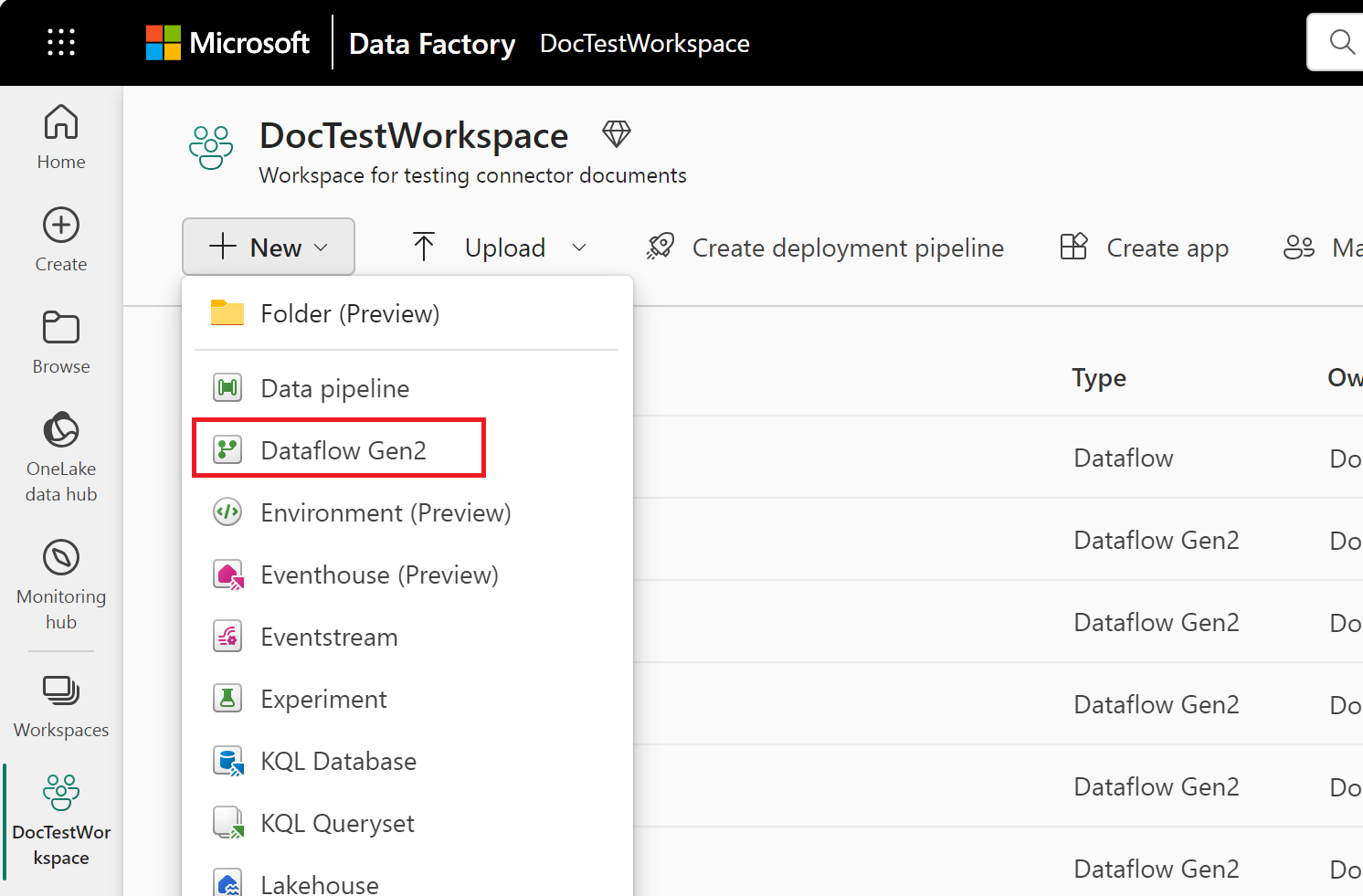
From your Data Factory workspace, select New > Dataflow Gen2 to create a new dataflow.
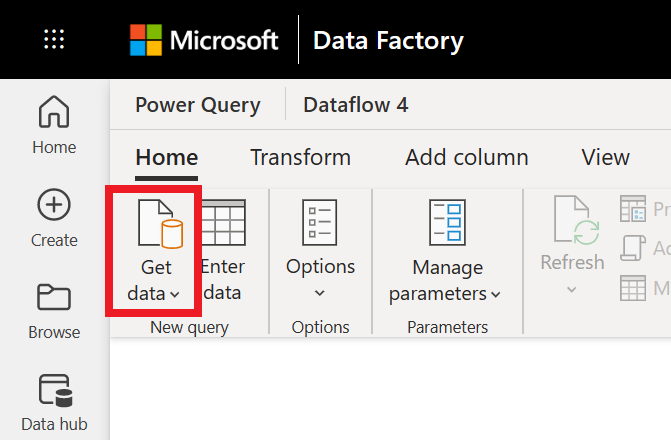
In Power Query, either select Get data in the ribbon or select Get data from another source in the current view.
In the Choose data source page, use Search to search for the name of the connector, or select View more on the right hand side the connector to see a list of all the connectors available in Power BI service.
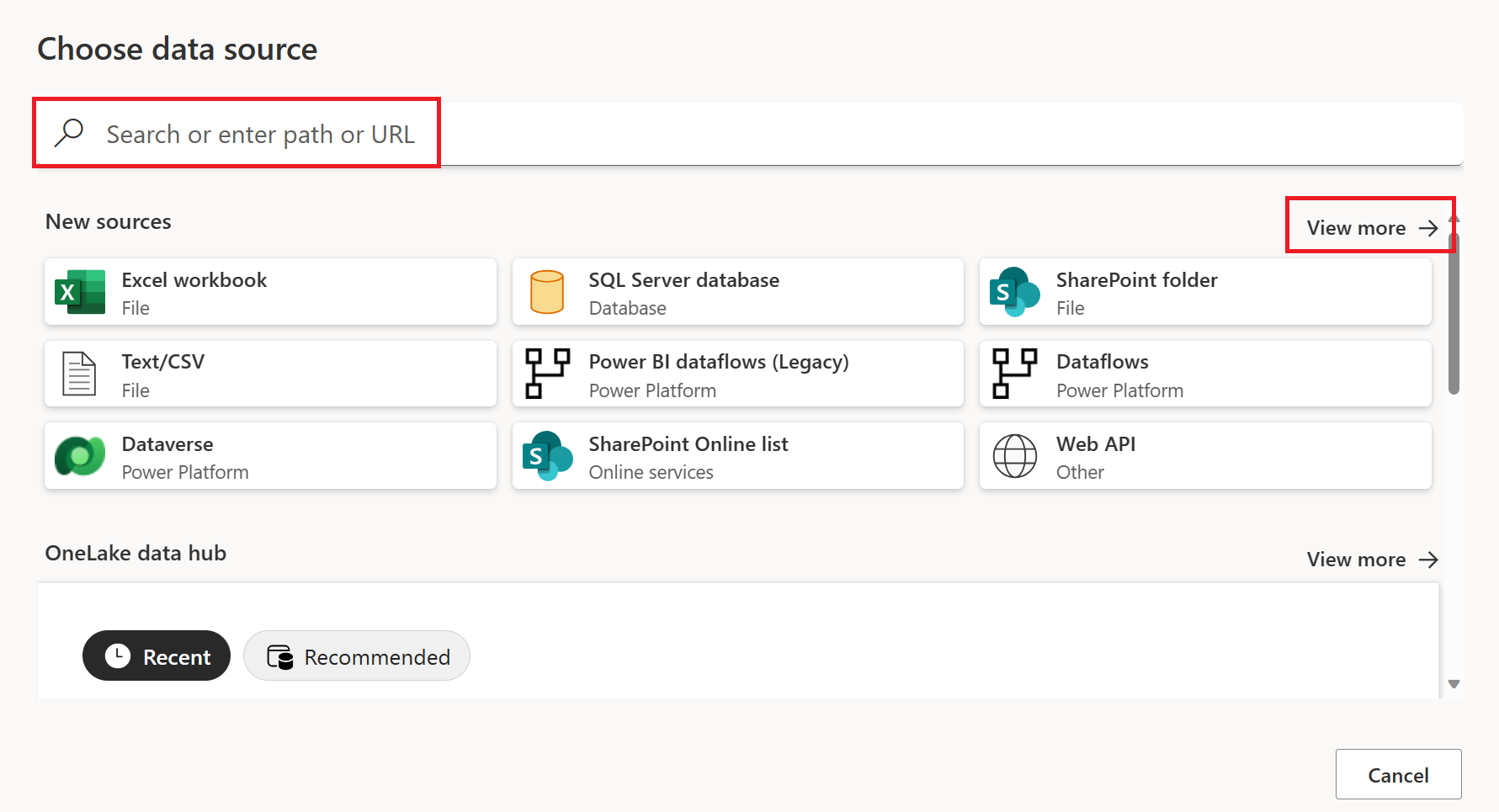
If you choose to view more connectors, you can still use Search to search for the name of the connector, or choose a category to see a list of connectors associated with that category.


Connect to an SAP BW Message Server
To connect to an SAP BW Message Server from Power Query Online:
From the Data sources page, select SAP BW Message Server.
Enter the server, system number, client ID, and logo group of the SAP BW Message Server you want to connect to. This example uses
SAPBWTestServeras the server name, a system number of100, a client ID of837, and a log-on group ofPURCHASING.Select the on-premises data gateway you want to use to connect to the data.
Set Authentication Kind to Basic. Enter your user name and password.

You can also select from a set of advanced options to fine-tune your query.
Select Next to connect.
From the Navigator dialog box, select the items you want to use. When you select one or more items from the server, the Navigator dialog box creates a preview of the output table. For more information about navigating the SAP BW Message Server query objects in Power Query, go to Navigate the query objects.
From the Navigator dialog box, you can transform the data in the Power Query Editor by selecting Transform Data.

Set up your connection in a pipeline
Data Factory in Microsoft Fabric doesn't currently support an SAP BW Message Server in pipelines.