Note
Access to this page requires authorization. You can try signing in or changing directories.
Access to this page requires authorization. You can try changing directories.
This article outlines the steps to create a Salesforce reports connection.
Supported authentication types
The Salesforce reports connector supports the following authentication types for copy and Dataflow Gen2 respectively.
| Authentication type | Copy | Dataflow Gen2 |
|---|---|---|
| Organizational account | n/a | √ |
Set up your connection for Dataflow Gen2
You can connect Dataflow Gen2 in Microsoft Fabric to Salesforce reports using Power Query connectors. Follow these steps to create your connection:
- Check capabilities, limitations, and considerations to make sure your scenario is supported.
- Complete prerequisites for Salesforce reports.
- Get data in Fabric.
- Connect to Salesforce Reports.
Capabilities
- Production
- Custom
- Custom domains
- CNAME record redirects
Prerequisites
To use the Salesforce Reports connector, you must have a Salesforce account username and password.
Also, Salesforce API access should be enabled. To verify access settings, go to your personal Salesforce page, open your profile settings, and search for and make sure the API Enabled checkbox is selected. Take note that Salesforce trial accounts don't have API access.
Get data
To get data in Data Factory:
On the left side of Data Factory, select Workspaces.
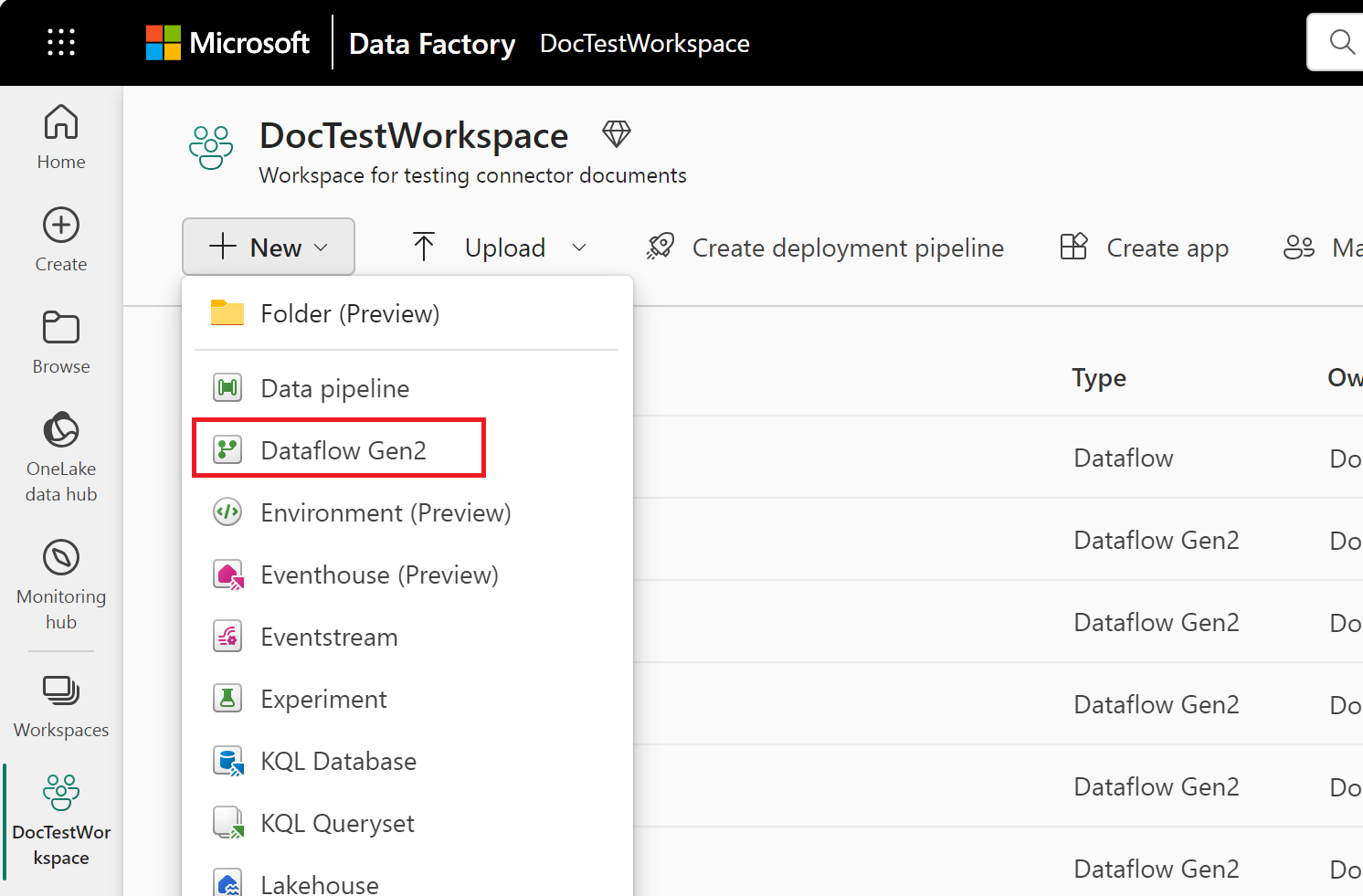
From your Data Factory workspace, select New > Dataflow Gen2 to create a new dataflow.
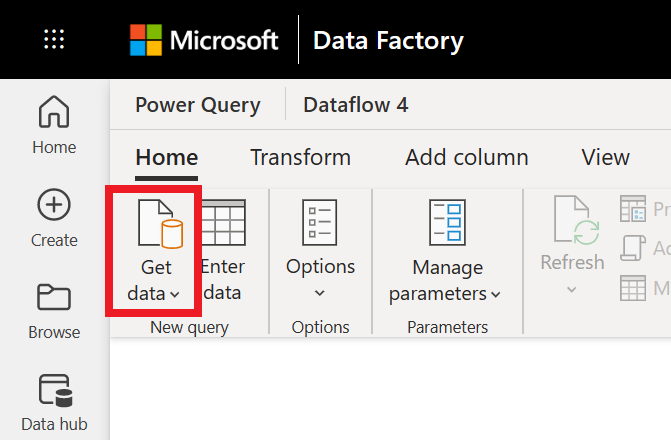
In Power Query, either select Get data in the ribbon or select Get data from another source in the current view.
In the Choose data source page, use Search to search for the name of the connector, or select View more on the right hand side the connector to see a list of all the connectors available in Power BI service.
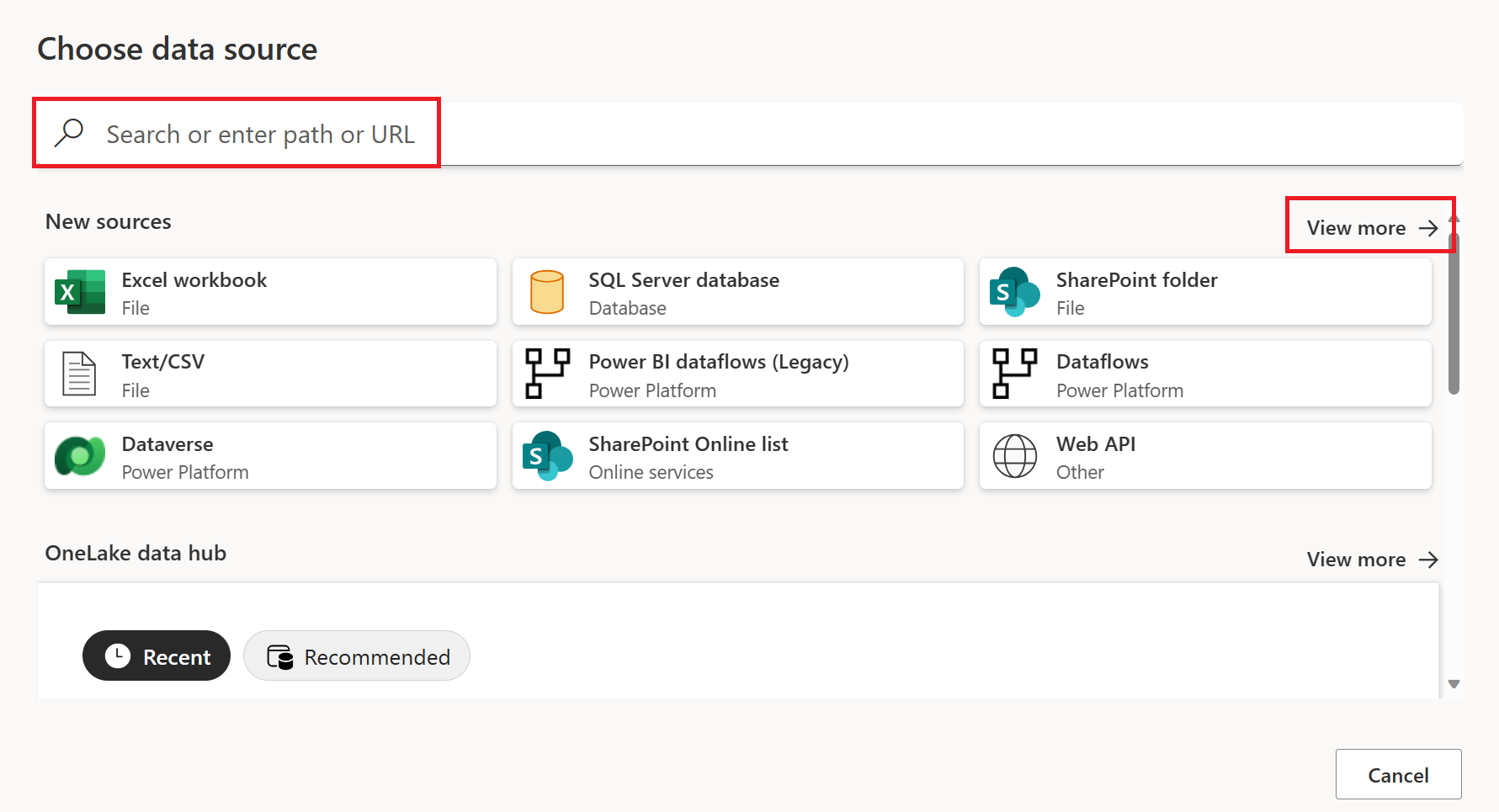
If you choose to view more connectors, you can still use Search to search for the name of the connector, or choose a category to see a list of connectors associated with that category.


Connect to Salesforce Reports
To connect to Salesforce Reports data:
Select Salesforce reports from the product-specific data connector list, and then select Connect. For more information, go to Where to get data.
In Salesforce reports, choose the URL you want to use to connect. Select the Production URL if you use the Salesforce production URL (
https://www.salesforce.com) to sign in.
Note
Currently, you might need to select the Custom URL, enter
https://www.salesforce.comin the text box, and then select Production to connect to your data.You can also select Custom and enter a custom URL to sign in. This custom URL might be a custom domain you created within Salesforce, such as
https://contoso.salesforce.com. You can also use the custom URL selection if you're using your own CNAME record that redirects to Salesforce.Also, you can select Include relationship columns. This selection alters the query by including columns that might have foreign-key relationships to other tables. If this box is unchecked, you don't see those columns.
If you're making this connection for the first time, select an on-premises data gateway, if needed.
Select Sign in to sign in to your Salesforce account. Once you successfully sign in, select Next.
In the Navigator dialog box, select the Salesforce Reports you want to load. Then select Transform Data to transform the data.
Limitations and considerations
There's a limit on the number of fields a query to Salesforce can contain. The limit varies depending on the type of the columns, the number of computed columns, and so on. When you receive a
Query is either selecting too many fields or the filter conditions are too complicatederror, it means that your query exceeds the limit. To avoid this error, use the Select Query advanced option and specify fields that you really need.Salesforce session settings can block this integration. Ensure that the setting Lock sessions to the IP address from which they originated is disabled.
The number of rows you can access in Salesforce Reports is limited by Salesforce to 2,000 rows. As a workaround for this issue, you can use the Salesforce Objects connector in Power BI Desktop to retrieve all the rows from individual tables and recreate reports you'd like. The Object connector doesn't have the 2,000-row limit.
Salesforce API access should be enabled. To verify access settings, go to profile settings for the current user and search for the API Enabled checkbox.
Salesforce trial accounts don't have API access.
Lightning URLs aren't supported.
Custom URLs only support the salesforce.com and cloudforce.com domains. The use of other domains results in an "Invalid Arguments" error.
For more information about Salesforce internal API limits, go to Salesforce Developer Limits and Allocations Quick Reference.
Set up your connection in a pipeline
Data Factory in Microsoft Fabric doesn't currently support Salesforce reports in pipelines.