Note
Access to this page requires authorization. You can try signing in or changing directories.
Access to this page requires authorization. You can try changing directories.
This article outlines the steps to create a Palantir Foundry connection.
Supported authentication types
The Palantir Foundry connector supports the following authentication types for copy and Dataflow Gen2 respectively.
| Authentication type | Copy | Dataflow Gen2 |
|---|---|---|
| Foundry Token | n/a | √ |
| Foundry OAuth | n/a | √ |
Set up your connection for Dataflow Gen2
You can connect Dataflow Gen2 in Microsoft Fabric to Palantir Foundry using Power Query connectors. Follow these steps to create your connection:
- Check capabilities to make sure your scenario is supported.
- Complete prerequisites for Palantir Foundry.
- Get data in Fabric.
- Connect to Palantir Foundry.
Capabilities
- Import
- DirectQuery (Power BI semantic models)
Prerequisites
This connector works with any active Palantir Foundry environment. Ensure you complete the following setup steps before using the connector:
- Download and install the Foundry datasets ODBC driver.
- If using OAuth authentication, ensure your Foundry administrators enable the "Power BI®" third-party application in Control Panel. For more information, see the Foundry third-party apps documentation.
Get data
To get data in Data Factory:
On the left side of Data Factory, select Workspaces.
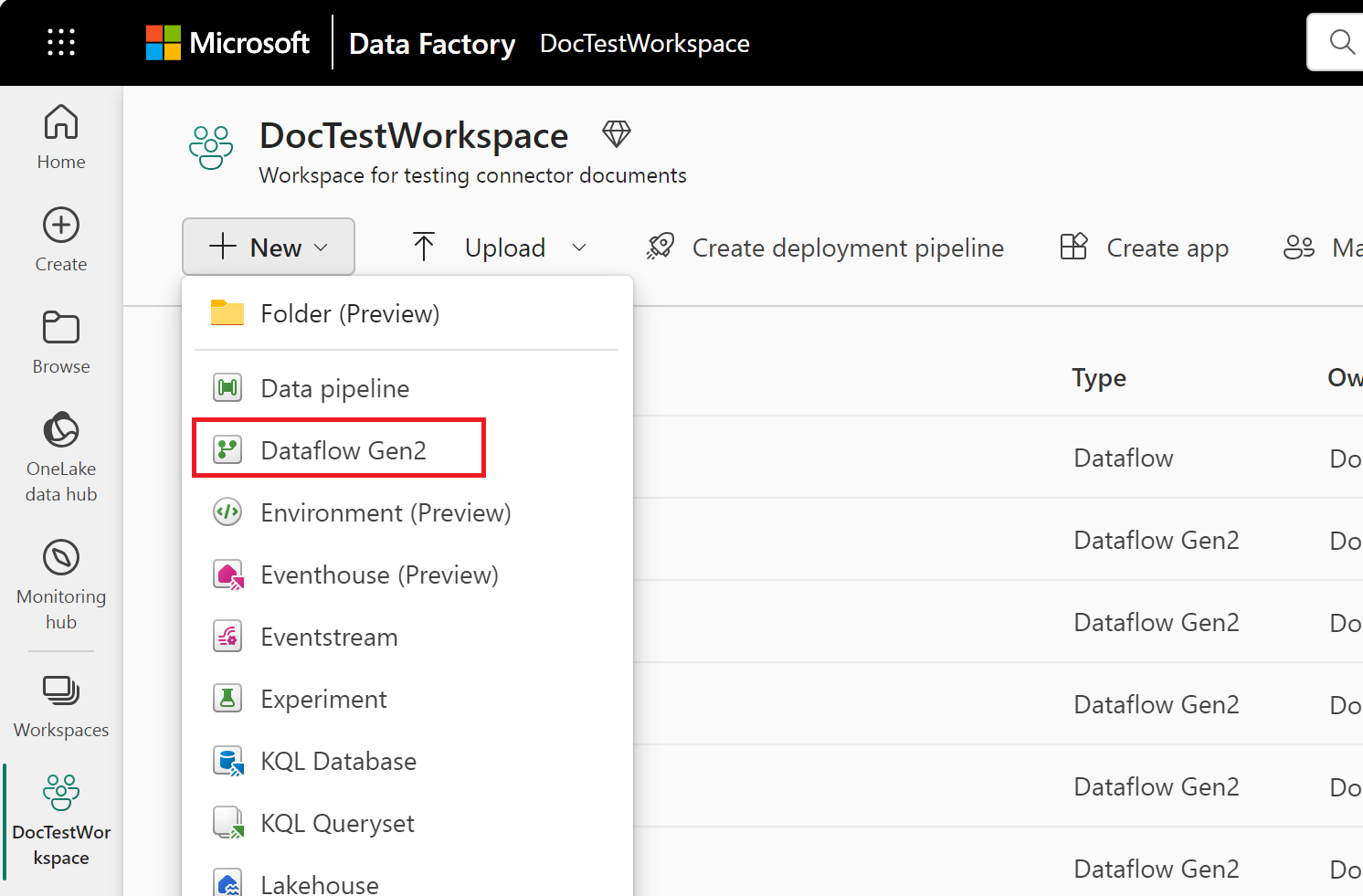
From your Data Factory workspace, select New > Dataflow Gen2 to create a new dataflow.
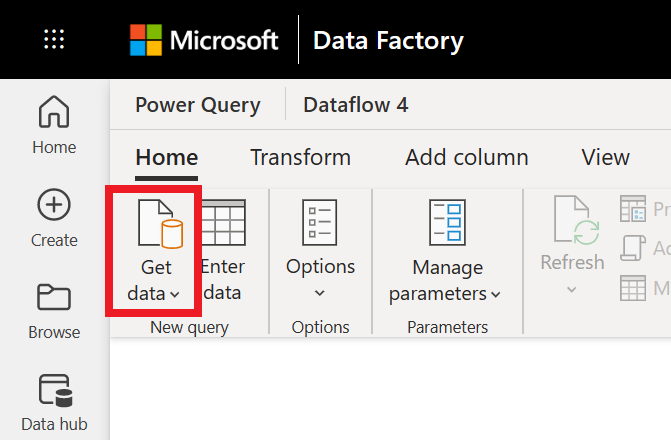
In Power Query, either select Get data in the ribbon or select Get data from another source in the current view.
In the Choose data source page, use Search to search for the name of the connector, or select View more on the right hand side the connector to see a list of all the connectors available in Power BI service.
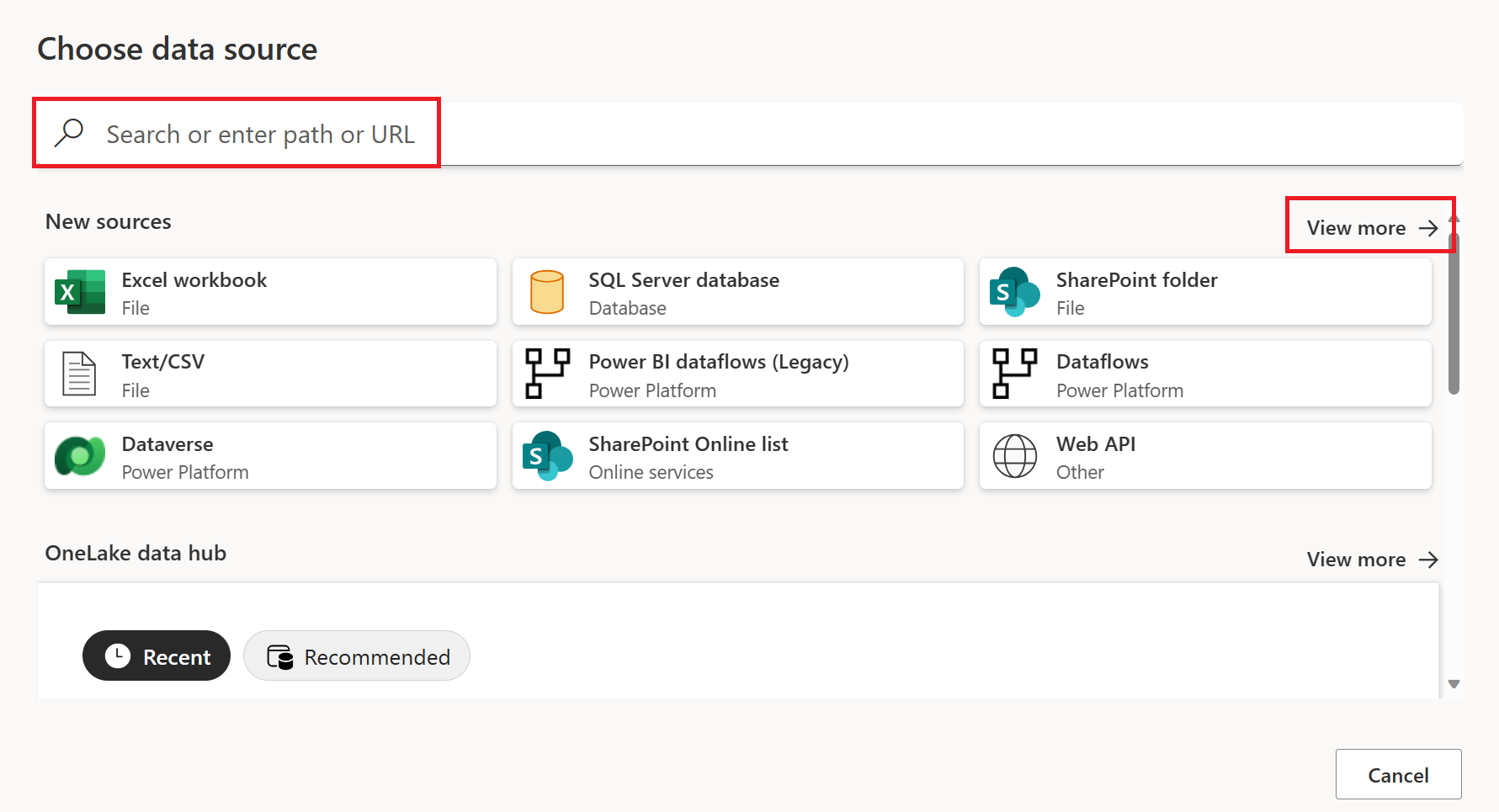
If you choose to view more connectors, you can still use Search to search for the name of the connector, or choose a category to see a list of connectors associated with that category.


Connect to Palantir Foundry
Note
Before you begin, ensure you have access to an on-premises gateway with an existing connection to Foundry.
To connect to Palantir Foundry from Power Query Online, take the following steps:
Select the Palantir Foundry option in the connector selection.
In Connection Settings, provide the Base URL that matches a connection already configured on your on-premises data gateway. For example,
https://<subdomain>.palantirfoundry.com/. Optionally, provide a Dataset RID and Branch.
Ensure that the Connection dropdown shows the name of your on-premises gateway.
Select Next to continue.
In Navigator, select the data you require, and then select Transform data.

Troubleshooting
If you encounter issues connecting to Foundry, refer to the following resources in Palantir Foundry's documentation for troubleshooting steps:
Set up your connection in a pipeline
Data Factory in Microsoft Fabric doesn't currently support Palantir Foundry in pipelines.