Note
Access to this page requires authorization. You can try signing in or changing directories.
Access to this page requires authorization. You can try changing directories.
This article outlines the steps to create an ODBC connection.
Supported authentication types
The ODBC connector supports the following authentication types for copy and Dataflow Gen2 respectively.
| Authentication type | Copy | Dataflow Gen2 |
|---|---|---|
| Anonymous | √ | √ |
| Basic (Username/Password) | √ | √ |
| Windows | n/a | √ |
Set up your connection for Dataflow Gen2
You can connect Dataflow Gen2 in Microsoft Fabric to ODBC using Power Query connectors. Follow these steps to create your connection:
- Check capabilities, limitations, and considerations to make sure your scenario is supported.
- Complete prerequisites for ODBC.
- Get data in Fabric.
- Connect to an ODBC data source.
Capabilities
- Import
- Advanced options
- Connection string (non-credential properties)
- SQL statement
- Supported row reduction clauses
Prerequisites
Before you get started, make sure you properly configured the connection in the Windows ODBC Data Source Administrator. The exact process here depends on the driver.
Get data
To get data in Data Factory:
On the left side of Data Factory, select Workspaces.
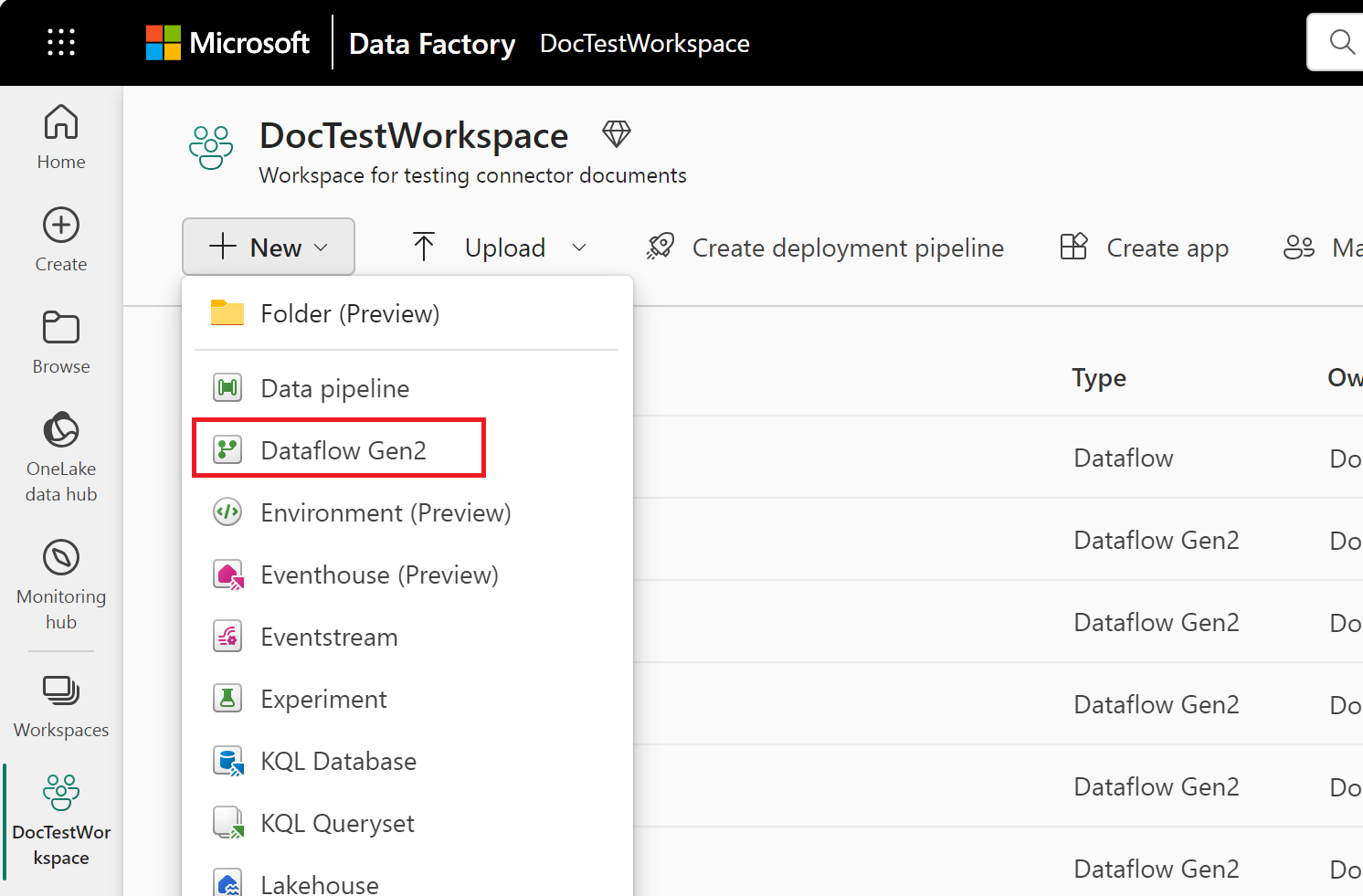
From your Data Factory workspace, select New > Dataflow Gen2 to create a new dataflow.
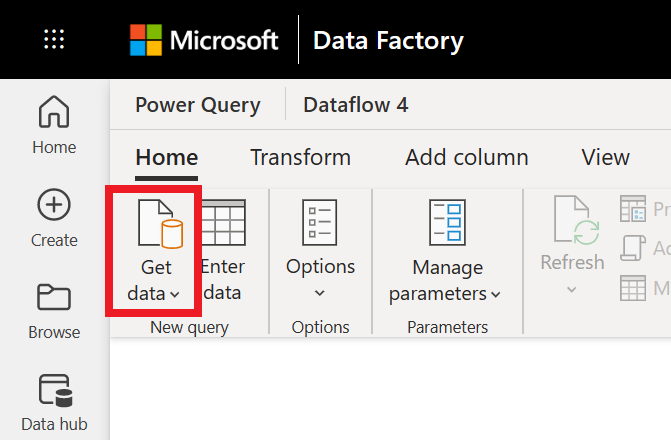
In Power Query, either select Get data in the ribbon or select Get data from another source in the current view.
In the Choose data source page, use Search to search for the name of the connector, or select View more on the right hand side the connector to see a list of all the connectors available in Power BI service.
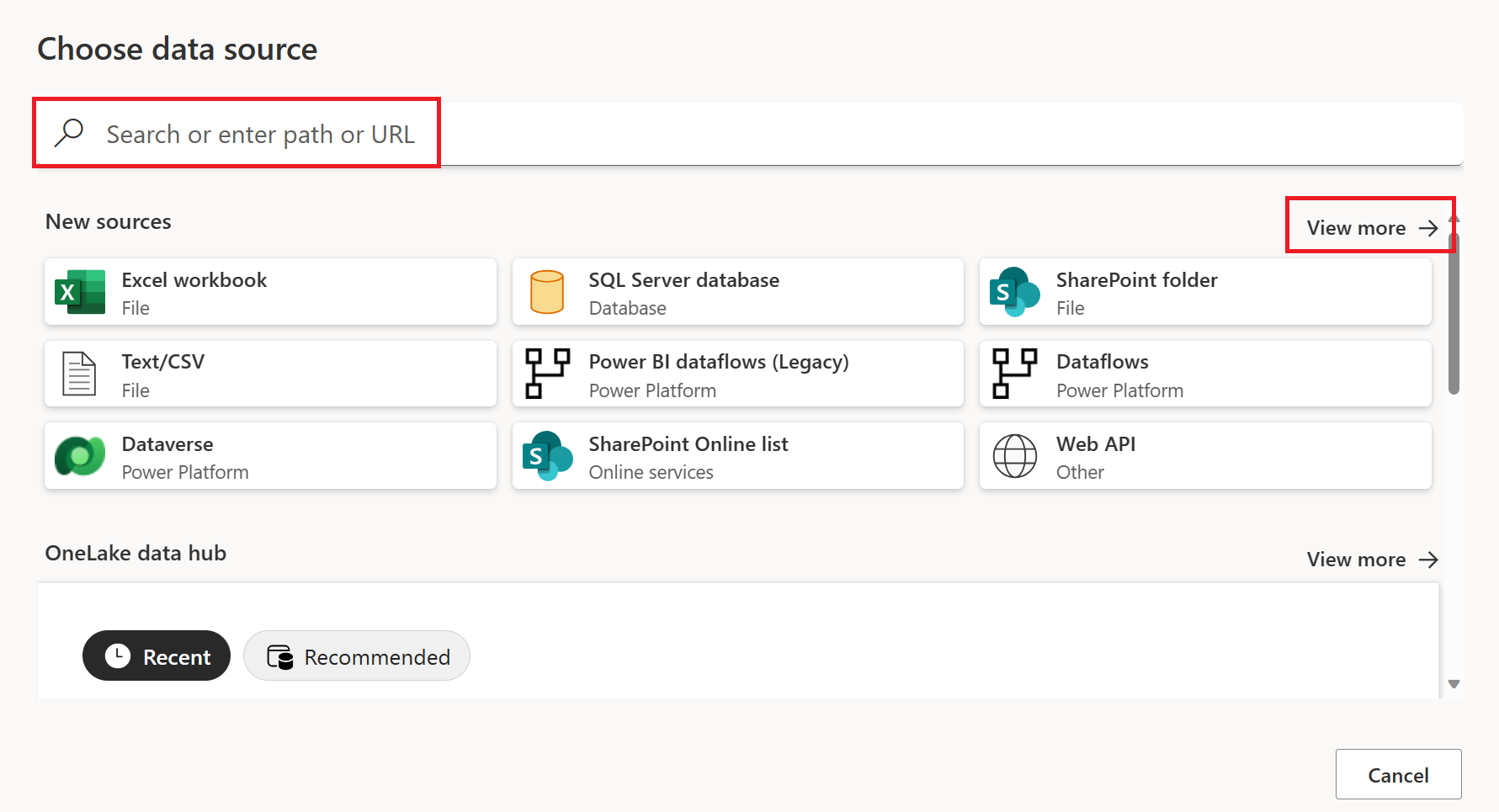
If you choose to view more connectors, you can still use Search to search for the name of the connector, or choose a category to see a list of connectors associated with that category.


Connect to an ODBC data source
To make the connection, take the following steps:
From the Data sources page, select ODBC.
In the ODBC page, enter your ODBC connection string. In the following example, the connection string is
dsn=SQL Server Database.
If needed, select an on-premises data gateway in Data gateway.
Choose the authentication kind to sign in, and then enter your credentials. For more information, go to Authentication in Power Query Online.
Select Next.
In the Navigator, select the database information you want, and then select Transform data to continue transforming the data in the Power Query editor.


Limitations and considerations
Connection string attributes
If a DSN is specified in the ODBC connection string, the attributes after the DSN specification aren't included. If you want to use more attributes, update them in the DSN itself, as opposed to in the connection string.
Set up your connection in Manage connections and gateways
The following table contains a summary of the properties needed for ODBC connection:
| Name | Description | Required |
|---|---|---|
| Gateway cluster name | The on-premises data gateway to use for the connection. | Yes |
| Connection name | A name for your connection. | Yes |
| Connection type | Select ODBC for your connection type. | Yes |
| Connection string | The connection string for the ODBC connection. Example: Driver={ODBC Driver 13 for SQL Server};server=test.corp.contoso.com;database=TestDB; |
Yes |
| Authentication method | Go to Authentication. | Yes |
| Privacy Level | The privacy level that you want to apply. Allowed values are None, Private, Organizational, and Public. | Yes |
For specific instructions to set up your connection in Manage connections and gateways, follow these steps:
From the page header in Data Integration service, select Settings
 > Manage connections and gateways
Select New at the top of the ribbon to add a new data source.

In the New connection pane, choose On-premises, and specify the following fields:
- Gateway cluster name: Select the gateway cluster name from the drop-down list.
- Connection name: A name for your connection.
- Connection type: Select ODBC for your connection type.
- Connection string: Specify the connection string for the ODBC connection. Example:
Driver={ODBC Driver 13 for SQL Server};server=test.corp.contoso.com;database=TestDB;.

Under Authentication method, select your authentication from the drop-down list and complete the related configuration. The ODBC connector supports the following authentication types:
Optionally, set the privacy level that you want to apply. Allowed values are None, Private, Organizational, and Public.
Select Create to create your connection. Your creation is successfully tested and saved if all the credentials are correct. If not correct, the creation fails with errors.

Authentication
This section lists the instructions for each authentication type supported by the ODBC connector.
Anonymous authentication

Select the Anonymous authentication method from the drop-down list.
Basic authentication

- Username: Specify user name if you are using Basic authentication.
- Password: Specify password for the user account you specified for username.
Windows authentication

Select the Windows authentication method from the drop-down list.
- Username: Specify user name when using Windows authentication. For example,
domain\username. - Password: Specify password for the user account.