Note
Access to this page requires authorization. You can try signing in or changing directories.
Access to this page requires authorization. You can try changing directories.
This article outlines the steps to create an Azure Databricks connection for pipelines and Dataflow Gen2 in Microsoft Fabric.
Supported authentication types
The Azure Databricks connector supports the following authentication types for copy and Dataflow Gen2 respectively.
| Authentication type | Copy | Dataflow Gen2 |
|---|---|---|
| Username/Password | n/a | √ |
| Personal Access Token | √ | √ |
| Microsoft Entra ID | n/a | √ |
Set up your connection for Dataflow Gen2
You can connect Dataflow Gen2 to Azure Databricks in Microsoft Fabric using Power Query connectors. Follow these steps to create your connection:
- Check capabilities, limitations, and considerations to make sure your scenario is supported.
- Get data in Fabric.
- Connect to Databricks data.
Capabilities
- Import
- DirectQuery (Power BI semantic models)
Get data
To get data in Data Factory:
On the left side of Data Factory, select Workspaces.
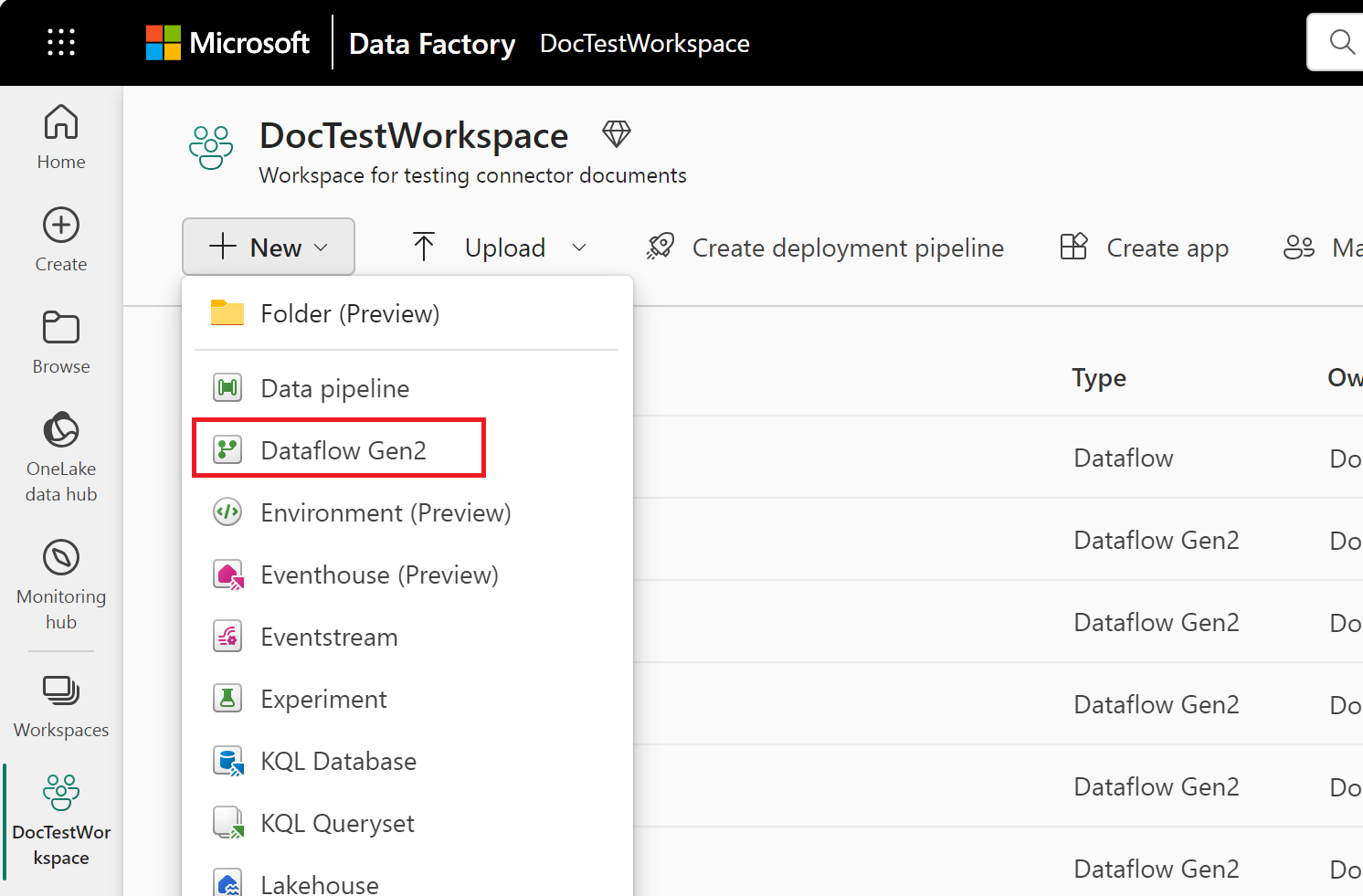
From your Data Factory workspace, select New > Dataflow Gen2 to create a new dataflow.
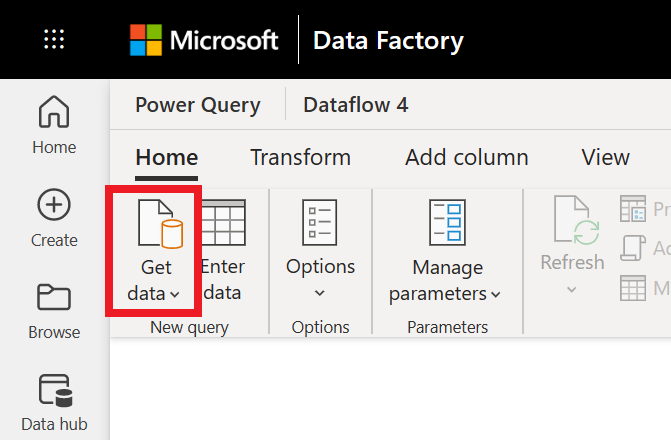
In Power Query, either select Get data in the ribbon or select Get data from another source in the current view.
In the Choose data source page, use Search to search for the name of the connector, or select View more on the right hand side the connector to see a list of all the connectors available in Power BI service.
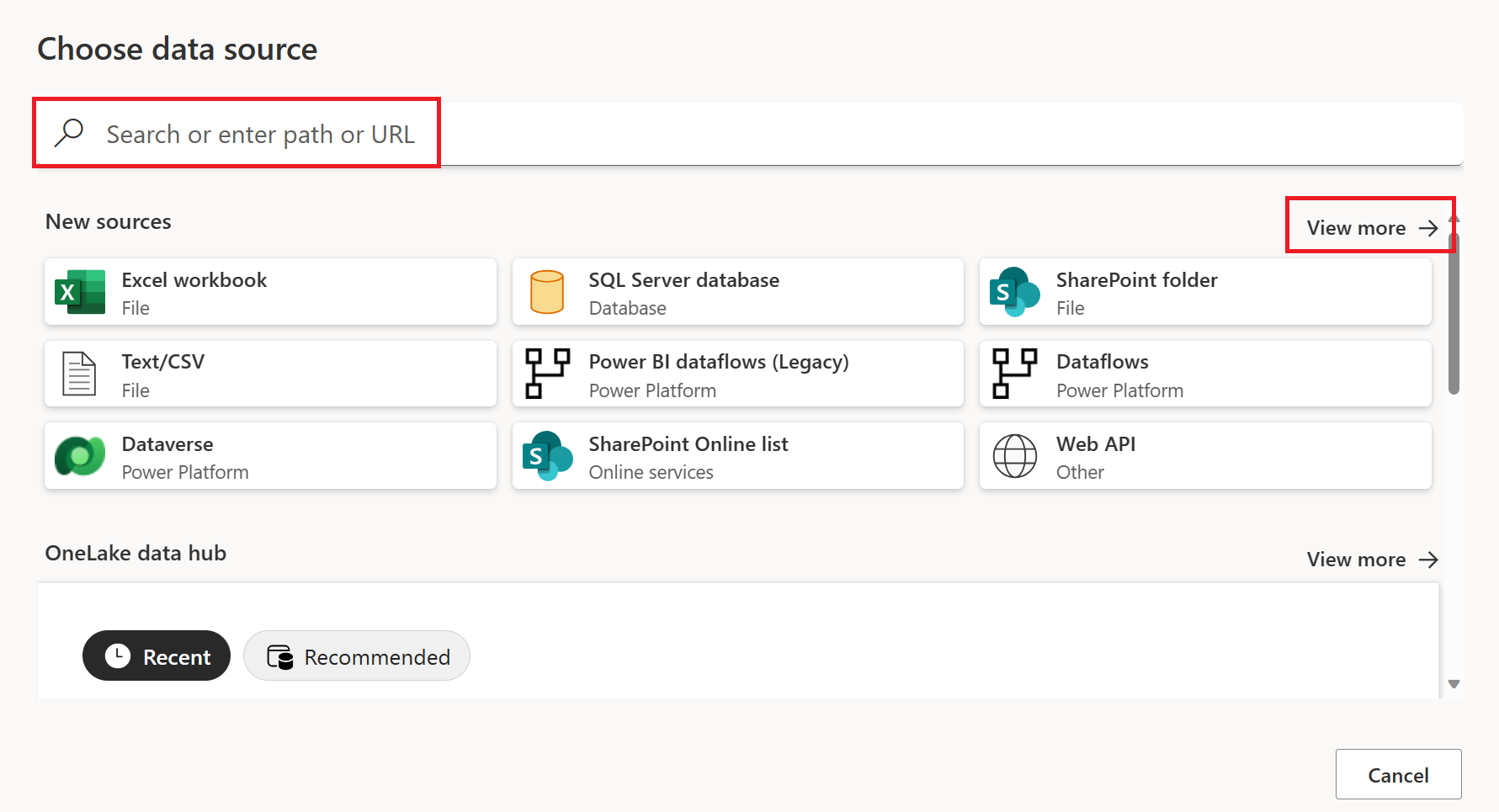
If you choose to view more connectors, you can still use Search to search for the name of the connector, or choose a category to see a list of connectors associated with that category.


Connect to Databricks data
To connect to Databricks from Power Query Online, take the following steps:
Select the Azure Databricks option in the get data experience. Different apps have different ways of getting to the Power Query Online get data experience. For more information about how to get to the Power Query Online get data experience from your app, go to Where to get data.
Shortlist the available Databricks connectors with the search box. Use the Azure Databricks connector for all Databricks SQL Warehouse data unless you've been instructed otherwise by your Databricks rep.

Enter the Server hostname and HTTP Path for your Databricks SQL Warehouse. Refer to Configure the Databricks ODBC and JDBC drivers for instructions to look up your "Server hostname" and "HTTP Path". You can optionally supply a default catalog and/or database under Advanced options.

Provide your credentials to authenticate with your Databricks SQL Warehouse. There are three options for credentials:
- Username / Password (useable for AWS or GCP). This option isn't available if your organization/account uses 2FA/MFA.
- Account Key (useable for AWS, Azure or GCP). Refer to Personal access tokens for instructions on generating a Personal Access Token (PAT).
- Azure Active Directory (useable only for Azure). Sign in to your organizational account using the browser popup.
Once you successfully connect, the Navigator appears and displays the data available on the server. Select your data in the navigator. Then select Next to transform the data in Power Query.

Limitations and considerations
- The Azure Databricks connector supports web proxy. However, automatic proxy settings defined in .pac files aren't supported.
- In the Azure Databricks connector, the
Databricks.Querydata source isn't supported in combination with Power BI semantic model's DirectQuery mode.
Set up your connection for a pipeline
The following table contains a summary of the properties needed for a pipeline connection:
| Name | Description | Required | Property | Copy |
|---|---|---|---|---|
| Server Hostname | The hostname for your Azure Databricks instance. For example: example.azuredatabricks.net | Yes | ✓ | |
| HTTP Path | The http path for your data. For example: /sql/1.0/warehouses/abcdef1234567890 | Yes | ✓ | |
| Connection name | A name for your connection. | Yes | ✓ | |
| Data gateway | An existing data gateway if your Azure Databricks instance isn't publicly accessible. | No | ✓ | |
| Authentication kind | Personal access token. | Yes | Personal Access token. | |
| Personal access token | Your personal access token for Azure Databricks | Yes | ✓ | |
| Privacy Level | The privacy level that you want to apply. Allowed values are Organizational, Privacy, and Public. | Yes | ✓ | |
| This connection can be used with on-premises data gateways and VNet data gateways | This setting is required if a gateway is needed to access your Azure Databricks instance. | No* | ✓ |
For specific instructions to set up your connection in a pipeline, follow these steps:
Browse to the New connection page for the data factory pipeline to configure the connection details and create the connection.

You have two ways to browse to this page:
- In copy assistant, browse to this page after selecting the connector.
- In pipeline, browse to this page after selecting + New in Connection section and selecting the connector.
In the New connection pane, specify the following fields:
- Server Hostname : The hostname for your Azure Databricks instance. For example: example.azuredatabricks.net
- HTTP Path : The http path for your data. For example: /sql/1.0/warehouses/abcdef1234567890
- Connection: Select Create new connection.
- Connection name: Specify a name for your connection.
Under Data gateway, select an existing data gateway if your Azure Databricks instance isn't publicly accessible.
For Authentication kind, a personal access token is the available authentication kind for copy activity. Specify your personal access token in the related configuration. For more information, see Personal access token authentication.
Optionally, set the privacy level that you want to apply. Allowed values are Organizational, Privacy, and Public. For more information, see privacy levels in the Power Query documentation.
Select Create to create your connection. Your creation is successfully tested and saved if all the credentials are correct. If not correct, the creation fails with errors.
