Note
Access to this page requires authorization. You can try signing in or changing directories.
Access to this page requires authorization. You can try changing directories.
In this tutorial, learn how to create a Spark job definition in Fabric.
The Spark job definition creation process is quick and simple; there are several ways to get started.
You can create a Spark job definition from the Fabric portal or by using the Fabric REST API. This article focuses on creating a Spark job definition from the Fabric portal. For information about creating a Spark job definition using the REST API, see Apache Spark job definition API v1 and Apache Spark job definition API v2.
Prerequisites
Before you get started, you need:
- A Fabric tenant account with an active subscription. Create an account for free.
- A workspace in Fabric. For more information, see Create and manage workspaces in Fabric.
- At least one lakehouse in the workspace. The lakehouse serves as the default file system for the Spark job definition. For more information, see Create a lakehouse.
- A main definition file for the Spark job. This file contains the application logic and is mandatory to run a Spark job. Each Spark job definition can have only one main definition file.
You need to give your Spark job definition a name when you create it. The name must be unique within the current workspace. The new Spark job definition is created in your current workspace.
Create a Spark job definition in the Fabric portal
To create a Spark job definition in the Fabric portal, follow these steps:
- Sign in to the Fabric portal.
- Navigate to the desired workspace where you want to create the Spark job definition.
- Select New item > Spark Job Definition.
- In the New Spark Job Definition pane, provide the following information:
- Name: Enter a unique name for the Spark job definition.
- Location: Select the workspace location.
- Select Create to create the Spark job definition.
An alternate entry point to create a Spark job definition is the Data analytics using a SQL ... tile on the Fabric home page. You can find the same option by selecting the General tile.
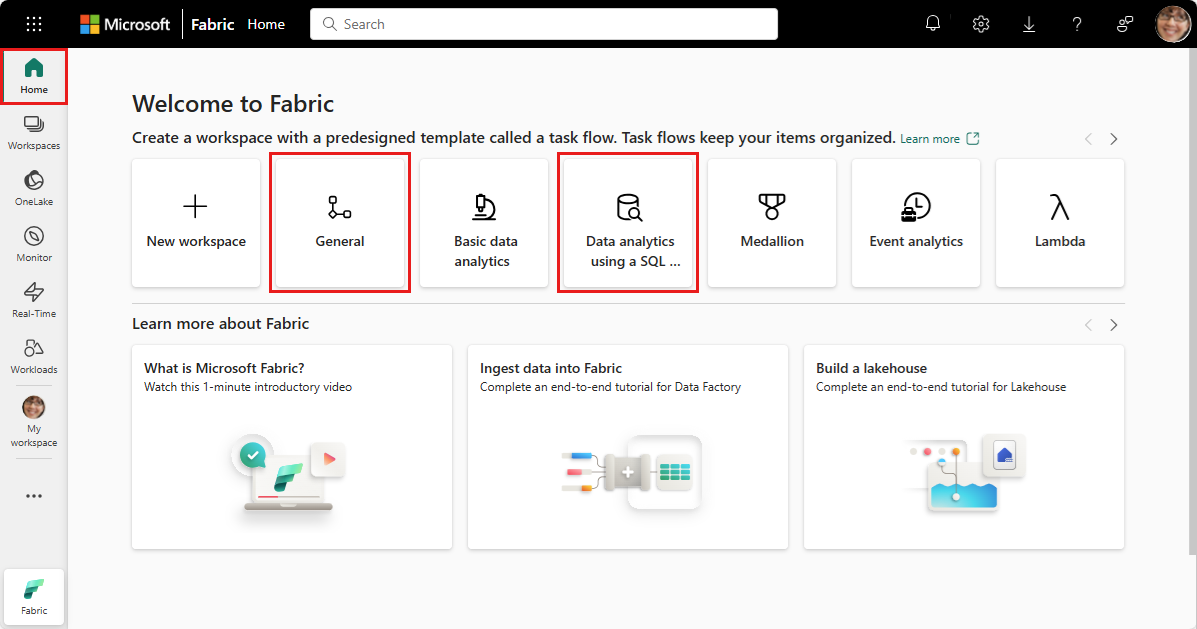
When you select the tile, you're prompted to create a new workspace or select an existing one. After you select the workspace, the Spark job definition creation page opens.
Customize a Spark job definition for PySpark (Python)
Before you create a Spark job definition for PySpark, you need a sample Parquet file uploaded to the lakehouse.
- Download the sample Parquet file yellow_tripdata_2022-01.parquet.
- Go to the lakehouse where you want to upload the file.
- Upload it to the "Files" section of the lakehouse.
To create a Spark job definition for PySpark:
Select PySpark (Python) from the Language dropdown.
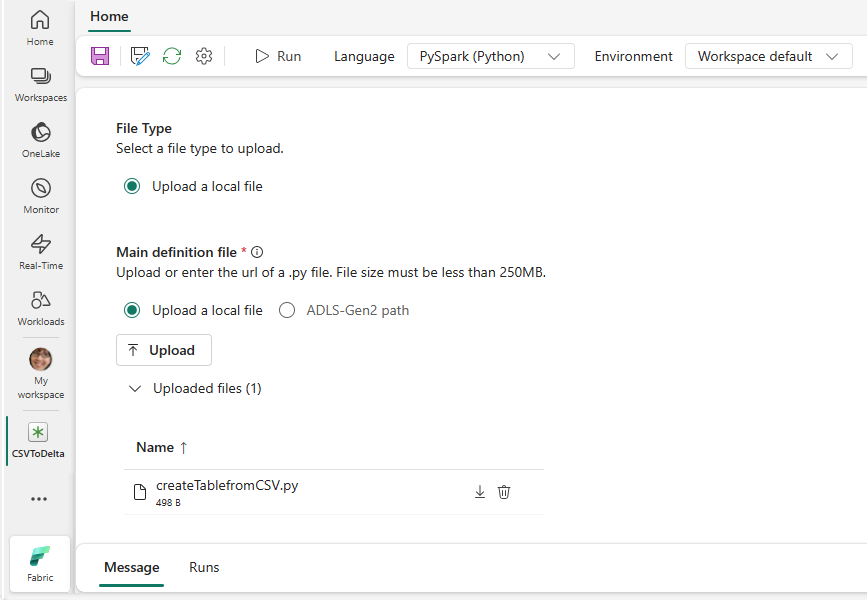
Download the createTablefromParquet.py sample definition file. Upload it as the main definition file. The main definition file (job.Main) is the file that contains the application logic and is mandatory to run a Spark job. For each Spark job definition, you can only upload one main definition file.
Note
You can upload the main definition file from your local desktop, or you can upload from an existing Azure Data Lake Storage (ADLS) Gen2 by providing the full ABFSS path of the file. For example,
abfss://your-storage-account-name.dfs.core.windows.net/your-file-path.Optionally upload reference files as
.py(Python) files. The reference files are the python modules that the main definition file imports. Just like the main definition file, you can upload from your desktop or an existing ADLS Gen2. Multiple reference files are supported.Tip
If you use an ADLS Gen2 path, make sure that the file is accessible. You must give the user account that runs the job the proper permission to the storage account. Here are two different ways that you can grant the permission:
- Assign the user account a Contributor role for the storage account.
- Grant Read and Execution permission to the user account for the file via the ADLS Gen2 Access Control List (ACL).
For a manual run, the account of the current signed-in user is used to run the job.
Provide command line arguments for the job, if needed. Use a space as a splitter to separate the arguments.
Add the lakehouse reference to the job. You must have at least one lakehouse reference added to the job. This lakehouse is the default lakehouse context for the job.
Multiple lakehouse references are supported. Find the non-default lakehouse name and full OneLake URL in the Spark Settings page.
Customize a Spark job definition for Scala/Java
To create a Spark job definition for Scala/Java:
Select Spark(Scala/Java) from the Language dropdown.
Upload the main definition file as a
.jar(Java) file. The main definition file is the file that contains the application logic of this job and is mandatory to run a Spark job. For each Spark job definition, you can only upload one main definition file. Provide the Main class name.Optionally upload reference files as
.jar(Java) files. The reference files are the files that the main definition file references/imports.Provide command line arguments for the job, if needed.
Add the lakehouse reference to the job. You must have at least one lakehouse reference added to the job. This lakehouse is the default lakehouse context for the job.
Customize a Spark job definition for R
To create a Spark job definition for SparkR(R):
Select SparkR(R) from the Language dropdown.
Upload the main definition file as a
.r(R) file. The main definition file is the file that contains the application logic of this job and is mandatory to run a Spark job. For each Spark job definition, you can only upload one main definition file.Optionally upload reference files as
.r(R) files. The reference files are the files that are referenced/imported by the main definition file.Provide command line arguments for the job, if needed.
Add the lakehouse reference to the job. You must have at least one lakehouse reference added to the job. This lakehouse is the default lakehouse context for the job.
Note
The Spark job definition is created in your current workspace.
Options to customize Spark job definitions
There are a few options to further customize the execution of Spark job definitions.
Spark Compute: Within the Spark Compute tab, you can see the Fabric runtime version that's used to run the Spark job. You can also see the Spark configuration settings that are used to run the job. You can customize the Spark configuration settings by selecting the Add button.
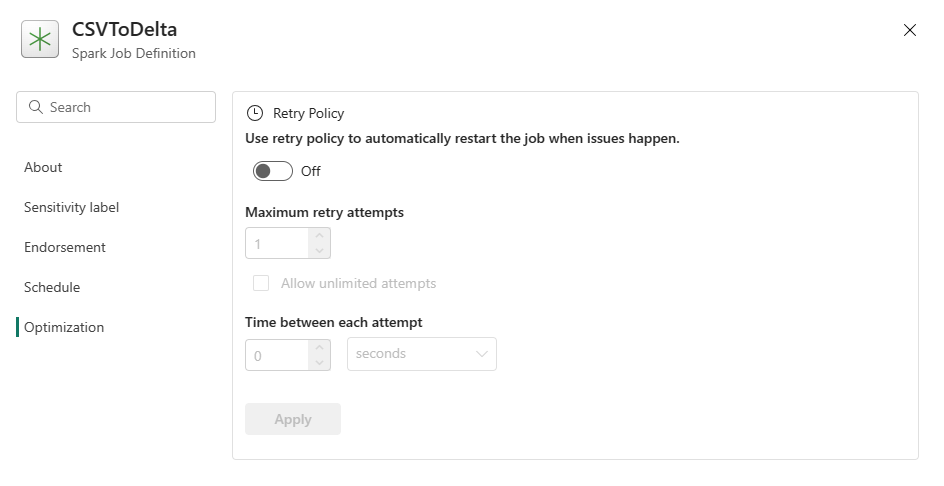
Optimization: On the Optimization tab, you can enable and set up the Retry Policy for the job. When enabled, the job is retried if it fails. You can also set the maximum number of retries and the interval between retries. For each retry attempt, the job is restarted. Make sure the job is idempotent.