Note
Access to this page requires authorization. You can try signing in or changing directories.
Access to this page requires authorization. You can try changing directories.
Overview
You can bulk download the members of a group in your organization to a comma-separated values (CSV) file from the Microsoft Entra admin center. All admins and nonadmin users can download group membership lists.
Bulk download group members
To download all members of a specific group:
Sign in to the Microsoft Entra admin center and in the left-hand navigation pane, select the Groups tab.
Select a group from the list and navigate to the Members tab.

On the Members page command bar, select Download members. If you see a Bulk operations menu instead, select Bulk operations > Download members.

Enter a filename and select Start bulk operation.
A Success! notification appears when the job is submitted. The notification says "Bulk operation download group members submission successful. Click on the title for more information."
Select the Success! notification title to open the job details. Select the filename to start downloading the CSV file.
A Download successful notification confirms when the file has been downloaded. You can also select More activity in the audit log at the top of the Notifications panel to view all bulk operation activity.
Tip
You can also select Click here to view the status of each operation in the download dialog to navigate directly to the Bulk operation results page, where you can monitor all pending and completed bulk operations.
Downloaded CSV file format
The downloaded CSV file contains the following information for each group member:
| Column | Description |
|---|---|
| Object ID | The unique identifier (GUID) of the member |
| User principal name | The UPN (for example, user@contoso.com) for user members |
| Display name | The display name of the member |
| Member type | Whether the member is a User, Group, or Service Principal |
Tip
You can use the downloaded CSV file as a starting point when you need to remove members from a group. Simply edit the file to include only the members you want to remove, then upload it using the Remove members bulk operation.
If you experience errors, you can download and view the results file on the Bulk operation results page. The file contains the reason for each error.
Check download status
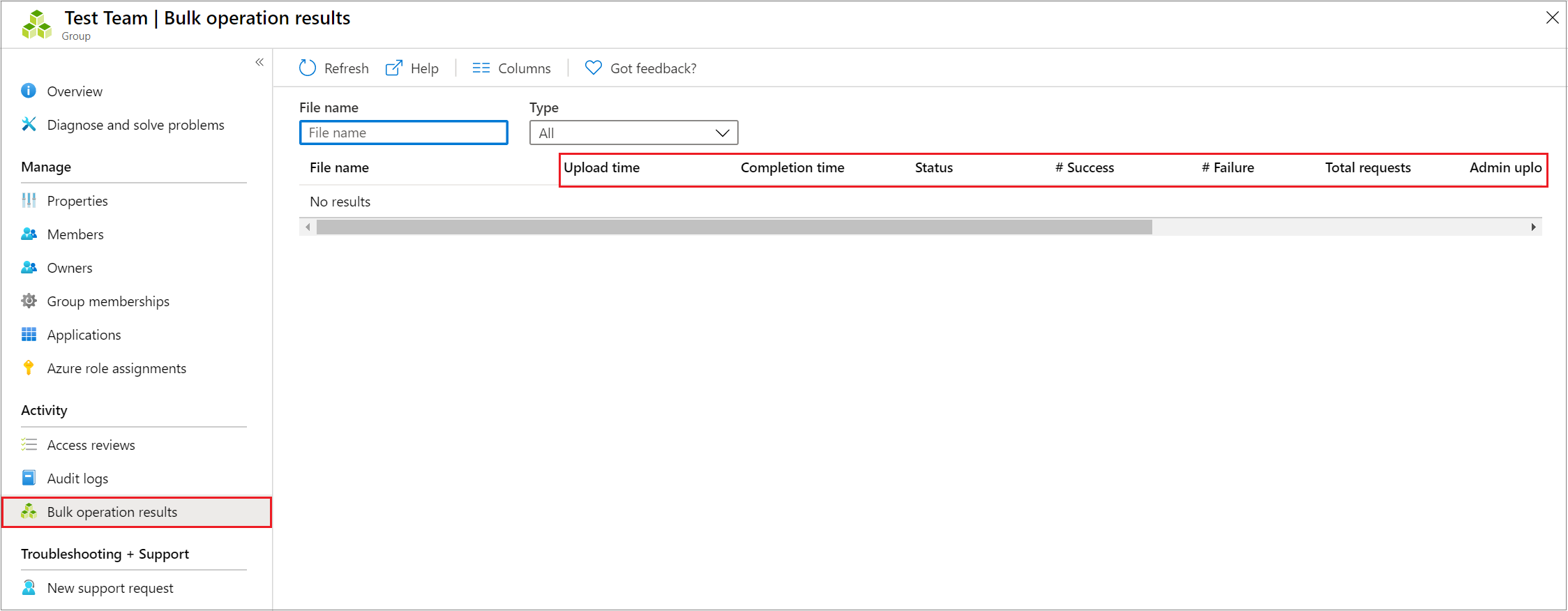
You can see the status of all of your pending bulk requests in the Bulk operation results page.
Navigate to Identity > Users > Bulk operation results.
Find your download operation in the list.
When Status shows Completed, select the filename to download the CSV file.
Bulk download service limits
Note
When performing bulk operations, such as import or create, you can encounter a problem if the bulk operation doesn't complete within the hour. To work around this issue, we recommend splitting the number of records processed per batch. For example, before starting an export you could limit the result set by filtering on a group type or user name to reduce the size of the results. By refining your filters, essentially you limit the data returned by the bulk operation. For more information, see Bulk operations service limitations.