Note
Access to this page requires authorization. You can try signing in or changing directories.
Access to this page requires authorization. You can try changing directories.
This article describes how to deploy the Global Secure Access client to Android devices by using Microsoft Intune and Microsoft Defender for Endpoint on Android. The Android client is built into the Defender for Endpoint Android app, which streamlines how users connect to Global Secure Access. The Global Secure Access Android client makes it easier for your users to connect to the resources that they need without having to manually configure VPN settings on their devices.
Prerequisites
The product requires licensing. For details, see the licensing section of What is Global Secure Access?. If necessary, purchase licenses or get trial licenses.
Enable at least one Global Secure Access traffic forwarding profile.
You need device installation permissions to install the client.
Android devices need to run Android 11.0 or later.
Android devices need to be Microsoft Entra registered devices:
- Devices that your organization doesn't manage need to have the Microsoft Authenticator app installed.
- Devices not managed through Intune need to have the Company Portal app installed.
- Device enrollment is required to enforce Intune device compliance policies.
To enable a Kerberos single sign-on (SSO) experience, install and configure a non-Microsoft SSO client.
Known limitations
For detailed information about known issues and limitations, see Known limitations for Global Secure Access.
Supported scenarios
The Global Secure Access client for Android supports deployment in these Android Enterprise scenarios:
- Corporate-owned, fully managed user devices
- Corporate-owned devices with a work profile
- Personal devices with a work profile
Non-Microsoft mobile device management
The Global Secure Access client also supports non-Microsoft mobile device management (MDM) scenarios. These scenarios, known as Global Secure Access only mode, require enabling a traffic forwarding profile and configuring the app based on the vendor documentation.
When you're configuring through a non-Microsoft MDM solution, use the following key/value pairs in the managed app configuration:
| Configuration key | Value | Details |
|---|---|---|
Global Secure Access |
1–3 |
Required. Controls whether Global Secure Access is enabled in the Defender app. For detailed value descriptions, see the table later in this article. |
GlobalSecureAccessPrivateChannel |
0–3 |
Optional. Controls the Private Access channel. For detailed value descriptions, see the table later in this article. |
Deploy Microsoft Defender for Endpoint on Android
To deploy Microsoft Defender for Endpoint on Android, create an MDM profile and configure Global Secure Access:
In the Microsoft Intune admin center, go to Apps > Android > Manage Apps > Configuration.
Select + Create, and then select Managed devices. The Create app configuration policy form opens.
On the Basics tab:
- Enter a Name value.
- Set Platform to Android Enterprise.
- Set Profile Type to Fully Managed, Dedicated, and Corporate-Owned Work Profile Only.
- Set Targeted app to Microsoft Defender.

Select Next.
On the Settings tab:
- Set Configuration settings format to Use configuration designer.
- Select the + Add button.
- In the search box, type global and select the Global Secure Access configuration keys listed in the following table.
- Set the appropriate values for each configuration key according to the following table.
Note
The Android configuration keys differ from the iOS client keys. On Android, use
Global Secure AccessandGlobalSecureAccessPrivateChannelas shown here. Don't use the iOS key names (EnableGSA,EnableGSAPrivateChannel).The
GlobalSecureAccessPAconfiguration key is no longer supported.Configuration key Value Details Global Secure AccessNo value Global Secure Access isn't enabled and the tile isn't visible. 0Global Secure Access isn't enabled and the tile isn't visible. 1The tile is visible and defaults to false(disabled state). The user can enable or disable Global Secure Access by using the toggle in the app.2The tile is visible and defaults to true(enabled state). The user can override Global Secure Access. The user can enable or disable Global Secure Access by using the toggle in the app.3The tile is visible and defaults to true(enabled state). The user can't disable Global Secure Access.GlobalSecureAccessPrivateChannelNo value Global Secure Access defaults to value 2behavior.0Private Access isn't enabled and the toggle option isn't visible to the user. 1The Private Access toggle is visible and defaults to the disabled state. The user can enable or disable Private Access. 2The Private Access toggle is visible and defaults to the enabled state. The user can enable or disable Private Access. 3The Private Access toggle is visible but unavailable, and it defaults to the enabled state. The user can't disable Private Access. 
Select Next.
On the Scope tags tab, configure scope tags as needed and then select Next.
On the Assignments tab, select + Add groups to assign the configuration policy and enable Global Secure Access.

Tip
To enable the policy for all but a few specific users, select Add all devices in the Included groups section. Then, add the users or groups to exclude in the Excluded groups section.
Select Next.
Review the configuration summary, and then select Create.


Confirm Global Secure Access appears in the Defender app
Because the Android client is integrated with Defender for Endpoint, it's helpful to understand the user experience. The client appears in the Defender dashboard after you onboard to Global Secure Access. Onboarding happens by enabling a traffic forwarding profile.
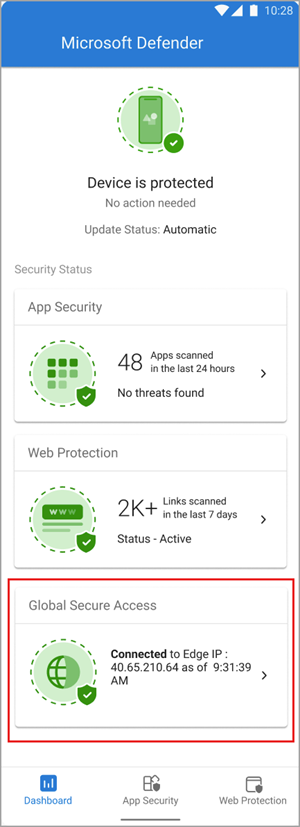
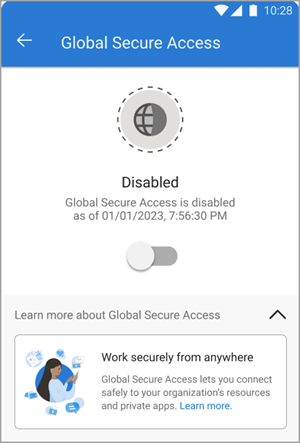
The client is disabled by default when it's deployed to user devices. Users need to enable the client from the Defender app. To enable the client, tap the toggle.
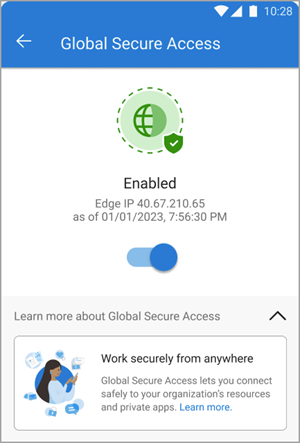
To view client details, tap the tile on the dashboard. When the client is enabled and working properly, the dashboard displays an "Enabled" message. It also shows the date and time when the client connected to Global Secure Access.
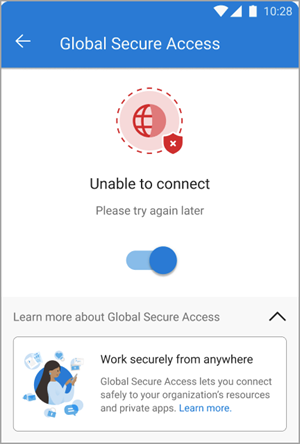
If the client can't connect, a toggle appears to disable the service. Users can return later to enable the client.
Troubleshooting
If the Global Secure Access tile doesn't appear after you onboard the tenant to the service, restart the Defender app.
When you try to access a Private Access application, the connection might time out after a successful interactive sign-in. Reload the application by refreshing the web browser.
Related content
- Microsoft Defender for Endpoint on Android
- Deploy Microsoft Defender for Endpoint on Android with Microsoft Intune
- Add managed Google Play apps to Android Enterprise devices with Intune
- Install the Global Secure Access client for Windows
- Install the Global Secure Access client for macOS
- Install the Global Secure Access client for iOS