Note
Access to this page requires authorization. You can try signing in or changing directories.
Access to this page requires authorization. You can try changing directories.
You can integrate the Dynamics 365 Sales Model Context Protocol (MCP) server with your Microsoft Copilot Studio agent, or any other AI agent or assistant such as GitHub Copilot that supports the MCP standard. Claude Desktop isn't supported at this time.
Prerequisites
Make sure you meet the following prerequisites:
You have admin permissions in Dynamics 365 Sales.
You have admin permissions in Copilot Studio. Learn more in Copilot Studio licensing.
Allow access to Dataverse MCP Server from MCP clients. This is required only if you're planning to use an MCP client other than Copilot Studio. Learn more in Configure the Dataverse MCP server for an environment.
You have enough Copilot Studio credits to use the tools in the Sales MCP server. Learn more about consumption rates for each tool in Copilot Credit consumption rates.
Connect Sales MCP Server to Copilot Studio agent
To connect to the Sales MCP server in Microsoft Copilot Studio, follow the steps in Add tools and resources from a Model Context Protocol (MCP) server to your agent.
Note
Select Dynamics 365 Sales MCP server when prompted to select the MCP server. If you want to perform CRUD operations on Dataverse records, connect to the Dataverse MCP server as well.
Use Sales MCP tools in Visual Studio Code with GitHub Copilot
Download and open Visual Studio Code.
Press Ctrl + Shift + P (Windows/Linux) or Cmd + Shift + P (Mac).
Type
MCP: Add Server, and select the server type asHTTP (HTTP or Server-Sent Events).Add the MCP server URL for Dynamics 365 Sales and Dataverse by using the following information:
For Dataverse, use
https://<OrgURL>/api/mcp.For Dynamics 365 Sales, use the following URL and replace the environment ID.
https://agent365.svc.cloud.microsoft/mcp/environments/<EnvironmentID>/servers/msdyn_SalesMCPServer
The following snippet shows a sample configuration:
{
        "servers": {
            "Dataverse-mcp-server": {
                "url": "https://northwind.crm10.dynamics.com/api/mcp",
                "type": "http"
            },
            "Sales-mcp-server": {
                "url": "https://agent365.svc.cloud.microsoft/mcp/environments/00aa00aa-bb11-cc22-dd33-44ee44ee44ee/servers/msdyn_SalesMCPServer",
                "type": "http"
            }

        },
        "inputs": []
}
Resolve syntax errors, if any, in the
mcp.jsonfile and save it. You should see the Start button enabled for each of the MCP servers you added in the configuration file.Select Start on all the servers.
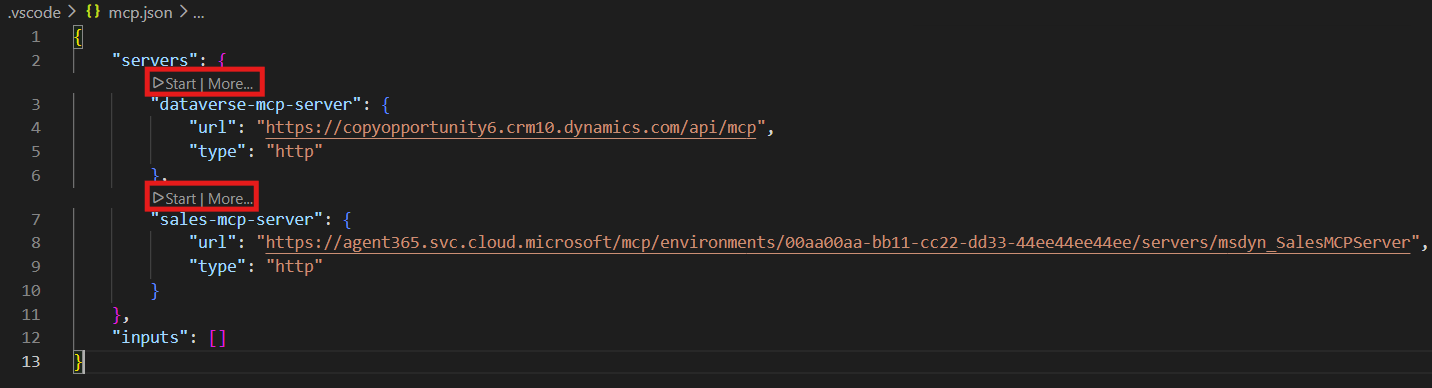
Press Ctrl + Alt + I to open the GitHub Copilot chat pane and choose any agent (For example, GPT 5.5).
Type a prompt to retrieve information from Dynamics 365 Sales. For example, you can type "List the leads that were updated since my last login". The agent uses the tools in the Sales MCP server to retrieve the information and display it in the chat pane. For a list of supported tools and their capabilities, refer to the following articles: