Note
Access to this page requires authorization. You can try signing in or changing directories.
Access to this page requires authorization. You can try changing directories.
Forecast categories tell your team how confident you are in closing each deal. They determine which forecast column each opportunity contributes to. For example, Committed (high confidence) or Pipeline (early-stage). Keeping forecast categories accurate ensures your forecast reflects the real state of your pipeline.
Set the forecast confidence level for an opportunity
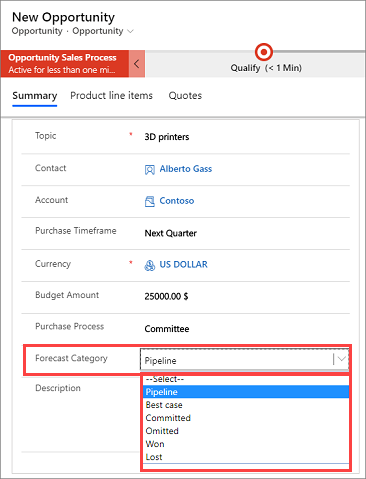
When you create or edit an opportunity, set its Forecast Category to reflect your current confidence in closing it. This value determines which column the opportunity appears in on the forecast grid.
Important
Don't manually select Won or Lost. Instead, close the opportunity using the Close Opportunity dialog; the forecast category updates automatically. Manually setting Won or Lost can cause the opportunity to disappear from the forecast or produce inaccurate rollup values. See Close opportunities as won or lost.
In the site map, select Opportunities.
Open the opportunity you want to update.
Switch to the Opportunity form if you're not already on it. By default, the Forecast Category field is available only on the Opportunity form.
In the Forecast Category drop-down list, select the category that best reflects your confidence, then select Save:
Pipeline (default): Early-stage or stalled deal, low confidence. When to use: You just discovered this opportunity or early conversations are underway.
Best case: Deal is progressing—you shared quotes or had substantive conversations—but no commitment yet. Medium confidence. When to use: Customer is actively evaluating; deal could go either way.
Committed: Customer has made a verbal or contractual commitment. High confidence. When to use: You're mainly waiting on paperwork or final approvals.
Omitted: Exclude this opportunity from all forecast totals. When to use: The deal is on hold, irrelevant to this period, or you want to remove it temporarily.
Won: Set automatically when you close an opportunity as Won. Don't select manually.
Lost: Set automatically when you close an opportunity as Lost. Don't select manually.
What happens after you set the category
After you save the opportunity with a forecast category:
- The opportunity's revenue appears in the corresponding column on the forecast grid (Pipeline, Best Case, Committed, and so on).
- When you close the opportunity as Won or Lost, the forecast category is automatically updated to match.
- Your manager and higher levels in the hierarchy see the aggregated totals including this opportunity.
Can't find the feature in your app?
There are a few possibilities:
- You don't have the necessary license to use this feature. Check out the comparison table and the licensing guide to see which features are available with your license.
- You don't have the necessary security role to use this feature.
- To configure or setup a feature, you need to have the Administration and customization roles
- To use sales-related features, you need to have the Primary sales roles
- Some tasks require specific Functional roles.
- Your administrator hasn't turned on the feature.
- Your organization is using a custom app. Check with your administrator for exact steps. The steps described in this article are specific to the out-of-the-box Sales Hub and Sales Professional apps.