Note
Access to this page requires authorization. You can try signing in or changing directories.
Access to this page requires authorization. You can try changing directories.
Note
Community interest groups have now moved from Yammer to Microsoft Viva Engage. To join a Viva Engage community and take part in the latest discussions, fill out the Request access to Finance and Operations Viva Engage Community form and choose the community you want to join.
You can configure a dimension so that information for other dimensions is automatically entered when you enter that dimension in a document. For example, if you enter cost center 10, a value of 20 can be automatically entered in the department dimension.
Note
The dimension whose value triggers the derivation is called the driving dimension. In the previous example, cost center is the driving dimension because entering a cost center value drives the automatic entry of the department value.
Set up derived values on the dimensions page.
Select a dimension and then select Derived dimensions.
The Derived dimensions page includes a grid. The selected dimension segment is the first column in this grid.
Add the segments that you want to derive. Each segment appears as a column.
Enter the dimension combinations that you want to derive from the dimension in the first column. For example, to use the cost center as the dimension that the department and location derive from, enter cost center 10, department 20, and location 30. Then, when you enter cost center 10 in a master record or on a transaction page, department 20 and location 30 are entered by default.
Shared dimensions only
You can only configure derived dimensions for dimensions shared across legal entities, not company-specific dimensions.
Examples of shared dimensions (allowed): Departments, Cost Center
Examples of company-specific dimensions (not allowed): Project, Bank Accounts, Customers, Vendors
To check if a dimension is shared or company-specific, go to General ledger > Chart of accounts > Dimensions > Financial dimensions and select Dimension values from the action pane. Company-specific dimensions show the company name at the bottom of the tile.
If you need to use a company-specific dimension, you can create a shared custom table that includes the company-specific values. For more information, see Make backing tables consumable as financial dimensions.
Important
When you rename a source record that is used as the basis for a driving dimension in derived dimensions, the dimension values in the derived dimension configurations are automatically updated to reflect the new name.
Overriding existing values with derived dimensions
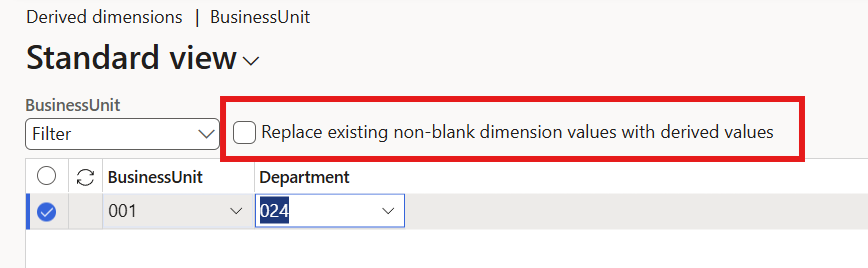
By default, derived dimensions don't override existing values. This means you can establish default dimensions on master records, and those dimensions aren't changed by derived dimensions.
To change this behavior, select the Replace existing dimension values with derived values checkbox on the Derived dimensions page. Using the previous example, if department was already set to 50 and location to 60, entering cost center 10 would change them to department 20 and location 30.
Deriving dimensions applied after defaults
Derived dimension rules are applied after default dimensions are populated on a transaction.
Example
The following example shows how derived dimensions interact with default dimensions.
Derived dimension configuration:
| Setting | Value |
|---|---|
| Driving dimension | CostCenter |
| Derived dimensions | BusinessUnit, Department |
| Replace existing dimension values with derived values | Disabled |
Default dimensions on the customer record:
| Dimension | Value |
|---|---|
| CostCenter | 12345 |
| BusinessUnit | (blank) |
| Department | (blank) |
Derived dimension rules:
| Driving dimension value | BusinessUnit | Department |
|---|---|---|
| CostCenter = 12345 | A | B |
Result: When the customer's default dimensions are applied to a new transaction, CostCenter defaults to 12345. Because BusinessUnit and Department are blank, the derived dimension rules fill them in with A and B respectively.
Preventing changes with derived dimensions
When you use Add segment on the Derived dimensions page to add a segment as a derived dimension, an option at the bottom of the Add segment page lets you prevent changes to that dimension when it's derived. The default setting is off. Change it to Yes to prevent the dimension from being changed after it is derived.
Prevent changes only applies when the entered dimension value has derived values set up for it. If there are no derived values defined for a particular value, users can still change the related dimensions freely. Using the previous example, entering cost center 10 would lock department to 20. But entering cost center 20, if it has no derived rules, would leave department editable.
In all cases, the account value and all dimensions values are still validated against the account structures after the derived dimensions values are applied. If you use derived dimensions and they fail validation when used on a page, you must change the derived dimensions values on the Derived dimensions page before you can use them in transactions.
Derived dimensions and entities
You can set up the derived dimensions segments and values by using entities.
- The Derived dimensions entity sets up the driving dimensions and the segments that are used for those dimensions.
- The Derived dimensions value entity lets you import the values that should be derived for each driving dimension.
When you use an entity to import data, if that entity imports dimensions, the derived dimension rules are applied during the import unless the entity specifically overrides those dimensions.