Note
Access to this page requires authorization. You can try signing in or changing directories.
Access to this page requires authorization. You can try changing directories.
You can use a VPN gateway, an ExpressRoute gateway, or both in a different Azure region from the virtual networks that host your workloads. Create global virtual network peerings between the workload virtual networks and the virtual network that contains the gateways, and then configure gateway transit on the peerings.
Gateway transit works with both virtual network peering in the same region and global virtual network peering across regions. The connectivity available through the gateways then applies to workload virtual networks that use the remote gateways.
Requirements and constraints
Before you configure the peerings, verify the following requirements:
- The address spaces of the peered virtual networks don't overlap.
- A workload virtual network that uses remote gateways doesn't contain its own VPN or ExpressRoute gateway. You can enable Use remote gateways on only one peering for each workload virtual network.
- Use a supported VPN Gateway SKU. Gateway transit doesn't support the Basic SKU.
- ExpressRoute FastPath doesn't support global virtual network peering. In this cross-region design, ExpressRoute traffic from the workload virtual networks uses the ExpressRoute gateway. For more information, see FastPath virtual network peering support.
- Your account has the Network Contributor role on both virtual networks, or a custom role that includes
Microsoft.Network/virtualNetworks/virtualNetworkPeerings/writeandMicrosoft.Network/virtualNetworks/peer. - For virtual networks in different subscriptions or Microsoft Entra tenants, complete the authorization and setup described in Create virtual network peering between different subscriptions.
- Review the requirements and constraints for virtual network peering, including constraints that apply to global virtual network peering.
Configure gateway transit
Virtual network peering is directional. Configure both directions of every peering between the gateway virtual network and a workload virtual network:
- On the peering from the gateway virtual network, enable Allow gateway or route server in '<gateway-vnet>' to forward traffic to the peered virtual network (
allowGatewayTransit). - On the peering from the workload virtual network, enable Enable '<workload-vnet>' to use '<gateway-vnet>'s remote gateway or route server (
useRemoteGateways). - On both directions, enable Allow traffic forwarded from the remote virtual network (
allowForwardedTraffic).
For portal and PowerShell procedures, see Configure VPN gateway transit for virtual network peering. The peering properties apply to both VPN and ExpressRoute gateways.
After you configure the peerings, verify that the peering status is Connected in both directions.
The following diagram shows the gateway-transit topology with a VPN gateway as an example. An ExpressRoute gateway uses the same peering configuration.
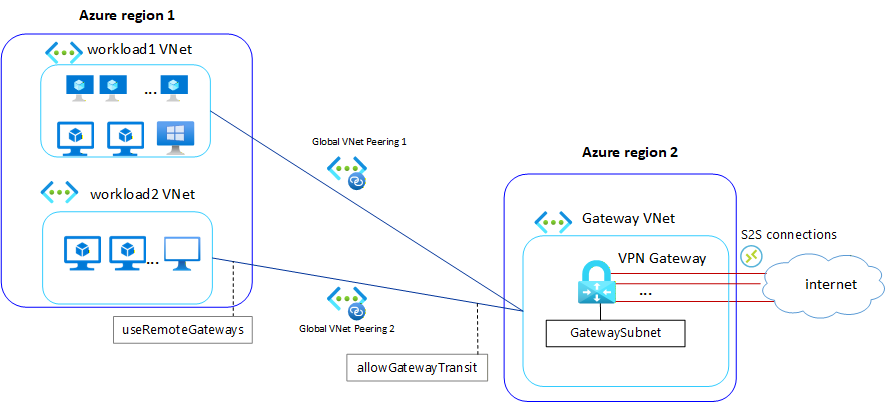
In region 1, workload virtual networks vnet-1 (10.0.0.0/16) and vnet-2 (10.1.0.0/16) each have a direct global virtual network peering with remote-vnet-GW (10.3.0.0/16) in region 2. The remote virtual network contains GatewaySubnet (10.3.255.0/27) and a VPN gateway that provides connectivity to networks outside Azure. Each workload virtual network uses the remote gateway through its direct peering. The workload virtual networks aren't peered with each other.
Routing behavior for cross-region gateway transit
Routes to networks connected through the gateway propagate automatically to the workload virtual networks. To suppress this propagation for a subnet, associate a route table that has Propagate gateway routes disabled. For more information, see Virtual network routing table.
Virtual network peering isn't transitive. Workload virtual networks that are peered to the same gateway virtual network can't reach each other through peering alone. Peer the workload virtual networks directly or route the traffic through a network virtual appliance.
Important
If you change the network topology and use Windows point-to-site VPN clients, generate, download, and install an updated VPN client profile so that the clients receive the new routes.
Scenario 1: Move existing hybrid connectivity to another region
In this scenario, a hub-and-spoke topology is in region 1. The hub virtual network contains a VPN gateway, an ExpressRoute gateway, or both. You want to move the gateways to region 2 while keeping the workloads in region 1.
Warning
Deleting the gateways in region 1 interrupts hybrid connectivity until the gateways and peerings in region 2 are ready. Plan a maintenance window and validate the new gateways before you remove the existing gateways.
- Create a virtual network in region 2, and deploy the required VPN gateway, ExpressRoute gateway, or both in its
GatewaySubnet. - On the existing hub-to-spoke peerings in region 1, retain virtual network access and forwarded traffic. Disable Allow gateway transit and Use remote gateways in both directions.
- Delete the VPN and ExpressRoute gateways from the hub virtual network in region 1.
- Create global virtual network peerings between the gateway virtual network in region 2 and the hub and spoke virtual networks in region 1.
- Configure the peerings from the gateway virtual network with these properties:
allowVirtualNetworkAccess:trueallowForwardedTraffic:trueallowGatewayTransit:trueuseRemoteGateways:false
- Configure the peerings from the hub and spoke virtual networks with these properties:
allowVirtualNetworkAccess:trueallowForwardedTraffic:trueallowGatewayTransit:falseuseRemoteGateways:true
- Verify that every peering has a Connected status, and test connectivity from each workload virtual network through the remote gateway.
Scenario 2: Deploy new hybrid connectivity in another region
In this scenario, the hub and spoke virtual networks in region 1 are already connected through local virtual network peerings. They don't contain a VPN or ExpressRoute gateway. You want to provide hybrid connectivity through gateways in region 2.
The following diagram shows the final topology with a VPN gateway as an example. An ExpressRoute gateway uses the same peering configuration.
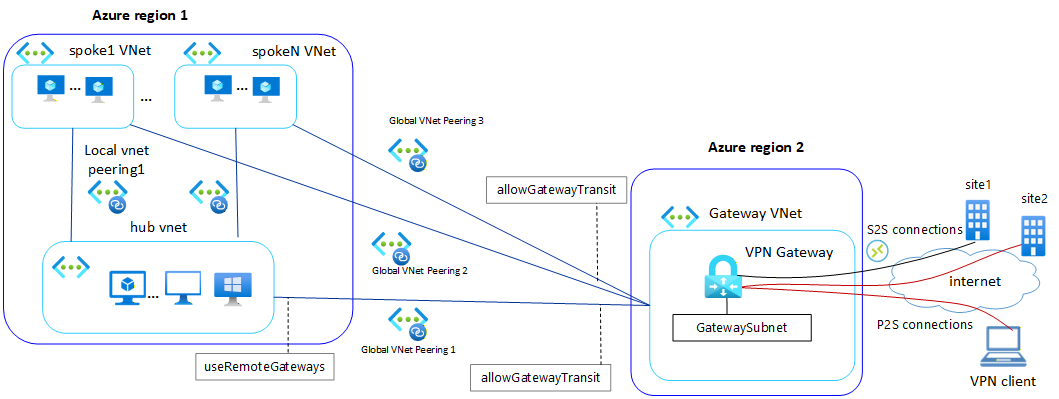
In region 1, the hub virtual network vnet-1 (10.0.0.0/16) and spoke virtual network vnet-2 (10.1.0.0/16) retain their local peering. Both virtual networks also have direct global virtual network peerings with remote-vnet-GW (10.3.0.0/16) in region 2. The remote virtual network contains GatewaySubnet (10.3.255.0/27) and a VPN gateway that provides connectivity to networks outside Azure. Both the hub and spoke virtual networks use the remote gateway through their direct peerings.
- Create a virtual network in region 2, and deploy the required VPN gateway, ExpressRoute gateway, or both in its
GatewaySubnet. - Create global virtual network peerings between the gateway virtual network in region 2 and the hub and spoke virtual networks in region 1.
- Configure the peerings from the gateway virtual network with these properties:
allowVirtualNetworkAccess:trueallowForwardedTraffic:trueallowGatewayTransit:trueuseRemoteGateways:false
- Configure the peerings from the hub and spoke virtual networks with these properties:
allowVirtualNetworkAccess:trueallowForwardedTraffic:trueallowGatewayTransit:falseuseRemoteGateways:true
- Verify that every peering has a Connected status, and test connectivity from each workload virtual network through the remote gateway.