Note
Access to this page requires authorization. You can try signing in or changing directories.
Access to this page requires authorization. You can try changing directories.
In this article, you learn how to:
- Configure your Azure Database for MySQL Flexible Server instance
- With SSL disabled
- With SSL enforced with TLS version
- Connect to your Azure Database for MySQL Flexible Server instance by using mysql command-line
- With encrypted connections disabled
- With encrypted connections enabled
- Verify encryption status for your connection
- Connect to your Azure Database for MySQL Flexible Server instance with encrypted connections by using various application frameworks
Overview of TLS/SSL support in Azure Database for MySQL Flexible Server
Azure Database for MySQL Flexible Server supports connecting your client applications to the Azure Database for MySQL Flexible Server instance by using Secure Sockets Layer (SSL) with Transport Layer Security (TLS) encryption. TLS is an industry standard protocol that ensures encrypted network connections between your database server and client applications, so you can adhere to compliance requirements.
Azure Database for MySQL Flexible Server supports encrypted connections by using Transport Layer Security (TLS 1.2) by default, and it denies all incoming connections by using TLS 1.0 and TLS 1.1 by default. You can change the encrypted connection enforcement or TLS version configuration on your Flexible Server as discussed in this article.
The following table describes the different configurations of SSL and TLS settings you can have for your Azure Database for MySQL Flexible Server instance:
Important
According to Removal of Support for the TLS 1.0 and TLS 1.1 Protocols, Microsoft previously planned to fully deprecate TLS 1.0 and 1.1 by September 2024. However, due to dependencies identified by some customers, Microsoft decided to extend the timeline.
Starting on August 31, 2025, Microsoft begins the forced upgrade for all servers still using TLS 1.0 or 1.1. After this date, any connections relying on TLS 1.0 or 1.1 might stop working at any time. To avoid potential service disruptions, complete your migration to TLS 1.2 before August 31, 2025.
| Scenario | Server parameter settings | Description |
|---|---|---|
| Disable TLS enforcement | require_secure_transport = OFF |
If your legacy application doesn't support encrypted connections, disable enforcement of encrypted connections. |
| Enforce TLS with TLS version < 1.2 (deprecated in September 2024) | require_secure_transport = ON and tls_version = TLS 1.0 or TLS 1.1 |
No longer available! |
| Enforce TLS with TLS version = 1.2(Default configuration) | require_secure_transport = ON and tls_version = TLS 1.2 |
Default configuration. |
| Enforce TLS with TLS version = 1.3 | require_secure_transport = ON and tls_version = TLS 1.3 |
Recommended configuration; supported only with Azure Database for MySQL Flexible Server version v8.0 and later. |
Note
Changes to TLS Cipher aren't supported. FIPS compliant cipher suites are enforced by default when the tls_version is set to TLS 1.2 or TLS 1.3.
Disable TLS enforcement on your Azure Database for MySQL Flexible Server instance
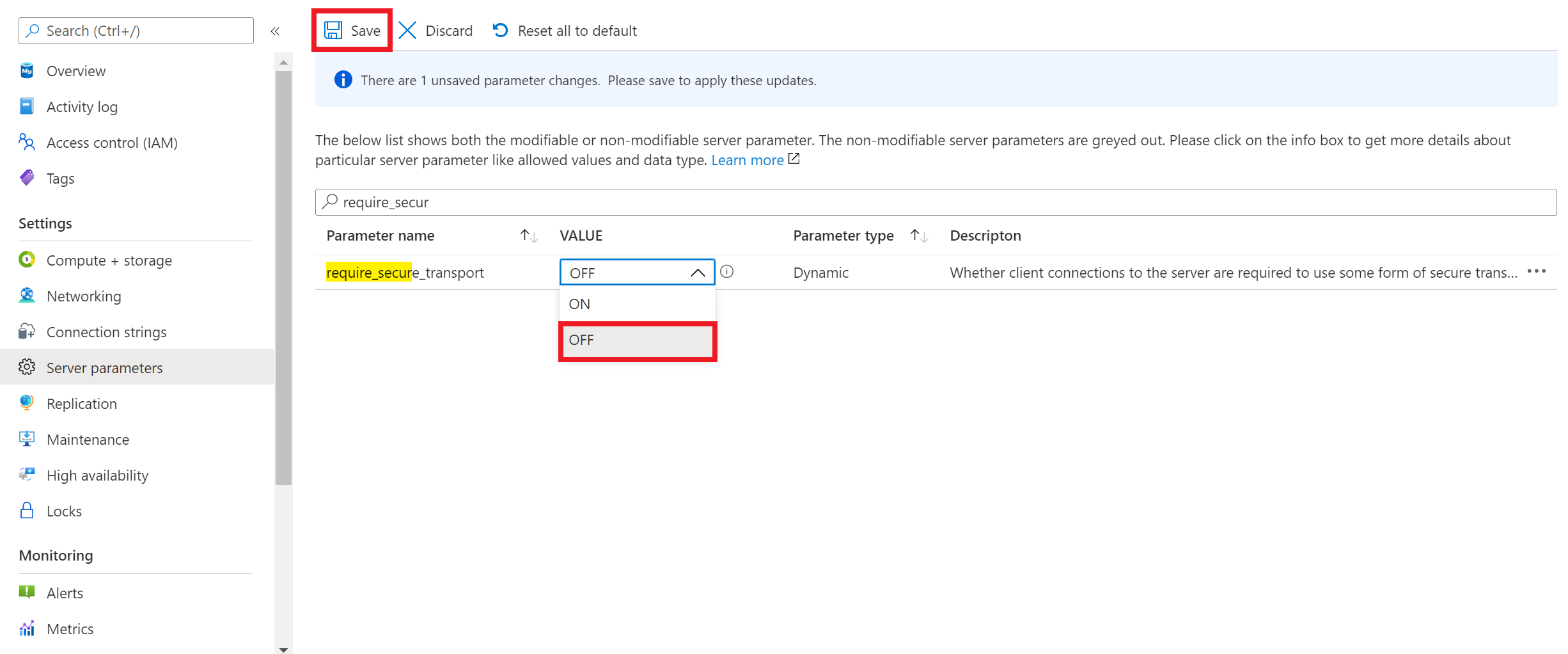
If your client application doesn't support encrypted connections, you need to disable encrypted connections enforcement on your Azure Database for MySQL Flexible Server instance. To disable encrypted connections enforcement, set the require_secure_transport server parameter to OFF as shown in the following screenshot, and save the server parameter configuration for it to take effect. require_secure_transport is a dynamic server parameter which takes effect immediately and doesn't require server restart.
Connect by using mysql command-line client with TLS disabled
The following example shows how to connect to your server by using the mysql command-line interface. Use the --ssl-mode=DISABLED connection string setting to disable TLS/SSL connection from mysql client. Replace values with your actual server name and password.
mysql.exe -h mydemoserver.mysql.database.azure.com -u myadmin -p --ssl-mode=DISABLED
Important
If you set require_secure_transport to OFF on the Azure Database for MySQL Flexible Server instance, but the client connects with the encrypted connection, the server still accepts the connection.
mysql.exe -h mydemoserver.mysql.database.azure.com -u myadmin -p --ssl-mode=REQUIRED
Welcome to the MySQL monitor.  Commands end with ; or \g.
Your MySQL connection id is 17
Server version: 5.7.29-log MySQL Community Server (GPL)

Copyright (c) 2000, 2020, Oracle and/or its affiliates. All rights reserved.

Oracle is a registered trademark of Oracle Corporation and/or its
affiliates. Other names may be trademarks of their respective
owners.

Type 'help;' or '\h' for help. Type '\c' to clear the current input statement.

mysql> show global variables like '%require_secure_transport%';
+--------------------------+-------+
| Variable_name | Value |
| +--------------------------+-------+ |
| require_secure_transport | OFF |
| +--------------------------+-------+ |
| 1 row in set (0.02 sec) |
In summary, the require_secure_transport=OFF setting relaxes the enforcement of encrypted connections. Therefore, the server accepts unencrypted connections in addition to encrypted connections.
Enforce the TLS version
To set TLS versions on your Azure Database for MySQL Flexible Server instance, set the tls_version server parameter. The default setting for TLS protocol is TLS 1.2. If your application supports connections to MySQL server with TLS, but requires any protocol other than TLS 1.2, set the TLS versions in server parameter.
tls_version is a static server parameter which requires a server restart for the parameter to take effect.
Connect by using mysql command-line client with TLS/SSL
Download the public SSL certificate
To establish encrypted connections with your client applications, download the DigiCert Global Root G2 certificate and the Microsoft RSA Root Certificate Authority 2017 certificate. Combine both certificates before initiating a connection to the server. For detailed steps, see How to update the root certificate store on your client.
Note
You must download the DigiCert Global Root G2 certificate for your servers in the Azure Government, Public, and Mooncake clouds.
Save the certificate file to your preferred location. For example, this tutorial uses c:\ssl or \var\www\html\bin on your local environment or the client environment where your application is hosted.
If you created your Azure Database for MySQL Flexible Server instance with Private access (VNet Integration), you need to connect to your server from a resource within the same VNet as your server. You can create a virtual machine and add it to the VNet created with your Azure Database for MySQL Flexible Server instance.
If you created your Azure Database for MySQL Flexible Server instance with Public access (allowed IP addresses), you can add your local IP address to the list of firewall rules on your server.
You can choose either mysql.exe or Use MySQL Workbench with Azure Database for MySQL - Flexible Server to connect to the server from your local environment.
The following example shows how to connect to your server by using the mysql command-line interface. Use the --ssl-mode=REQUIRED connection string setting to enforce TLS/SSL certificate verification. Pass the local certificate file path to the --ssl-ca parameter. Replace values with your actual server name and password.
sudo apt-get install mysql-client
wget --no-check-certificate https://cacerts.digicert.com/DigiCertGlobalRootG2.crt.pem
mysql -h mydemoserver.mysql.database.azure.com -u mydemouser -p --ssl-mode=REQUIRED --ssl-ca=DigiCertGlobalRootG2.crt.pem
Note
Confirm that the value you pass to --ssl-ca matches the file path for the certificate you saved.
If you're connecting with full verification (sslmode=VERIFY_IDENTITY), use \<servername\>.mysql.database.azure.com in your connection string.
If you try to connect to your server with unencrypted connections, you see an error stating connections using insecure transport are prohibited:
ERROR 3159 (HY000): Connections using insecure transport are prohibited while --require_secure_transport=ON.
Verify the TLS connection
Execute the MySQL status command to verify that you're connected by using TLS:
mysql> status
Confirm the connection is encrypted by reviewing the output, which should show: SSL: Cipher in use is. This cipher suite shows an example and, based on the client, you can see a different cipher suite.
How do I identify the TLS protocols configured on my server?
Run the command SHOW GLOBAL VARIABLES LIKE 'tls_version'; and check the value to understand which protocols are configured.
mysql> SHOW GLOBAL VARIABLES LIKE 'tls_version';
How do I find which TLS protocols my clients use to connect to the server?
To verify the TLS version used in this connection, execute the SQL query:
SELECT sbt.variable_value AS tls_version,  t2.variable_value AS cipher,
processlist_user AS user, processlist_host AS host
FROM performance_schema.status_by_thread  AS sbt
JOIN performance_schema.threads AS t ON t.thread_id = sbt.thread_id
JOIN performance_schema.status_by_thread AS t2 ON t2.thread_id = t.thread_id
WHERE sbt.variable_name = 'Ssl_version' and t2.variable_name = 'Ssl_cipher' ORDER BY tls_version;
Connect to your Azure Database for MySQL Flexible Server instance with encrypted connections by using various application frameworks
Connection strings that are predefined in the Connection Strings page available for your server in the Azure portal include the required parameters for common languages to connect to your database server by using TLS/SSL. The TLS/SSL parameter varies based on the connector. For example, use useSSL=true, sslmode=required, or ssl_verify_cert=true and other variations.
To establish an encrypted connection to your Azure Database for MySQL Flexible Server instance over TLS/SSL from your application, refer to the following code samples:
WordPress
Download the SSL public certificate and add the following lines in wp-config.php after the line // **MySQL settings - You can get this info from your web host** //.
//** Connect with SSL ** //
define('MYSQL_CLIENT_FLAGS', MYSQLI_CLIENT_SSL);
//** SSL CERT **//
define('MYSQL_SSL_CERT','/FULLPATH/on-client/to/DigiCertGlobalRootG2.crt.pem');
PHP
$conn = mysqli_init();
mysqli_ssl_set($conn,NULL,NULL, "/var/www/html/DigiCertGlobalRootG2.crt.pem", NULL, NULL);
mysqli_real_connect($conn, 'mydemoserver.mysql.database.azure.com', 'myadmin', 'yourpassword', 'quickstartdb', 3306, MYSQLI_CLIENT_SSL);
if (mysqli_connect_errno()) {
die('Failed to connect to MySQL: '.mysqli_connect_error());
}
PHP (Using PDO)
$options = array(
    PDO::MYSQL_ATTR_SSL_CA => '/var/www/html/DigiCertGlobalRootG2.crt.pem'
);
$db = new PDO('mysql:host=mydemoserver.mysql.database.azure.com;port=3306;dbname=databasename', 'myadmin', 'yourpassword', $options);
Python (MySQLConnector Python)
try:
    conn = mysql.connector.connect(user='myadmin',
                                   password='<password>',
                                   database='quickstartdb',
                                   host='mydemoserver.mysql.database.azure.com',
                                   ssl_ca='/var/www/html/DigiCertGlobalRootG2.crt.pem')
except mysql.connector.Error as err:
    print(err)
Python (PyMySQL)
conn = pymysql.connect(user='myadmin',
                       password='<password>',
                       database='quickstartdb',
                       host='mydemoserver.mysql.database.azure.com',
                       ssl={'ca': '/var/www/html/DigiCertGlobalRootG2.crt.pem'})
Django (PyMySQL)
DATABASES = {
    'default': {
        'ENGINE': 'django.db.backends.mysql',
        'NAME': 'quickstartdb',
        'USER': 'myadmin',
        'PASSWORD': 'yourpassword',
        'HOST': 'mydemoserver.mysql.database.azure.com',
        'PORT': '3306',
        'OPTIONS': {
            'ssl': {'ca': '/var/www/html/DigiCertGlobalRootG2.crt.pem'}
        }
    }
}
Ruby
client = Mysql2::Client.new(
        :host     => 'mydemoserver.mysql.database.azure.com',
        :username => 'myadmin',
        :password => 'yourpassword',
        :database => 'quickstartdb',
        :sslca => '/var/www/html/DigiCertGlobalRootG2.crt.pem'
    )
Golang
rootCertPool := x509.NewCertPool()
pem, _ := ioutil.ReadFile("/var/www/html/DigiCertGlobalRootG2.crt.pem")
if ok := rootCertPool.AppendCertsFromPEM(pem); !ok {
    log.Fatal("Failed to append PEM.")
}
mysql.RegisterTLSConfig("custom", &tls.Config{RootCAs: rootCertPool})
var connectionString string
connectionString = fmt.Sprintf("%s:%s@tcp(%s:3306)/%s?allowNativePasswords=true&tls=custom",'myadmin' , 'yourpassword', 'mydemoserver.mysql.database.azure.com', 'quickstartdb')
db, _ := sql.Open("mysql", connectionString)
Java (MySQL Connector for Java)
# generate truststore and keystore in code

String importCert = " -import "+
    " -alias mysqlServerCACert "+
    " -file " + ssl_ca +
    " -keystore truststore "+
    " -trustcacerts " +
    " -storepass password -noprompt ";
String genKey = " -genkey -keyalg rsa " +
    " -alias mysqlClientCertificate -keystore keystore " +
    " -storepass password123 -keypass password " +
    " -dname CN=MS ";
sun.security.tools.keytool.Main.main(importCert.trim().split("\\s+"));
sun.security.tools.keytool.Main.main(genKey.trim().split("\\s+"));

# use the generated keystore and truststore

System.setProperty("javax.net.ssl.keyStore","path_to_keystore_file");
System.setProperty("javax.net.ssl.keyStorePassword","password");
System.setProperty("javax.net.ssl.trustStore","path_to_truststore_file");
System.setProperty("javax.net.ssl.trustStorePassword","password");

url = String.format("jdbc:mysql://%s/%s?serverTimezone=UTC&useSSL=true", 'mydemoserver.mysql.database.azure.com', 'quickstartdb');
properties.setProperty("user", 'myadmin');
properties.setProperty("password", 'yourpassword');
conn = DriverManager.getConnection(url, properties);
Java (MariaDB Connector for Java)
# generate truststore and keystore in code

String importCert = " -import "+
    " -alias mysqlServerCACert "+
    " -file " + ssl_ca +
    " -keystore truststore "+
    " -trustcacerts " +
    " -storepass password -noprompt ";
String genKey = " -genkey -keyalg rsa " +
    " -alias mysqlClientCertificate -keystore keystore " +
    " -storepass password123 -keypass password " +
    " -dname CN=MS ";
sun.security.tools.keytool.Main.main(importCert.trim().split("\\s+"));
sun.security.tools.keytool.Main.main(genKey.trim().split("\\s+"));

# use the generated keystore and truststore

System.setProperty("javax.net.ssl.keyStore","path_to_keystore_file");
System.setProperty("javax.net.ssl.keyStorePassword","password");
System.setProperty("javax.net.ssl.trustStore","path_to_truststore_file");
System.setProperty("javax.net.ssl.trustStorePassword","password");

url = String.format("jdbc:mariadb://%s/%s?useSSL=true&trustServerCertificate=true", 'mydemoserver.mysql.database.azure.com', 'quickstartdb');
properties.setProperty("user", 'myadmin');
properties.setProperty("password", 'yourpassword');
conn = DriverManager.getConnection(url, properties);
.NET (MySqlConnector)
var builder = new MySqlConnectionStringBuilder
{
    Server = "mydemoserver.mysql.database.azure.com",
    UserID = "myadmin",
    Password = "yourpassword",
    Database = "quickstartdb",
    SslMode = MySqlSslMode.VerifyCA,
    SslCa = "DigiCertGlobalRootG2.crt.pem",
};
using (var connection = new MySqlConnection(builder.ConnectionString))
{
    connection.Open();
}
Node.js
var fs = require('fs');
var mysql = require('mysql');
const serverCa = [fs.readFileSync("/var/www/html/DigiCertGlobalRootG2.crt.pem", "utf8")];
var conn=mysql.createConnection({
    host:"mydemoserver.mysql.database.azure.com",
    user:"myadmin",
    password:"yourpassword",
    database:"quickstartdb",
    port:3306,
    ssl: {
        rejectUnauthorized: true,
        ca: serverCa
    }
});
conn.connect(function(err) {
  if (err) throw err;
});
Related content
- Use MySQL Workbench with Azure Database for MySQL - Flexible Server
- Use PHP with Azure Database for MySQL - Flexible Server
- Create and manage virtual networks for Azure Database for MySQL - Flexible Server using the Azure CLI
- networking in Azure Database for MySQL - Flexible Server
- Azure Database for MySQL - Flexible Server firewall rules