Note
Access to this page requires authorization. You can try signing in or changing directories.
Access to this page requires authorization. You can try changing directories.
Warning
Prompt flow in Microsoft Foundry and Azure Machine Learning will be retired on April 20, 2027. Prompt flow is no longer recommended for new development. Migrate existing Prompt flow applications and deployments to Microsoft Agent Framework before April 20, 2027.
Prompt flow container images are no longer receiving updates, including security and package updates. This applies to Prompt
flow runtime images, including promptflow-runtime, promptflow-runtime-stable, and promptflow-python.
After April 20, 2027, Prompt flow, including the web authoring experience in Microsoft Foundry and Azure Machine Learning, the VS Code extensions, and related Prompt flow container images, will no longer be supported or available.
If your application depends on Prompt flow deployments or runtime images, plan to move those workloads to supported alternatives such as Microsoft Agent Framework before the retirement date. For migration guidance, see the Prompt flow migration guide and migration code samples.
This article addresses frequent questions about prompt flow usage.
Flow authoring related issues
"Package tool isn't found" error occurs when you update the flow for a code-first experience
When you update flows for a code-first experience, if the flow uses the Faiss Index Lookup, Vector Index Lookup, Vector DB Lookup, or Content Safety (Text) tools, you might encounter the following error message:
Package tool 'embeddingstore.tool.faiss_index_lookup.search' is not found in the current environment.
To resolve the issue, use one of the following options:
Option 1
Update your compute session to the latest base image version.
Select Raw file mode to switch to the raw code view. Then open the flow.dag.yaml file.

Update the tool names.
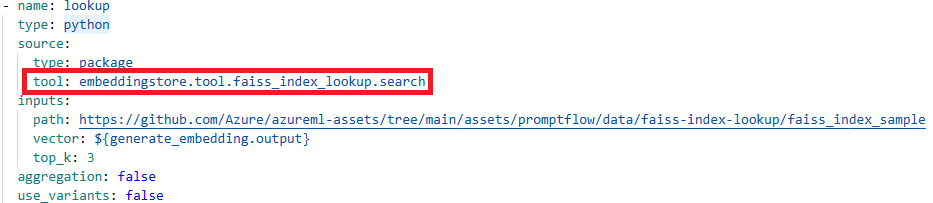
Tool New tool name Faiss Index Lookup promptflow_vectordb.tool.faiss_index_lookup.FaissIndexLookup.search Vector Index Lookup promptflow_vectordb.tool.vector_index_lookup.VectorIndexLookup.search Vector DB Lookup promptflow_vectordb.tool.vector_db_lookup.VectorDBLookup.search Content Safety (Text) content_safety_text.tools.content_safety_text_tool.analyze_text Save the flow.dag.yaml file.
Option 2
- Update your compute session to the latest base image version.
- Remove the old tool and re-create a new tool.
"No such file or directory" error
Prompt flow relies on a file share storage to store a snapshot of the flow. If the file share storage has an issue, you might encounter the following problem. Here are some workarounds you can try:
If you're using a private storage account, see Network isolation in prompt flow to make sure your workspace can access your storage account.
If the storage account is enabled for public access, check whether there's a datastore named
workspaceworkingdirectoryin your workspace. It should be a file share type.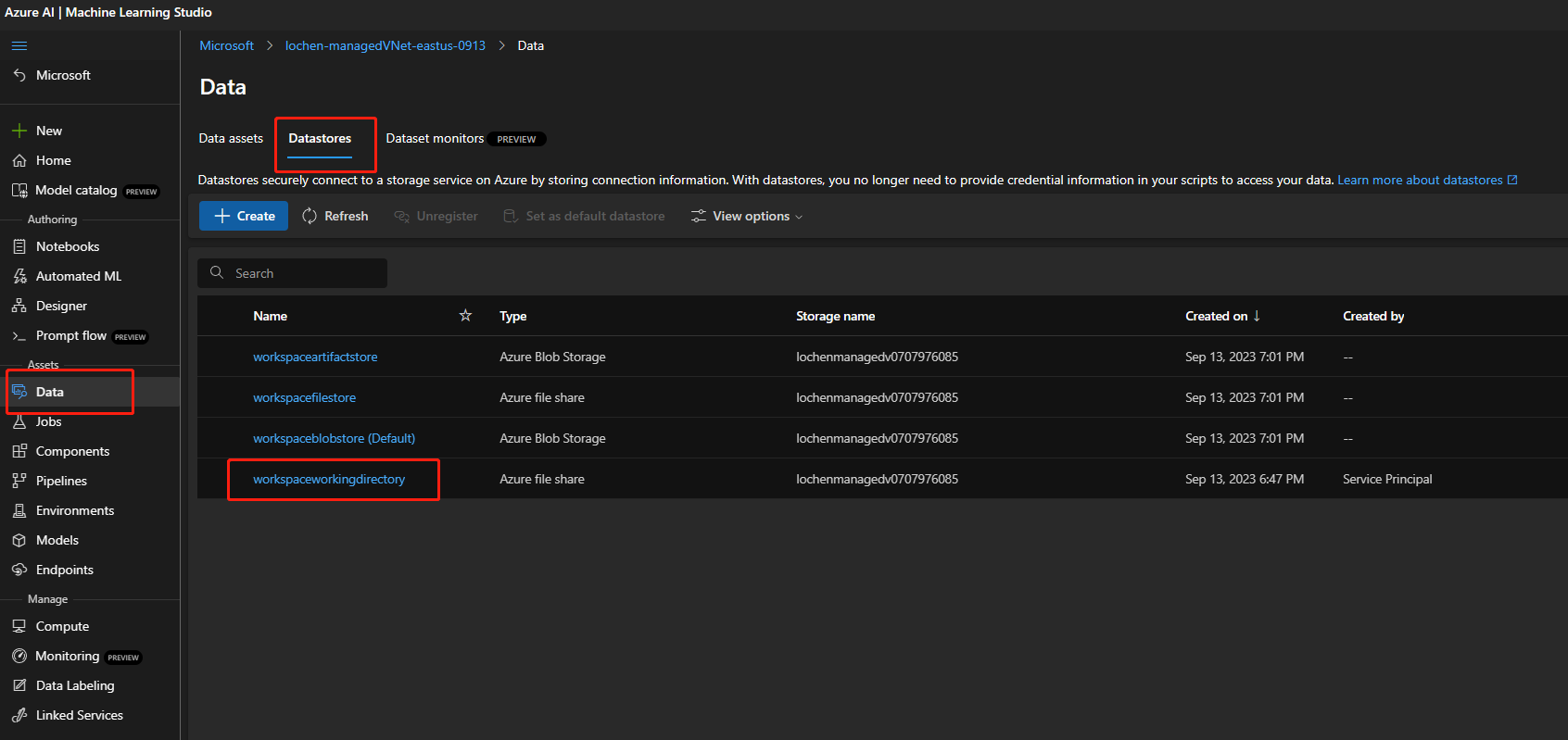
- If you didn't get this datastore, you need to add it in your workspace.
- Create a file share with the name
code-391ff5ac-6576-460f-ba4d-7e03433c68b6. - Create a datastore with the name
workspaceworkingdirectory. See Create datastores.
- Create a file share with the name
- If you have a
workspaceworkingdirectorydatastore but its type isblobinstead offileshare, create a new workspace. Use storage that doesn't enable hierarchical namespaces for Azure Data Lake Storage Gen2 as a workspace default storage account. For more information, see Create workspace.
- If you didn't get this datastore, you need to add it in your workspace.
Flow is missing
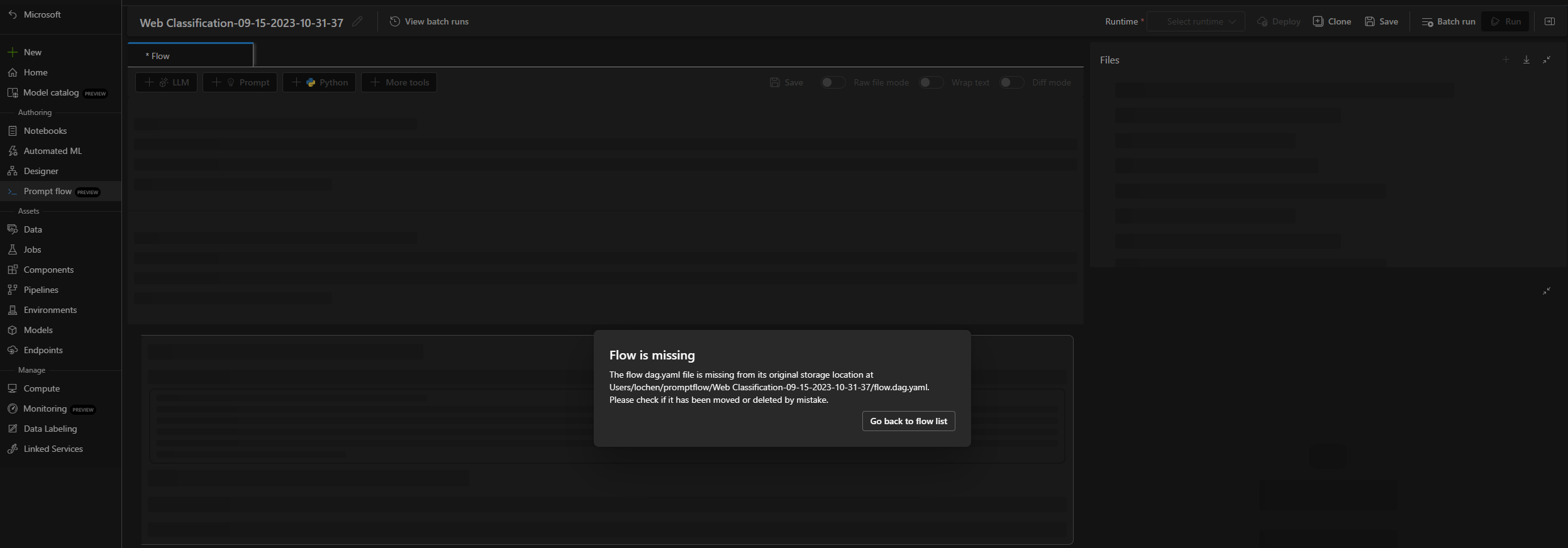
This problem can happen for several reasons:
If you disable public access to your storage account, you must ensure access by either adding your IP to the storage firewall or enabling access through a virtual network that has a private endpoint connected to the storage account.

If the account key in the datastore is out of sync with the storage account, update the account key in the datastore detail page to fix the problem.

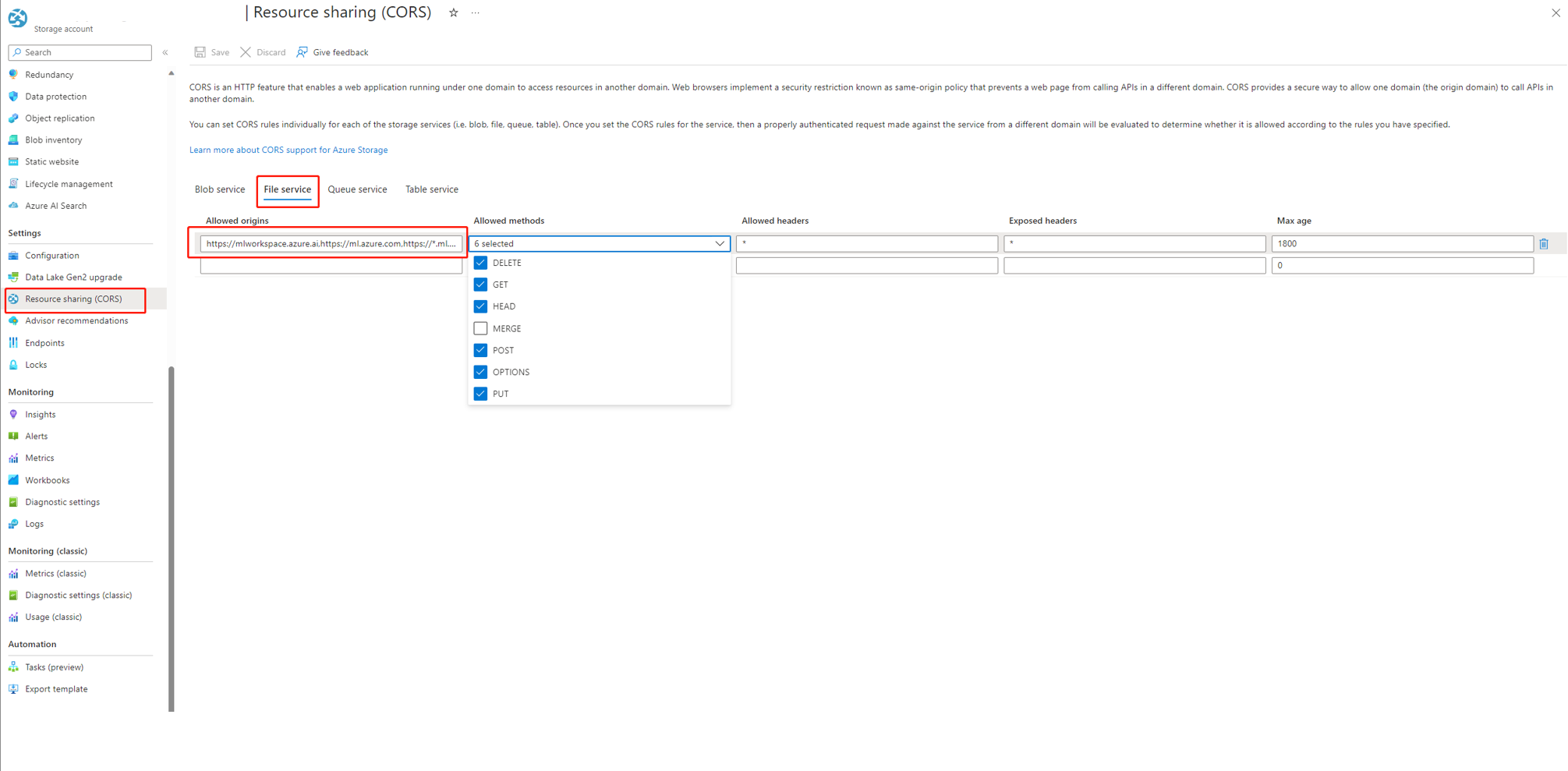
If you're using Microsoft Foundry, the storage account needs to set CORS to allow Foundry access the storage account. Otherwise, you see the flow missing problem. Add the following CORS settings to the storage account to fix this problem.
- Go to the storage account page, select
Resource sharing (CORS)undersettings, and select theFile servicetab. - Allowed origins:
https://mlworkspace.azure.ai,https://ml.azure.com,https://*.ml.azure.com,https://ai.azure.com,https://*.ai.azure.com,https://mlworkspacecanary.azure.ai,https://mlworkspace.azureml-test.net - Allowed methods:
DELETE, GET, HEAD, POST, OPTIONS, PUT
- Go to the storage account page, select


Compute session related problems
Run failed because of "No module named XXX"
This type of error related to compute session lacks required packages. If you're using a default environment, make sure the image of your compute session is using the latest version. If you're using a custom base image, make sure you installed all the required packages in your docker context. For more information, see Customize base image for compute session.
Where can I find the serverless instance used by a compute session?
You can view the serverless instance used by a compute session in the compute session list tab under the compute page. To learn more, see how to manage serverless instance.
Compute session failures when using a custom base image
Compute session start failure when using requirements.txt or custom base image
A compute session supports using requirements.txt or a custom base image in flow.dag.yaml to customize the image. Use requirements.txt for common cases, which uses pip install -r requirements.txt to install the packages. If you have dependencies beyond Python packages, follow the Customize base image guide to create and build a new image based on the prompt flow base image. Then use it in flow.dag.yaml. To learn more, see how to specify base image in compute session.
- You can't use an arbitrary base image to create a compute session. You need to use the base image provided by prompt flow.
- Don't pin the version of
promptflowandpromptflow-toolsinrequirements.txt, because the base image already includes them. Using old versions ofpromptflowandpromptflow-toolsmight cause unexpected behavior.
Flow run related issues
How can I find the raw inputs and outputs of an LLM tool for further investigation?
In prompt flow, on the flow page with a successful run and the run detail page, you can find the raw inputs and outputs of the LLM tool in the output section. Select the view full output button to view the full output.

The Trace section includes each request and response to the LLM tool. You can check the raw message sent to the LLM model and the raw response from the LLM model.

How do I fix a 409 error from Azure OpenAI?
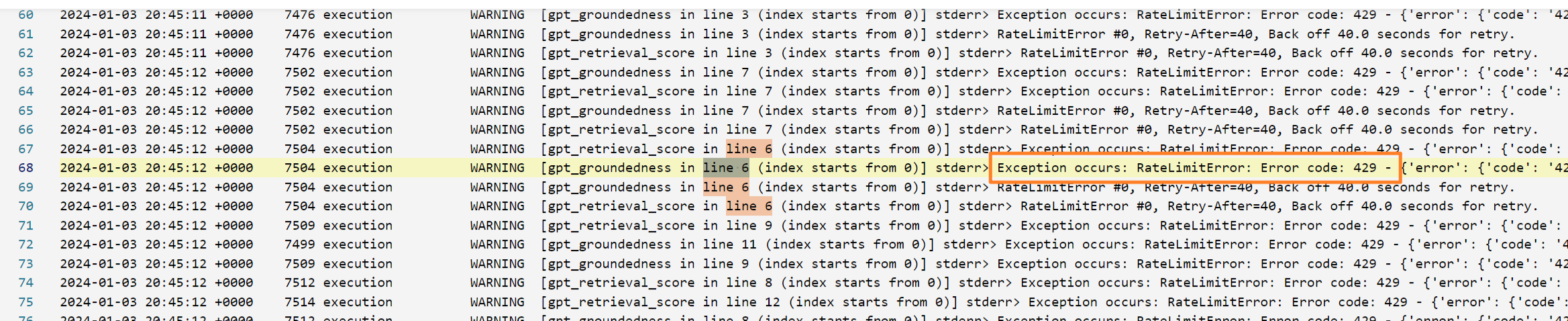
If you encounter a 409 error from Azure OpenAI, it means you reached the rate limit for Azure OpenAI. You can check the error message in the output section of the LLM node. For more information, see Azure OpenAI rate limit.
Identify which node consumes the most time
Check the compute session logs.
Try to find the following warning log format:
{node_name} runs for {duration} seconds.
For example:
Case 1: Python script node runs for a long time.

In this case, you see that
PythonScriptNoderuns for a long time (almost 300 seconds). Then you can check the node details to see what's the problem.Case 2: LLM node runs for a long time.

In this case, if you find the message
request canceledin the logs, it might be because the OpenAI API call is taking too long and exceeds the timeout limit.An OpenAI API timeout could be caused by a network issue or a complex request that requires more processing time. For more information, see OpenAI API timeout.
Wait a few seconds and retry your request. This action usually resolves any network issues.
If retrying doesn't work, check whether you're using a long context model, such as
gpt-4-32k, and set a large value formax_tokens. If so, the behavior is expected because your prompt might generate a long response that takes longer than the interactive mode's upper threshold. In this situation, tryBulk testbecause this mode doesn't have a timeout setting.
If you can't find anything in the logs to indicate it's a specific node issue:
- Contact the prompt flow team (promptflow-eng) with the logs. They try to identify the root cause.


Flow deployment related issues
Lack authorization to perform action "Microsoft.MachineLearningService/workspaces/datastores/read"
If your flow contains the Index Look Up tool, after deploying the flow, the endpoint needs to access the workspace datastore to read the MLIndex YAML file or FAISS folder containing chunks and embeddings. You need to manually grant the endpoint identity permission to access these resources.
You can either grant the endpoint identity the AzureML Data Scientist role on the workspace scope, or assign a custom role that contains the "MachineLearningService/workspace/datastore/reader" action.
Upstream request timeout issue when consuming the endpoint
If you use CLI or SDK to deploy the flow, you might encounter a timeout error. By default, the request_timeout_ms value is 5,000. You can specify up to 5 minutes, which is 300,000 ms. The following example shows how to specify the request timeout in the deployment YAML file. To learn more, see deployment schema.
request_settings:
  request_timeout_ms: 300000
OpenAI API hits authentication error
If you regenerate your Azure OpenAI key and manually update the connection used in prompt flow, you might encounter errors like "Unauthorized. Access token is missing, invalid, audience is incorrect or expired." when invoking an existing endpoint created before key regenerating.
This error occurs because the connections used in the endpoints and deployments aren't automatically updated. To avoid impacting online production deployment due to unintentional offline operation, you must manually update any change for key or secrets in deployments.
- If you deployed the endpoint in the studio UI, redeploy the flow to the existing endpoint by using the same deployment name.
- If you deployed the endpoint by using SDK or CLI, modify the deployment definition, such as adding a dummy environment variable. Then, use
az ml online-deployment updateto update your deployment.
Vulnerability issues in prompt flow deployments
To address prompt flow runtime vulnerabilities, use the following approaches:
- Update the dependency packages in your
requirements.txtfile in your flow folder. - If you're using a customized base image for your flow, update the prompt flow runtime to the latest version, rebuild your base image, and redeploy the flow.
For any other vulnerabilities in managed online deployments, Azure Machine Learning fixes the issues on a monthly basis.
"MissingDriverProgram Error" or "Could not find driver program in the request"
If you deploy your flow and encounter the following error, the deployment environment might be related to the error.
'error':
{
    'code': 'BadRequest',
    'message': 'The request is invalid.',
    'details':
         {'code': 'MissingDriverProgram',
          'message': 'Could not find driver program in the request.',
          'details': [],
          'additionalInfo': []
         }
}
Could not find driver program in the request
Fix this error in two ways:
(Recommended) Find the container image URI in your custom environment detail page, and set it as the flow base image in the
flow.dag.yamlfile. When you deploy the flow in the UI, select Use environment of current flow definition. The backend service creates the customized environment based on this base image andrequirement.txtfor your deployment. For more information, see the environment specified in the flow definition.

Add
inference_configin your custom environment definition to fix this error.The following example shows a customized environment definition.


$schema: https://azuremlschemas.azureedge.net/latest/environment.schema.json
name: pf-customized-test
build:
  path: ./image_build
  dockerfile_path: Dockerfile
description: promptflow customized runtime
inference_config:
  liveness_route:
    port: 8080
    path: /health
  readiness_route:
    port: 8080
    path: /health
  scoring_route:
    port: 8080
    path: /score
Model response takes too long
Sometimes, the deployment takes too long to respond. Several factors can cause this delay, such as:
- The model used in the flow isn't powerful enough (for example, using GPT 3.5 instead of text-ada).
- The index query isn't optimized and takes too long.
- The flow has many steps to process.
To improve the performance of the model, consider optimizing the endpoint by addressing these factors.
Unable to fetch deployment schema
After you deploy the endpoint and want to test it in the Test tab in the endpoint detail page, if the Test tab shows Unable to fetch deployment schema, try the following two methods to mitigate this issue:

- Make sure you grant the correct permission to the endpoint identity. Learn more about how to grant permission to the endpoint identity.
- The error might occur because you ran your flow in an old version runtime and then deployed the flow. The deployment used the environment of the runtime that was in old version as well. To update the runtime, follow Update a runtime on the UI. Rerun the flow in the latest runtime and then deploy the flow again.
Access denied to list workspace secret
If you encounter an error like "Access denied to list workspace secret", check whether you grant the correct permission to the endpoint identity. Learn more about how to grant permission to the endpoint identity.
Authentication and identity related issues
How do I use credential-less datastore in prompt flow?
To use credential-less storage in Foundry portal, complete the following steps:
- Change the data store authentication type to None.
- Grant the project MSI and user blob or file data contributor permission on storage.
Change authentication type of datastore to None
To make your datastore credential-less, see Identity-based data authentication.
Change the authentication type of the datastore to None, which stands for meid_token based authentication. You can make this change from the datastore detail page, or use CLI or SDK: https://github.com/Azure/azureml-examples/tree/main/cli/resources/datastore

For blob based datastore, you can change the authentication type and also enable workspace MSI to access the storage account.

For file share based datastore, you can change the authentication type only.

Grant permission to user identity or managed identity
To use credential-less datastore in prompt flow, grant enough permissions to user identity or managed identity to access the datastore.
- Make sure workspace system assigned managed identity has
Storage Blob Data ContributorandStorage File Data Privileged Contributoron the storage account, at least need read and write (better also include delete) permission. - If you're using user identity this default option in prompt flow, make sure the user identity has following role on the storage account:
Storage Blob Data Contributoron the storage account, at least need read and write (better also include delete) permission.Storage File Data Privileged Contributoron the storage account, at least need read and write (better also include delete) permission.
- If you're using user assigned managed identity, make sure the managed identity has following role on the storage account:
Storage Blob Data Contributoron the storage account, at least need read and write (better also include delete) permission.Storage File Data Privileged Contributoron the storage account, at least need read and write (better also include delete) permission.- Meanwhile, assign user identity
Storage Blob Data Readrole to storage account at least, if you want to use prompt flow to authoring and test flow.
- If you still can't view the flow detail page and the first time you using prompt flow is earlier than 2024-01-01, grant workspace MSI as
Storage Table Data Contributorto storage account linked with workspace.