Note
Access to this page requires authorization. You can try signing in or changing directories.
Access to this page requires authorization. You can try changing directories.
IoT Hub uses Transport Layer Security (TLS) to secure connections from IoT devices and services.
Note
Azure IoT Hub ends support for TLS 1.0 and 1.1 in alignment with the Azure wide service announcement for TLS 1.0 and 1.1 retirement on August 31, 2025. In addition, IoT Hub no longer supports weak cipher suites as of August 31, 2025. Only recommended strong cipher suites are supported for both existing and new IoT Hubs.
It's essential that you properly test and validate that all your IoT devices and services are compatible with TLS 1.2 and the recommended ciphers in advance. We recommend that you use the minimum TLS enforcement feature as the mechanism for testing and compliance.
Important
It's important to distinguish between TLS 1.2 support and TLS 1.2 enforcement. All IoT Hubs support TLS 1.2, meaning that IoT Hubs can handle connections using the TLS 1.2 protocol. On the other hand, TLS 1.2 enforcement ensures that IoT Hub only accepts connections using TLS 1.2 or higher. When TLS 1.2 enforcement is enabled, the service also enforces the use of strong cipher suites.
Currently, TLS 1.2 enforcement is supported only in public cloud regions.
To find out the version of TLS your IoT Hub devices are running, refer to TLS 1.0 and 1.1 end of support guide.
Mutual TLS support
Mutual TLS authentication ensures that the client authenticates the server (IoT Hub) certificate and the server (IoT Hub) authenticates the client using X.509 client certificate or X.509 thumbprint. IoT Hub performs authorization after authentication is complete.
For Advanced Message Queuing Protocol (AMQP) and Message Queuing Telemetry Transport (MQTT) protocols, IoT Hub requests a client certificate in the initial TLS handshake. If one is provided, IoT Hub authenticates the client certificate, and the client authenticates the IoT Hub certificate. This process is called mutual TLS authentication. When IoT Hub receives an MQTT connect packet or an AMQP link opens, IoT Hub performs authorization for the requesting client and determines if the client requires X.509 authentication. If mutual TLS authentication was completed and the client is authorized to connect as the device, it's allowed. However, if the client requires X.509 authentication and client authentication wasn't completed during the TLS handshake, then IoT Hub rejects the connection.
For HTTP protocol, when the client makes its first request, IoT Hub checks if the client requires X.509 authentication and if client authentication was complete then IoT Hub performs authorization. If client authentication wasn't complete, then IoT Hub rejects the connection.
After a successful TLS handshake, IoT Hub can authenticate a device using a symmetric key or an X.509 certificate. For certificate-based authentication, IoT Hub validates the certificate against the thumbprint or certificate authority (CA) you provide. To learn more, see Authenticate identities with X.509 certificates.
IoT Hub's server TLS certificate
During a TLS handshake, IoT Hub presents RSA-keyed server certificates to connecting clients. All IoT hubs in the global Azure cloud use the TLS certificate issued by the DigiCert Global Root G2.
Trust the following two root CAs for all devices:
- DigiCert Global G2 root CA
- Microsoft RSA root CA 2017
For links to download these certificates, see Azure Certificate Authority details.
Root CA migrations are rare. Always prepare your IoT solution for the unlikely event that a root CA is compromised and an emergency root CA migration is necessary.
Cipher suites
Starting August 31, 2025, IoT Hub enforces the use of recommended strong cipher suites for all existing and new IoT Hubs. Non-recommended (weak) cipher suites aren't supported after this date.
To comply with Azure security policy for a secure connection, IoT Hub only supports the following RSA and ECDSA cipher suites:
- TLS_ECDHE_ECDSA_WITH_AES_128_GCM_SHA256
- TLS_ECDHE_ECDSA_WITH_AES_256_GCM_SHA384
- TLS_ECDHE_ECDSA_WITH_AES_128_CBC_SHA256
- TLS_ECDHE_ECDSA_WITH_AES_256_CBC_SHA384
- TLS_ECDHE_RSA_WITH_AES_128_GCM_SHA256
- TLS_ECDHE_RSA_WITH_AES_256_GCM_SHA384
- TLS_ECDHE_RSA_WITH_AES_128_CBC_SHA256
- TLS_ECDHE_RSA_WITH_AES_256_CBC_SHA384
Note
ECDSA cipher suites are only available in public cloud regions.
The following non-recommended cipher suites are allowed on hubs without minTlsVersion:1.2 until August 31, 2025:
- TLS_DHE_RSA_WITH_AES_256_GCM_SHA384
- TLS_DHE_RSA_WITH_AES_128_GCM_SHA256
- TLS_RSA_WITH_AES_256_GCM_SHA384
- TLS_RSA_WITH_AES_128_GCM_SHA256
- TLS_RSA_WITH_AES_256_CBC_SHA256
- TLS_RSA_WITH_AES_128_CBC_SHA256
- TLS_ECDHE_RSA_WITH_AES_128_CBC_SHA
- TLS_ECDHE_RSA_WITH_AES_256_CBC_SHA
- TLS_RSA_WITH_AES_128_CBC_SHA
- TLS_RSA_WITH_AES_256_CBC_SHA
A client can suggest a list of higher cipher suites to use during ClientHello. However, IoT Hub might not support some of them, for example, ECDHE-ECDSA-AES256-GCM-SHA384. In this case, IoT Hub tries to follow the preference of the client but eventually negotiates down the cipher suite with ServerHello.
Note
When using an ECDSA or ECDHE cipher, the client must provide the supported_groups extension in the ClientHello with a valid group. When connecting with a client certificate, the client must include the curve used in that client certificate in its supported_groups extension.
Update IoT Hub to TLS 1.2 support
After you create an IoT Hub, update the minTlsVersion property by using the Azure portal, CLI, or SDKs. To update the IoT Hub to enforce TLS 1.2 and strong cipher suites (only allowed in selected regions) or to set TLS 1.2 support (supported in all regions), follow these steps.
To update IoT Hub to support TLS 1.2 and/or enforce strong cipher suites in Azure portal:
Navigate to your existing IoT Hub in the Azure portal.
In the Overview tab in the left menu, select the Minimum TLS Version link from the Essentials section.

From the Minimum TLS version side window, select 1.2 to ensure that only devices supporting TLS 1.2 or higher can connect.
Select Update.


Note
You can update your IoT Hub to TLS 1.2 in all public cloud regions.
Enforce IoT Hub to use TLS 1.2 and strong cipher suites
To ensure your IoT devices comply with TLS 1.2 and strong cipher suites, enforce compliance by using the minimum TLS enforcement feature in Azure IoT Hub.
Note
Currently, this feature is only available in public cloud regions.
To enable TLS 1.2 and strong cipher suites enforcement in the Azure portal:
Go to the IoT Hub create wizard in Azure portal.
Choose a Region from the list of supported regions.
Under Management -> Advanced -> Transport Layer Security (TLS) -> Minimum TLS version, select 1.2. This setting only appears for IoT hubs created in supported regions.
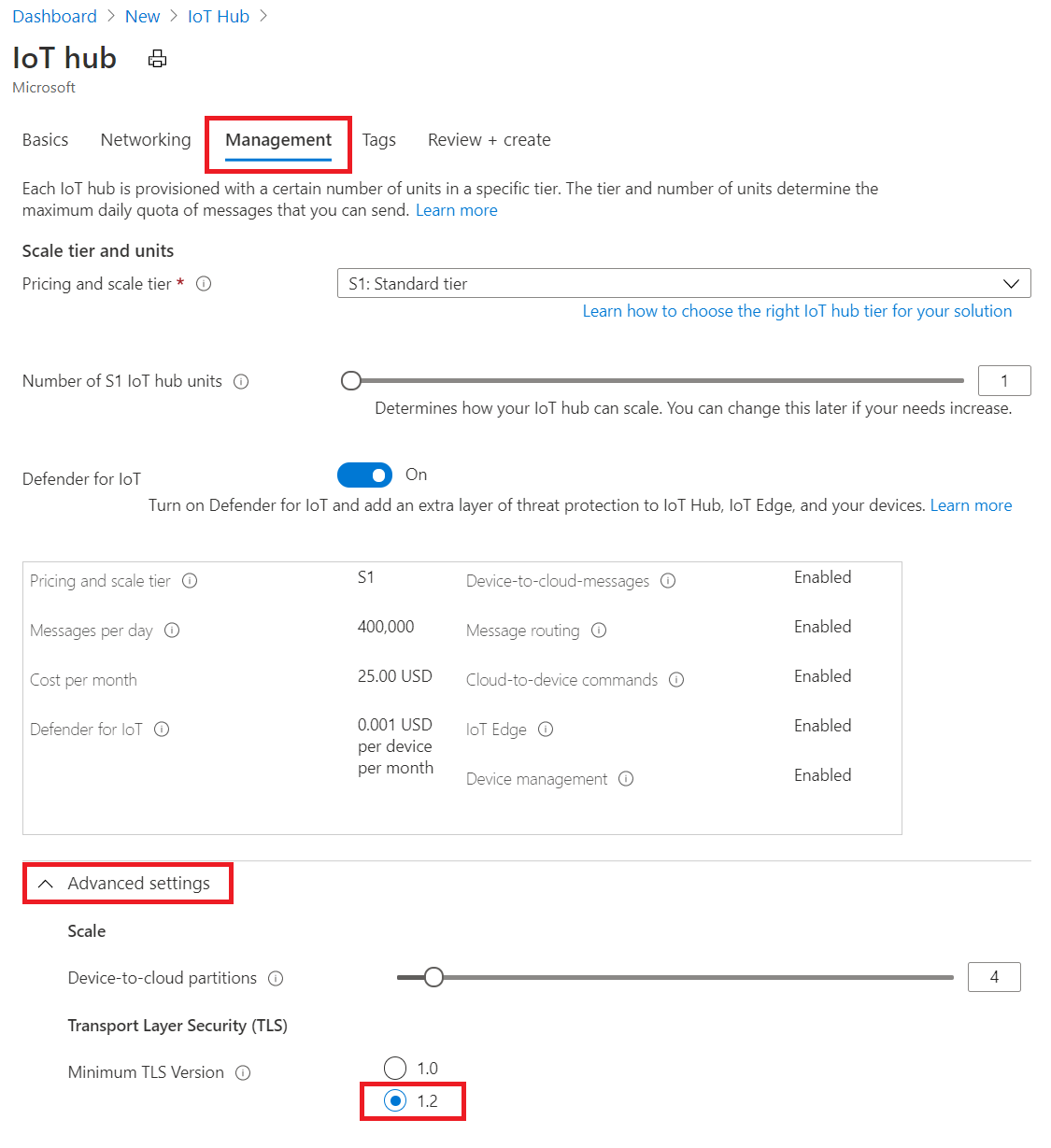
Select Create.
Connect your IoT devices to this IoT Hub.
To use an ARM template for creation, provision a new IoT Hub in any of the supported regions and set the minTlsVersion property to 1.2 in the resource specification:
{
    "$schema": "https://schema.management.azure.com/schemas/2015-01-01/deploymentTemplate.json#",
    "contentVersion": "1.0.0.0",
    "resources": [
        {
            "type": "Microsoft.Devices/IotHubs",
            "apiVersion": "2020-01-01",
            "name": "<provide-a-valid-resource-name>",
            "location": "<any-of-supported-regions-below>",
            "properties": {
                "minTlsVersion": "1.2"
            },
            "sku": {
                "name": "<your-hubs-SKU-name>",
                "tier": "<your-hubs-SKU-tier>",
                "capacity": 1
            }
        }
    ]
}
The created IoT hub resource refuses device and service clients that attempt to connect by using TLS versions 1.0 and 1.1. Similarly, the TLS handshake is refused if the ClientHello message doesn't list any of the recommended ciphers.
Note
Upon failover, the minTlsVersion property of your IoT Hub remains effective in the geo-paired region after failover.
Check TLS versions and cipher suites for IoT Hub devices
Azure IoT Hub provides the capability to check the TLS version, cipher suites, and other device connection metrics to help monitor the security of IoT devices. You can use either IoT Hub metrics or diagnostic logs to track TLS version usage and other related properties like Cipher Suites.
Note
Currently, this feature is only available in public cloud regions.
Check TLS versions and cipher suites using IoT Hub metrics
To validate that device traffic to IoT Hub uses TLSv1.2 and strong cipher suites, check IoT Hub metrics. You can filter by TLS version or cipher suite and check the number of successful connections.
In the Azure portal, go to your IoT hub.
In the left-side menu under Monitoring, select Metrics.
Add the metric Successful Connects.

Filter by TLS version or cipher suite by selecting the Add filter button and choosing the appropriate property, TLS version or cipher suite, operator, such as "=", and value, such as TLSv1.2.

After you apply the filter, you see the sum of devices with successful IoT Hub connections based on the filtered property and values.
Check TLS versions and cipher suites by using IoT Hub diagnostic logs
Azure IoT Hub can provide diagnostic logs for several categories that you can analyze by using Azure Monitor Logs. In the connections log, you can find the TLS version and cipher suite for your IoT Hub devices.
To view these logs, follow these steps:
In the Azure portal, go to your IoT hub.
In the left-side menu under Monitoring, select Diagnostic settings. Ensure diagnostic settings have Connections checked.
In the left-side menu under Monitoring, select Logs.
Enter the following query:
AzureDiagnostics
| where ResourceProvider == "MICROSOFT.DEVICES" and ResourceType == "IOTHUBS"
| where Category == "Connections"
| where OperationName == "deviceConnect"
| extend props_json = parse_json(properties_s)
| project DeviceId = props_json.deviceId, TLSVersion = props_json.tlsVersion
An example of the query results looks like this:

Note
TLS version query isn't available for devices using HTTPS connections.
TLS configuration for SDK and IoT Edge
Use the following links to configure TLS 1.2 and allowed ciphers in IoT Hub client SDKs.
| Language | Versions supporting TLS 1.2 | Documentation |
|---|---|---|
| C | Tag 2019-12-11 or newer | Link |
| Python | Version 2.0.0 or newer | Link |
| C# | Version 1.21.4 or newer | Link |
| Java | Version 1.19.0 or newer | Link |
| Node.js | Version 1.12.2 or newer | Link |
IoT Edge devices can be configured to use TLS 1.2 when communicating with IoT Hub. For this purpose, use the IoT Edge documentation page.
Elliptic Curve Cryptography (ECC) server TLS certificate
While offering similar security to RSA certificates, ECC certificate validation (with ECC-only cipher suites) uses up to 40% less compute, memory, and bandwidth. These savings are important for IoT devices because of their smaller profiles and memory, and to support use cases in network bandwidth limited environments.
To use IoT Hub's ECC server certificate:
- Ensure all devices trust the following root CAs:
- DigiCert Global G2 root CA
- Microsoft RSA root CA 2017
- Configure your client to include only ECDSA cipher suites and exclude any RSA ones. These are the supported cipher suites for the ECC certificate:
TLS_ECDHE_ECDSA_WITH_AES_128_GCM_SHA256TLS_ECDHE_ECDSA_WITH_AES_256_GCM_SHA384TLS_ECDHE_ECDSA_WITH_AES_128_CBC_SHA256TLS_ECDHE_ECDSA_WITH_AES_256_CBC_SHA384
- Connect your client to the IoT hub.
Note
Currently, this feature is only available in public cloud regions.
TLS maximum fragment length negotiation
IoT Hub also supports TLS maximum fragment length negotiation, which is sometimes known as TLS frame size negotiation. This feature is in public preview.
Use this feature to specify the maximum plaintext fragment length to a value smaller than the default 2^14 bytes. Once negotiated, IoT Hub and the client begin fragmenting messages to ensure all fragments are smaller than the negotiated length. This behavior is helpful to compute or memory constrained devices. To learn more, see the official TLS extension spec.
Official SDK support for this public preview feature isn't yet available. To get started
- Create an IoT Hub.
- When using OpenSSL, call SSL_CTX_set_tlsext_max_fragment_length to specify the fragment size.
- Connect your client to the IoT Hub.
Note
Currently, this feature is only available in public cloud regions.
Certificate pinning
Certificate pinning and filtering of the TLS server certificates and intermediate certificates associated with IoT Hub endpoints is strongly discouraged as Microsoft frequently rolls these certificates with little or no notice. If you must, only pin the root certificates as described in this Azure IoT blog post.
TLS 1.3 support (preview)
Azure IoT Hub supports TLS 1.3 through new device and service endpoints available alongside the existing classic endpoint. These endpoints are provisioned automatically on all IoT hubs and can be adopted at your own pace.
Endpoints
| Endpoint | Hostname | TLS support |
|---|---|---|
| Classic | <hub>.azure-devices.net |
TLS 1.2 |
| Device (preview) | <hub>.device.azure-devices.net |
TLS 1.2 (restricted ciphers) + TLS 1.3 |
| Service (preview) | <hub>.service.azure-devices.net |
TLS 1.2 (restricted ciphers) + TLS 1.3 |
The classic endpoint remains fully supported and continues to be the default for existing workloads.
Requirements
The new endpoints have stricter requirements than the classic endpoint:
- SNI is required. Clients must send the Server Name Indication (SNI) extension in the TLS handshake.
- Restricted cipher suites. Only security-compliant cipher suites are supported. Devices that rely on cipher suites not in this set fail to connect. For the list of supported cipher suites, see Cipher suites.
- Devices using TLS 1.2 can connect to the new endpoints if they support the required cipher suites.
Use the new endpoints
To retrieve connection strings for the new endpoints, use the --hostname-type parameter:
# Device connection string using the TLS 1.3-capable device endpoint
az iot hub device-identity connection-string show \
  --hub-name <hub-name> \
  --resource-group <resource-group> \
  --device-id <device-id> \
  --hostname-type device

# Hub connection string using the service endpoint
az iot hub connection-string show \
  --hub-name <hub-name> \
  --resource-group <resource-group> \
  --hostname-type service
To verify the endpoints available on your hub:
az iot hub show --name <hub-name> --resource-group <resource-group> \
  --query "{classic:properties.hostName, device:properties.deviceHostName}" \
  --output json
Note
The service hostname type isn't valid for device or module connection strings. Use device or classic for device-side connections.
Migrate to the TLS 1.3 endpoints
Adoption of the new endpoints is optional and customer-controlled. To migrate:
- Verify your devices and clients support SNI and the required cipher suites.
- Test connectivity using the device endpoint in a staging environment.
- Update your device connection strings to use
<hub>.device.azure-devices.net. - For backend services, update connection strings to use
<hub>.service.azure-devices.net.
To roll back, update connection strings to use the original <hub>.azure-devices.net hostname.
If your IoT hub is reached over a private endpoint (Azure Private Link), the new device and service hostnames must also resolve to a private IP address in your virtual network. In most cases this happens automatically, but static IP allocation or a full subnet can require manual action. See Update private endpoints to enable TLS 1.3.
Important
Don't use the service endpoint (<hub>.service.azure-devices.net) for device connections. It is intended for backend services only.
For information about using the new endpoints with Device Provisioning Service (DPS), see Manage linked IoT hubs in DPS.
Next steps
- To learn more about IoT Hub security and access control, see Control access to IoT Hub.
- To learn more about using X509 certificate for device authentication, see Device Authentication using X.509 CA Certificates.