Note
Access to this page requires authorization. You can try signing in or changing directories.
Access to this page requires authorization. You can try changing directories.
Azure DevOps Services | Azure DevOps Server | Azure DevOps Server 2022
Manage who can access your Git repositories and which actions they can perform. Set permissions at the All Repositories level to apply them to every Git repository in a project, or set permissions for an individual repository. Individual repositories inherit permissions from the project-level Git repositories entry.
Note
Branches inherit a subset of permissions from assignments made at the repository level. For branch permissions and policies, see Set branch permissions and Improve code quality with branch policies.
For a comprehensive security guide covering repository permissions, branch policies, commit signing, and real-world implementation scenarios, see Secure repositories and pull requests.
For guidance on who to provide greater permission levels, see Manage access by using permissions.
Prerequisites
| Category | Requirements |
|---|---|
| Project access | Membership in an Azure DevOps project. |
| Permissions | Manage permissions for the project-level Git repositories entry to manage every repository in the project, or Manage permissions for an individual repository to manage that repository. Members of the Project Administrators group have this permission by default. For more information, see Permissions and groups reference. |
| Services | Azure Repos enabled. |
Review default repository permissions
By default, members of the project Contributors group have permissions to contribute to a repository. This permission level includes the ability to create branches, create tags, and manage notes. For a description of each security group and permission level, see Permissions and group reference.
Permission
Readers
Contributors
Build Administrators
Project Administrators
Read (clone, fetch, and explore the contents of a repository); also, can create, comment on, vote, and Contribute to pull requests
✔️
✔️
✔️
✔️
Contribute, Create branch, Create tag, and Manage notes
✔️
✔️
✔️
Create repository, Delete repository, and Rename repository
✔️
Edit policies, Manage permissions, Remove others' locks
✔️
Bypass policies when completing pull requests, Bypass policies when pushing, Force push (rewrite history, delete branches and tags)
(not set for any security group)
Starting with Azure DevOps sprint 224, branch creators don't automatically get the Edit policies permission. This permission isn't granted even if the Permission management setting is on for the repository. Grant Edit policies explicitly through inheritance, group membership, or a direct assignment.
In Azure DevOps Server 2022.1 and later, branch creators don't automatically get the Edit policies permission. This permission isn't granted even if the Permission management setting is on for the repository. Grant Edit policies explicitly through inheritance, group membership, or a direct assignment. For more information, see Azure DevOps Server 2022 Update 1 release notes.
Understand permission states
Before you change a permission, review how Azure DevOps evaluates permission states:
- Not set doesn't grant or deny the permission. Permissions assigned through another group or inherited from a parent scope can still apply.
- Allow grants the permission unless a more specific or applicable Deny overrides it.
- Deny generally overrides Allow, including permissions inherited or granted through another group. When you deny a permission for a group, the denial affects all members of that group.
Review group membership and inherited permissions before you assign Deny. For more information, see About permissions and groups.
Open repository security
Set Git repository permissions from Project settings > Repositories.
Open the web portal and select the project where you want to add users or groups. To select another project, see Switch project, repository, team.
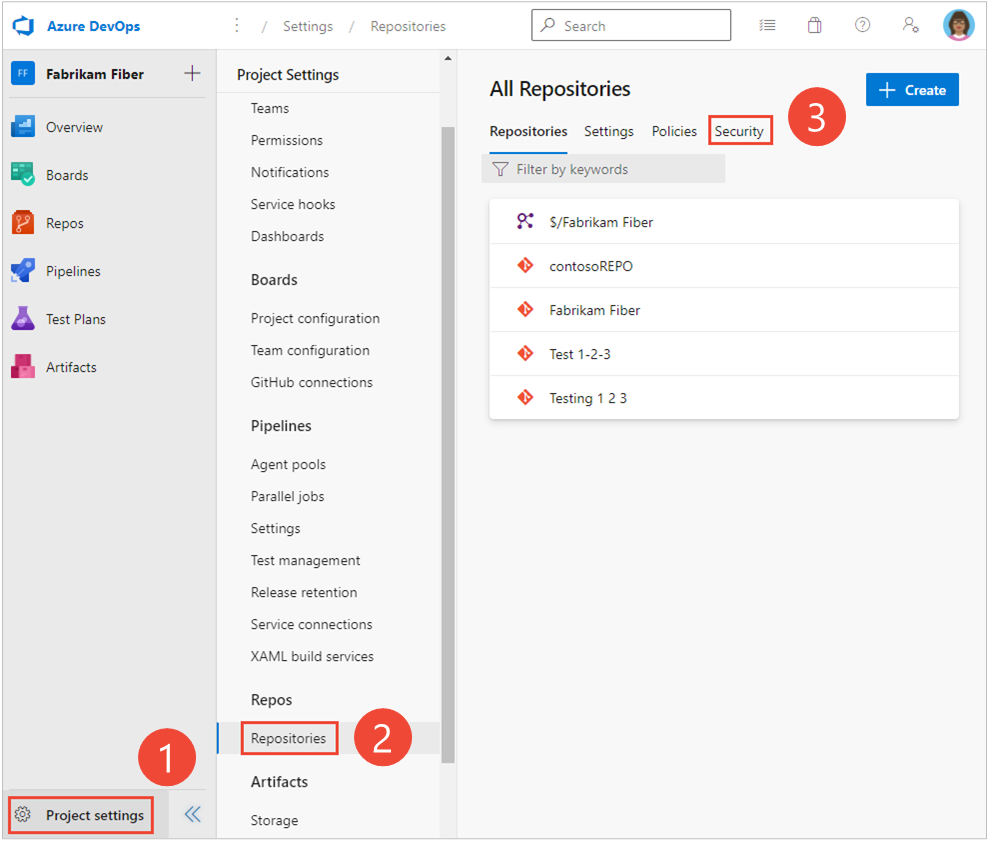
Select Project settings > Repositories.
To set permissions for every Git repository in the project, select All Repositories > Security.
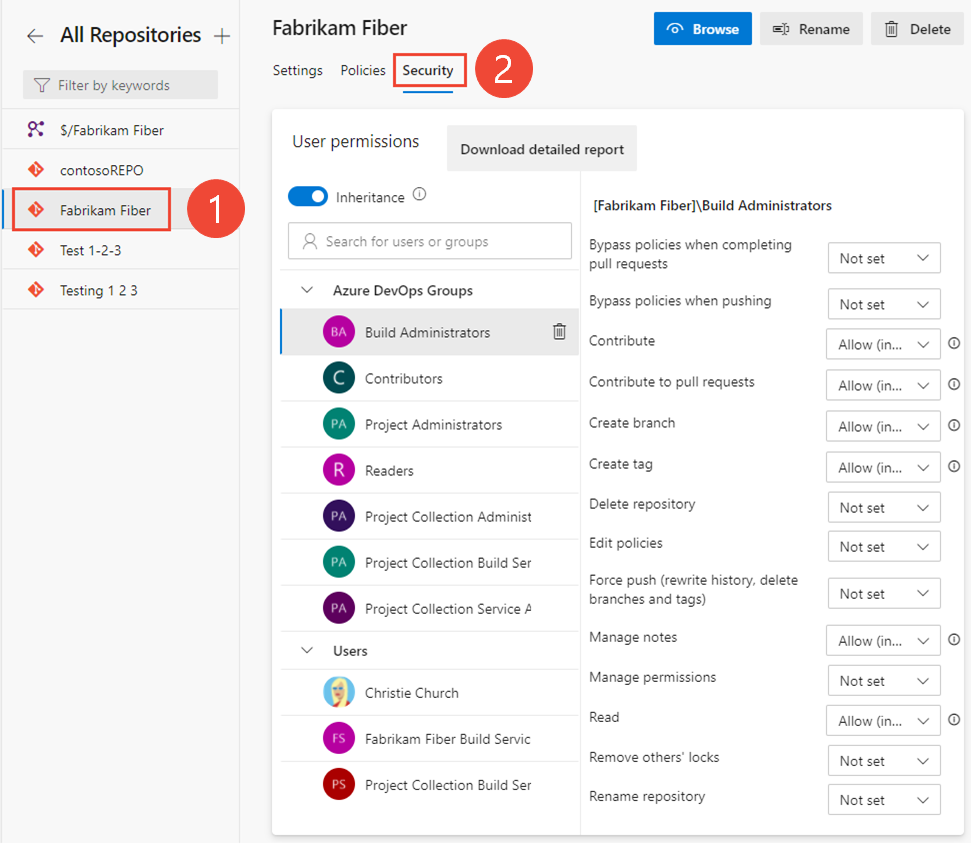
To set permissions for a specific repository, select the repository, and then select Security.
Set Git repository permissions from Project settings > Repositories.
Open the web portal and select the project where you want to manage permissions. To select another project, see Switch project, repository, team.
Select Project settings > Repositories.
To set permissions for every Git repository in the project, select Git repositories, and then select the user or security group whose permissions you want to manage.
To see the full image, click the image to expand. Choose the
 close icon to close.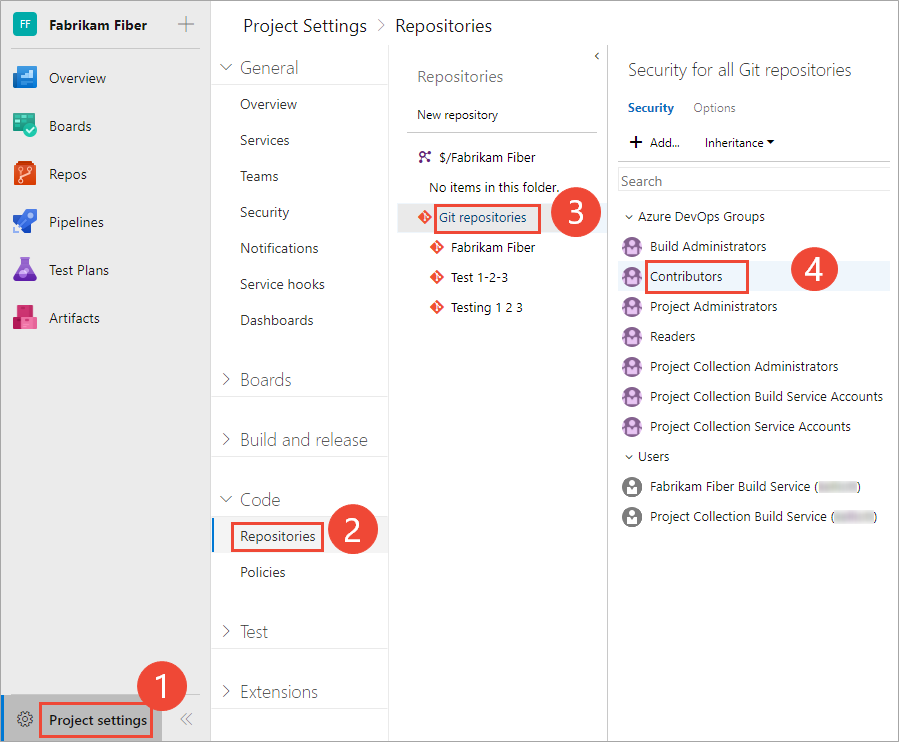
Otherwise, select a specific repository, and then select the user or security group whose permissions you want to manage.
Change the permissions, and then select Save changes.
Confirm that each changed permission retains its new state.

Change permissions for a group
To set permissions for a custom security group, first define the group. For more information, see Change project-level permissions.
Select the group to set permissions. For example, select Contributors.
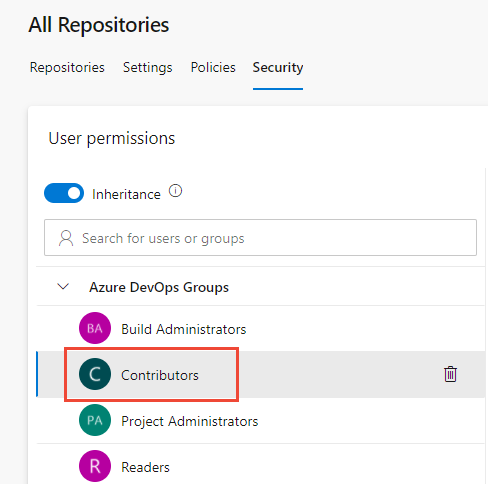
Change one or more permissions. To grant a permission, select Allow. To remove an explicit assignment and use inherited or group permissions, select Not set. Select Deny only when you need to override an applicable Allow.
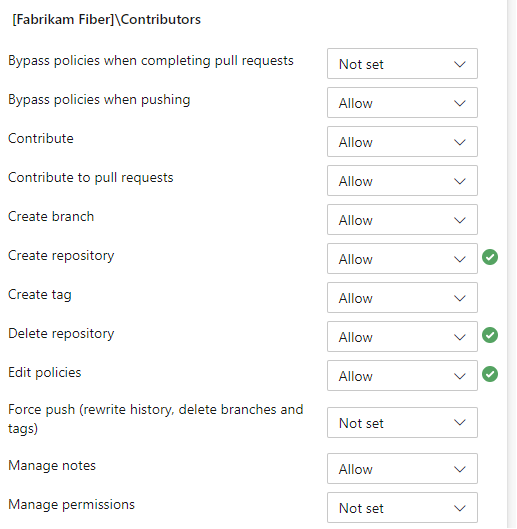
The permission changes are automatically saved. Confirm that each changed permission displays the intended state.
Change permissions for a user
Enter the name of the user in the search filter and select from the identities that appear to set permissions for a specific user.
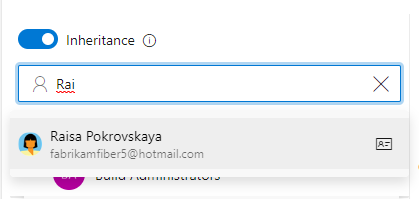
Change one or more permissions for the selected user.
Note
You might not be able to find a user from a permissions page or identity field if the user wasn't added to the project either by adding it to a security group or to a project team. Also, when a user is added to Microsoft Entra ID or Active Directory, there can be a delay between the time when they're added to the project and when they're searchable from an identity field. The delay can be between 5 minutes to 7 days.
The permission changes are automatically saved for the selected user. Confirm that each changed permission displays the intended state.
You might add a user or group and not change any permissions for that user or group. After the permissions page refreshes, the user or group no longer appears.
Configure inheritance for a repository
Before you change inheritance, record the current setting and review the repository's explicit and inherited permissions. When you turn off inheritance, permissions from the project-level Git repositories entry no longer flow to the repository. Verify that the remaining assignments provide the intended access before you continue.
To enable or disable inheritance for a specific repository, select the repository, and then set Inheritance to On or Off.
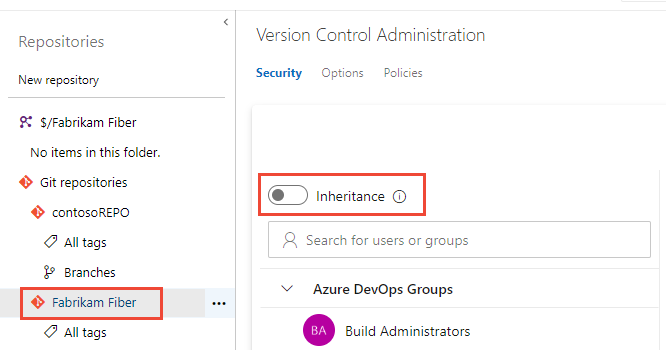
After you change inheritance, verify the repository's permission assignments with a representative affected user. If the result is incorrect, restore the previous setting and permission states. To learn about inheritance, see About permissions and groups.
Configure policy bypass permissions
There are many scenarios where you have the occasional need to bypass a branch policy. Some examples are when you revert a change that caused a build break or apply a hotfix in the middle of the night.
Previously, the Exempt from policy enforcement permission helped teams manage which users were granted the ability to bypass branch policies when they completed a pull request. However, that permission also granted users the ability to push directly to the branch and bypass the PR process entirely.
The following two permissions replace Exempt from policy enforcement and provide more granular control:
- Bypass policies when completing pull requests: Users with this permission can use the override experience for pull requests.
- Bypass policies when pushing: Users with this permission can push directly to branches with required policies that are configured.
To let a user bypass policies only when completing pull requests, set Bypass policies when completing pull requests to Allow. Leave Bypass policies when pushing as Not set if the user doesn't receive Allow through another assignment. Set it to Deny only when you need to override an applicable Allow.
Note
Users who previously had Exempt from policy enforcement set to Allow received Allow for both replacement permissions. Review these assignments and set Bypass policies when pushing to Not set when users don't need to push directly to protected branches and no other assignment grants the permission.
Troubleshoot permission changes
Use the following guidance when a permission change doesn't have the expected result:
| Issue | Resolution |
|---|---|
| You can't change a permission | Verify that you have Manage permissions at the project-level Git repositories entry or the selected repository. |
| A user or group doesn't appear in search | Add the identity to the project through a team or security group. Identity changes can take time to appear in search. |
| An Allow doesn't grant access | Check the user's group memberships and more specific scopes for an applicable Deny. |
| A permission affects the wrong repositories | Confirm whether you changed All Repositories or an individual repository. |
| A permission returns after you select Not set | Check whether the permission is inherited or granted through another group. |
| Disabling inheritance removes access | Restore the previous inheritance setting or explicit permission assignments that you recorded before the change. |
After you resolve the issue, have a representative affected user verify the intended repository action.
Tip
You can use AI to help with Azure DevOps tasks. See Enable AI assistance with Azure DevOps MCP Server to get started.