Note
Access to this page requires authorization. You can try signing in or changing directories.
Access to this page requires authorization. You can try changing directories.
Azure DevOps Services | Azure DevOps Server | Azure DevOps Server 2022
Azure Artifacts stores package versions that you publish directly to your feeds and versions saved from upstream sources. Over time, older or unused versions can increase storage usage and make feeds harder to manage. You can delete packages manually or use retention policies to remove older versions automatically. Deleted packages stay in the Recycle Bin for 30 days before Azure Artifacts permanently deletes them.
This article explains how to delete packages, configure retention policies, and restore deleted packages in Azure Artifacts.
Prerequisites
| Product | Requirements |
|---|---|
| Azure DevOps | - An Azure DevOps organization. - An Azure DevOps project. - An Azure Artifacts feed. - Permissions: - You must be a Feed Owner to set up retention policies, delete packages and feeds, or restore packages from the recycle bin. - You must be a Feed Publisher (Contributor) or higher to unlist, deprecate, or yank packages. |
Delete packages
In Azure Artifacts, packages are immutable. After you publish a package version to a feed, you can't modify that version or reuse its version number for a new package. This behavior helps preserve package integrity across your feeds and prevents builds or consumers from receiving different content for the same version. Even if you delete the package later, Azure Artifacts keeps the version in the feed's history, and that version number remains permanently reserved.
For NuGet packages, you can either Unlist or Delete a package version. Unlisting hides the package version from search results in Azure Artifacts feeds and on NuGet.org, but the package remains in the feed. Deleting a package version moves it to the Recycle Bin and makes it unavailable for installation.
Sign in to your Azure DevOps organization, and then navigate to your project.
Select Artifacts, and then select your feed from the dropdown menu.
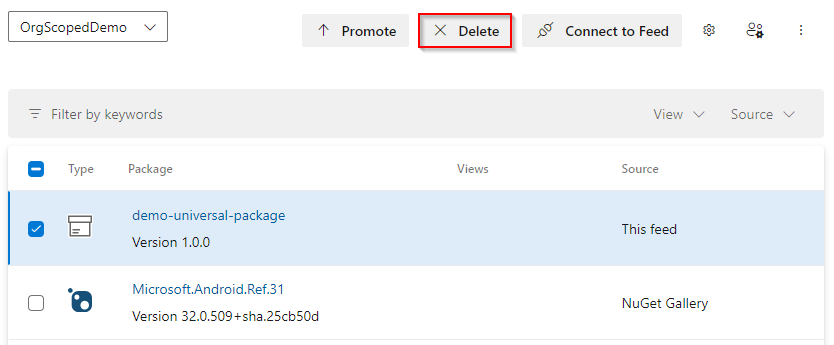
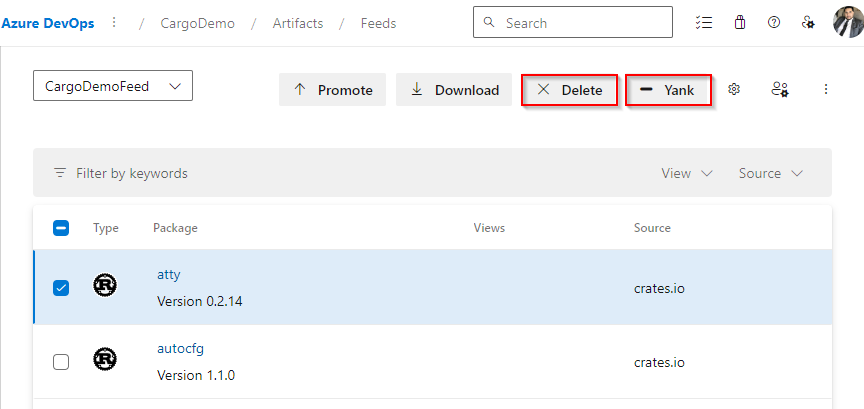
Select the package you want to delete, then select Unlist to hide it from search results in Azure Artifacts feeds and on NuGet.org, or Delete to move it to the recycle bin.
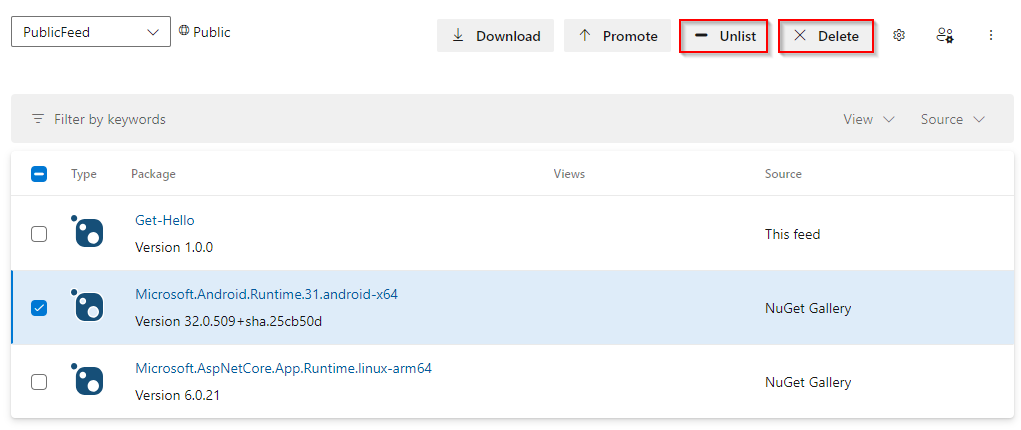
Unlist packages (CLI)
Sign in to your Azure DevOps organization, then navigate to your project.
Select Artifacts, then select your feed from the dropdown menu.
Select Connect to feed > NuGet.exe, then find and copy your Package Source URL. It should follow this format:
https://pkgs.dev.azure.com/OrganizationName/ProjectName/_packaging/FeedName/nuget/v3/index.json.Run the following command to unlist your package. The ApiKey argument is required, but Azure Artifacts treats it as a placeholder value for this operation, so you can use any string:
nuget.exe delete <PACKAGE_NAME> <PACKAGE_VERSION> -Source <PACKAGE_SOURCE_URL> -ApiKey <ANY_STRING>
Important
Azure DevOps interprets the nuget.exe delete command as an unlisting operation. Running this command doesn't delete the package from your feed. Instead, it hides the package from search results in Azure Artifacts feeds and on NuGet.org. To delete a package from the feed, use the REST API or delete it manually from the web interface.
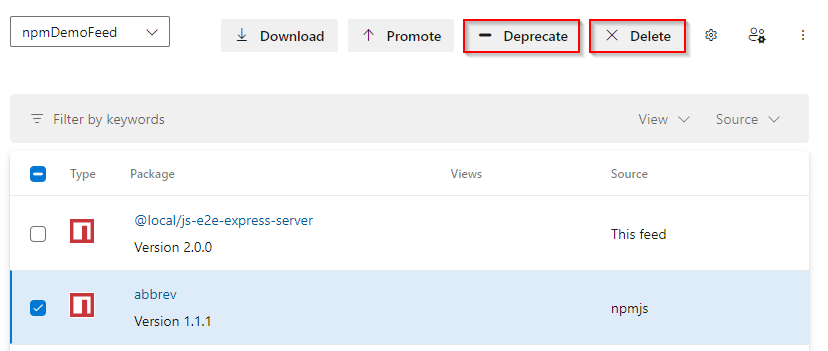
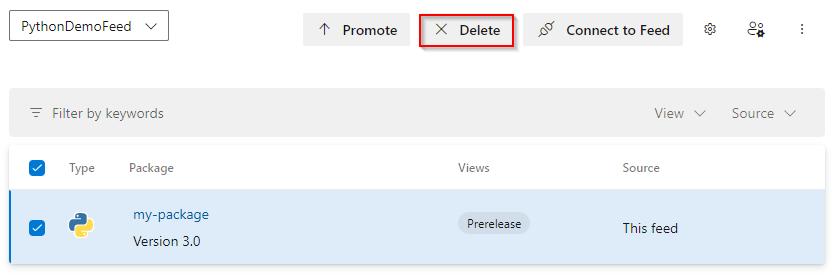
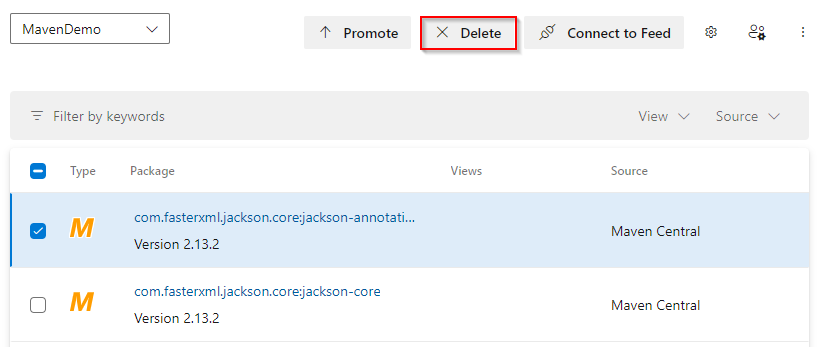
Delete packages permanently
Deleted packages stay in the Recycle Bin for 30 days before Azure Artifacts removes them automatically. During that 30-day window, those packages still count toward your storage usage. If you don't need to restore a package, you can permanently delete it from the Recycle Bin to remove it sooner.
Sign in to your Azure DevOps organization, and then navigate to your project.
Select Artifacts, then select your feed from the dropdown menu.
In the upper-right corner, select Recycle Bin.
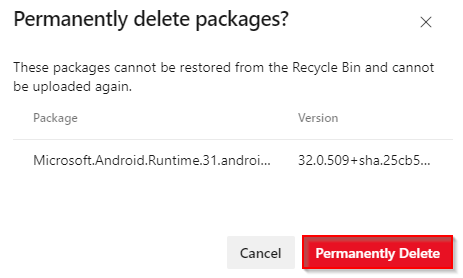
Select the package you want to remove, and then select Permanently Delete.

Select Permanently Delete again to confirm your decision.
Delete packages automatically with retention policies
As the number of package versions in your feed grows, storage usage can increase rapidly. Retention policies help you manage that growth by automatically removing older package versions that you no longer need.
If you need to keep a package version indefinitely, promote it to a view. Packages in a view are exempt from retention policies, so these cleanup rules don't delete them. To configure retention policies for your feed, follow these steps:
Note
Azure Artifacts does not support package demotion. Once a package is promoted to a view, it cannot be reverted back to @local.
Sign in to your Azure DevOps organization, and then navigate to your project.
Select Artifacts, then select the gear icon
 in the upper-right corner to access your feed's settings.
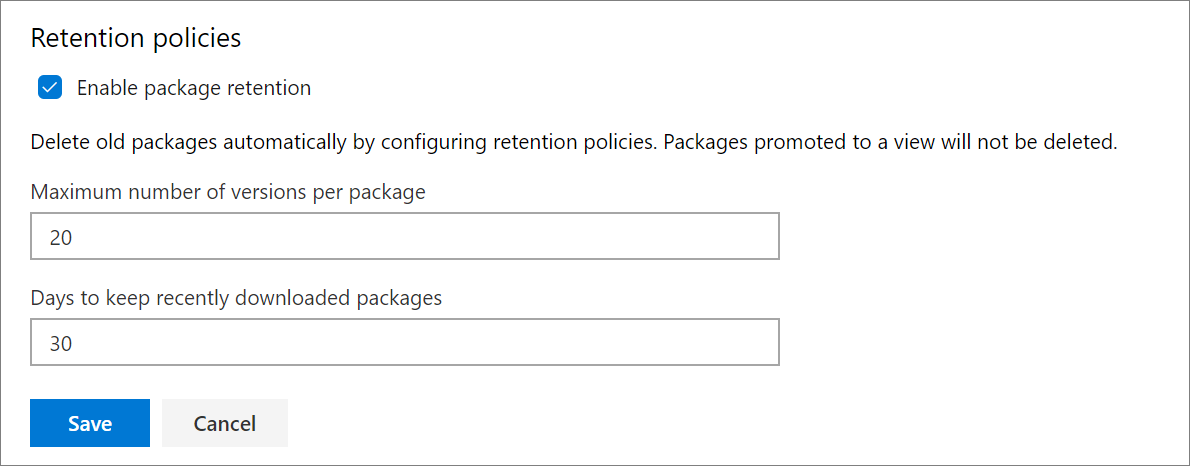
Select Feed details, select Enable package retention, and then configure the following settings:
Maximum number of versions per package: The number of versions to keep for each package.
Days to keep recently downloaded packages: A package version is deleted only if it wasn't downloaded for the number of days you specify.
Select Save when you're done.
Note
When you enable retention policies, Azure Artifacts deletes a package version only when both of the following conditions are true:
- The total number of published versions reaches the Maximum number of versions per package limit.
- A version of that package has not been downloaded within the timeframe specified in Days to keep recently downloaded packages.
Restore deleted packages
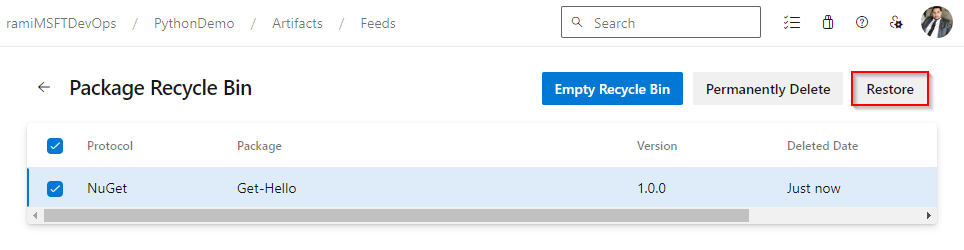
Azure Artifacts keeps deleted packages in the Recycle Bin for 30 days before it permanently deletes them. During that time, you can restore a package version if you deleted it by mistake or if a team still depends on it. To restore a package from the Recycle Bin, follow these steps:
Sign in to your Azure DevOps organization, and then navigate to your project.
Select Artifacts, then select Recycle Bin.
Select the package you want to restore, and then select Restore.
Select Restore again to confirm your decision.
Q&A
What's the difference between deprecating, unlisting, yanking, and deleting a package version?
The action you use depends on the package type and on whether you want to hide a package version, discourage its use, or remove it from the feed:
- Deprecate (npm): Adds a warning message to the package metadata. Consumers see the warning when they view or install the package.
- Unlist (NuGet): Hides the package version from search results in Azure Artifacts feeds and on NuGet.org, but doesn't remove it from the feed.
- Yank (Cargo): Marks the package version as unavailable for new dependencies without deleting it from the feed.
- Delete: Moves the package version to the Recycle Bin and makes it unavailable for installation or download. You can restore it for 30 days before Azure Artifacts permanently deletes it.
You can delete package versions from npm, Maven, Python, Cargo, and Universal Packages feeds. Package-type-specific actions such as deprecate, unlist, and yank are available only for the ecosystems that support them.
How do I delete all versions of a package?
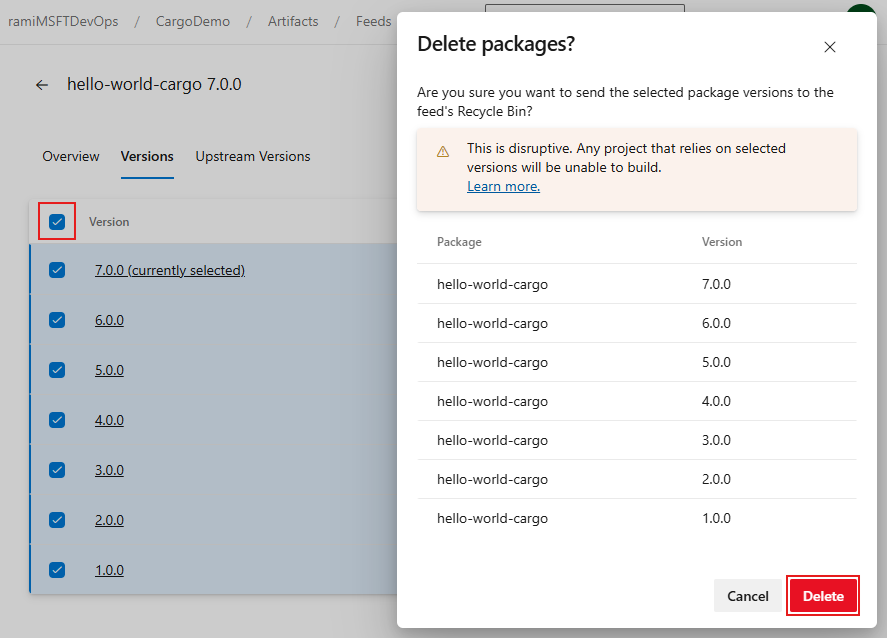
To delete all versions of a package, select the package in your feed, select Versions, and then select the checkbox next to Version to select all available versions. Select Delete, and then confirm the deletion when prompted.
What happens to older package versions when I enable retention policies?
When you enable retention policies, Azure Artifacts evaluates existing package versions and newly published versions against the policy settings. Package versions that meet the retention criteria are soft-deleted and moved to the Recycle Bin.
The cleanup job runs once a day. When you enable retention policies for the first time, there can be an initial delay before older package versions are processed.
Deleted packages remain in the Recycle Bin for 30 days before Azure Artifacts permanently deletes them. If you want to stop those packages from counting toward billable storage before the 30-day period ends, permanently delete them from the Recycle Bin by using the web interface or the REST API.
What if I don't want to enable retention policies?
Azure Artifacts retention policies are designed to help manage your dependencies and streamline storage cost management. If you don't enable retention policies, you must manage package cleanup manually by monitoring storage usage and deleting package versions as needed. This approach gives you full control over what stays in the feed, but it also requires ongoing maintenance as package versions accumulate.
Azure Artifacts includes 2 GiB of free storage per organization. After you exceed that limit, you can't publish new artifacts until you set up billing and increase your storage limit.
How long does it take for billed storage to update after I delete packages?
Typically, storage consumption should update within 24 hours. However, in some cases, it might take up to 48 hours for the changes to be reflected. The Artifacts usage on your organization's billing page updates once a day, while the Artifact Storage page is updated more frequently, which could lead to a slight discrepancy between the two.