A Log Analytics workspace retains data in two states:
- Analytics retention: In this state, data is available for monitoring, troubleshooting, and near-real-time analytics.
- Long-term retention: In this low-cost state, data isn't available for table plan features, but can be accessed through search jobs.
This article explains how Log Analytics workspaces retain data and how to manage the data retention of tables in your workspace.
Analytics, long-term, and total retention
By default, all tables in a Log Analytics workspace retain data for 30 days, except for log tables with 90-day default retention. Tables with the Analytics plan make your data available for real-time queries during this Analytics retention period. All table plans can retrieve the stored data through queries or search jobs, and the data is available for visualizations, alerts, and other features and services, based on the table plan.
You can extend the analytics retention period of tables with the Analytics plan up to two years. Basic plan tables have a fixed period of 30 days for queries while Auxiliary plan tables can be queried for the total retention period. Both Basic and Auxiliary tables have additional considerations however. For more information, see Query data in Basic and Auxiliary tables.
Note
You can reduce the analytics retention period of Analytics tables to as little as four days using the API or CLI. However, since 31 days of analytics retention are included in the ingestion price, lowering the retention period below 31 days doesn't reduce costs.
To retain data in the same table beyond the default retention period, extend the table's total retention to up to 12 years. At the end of the analytics retention period, the data stays in the table for the remainder of the total retention period you configure. During this period - the long-term retention period - run a search job to retrieve the specific data you need from the table and make it available for interactive queries in a search results table.
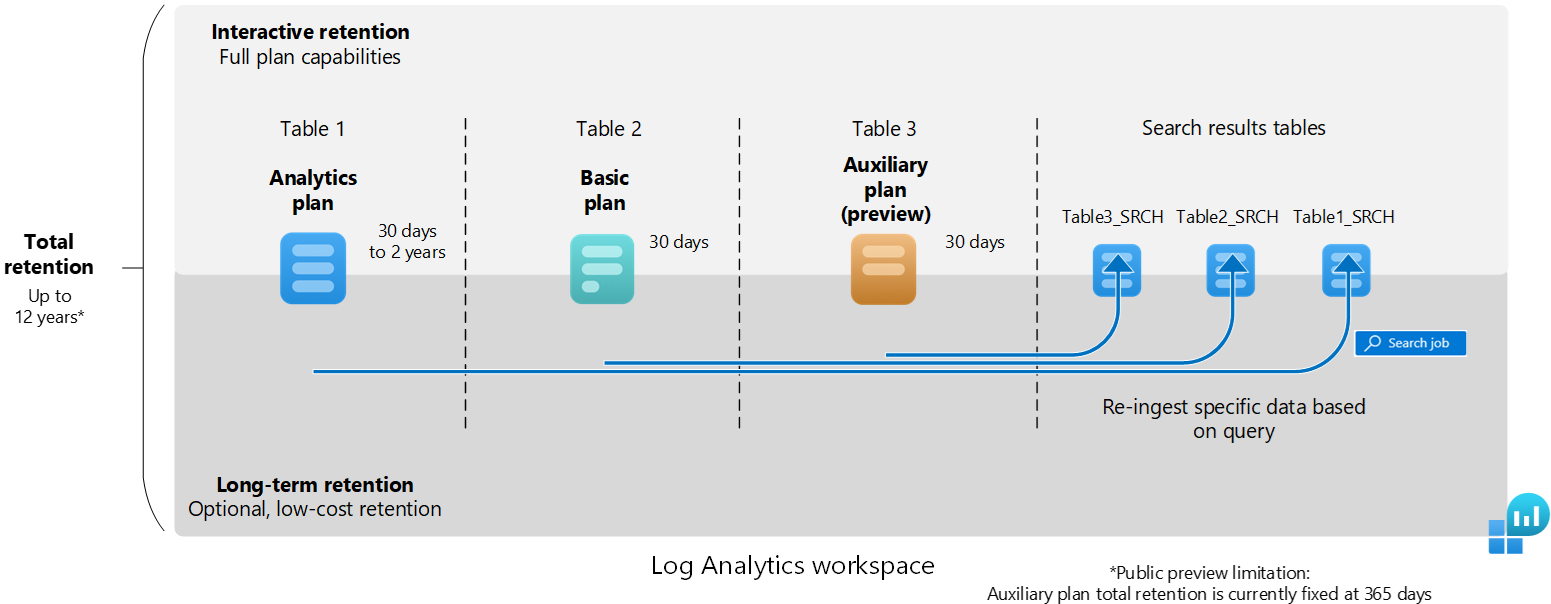
How retention modifications work
When you shorten a table's total retention, Azure Monitor Logs waits 30 days before removing the data, so you can revert the change and avoid data loss if you made an error in configuration.
When you increase total retention, the new retention period applies to all data that was already ingested into the table and wasn't yet removed.
When you change the long-term retention settings of a table with existing data, the change takes effect immediately.
Example:
- You have an existing Analytics table with 180 days of analytics retention and no long-term retention.
- You change the analytics retention to 90 days without changing the total retention period of 180 days.
- Azure Monitor automatically treats the remaining 90 days of total retention as low-cost, long-term retention, so that data that's 90-180 days old isn't lost.
Permissions required
| Action |
Permissions required |
| Configure default analytics retention for Analytics tables in a Log Analytics workspace |
Microsoft.OperationalInsights/workspaces/write and microsoft.operationalinsights/workspaces/tables/write permissions to the Log Analytics workspace, as provided by the Log Analytics Contributor built-in role, for example |
| Get retention setting by table for a Log Analytics workspace |
Microsoft.OperationalInsights/workspaces/tables/read permissions to the Log Analytics workspace, as provided by the Log Analytics Reader built-in role, for example |
The default retention period of Analytics tables in a Log Analytics workspace is 30 days. You can change the default analytics period of Analytics tables up to two years by modifying the workspace-level data retention setting. Basic and Auxiliary tables only have a total retention period, which is 30 days by default.
Changing the default workspace-level data retention setting automatically affects all Analytics tables to which the default setting still applies in your workspace. If you've already changed the analytics retention of a particular table, that table isn't affected when you change the workspace default data retention setting.
Important
Workspaces with 30-day retention might keep data for 31 days. If you need to retain data for 30 days only to comply with a privacy policy, configure the default workspace retention to 30 days using the API and update the immediatePurgeDataOn30Days workspace property to true. This operation is currently only supported using the Workspaces - Update API.
The following examples set the table's interactive retention to 30 days.
To set the default analytics retention period of Analytics tables within a Log Analytics workspace:
From the Log Analytics workspaces menu in the Azure portal, select your workspace.
In the Settings section, select Usage and estimated costs in the left pane.
Select Data Retention at the top of the page.

Move the slider to increase or decrease the number of days, and then select OK.
The following Azure CLI example uses the az monitor log-analytics workspace update command. It sets the default interactive retention period for Analytics tables in a Log Analytics workspace using the --retention-time parameter.
# Set variables
resourceGroupName="<ResourceGroupName>"
workspaceName="<WorkspaceName>"
retentionInDays="30"

# Update the default workspace retention
az monitor log-analytics workspace update \
  --resource-group "$resourceGroupName" \
  --workspace-name "$workspaceName" \
  --retention-time "$retentionInDays"
Note
Azure CLI commands use the Azure Resource Manager endpoint from the current CLI context, so management.azure.com doesn't need to be specified in the command syntax.
The following Azure PowerShell example uses the Set-AzOperationalInsightsWorkspace cmdlet. It sets the default interactive retention period for Analytics tables in a Log Analytics workspace using the -RetentionInDays parameter.
# Set variables
$resourceGroupName = "<ResourceGroupName>"
$workspaceName = "<WorkspaceName>"
$retentionInDays = "30"

# Define parameters for Set-AzOperationalInsightsWorkspace
$setAzOperationalInsightsWorkspaceParams = @{
    ResourceGroupName = $resourceGroupName
    Name              = $workspaceName
    RetentionInDays   = $retentionInDays
}

# Update the default workspace retention
Set-AzOperationalInsightsWorkspace @setAzOperationalInsightsWorkspaceParams
Note
Azure PowerShell cmdlets use the Azure Resource Manager endpoint from the current Az context, so management.azure.com doesn’t need to be specified in the cmdlet syntax.
The following REST example uses the Workspaces - Update REST API operation. It sets the default interactive retention period for Analytics tables in a Log Analytics workspace.
It also ensures that data is immediately removed after 30 days and is nonrecoverable.
PATCH https://management.azure.com/subscriptions/{SubscriptionId}/resourceGroups/{ResourceGroupName}/providers/Microsoft.OperationalInsights/workspaces/{WorkspaceName}?api-version=2025-07-01
Authorization: Bearer {AccessToken}
Content-Type: application/json

{
  "properties": {
    "retentionInDays": 30,
    "features": {
      "immediatePurgeDataOn30Days": true
    }
  }
}
Request body properties:
The request body includes the values in the following table.
| Name |
Type |
Description |
properties.retentionInDays |
integer |
The workspace data retention in days. Allowed values are per pricing plan. See pricing tiers documentation for details. |
properties.features.immediatePurgeDataOn30Days |
boolean |
Flag that indicates whether data is immediately removed after 30 days and is nonrecoverable. Applicable only when workspace retention is set to 30 days. |
Response example:
Status code: 200
{
  "properties": {
    "retentionInDays": 30,
    "features": {
      "legacy": 0,
      "searchVersion": 1,
      "immediatePurgeDataOn30Days": true
    }
  }
}
The following Bicep example uses the Microsoft.OperationalInsights workspaces resource type. It sets the default interactive retention period for Analytics tables in a Log Analytics workspace.
param workspaceName string = '<WorkspaceName>'
param azureRegion string = '<AzureRegion>'
param retentionInDays int = 30

resource logAnalyticsWorkspace 'Microsoft.OperationalInsights/workspaces@2025-07-01' = {
  name: workspaceName
  location: azureRegion
  properties: {
    retentionInDays: retentionInDays
  }
}
The following ARM (JSON) example uses the Microsoft.OperationalInsights workspaces resource type. It sets the default interactive retention period for Analytics tables in a Log Analytics workspace.
{
  "$schema": "https://schema.management.azure.com/schemas/2019-04-01/deploymentTemplate.json#",
  "contentVersion": "1.0.0.0",
  "parameters": {
    "workspaceName": {
      "type": "string",
      "defaultValue": "<WorkspaceName>"
    },
    "azureRegion": {
      "type": "string",
      "defaultValue": "<AzureRegion>"
    },
    "retentionInDays": {
      "type": "int",
      "defaultValue": 30
    }
  },
  "resources": [
    {
      "type": "Microsoft.OperationalInsights/workspaces",
      "apiVersion": "2025-07-01",
      "name": "[parameters('workspaceName')]",
      "location": "[parameters('azureRegion')]",
      "properties": {
        "retentionInDays": "[parameters('retentionInDays')]"
      }
    }
  ]
}
By default, all tables with the Analytics data plan inherit the Log Analytics workspace's default retention setting and have no long-term retention. You can increase the analytics retention period of Analytics tables to up to 730 days at an extra cost.
To add long-term retention to a table with any data plan, set total retention to up to 12 years (4,383 days).
Note
Currently, you can set total retention to up to 12 years through the Azure portal and API. CLI and PowerShell are limited to seven years; support for 12 years will follow.
The following examples set the table's interactive retention to 30 days and the total retention to two years (730 days), which means the long-term retention period is 23 months.
To modify the retention setting for a table in the Azure portal:
From the Log Analytics workspaces menu, select Tables.
The Tables screen lists all the tables in the workspace.
Select the context menu for the table you want to configure and select Manage table.

Configure the analytics retention and total retention settings in the Data retention settings section of the table configuration screen.

The following Azure CLI example uses the az monitor log-analytics workspace table update command. It modifies the retention settings for a specific table using the --retention-time and --total-retention-time parameters.
Set custom retention:
# Set variables
resourceGroupName="<ResourceGroupName>"
workspaceName="<WorkspaceName>"
tableName="<TableName>"
retentionInDays="30"
totalRetentionInDays="730"

# Update the table retention settings
az monitor log-analytics workspace table update \
  --resource-group "$resourceGroupName" \
  --workspace-name "$workspaceName" \
  --name "$tableName" \
  --retention-time "$retentionInDays" \
  --total-retention-time "$totalRetentionInDays"
Reset to workspace defaults:
To reapply the workspace's default retention value to the table and reset its total retention to 0, run the az monitor log-analytics workspace table update command with the --retention-time and --total-retention-time parameters set to -1.
# Set variables
resourceGroupName="<ResourceGroupName>"
workspaceName="<WorkspaceName>"
tableName="<TableName>"
retentionInDays="-1"
totalRetentionInDays="-1"

# Update the table retention settings
az monitor log-analytics workspace table update \
  --resource-group "$resourceGroupName" \
  --workspace-name "$workspaceName" \
  --name "$tableName" \
  --retention-time "$retentionInDays" \
  --total-retention-time "$totalRetentionInDays"
The following Azure PowerShell example uses the Update-AzOperationalInsightsTable cmdlet. It modifies the retention settings for a specific table using the -RetentionInDays and -TotalRetentionInDays parameters.
Set custom retention:
# Set variables
$resourceGroupName = "<ResourceGroupName>"
$workspaceName = "<WorkspaceName>"
$tableName = "<TableName>"
$retentionInDays = "30"
$totalRetentionInDays = "730"

# Define parameters for Update-AzOperationalInsightsTable
$updateAzOperationalInsightsTableParams = @{
    ResourceGroupName    = $resourceGroupName
    WorkspaceName        = $workspaceName
    TableName            = $tableName
    RetentionInDays      = $retentionInDays
    TotalRetentionInDays = $totalRetentionInDays
}

# Update the table retention settings
Update-AzOperationalInsightsTable @updateAzOperationalInsightsTableParams
Reset to workspace defaults:
To reapply the workspace's default retention value to the table and reset its total retention to 0, run the Update-AzOperationalInsightsTable cmdlet with the -RetentionInDays and -TotalRetentionInDays parameters set to -1.
# Set variables
$resourceGroupName = "<ResourceGroupName>"
$workspaceName = "<WorkspaceName>"
$tableName = "<TableName>"
$retentionInDays = "-1"
$totalRetentionInDays = "-1"

# Define parameters for Update-AzOperationalInsightsTable
$updateAzOperationalInsightsTableParams = @{
    ResourceGroupName    = $resourceGroupName
    WorkspaceName        = $workspaceName
    TableName            = $tableName
    RetentionInDays      = $retentionInDays
    TotalRetentionInDays = $totalRetentionInDays
}

# Update the table retention settings
Update-AzOperationalInsightsTable @updateAzOperationalInsightsTableParams
The following REST example uses the Tables - Update REST API operation. It modifies the retention settings for a specific table.
You can use either PUT or PATCH, with the following difference:
- The PUT API sets
retentionInDays and totalRetentionInDays to the default value if you don't set non-null values.
- The PATCH API doesn't change the
retentionInDays or totalRetentionInDays values if you don't specify values.
PATCH https://management.azure.com/subscriptions/{SubscriptionId}/resourceGroups/{ResourceGroupName}/providers/Microsoft.OperationalInsights/workspaces/{WorkspaceName}/tables/{TableName}?api-version=2025-07-01
Authorization: Bearer {AccessToken}
Content-Type: application/json

{
  "properties": {
    "retentionInDays": 30,
    "totalRetentionInDays": 730
  }
}
Request body properties:
The request body includes the values in the following table.
| Name |
Type |
Description |
properties.retentionInDays |
integer |
The table's data retention in days. This value can be between 4 and 730.
Setting this property to null applies the workspace retention period. For a Basic and Auxiliary Logs table, the value is always 30. |
properties.totalRetentionInDays |
integer |
The table's total data retention including long-term retention. This value can be between 4 and 730; or 1095, 1460, 1826, 2191, 2556, 2922, 3288, 3653, 4018, or 4383. Set this property to null if you don't want long-term retention. |
Example response:
Status code: 200
{
  "properties": {
    "retentionInDays": 30,
    "totalRetentionInDays": 730,
    "archiveRetentionInDays": 700,
  },
}
The following Bicep example uses the Microsoft.OperationalInsights workspaces/tables resource type. It modifies the retention settings for a specific table.
param workspaceName string = '<WorkspaceName>'
param tableName string = '<TableName>'
param retentionInDays int = 30
param totalRetentionInDays int = 730

resource logAnalyticsWorkspace 'Microsoft.OperationalInsights/workspaces@2025-07-01' existing = {
  name: workspaceName
}

resource workspaceTable 'Microsoft.OperationalInsights/workspaces/tables@2025-07-01' = {
  parent: logAnalyticsWorkspace
  name: tableName
  properties: {
    retentionInDays: retentionInDays
    totalRetentionInDays: totalRetentionInDays
  }
}
The following ARM (JSON) example uses the Microsoft.OperationalInsights workspaces/tables resource type. It modifies the retention settings for a specific table.
{
  "$schema": "https://schema.management.azure.com/schemas/2019-04-01/deploymentTemplate.json#",
  "contentVersion": "1.0.0.0",
  "parameters": {
    "workspaceName": {
      "type": "string",
      "defaultValue": "<WorkspaceName>"
    },
    "tableName": {
      "type": "string",
      "defaultValue": "<TableName>"
    },
    "retentionInDays": {
      "type": "int",
      "defaultValue": 30
    },
    "totalRetentionInDays": {
      "type": "int",
      "defaultValue": 730
    }
  },
  "resources": [
    {
      "type": "Microsoft.OperationalInsights/workspaces/tables",
      "apiVersion": "2025-07-01",
      "name": "[format('{0}/{1}', parameters('workspaceName'), parameters('tableName'))]",
      "properties": {
        "retentionInDays": "[parameters('retentionInDays')]",
        "totalRetentionInDays": "[parameters('totalRetentionInDays')]"
      }
    }
  ]
}
Get retention settings by table
To view a table's retention settings in the Azure portal, from the Log Analytics workspaces menu, select Tables.
The Tables screen shows the analytics retention and total retention periods for all the tables in the workspace.

The following Azure CLI example uses the az monitor log-analytics workspace table show command. It retrieves the retention setting of a particular table.
# Set variables
resourceGroupName="<ResourceGroupName>"
workspaceName="<WorkspaceName>"
tableName="<TableName>"

# Retrieve the table retention settings
az monitor log-analytics workspace table show \
  --resource-group "$resourceGroupName" \
  --workspace-name "$workspaceName" \
  --name "$tableName"
The following Azure PowerShell example uses the Get-AzOperationalInsightsTable cmdlet. It retrieves the retention setting of a particular table.
# Set variables
$resourceGroupName = "<ResourceGroupName>"
$workspaceName = "<WorkspaceName>"
$tableName = "<TableName>"

# Define parameters for Get-AzOperationalInsightsTable
$getAzOperationalInsightsTableParams = @{
    ResourceGroupName = $resourceGroupName
    WorkspaceName     = $workspaceName
    TableName         = $tableName
}

# Retrieve the table retention settings
Get-AzOperationalInsightsTable @getAzOperationalInsightsTableParams
The following REST example uses the Tables - Get REST API operation. It retrieves the retention setting of a particular table.
GET https://management.azure.com/subscriptions/{SubscriptionId}/resourceGroups/{ResourceGroupName}/providers/Microsoft.OperationalInsights/workspaces/{WorkspaceName}/tables/{TableName}?api-version=2025-07-01
Authorization: Bearer {AccessToken}
To get all table-level retention settings in your workspace, don't set a table name.
GET https://management.azure.com/subscriptions/{SubscriptionId}/resourceGroups/{ResourceGroupName}/providers/Microsoft.OperationalInsights/workspaces/{WorkspaceName}/tables?api-version=2025-07-01
Authorization: Bearer {AccessToken}
What happens to data when you delete a table in a Log Analytics workspace?
A Log Analytics workspace can contain several types of tables. What happens when you delete the table is different for each:
| Table type |
Data retention |
Recommendations |
Recovery |
| Azure table |
An Azure table holds logs from an Azure resource, or solution. When you stop sending data from your resource, or solution, data remains in the workspace until the end of the retention period defined for the table, and charged accordingly. |
To reduce charges, set table-level retention to four days, which is the minimum supported period. If the table being deleted is associated with a solution that should be removed (for example, Sentinel), remove the solution after the four-day retention period has passed. |
Enable the solution. Data recovery is subjected to table retention. |
Custom log table (table_CL) |
Custom log table holds logs from logs ingestion API, or HTTP data collector API (deprecated).
When you delete a table, the table name remains reserved for fifteen days. Deleting a table in Analytics or Basic plans doesn't delete data. Table retention is set to workspace retention after fifteen days where retention charges adheres to the retention in table.
Deleting a table in Auxiliary plan, deletes data permanently after fifteen days. |
To minimize charges, set table-level retention to four days, and delete the table after four days when data is trimmed. |
Analytics or Basic plans: Create the table with the same name and schema. Data recovery is subjected to table retention.
Auxiliary plan: Create the table with the same name and schema during the soft delete period. |
Search results table (table_SRCH) |
Deletes the table and data immediately and permanently. |
|
|
Restored table (table_RST) |
Deletes the hot cache provisioned for the restore, but source table data isn't deleted. |
|
|
Log tables with 90-day default retention
By default, the Usage and AzureActivity tables keep data for at least 90 days at no charge. When you increase the workspace retention to more than 90 days, you also increase the retention of these tables. These tables are also free from data ingestion charges.
Tables related to Application Insights resources also keep data for 90 days at no charge. You can adjust the retention of each of these tables individually:
AppAvailabilityResultsAppBrowserTimingsAppDependenciesAppExceptionsAppEventsAppMetricsAppPageViewsAppPerformanceCountersAppRequestsAppSystemEventsAppTraces
Pricing model
Analytics and long-term retention is calculated based on the GB volume of data and the number of days data is retained. Billing for data retention happens daily (based on days in the UTC time zone). Log data that has _IsBillable == false isn't subject to ingestion or retention charges.
For more information, see the following articles:
Related content
Learn more about:


