Note
Access to this page requires authorization. You can try signing in or changing directories.
Access to this page requires authorization. You can try changing directories.
Azure Monitor encrypts data by using Microsoft-managed keys. You can use your own encryption key to protect data in your workspaces. By using customer-managed keys in Azure Monitor, you control the encryption key lifecycle and access to logs. After you set up customer-managed keys, new data ingested to linked workspaces is encrypted by using your key in Azure Key Vault or Azure Key Vault Managed HSM (Hardware Security Module).
Customer-managed key overview
Data Encryption at Rest is a common privacy and security requirement in organizations. You can let Azure completely manage encryption at rest, or use various options to closely manage encryption and encryption keys.
Azure Monitor ensures that all data and saved queries are encrypted at rest by using Microsoft-managed keys (MMK). Azure Monitor's use of encryption is identical to the way Azure Storage encryption operates.
To control the key lifecycle and revoke access to data, encrypt data by using your own key in Azure Key Vault or Azure Key Vault Managed HSM. The customer-managed keys capability is available on dedicated clusters and provides a higher level of protection and control.
Data ingested to dedicated clusters is encrypted twice - at the service level by using Microsoft-managed keys or customer-managed keys, and at the infrastructure level by using two different encryption algorithms and two different keys. Double encryption protects against a scenario where one of the encryption algorithms or keys is compromised. Dedicated clusters also let you protect data by using Lockbox.
Data ingested in the last 14 days, or recently used in queries, is kept in hot-cache (SSD-backed) for query efficiency. Azure Monitor encrypts hot-cache data by using Microsoft-managed infrastructure keys regardless of whether you configure customer-managed keys. Access to hot-cache data remains governed by the state of your customer-managed key. If you revoke access to the key, the system deletes hot-cache data and it becomes inaccessible.
Important
Dedicated clusters use a commitment tier pricing model of at least 100 GB per day.
How customer-managed keys work in Azure Monitor
Azure Monitor uses managed identity to grant access to your key in Azure Key Vault. The identity of the Log Analytics clusters is supported at the cluster level. To provide customer-managed keys on multiple workspaces, a Log Analytics dedicated cluster resource serves as an intermediate identity connection between your Key Vault and your Log Analytics workspaces. The cluster's storage uses the managed identity associated with the cluster to authenticate to your Azure Key Vault through Microsoft Entra ID.
Clusters support two managed identity types: system-assigned and user-assigned.
System-assigned managed identity - Simpler and generated automatically with the cluster when you set
identitytypetoSystemAssigned. Use this identity to grant cluster storage access to your Key Vault for data encryption and decryption.User-assigned managed identity - Lets you configure customer-managed keys at cluster creation, when you set
identitytypetoUserAssigned, and grant it permissions in your Key Vault before cluster creation.
Configure customer-managed keys on a new cluster, or an existing dedicated cluster with linked workspaces ingesting data. You can unlink workspaces from a cluster at any time. New data ingested to linked workspaces is encrypted with your key, and older data remains encrypted with Microsoft-managed keys. The configuration doesn't interrupt ingestion or queries, where queries are performed across old and new data seamlessly. When you unlink workspaces from a cluster, new data ingested is encrypted with Microsoft-managed keys.
Important
The customer-managed keys capability is regional. Your Azure Key Vault, dedicated cluster, and linked workspaces must be in the same region, but they can be in different subscriptions.
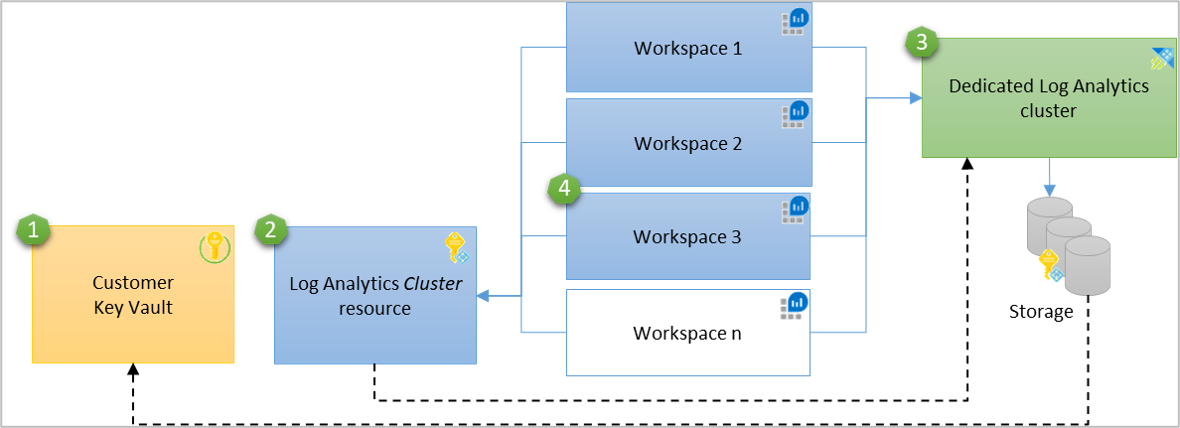
- Key Vault
- Log Analytics cluster resource that has a managed identity with permissions to Key Vault - the identity is propagated to the underlying dedicated cluster storage
- Dedicated cluster
- Workspaces linked to dedicated cluster
Encryption key types
Storage data encryption uses three types of keys:
- KEK - Key Encryption Key (your customer-managed key)
- AEK - Account Encryption Key
- DEK - Data Encryption Key
The following rules apply:
- The cluster storage has a unique encryption key for every Storage Account, which is known as the AEK.
- The AEK generates DEKs, which are the keys that encrypt each block of data written to disk.
- When you configure the customer-managed KEK in your cluster, the cluster storage sends
wrapandunwraprequests to your Key Vault for AEK encryption and decryption. - Your KEK never leaves your Key Vault. If you store your key in an Azure Key Vault Managed HSM, it never leaves that hardware either.
- Azure Storage uses the managed identity associated with the cluster for authentication. It accesses Azure Key Vault through Microsoft Entra ID.
Operational key protection
The encryption model used by Log Analytics dedicated clusters follows envelope encryption principles. Customer-managed keys stored in Azure Key Vault or Managed HSM protect the service-level encryption keys (AEK) used by the cluster. These service-level keys aren't persisted in storage on the cluster itself.
During normal operation, the dedicated cluster storage caches the AEK in service runtime memory for active cryptographic operations and periodically contacts Key Vault to unwrap the key. The following measures protect cached operational keys:
Managed identity authentication - The cluster's managed identity controls access to Key Vault, ensuring that only the authorized cluster can access the key.
Azure platform compute isolation - Dedicated clusters operate on Azure compute infrastructure that provides hypervisor-enforced tenant isolation, host-level memory protections, OS-level process isolation, and VM boundary enforcement. For more information about Azure platform isolation, see Isolation in the Azure Public Cloud.
Encrypted infrastructure storage - Double encryption using platform-managed keys at the infrastructure level protects data on the cluster.
Transient operational caching is an availability mechanism. It allows the cluster to continue ingestion and query operations during temporary Key Vault connectivity disruptions (such as transient network errors or DNS failures). Operational key caching doesn't replace or weaken the protection provided by the customer-managed key in Key Vault. Access to encrypted data, including the hot-cache, remains governed by CMK state. If you revoke access to the key, encrypted data becomes inaccessible to the service.
Required permissions
To perform the cluster-related actions necessary to provision and manage customer-managed keys for a dedicated cluster, you need these permissions:
| Action | Permissions or role needed |
|---|---|
| Create a dedicated cluster | Microsoft.Resources/deployments/* and Microsoft.OperationalInsights/clusters/write permissionsFor example, as provided by the Log Analytics Contributor built-in role |
| Change cluster properties | Microsoft.OperationalInsights/clusters/write permissions, as provided by the Log Analytics Contributor built-in role, for example |
| Link workspaces to a cluster | Microsoft.OperationalInsights/clusters/write, Microsoft.OperationalInsights/workspaces/write, and Microsoft.OperationalInsights/workspaces/linkedservices/write permissions, as provided by the Log Analytics Contributor built-in role, for example |
| Check workspace link status | Microsoft.OperationalInsights/workspaces/read permissions to the workspace, as provided by the Log Analytics Reader built-in role, for example |
| Get clusters or check a cluster's provisioning status | Microsoft.OperationalInsights/clusters/read permissions, as provided by the Log Analytics Reader built-in role, for example |
| Update commitment tier or billingType in a cluster | Microsoft.OperationalInsights/clusters/write permissions, as provided by the Log Analytics Contributor built-in role, for example |
| Grant the required permissions | Owner or Contributor role that has */write permissions, or the Log Analytics Contributor built-in role, which has Microsoft.OperationalInsights/* permissions |
| Unlink a workspace from cluster | Microsoft.OperationalInsights/workspaces/linkedServices/delete permissions, as provided by the Log Analytics Contributor built-in role, for example |
| Delete a dedicated cluster | Microsoft.OperationalInsights/clusters/delete permissions, as provided by the Log Analytics Contributor built-in role, for example |
Customer-managed key provisioning steps
Follow these steps to configure customer-managed keys on a dedicated cluster:
- Create or assign the Azure Key Vault KEK (storing key)
- Match managed identity types of dedicated cluster to Key Vault access
- Grant Key Vault permissions to the managed identity
- Update dedicated cluster with key identifier details
- Verify dedicated cluster provisioning
- Link workspaces to the dedicated cluster
Create or assign the Azure Key Vault KEK (storing key)
A portfolio of Azure Key Management products lists the vaults and managed HSMs that you can use.
Create or use an existing Azure Key Vault in the region where the dedicated cluster exists or where you plan for it to reside. Generate or import a key into your Azure Key Vault to use for logs encryption. You must configure the Azure Key Vault as recoverable to protect your key and the access to your data in Azure Monitor. You can verify this configuration under properties in your Key Vault. Enable both Soft delete and Purge protection.
Important
To effectively respond to Azure Key Vault events such as a key nearing expiry, set up notifications via Azure Event Grid. When the key expires, ingestion and queries aren't affected, but you can't update the key in the cluster. Follow these steps to resolve it:
- Identify the key used in cluster's overview page in Azure portal, under JSON View.
- Extend the key expiration date in Azure Key Vault.
- Update the cluster with the active key, preferably with version value
'', to always use the latest version automatically.
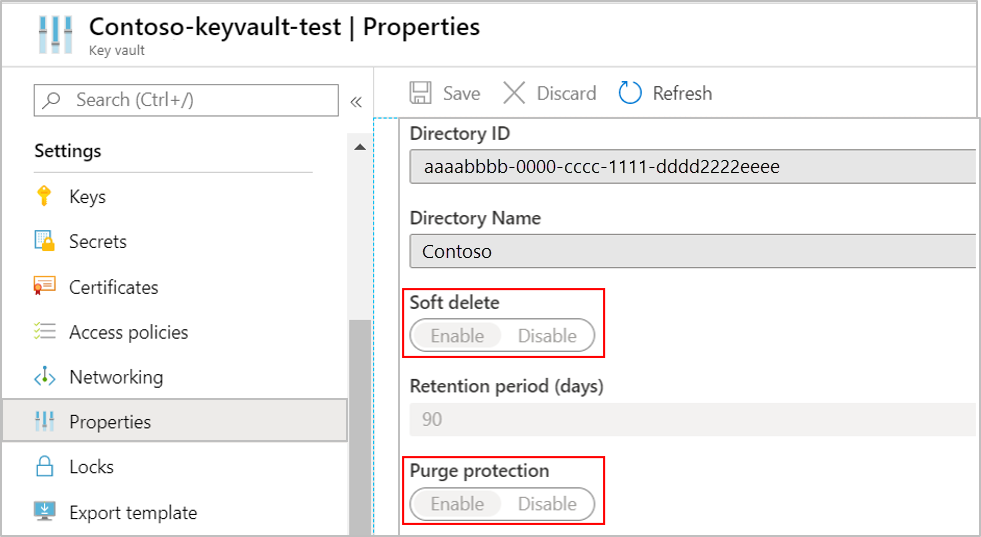
You can update these settings in Key Vault by using CLI and PowerShell:
- Soft Delete
- Purge protection protects against force deletion of the secret and the vault even after soft delete.
Match managed identity types of dedicated cluster to Key Vault access
Dedicated clusters use their managed identity to access your Key Vault KEK to encrypt data. The managed identity type of the dedicated cluster must match the Key Vault role assignment identity to allow data encryption and decryption operations.
Set the identity type property to SystemAssigned or UserAssigned when creating your cluster.
For example, add the following values in the request body for creating a cluster with a system-assigned managed identity:
{
  "identity": {
      "type": "SystemAssigned"
      }
}
Note
You can change the identity type after creating the cluster without interrupting ingestion or queries, with the following considerations:
- You can't update the identity and key simultaneously for a cluster. Update them in two consecutive operations.
- When updating
SystemAssignedtoUserAssigned, grantUserAssignedidentity in Key Vault, then updateidentityin the dedicated cluster. - When updating
UserAssignedtoSystemAssigned, grantSystemAssignedidentity in Key Vault, then updateidentityin the dedicated cluster.
For more information about creating a dedicated cluster, see Create and manage a dedicated cluster.
Grant Key Vault permissions to the managed identity
Key Vault has two permission models to grant access to your dedicated cluster and underlying storage: Azure role-based access control (Azure RBAC - recommended) and Vault access policies (legacy).
Assign Azure RBAC (recommended)
To add role assignments, you must have a role with
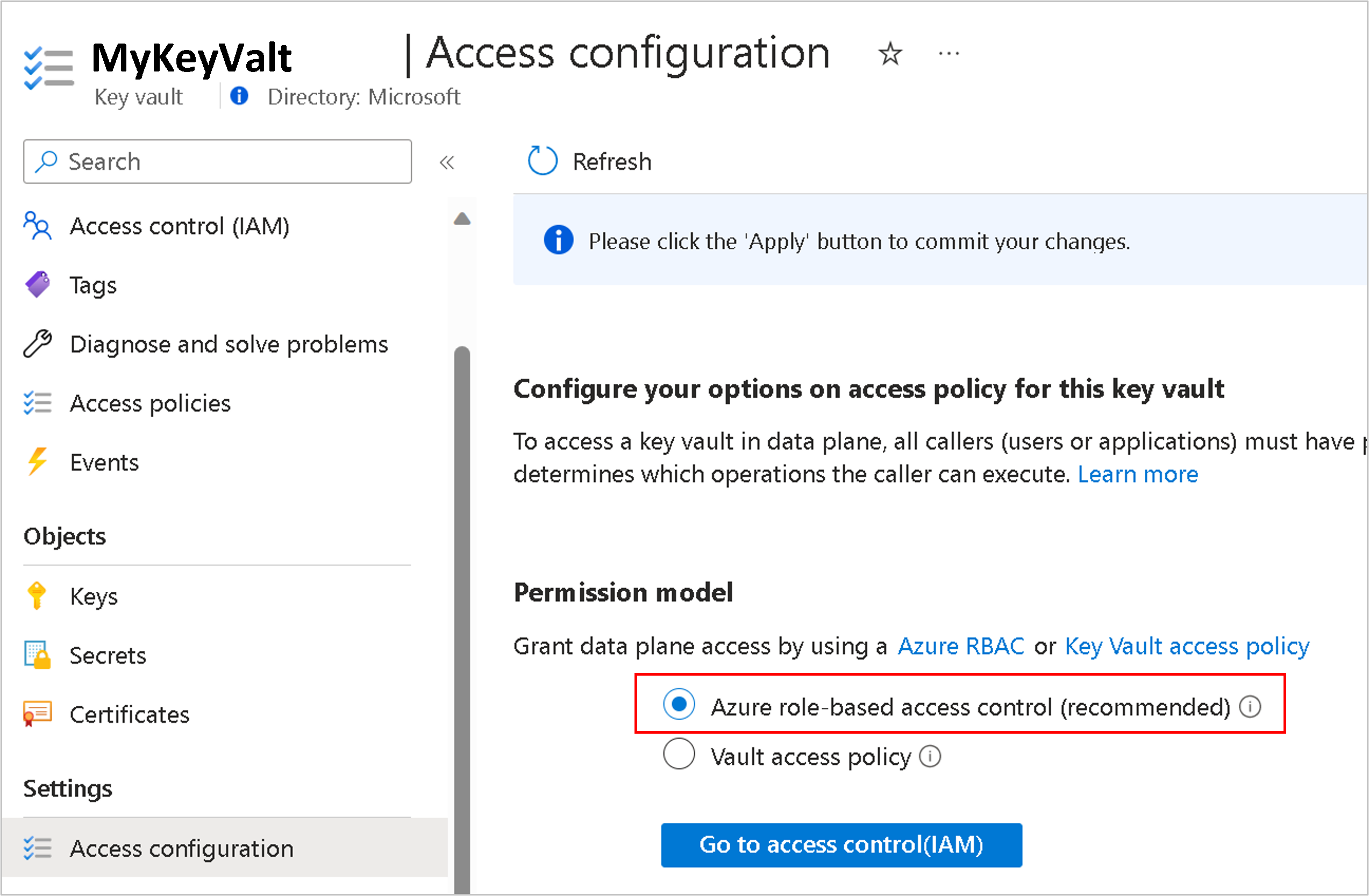
Microsoft.Authorization/roleAssignments/writeandMicrosoft.Authorization/roleAssignments/deletepermissions, such as User Access Administrator or Owner.- Open your Key Vault in the Azure portal and select Settings > Access configuration > Azure role-based access control and Apply.
- Select Go to access control (IAM) and add the Key Vault Crypto Service Encryption User role assignment.
- Select Managed identity in the Members tab and select the subscription for identity and the identity as member.
Assign vault access policy (legacy)
Open your Key Vault in the Azure portal and select Access Policies > Vault access policy > + Add Access Policy to create a policy with these settings:
Key permissions - Select Get > Wrap Key and Unwrap Key.
Select a principal depending on the identity type used in the cluster (system or user assigned managed identity)
- For system assigned managed identity, enter the cluster name or cluster principal ID.
- For user assigned managed identity, enter the identity name.
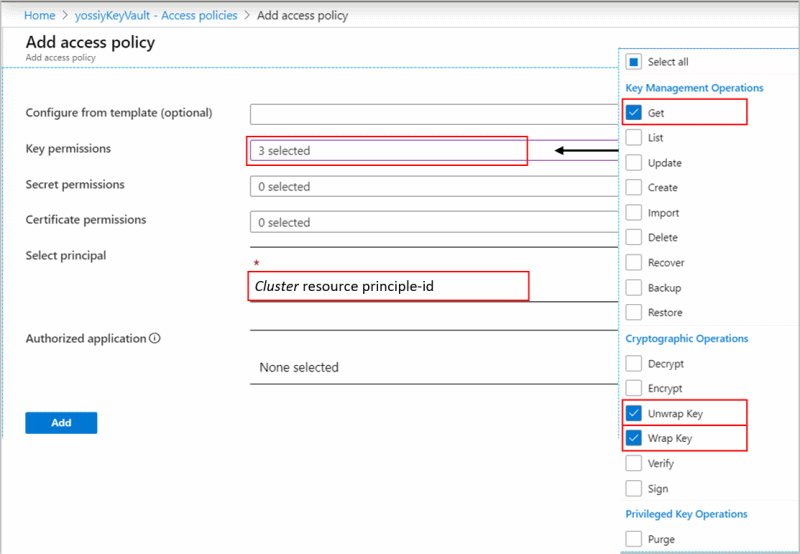
The Get permission is required to verify that your Key Vault is configured as recoverable to protect your key and the access to your Azure Monitor data.
Update dedicated cluster with key identifier details
All operations on the cluster require the Microsoft.OperationalInsights/clusters/write action permission. The Owner or Contributor roles, which include the */write action, can grant this permission. The Log Analytics Contributor role, which includes the Microsoft.OperationalInsights/* action, also grants this permission.
This step updates dedicated cluster storage with the key and version to use for AEK wrap and unwrap.
Important
- Key rotation can be automatic or per explicit key version. See Key rotation to determine a suitable approach before updating the key identifier details in dedicated cluster.
- Dedicated cluster updates must not include both identity and key identifier details in the same operation. If you need to update both, the update must be in two consecutive operations.
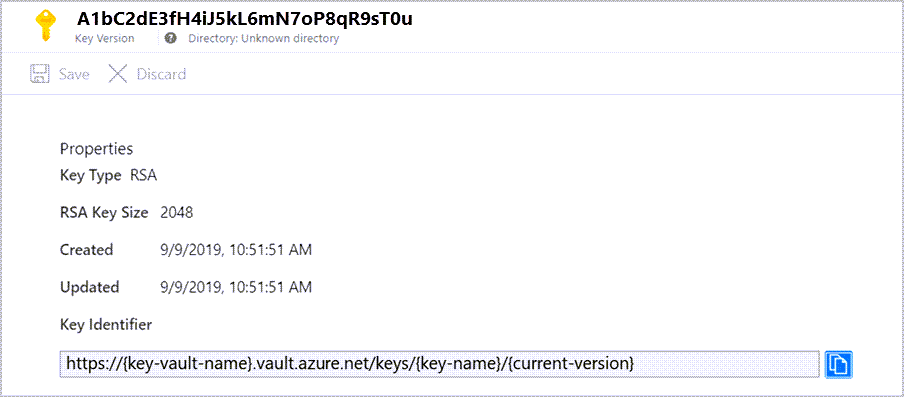
Update KeyVaultProperties in cluster with key identifier details.
The operation is asynchronous and can take a while to complete.
Tip
When you pass an empty string "" for --key-version, the cluster always uses the latest key version in Key Vault and there's no need to update the cluster after key rotation.
The following Azure CLI example uses the az monitor log-analytics cluster update command.
# Set variables
resourceGroupName="<ResourceGroupName>"
clusterName="<ClusterName>"
keyVaultName="<KeyVaultName>"
keyName="<KeyName>"

# Build the Key Vault URI
keyVaultUri="https://$keyVaultName.vault.azure.net"

# Update the cluster with a customer-managed key
az monitor log-analytics cluster update \
  --resource-group "$resourceGroupName" \
  --name "$clusterName" \
  --key-vault-uri "$keyVaultUri" \
  --key-name "$keyName" \
  --key-version ""
Note
Azure CLI commands use the Azure Resource Manager endpoint from the current CLI context, so management.azure.com doesn't need to be specified in the command syntax.
Verify dedicated cluster provisioning
Verify that the cluster provisioning state is Succeeded before linking workspaces to the cluster. If you link workspaces and ingest data before provisioning, the process drops the ingested data and you can't recover it.
Verify the provisioning state by using CLI, PowerShell, or REST API as detailed in the Update dedicated cluster with key identifier details section.
Link workspaces to the dedicated cluster
Important
Perform this step only after the cluster provisioning. If you link workspaces and ingest data before provisioning, the process drops the ingested data and you can't recover it.
To link a workspace, see Create and manage a dedicated cluster.
Manage operations related to customer-managed keys
- Key revocation
- Key rotation
- Customer-managed key for saved queries and log search alerts
- Customer-managed key for Workbooks
- Customer Lockbox
- Considerations and limits
- Troubleshooting
Key revocation
Important
- To revoke access to your data, disable your key or delete the Access Policy in your Key Vault.
- Setting the cluster's
identitytypetoNonealso revokes access to your data, but don't use this approach since you can't revert it without contacting support.
It's important to distinguish between intentional key revocation and a temporary Key Vault connectivity disruption:
Intentional key revocation - When you deliberately disable the key or delete the access policy, the cluster's storage becomes unavailable within an hour or sooner. New data ingested to linked workspaces is dropped and unrecoverable. The system deletes hot-cache (SSD) data and it becomes inaccessible. Queries fail on these workspaces. Previously ingested data remains as long as your cluster and your workspaces aren't deleted. The data-retention policy governs inaccessible data and purges it when the retention period is reached. The cluster storage attempts to reach Key Vault for
wrapandunwrapoperations periodically. Once you re-enable the key andunwrapsucceeds, the system reloads SSD data from dedicated cluster storage. Data ingestion and query functionality resume within 30 minutes.Temporary Key Vault outage - During transient connection errors (network timeouts, DNS failures), the cluster uses cached operational keys to maintain ingestion and query availability without interruption. The cluster periodically attempts to contact Key Vault, and normal operations resume when connectivity is restored. Transient operational caching doesn't bypass or weaken key revocation controls. There's no published specific duration for how long a cluster can operate without Key Vault access during a transient connectivity disruption.
Key rotation
Key rotation has two modes:
Autorotation - Update
"keyVaultProperties"in cluster and omit"keyVersion"property, or set it to''. Storage automatically uses the latest key version.Explicit key version update - Update
"keyVaultProperties"properties and update the key version in"keyVersion"property. Key rotation requires explicit update of"keyVersion"property in cluster. For more information, see Update cluster with Key identifier details. If you generate a new key version in Key Vault but don't update the key in the cluster, the cluster storage keeps using your previous key. If you disable or delete the old key before updating a new one in the cluster, you enter key revocation state.
All your data remains accessible during and after the key rotation operation. The cluster always encrypts data with the Account Encryption Key (AEK), which is encrypted with your new Key Encryption Key (KEK) version in Key Vault.
Customer-managed key for saved queries and log search alerts
The query language used in Log Analytics is expressive and can contain sensitive information in query syntax or comments. Organizations with strict regulatory and compliance requirements must keep such information encrypted by using a customer-managed key. When you link a Storage Account to your workspace, Azure Monitor enables you to store saved queries, functions, and log search alerts encrypted with your key.
Note
Queries remain encrypted with Microsoft key (MMK) in the following scenarios regardless of customer-managed key configuration: Azure dashboards, Azure Logic App, Azure Notebooks, and Automation Runbooks.
When you link your Storage Account for saved queries, the service stores saved queries and log search alert queries in your Storage Account. By having control on your Storage Account encryption-at-rest policy, you can protect saved queries and log search alerts by using a customer-managed key. You're responsible for the costs associated with that Storage Account.
Considerations before setting customer-managed key for saved queries
- You need write permissions on your workspace and Storage Account.
- The Storage Account must be StorageV2 and in the same region as your Log Analytics workspace.
- When linking a Storage Account for saved queries, the service removes existing saved queries and functions from your workspace for privacy. If you need these queries, copy existing saved queries and functions before the configuration. You can view saved queries by using PowerShell, or when you Export template under Automation in your workspace.
- Queries saved in a query pack aren't stored on a linked Storage Account and can't be encrypted by using a customer-managed key. It's recommended to Save as Legacy query to protect queries by using a customer-managed key.
- Saved queries and functions in the linked Storage Account are service artifacts and their format might change.
- Query history and pin to dashboard aren't supported when linking Storage Account for saved queries.
- You can link a single or separate Storage Account for saved queries and log search alert queries.
- To keep queries and functions encrypted with your key, configure the linked Storage Account by using a customer-managed key. Perform this operation when you create the Storage Account or later.
Configure linked Storage Account for saved queries
Link a Storage Account to keep saved queries and functions in your Storage Account.
Note
The operation removes saved queries and functions from your workspace to a table in your Storage Account. You can unlink the Storage Account for saved queries to move saved queries and functions back to your workspace. Refresh the browser if saved queries or functions don't show up in the Azure portal after the operation.
The following Azure CLI example uses the az monitor log-analytics workspace linked-storage create command.
# Set variables
resourceGroupName="<ResourceGroupName>"
workspaceName="<WorkspaceName>"
storageAccountName="<StorageAccountName>"

# Get the subscription ID from the current Azure CLI context
subscriptionId=$(az account show --query id --output tsv)

# Build the full resource ID for the storage account
storageAccountId="/subscriptions/$subscriptionId/resourceGroups/$resourceGroupName/providers/Microsoft.Storage/storageAccounts/$storageAccountName"

# Link the storage account to the workspace for custom log queries
az monitor log-analytics workspace linked-storage create \
  --resource-group "$resourceGroupName" \
  --workspace-name "$workspaceName" \
  --type Query \
  --storage-accounts "$storageAccountId"
Note
Azure CLI commands use the Azure Resource Manager endpoint from the current CLI context, so management.azure.com doesn't need to be specified in the command syntax.
Customer-managed key for Workbooks
Azure Monitor enables you to store Workbook queries encrypted with your key in your own Storage Account as well. Keep in mind the same consideration described in Customer-managed key for saved queries and log search alerts.
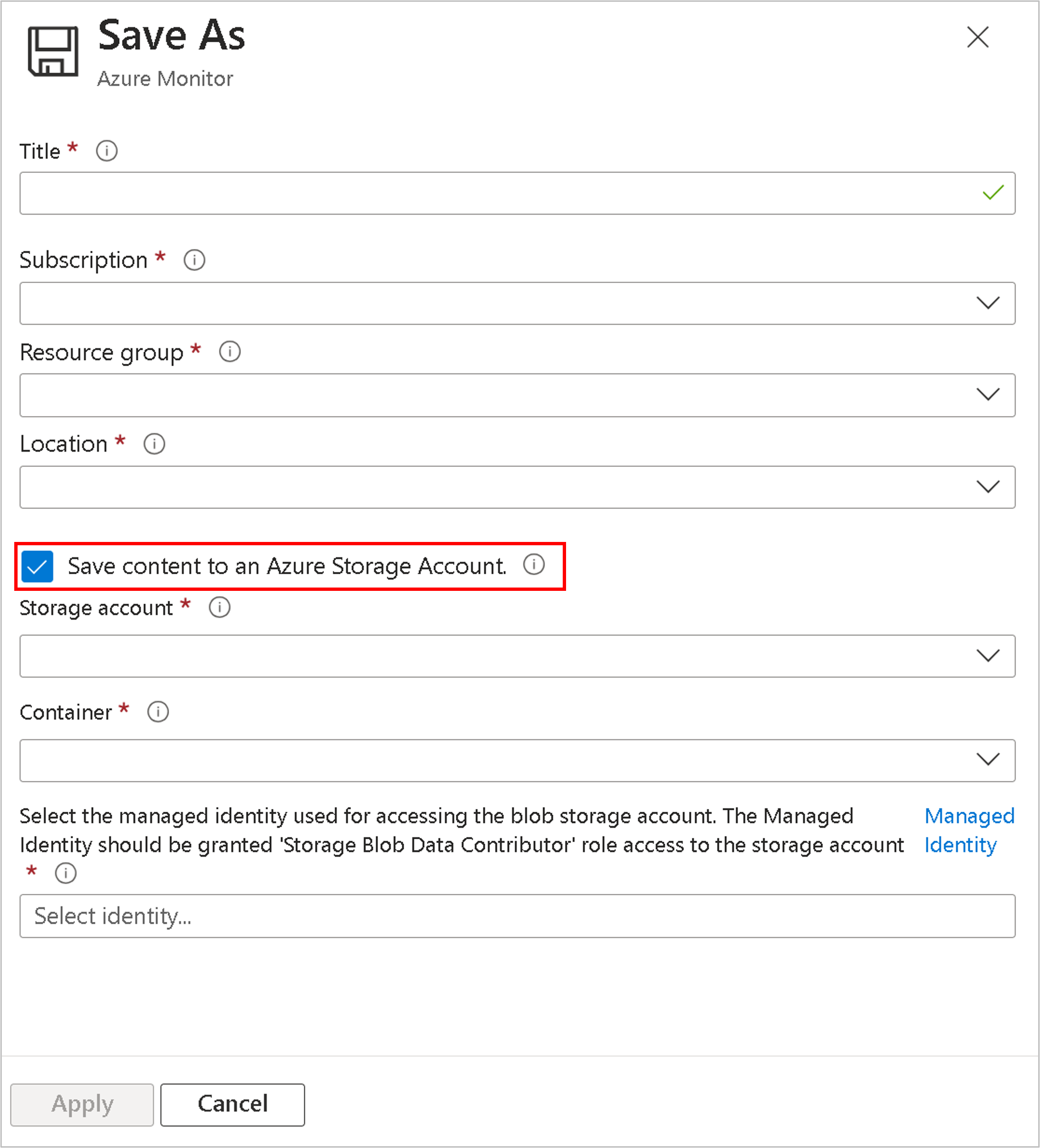
Select Save content to an Azure Storage Account in the Workbook Save operation.
Considerations before setting customer-managed key for saved log alert queries
- The cluster saves alert queries as blobs in the Storage Account.
- Triggered log search alerts don't contain search results or the alert query. Use alert dimensions to get context for the fired alerts.
- To keep queries and functions encrypted by using your key, configure the linked Storage Account with a customer-managed key. Perform this operation when you create the Storage Account or later.
Configure linked Storage Account for log search alert queries
Link a Storage Account for Alerts to keep log search alert queries in your Storage Account.
The following Azure CLI example uses the az monitor log-analytics workspace linked-storage create command.
# Set variables
resourceGroupName="<ResourceGroupName>"
workspaceName="<WorkspaceName>"
storageAccountName="<StorageAccountName>"

# Get the subscription ID from the current Azure CLI context
subscriptionId=$(az account show --query id --output tsv)

# Build the full resource ID for the storage account
storageAccountId="/subscriptions/$subscriptionId/resourceGroups/$resourceGroupName/providers/Microsoft.Storage/storageAccounts/$storageAccountName"

# Link the storage account to the workspace for alerts
az monitor log-analytics workspace linked-storage create \
  --resource-group "$resourceGroupName" \
  --workspace-name "$workspaceName" \
  --type Alerts \
  --storage-accounts "$storageAccountId"
Note
Azure CLI commands use the Azure Resource Manager endpoint from the current CLI context, so management.azure.com doesn't need to be specified in the command syntax.
Customer Lockbox
By using Lockbox, you can approve or reject Microsoft engineer requests to access your data during customer support engagements.
Log Analytics dedicated clusters support Lockbox, which grants permission to access data at the subscription level.
To learn more, see Customer Lockbox for Microsoft Azure.
Considerations and limits
- You can create up to five active clusters in each region and subscription.
- You can have up to seven reserved clusters (active or recently deleted) in each region and subscription.
- You can link up to 1,000 Log Analytics workspaces to a cluster.
- You can perform up to two workspace link operations on a particular workspace in a 30-day period.
- Moving a cluster to another resource group or subscription isn't currently supported.
- Cluster updates shouldn't include both identity and key identifier details in the same operation. To update both, use two consecutive operations.
- Lockbox isn't available in China currently.
- Lockbox doesn't apply to tables with the Auxiliary table plan.
- Double encryption is configured automatically for clusters created from October 2020 in supported regions. You can verify if your cluster is configured for double encryption by sending a
GETrequest on the cluster and observing that theisDoubleEncryptionEnabledvalue istruefor clusters with double encryption enabled. - If you create a cluster and get the error, "
region-namedoesn't support double encryption for clusters", you can still create the cluster without double encryption by adding"properties": {"isDoubleEncryptionEnabled": false}in the REST request body. - You can't change double encryption settings after the cluster is created.
- The recover operation is allowed for a deleted workspace that was still linked to the cluster. It's only possible during the soft-delete period. The recovery returns the workspace to its previous state and remains linked to the cluster.
- Customer-managed key encryption applies to newly ingested data after the configuration time. Data that was ingested before the configuration remains encrypted with Microsoft keys. You can query data ingested before and after the customer-managed key configuration seamlessly.
- You must configure the Azure Key Vault as recoverable. These properties aren't enabled by default and you should configure them by using CLI or PowerShell:
- Soft Delete.
- Purge protection should be turned on to guard against force deletion of the secret and the vault even after soft delete.
- Your Azure Key Vault, cluster, and workspaces must be in the same region and in the same Microsoft Entra tenant, but they can be in different subscriptions.
- Setting the cluster's
identitytypetoNonealso revokes access to your data, but this approach isn't recommended since you can't revert it without contacting support. The recommended way to revoke access to your data is key revocation. - You can't use a customer-managed key with user-assigned managed identity if your Key Vault is in a Private-Link (virtual network). Use a system-assigned managed identity in this scenario.
Troubleshooting
Behavior per Key Vault availability - For details on how the cluster handles temporary Key Vault outages compared to intentional key revocation, see Key revocation. The cluster caches the AEK for short periods and contacts Key Vault to
unwrapperiodically at a rate of 6 to 60 seconds.If you update your cluster while it's in the provisioning state or updating state, the update fails.
If you get a conflict error when creating a cluster, you might have deleted a cluster with the same name in the last 14 days and reserved its name. Deleted cluster names become available 14 days after deletion.
Linking a workspace to a cluster fails if the workspace is linked to another cluster.
If you create a cluster and specify the
KeyVaultPropertiesimmediately, the operation might fail until an identity is assigned to the cluster and granted to Key Vault.If you update an existing cluster with
KeyVaultPropertiesandGetkey Access Policy is missing in Key Vault, the operation fails.If you fail to deploy your cluster, verify that your Azure Key Vault, cluster, and linked workspaces are in the same region. They can be in different subscriptions.
If you rotate your key in Key Vault and don't update the new key identifier details in the cluster, the cluster keeps using the previous key and your data becomes inaccessible. Update new key identifier details in the cluster to resume data ingestion and query functionality. Update the key version by using
''notation to ensure the dedicated cluster storage always uses the latest key version automatically.Some operations are long running and can take a while to complete, including cluster create, cluster key update, and cluster delete. You can check the operation status by sending a
GETrequest to cluster or workspace and observe the response. For example, an unlinked workspace doesn't have theclusterResourceIdunderfeatures.Error messages
Cluster Update
- 400 - Cluster is in deleting state. Async operation is in progress. Cluster must complete its operation before any update operation is performed.
- 400 - KeyVaultProperties isn't empty but has a bad format. See key identifier update.
- 400 - Failed to validate key in Key Vault. Could be due to lack of permissions or when key doesn't exist. Verify that you set key and Access Policy in Key Vault.
- 400 - Key isn't recoverable. Key Vault must be set to soft-delete and purge-protection. See Key Vault documentation.
- 400 - Operation can't be executed now. Wait for the async operation to complete and try again.
- 400 - Cluster is in deleting state. Wait for the async operation to complete and try again.
Cluster Get
- 404 - Cluster not found. The cluster might have been deleted. If you try to create a cluster with that name and get a conflict, the cluster is in the deletion process.